
Dynamic Price Isn't Showing
Step-by-step troubleshooting checklist for when a dynamic repair price isn't appearing on your RepairPlugin website.
What can you do with this?
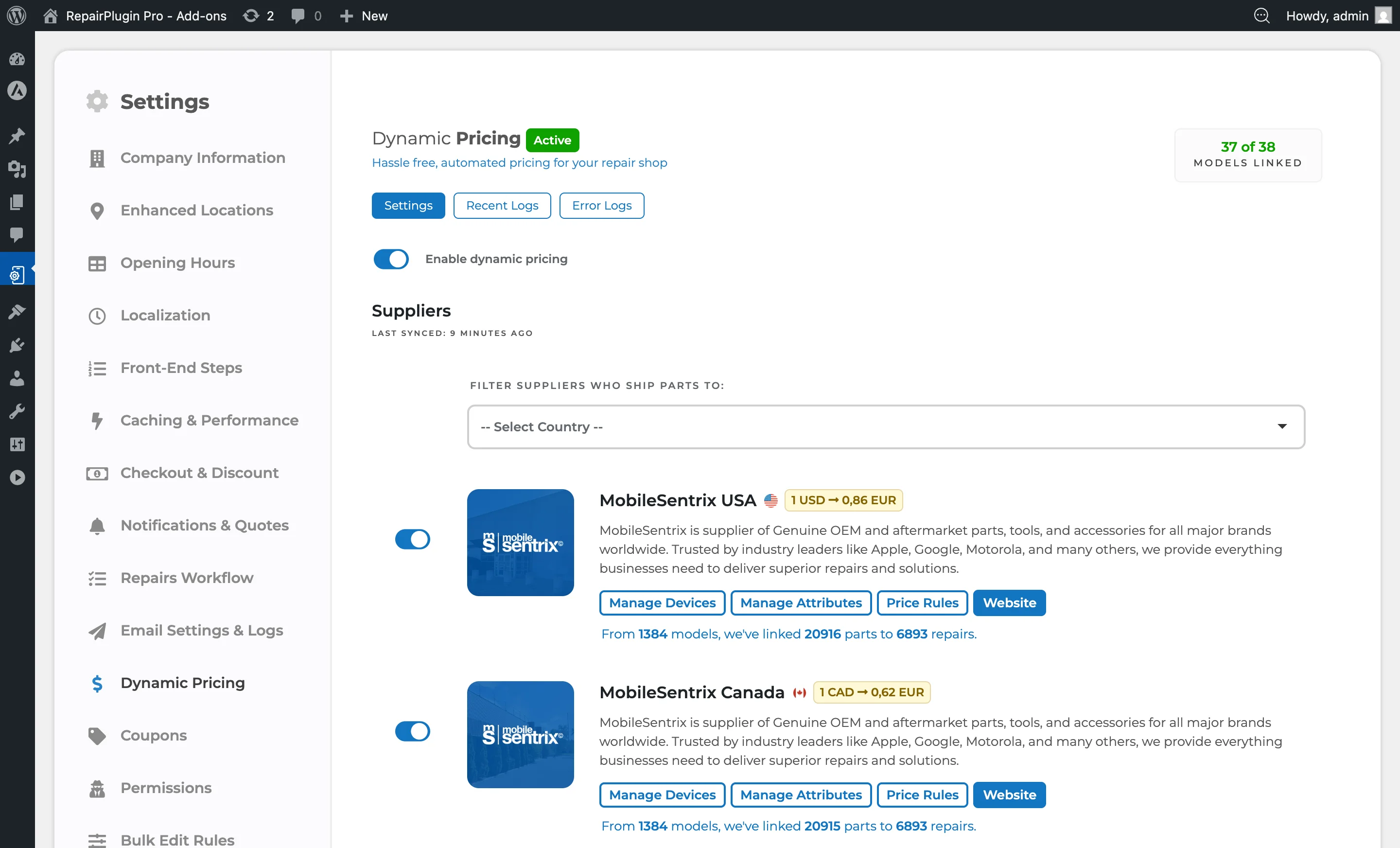
- Diagnose missing prices in minutes -- a fixed order of checks, from quickest to deepest, so you don't waste time on the wrong thing.
- Understand which repairs can and can't be linked -- learn why custom repairs you create yourself never receive supplier prices.
- Verify attribute mapping -- the most common cause of "one quality level isn't showing up."
- Confirm whether the issue is RepairPlugin or the supplier -- a simple supplier-website check tells you who to talk to.
For a general overview of how Dynamic Pricing works, see Dynamic Pricing. For frequently asked questions and sync-related issues, see Dynamic Pricing FAQ.
Where to find it
Most of the checks below happen in two areas:
RepairPlugin > Settings > Dynamic Pricing-- global settings, supplier list, and logs.RepairPlugin > Default RepairsandRepairPlugin > Models & Repairs-- where margins are set and where you check whether a repair is downloadable or custom.
You'll also do one quick check directly on your live website (the booking flow).
How to fix it
Work through the checks in order. Stop as soon as you find the cause.
Just activated Dynamic Pricing and every repair shows "Price on Request"? Jump to Step 5 and Step 8 first. The most common cause is that the quality attributes (Official, Compatible, etc.) are switched off on the repairs, combined with repairs that are disconnected from Default Repairs. Fixing those two things resolves most cases instantly.
Step 1 — Is it actually a downloaded repair? (the most fundamental check)
This is the single most common reason dynamic pricing "doesn't work" for some repairs. Many shops, when first setting up RepairPlugin, create their own repairs by hand because they aren't using Dynamic Pricing yet. Later, when they activate Dynamic Pricing, those self-created repairs cannot be linked to supplier data -- there's no underlying ID to match against.
How to check:
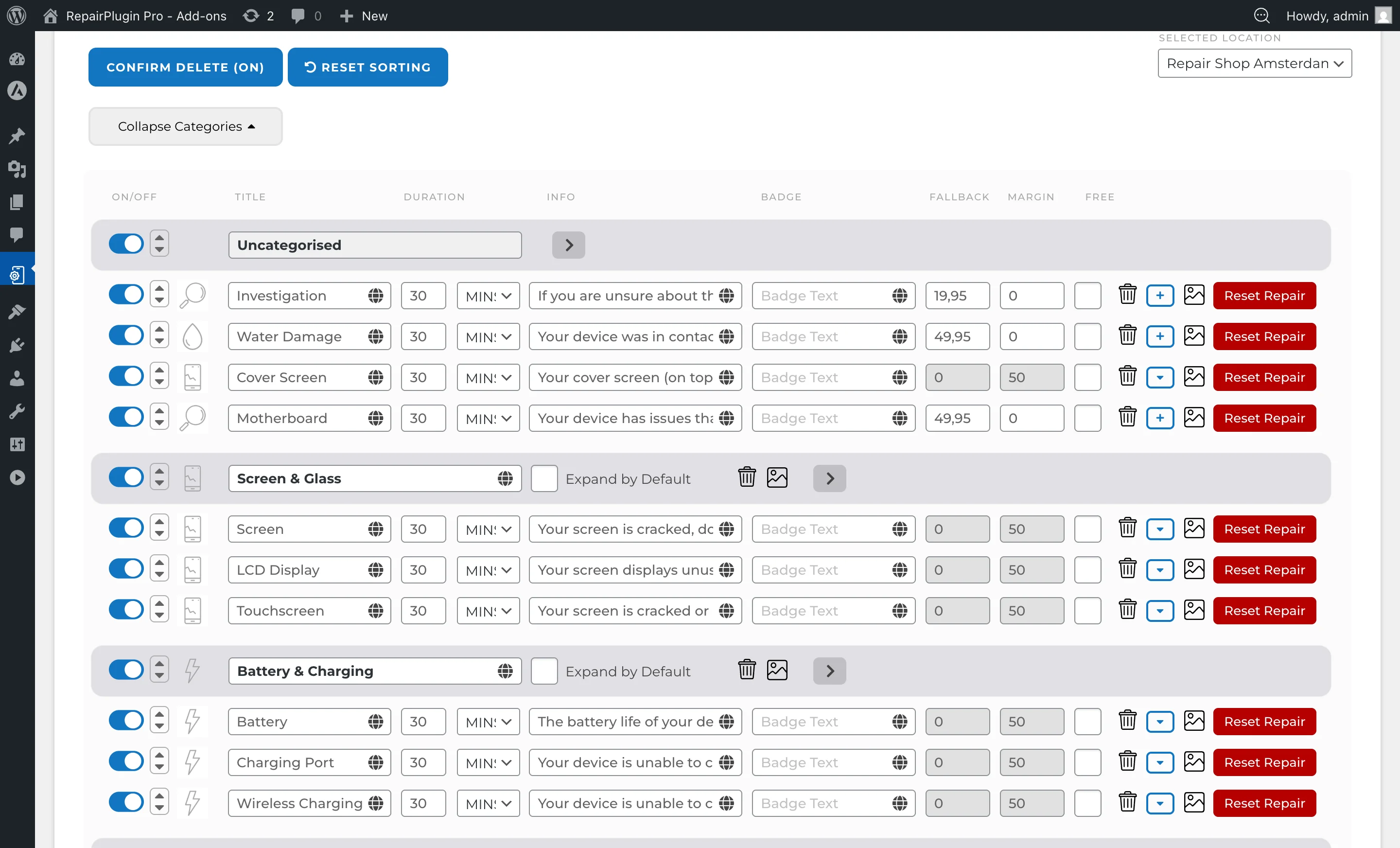
- Go to
RepairPlugin > Default Repairs(orModels & Repairs). - Look for a small person icon next to the repair name.
- Person icon visible = standard RepairPlugin repair downloaded from the catalog. Dynamic Pricing can link to it.
- No person icon = a custom repair you (or a previous admin) created manually. Dynamic Pricing cannot link to it, regardless of how you configure margins or attributes.
The fix: delete the custom repair and download the standard equivalent from the Download Page. See Downloading Models for how to download repairs.
Step 2 — Quick frontend check
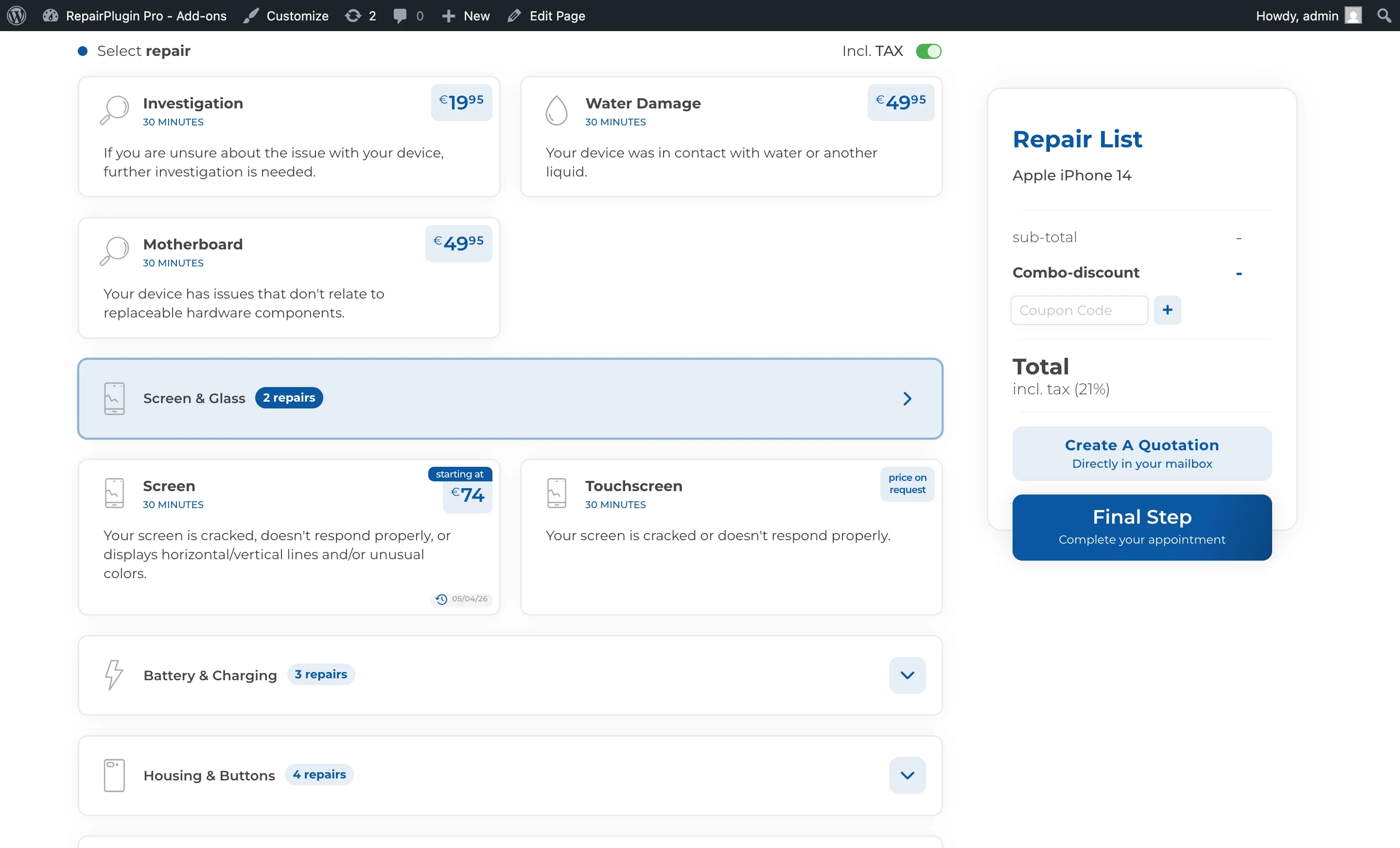
Before diving into the backend, check the booking flow on your live website.
- Open the booking flow as a customer would.
- Navigate to the affected repair.
- Look for a small "last updated" date next to the price (the format is set via
Settings > Dynamic Pricing-> "Format for Last Price Updated Date on Frontend").
Result:
- You see the date -- Dynamic Pricing is reaching the repair. The issue is something else (e.g., a different quality level, a different model, or the price isn't what you expected).
- You don't see the date -- Dynamic Pricing isn't reaching the repair. Continue with the checks below.
Step 3 — Basic settings
Three quick switches that rule out the obvious:
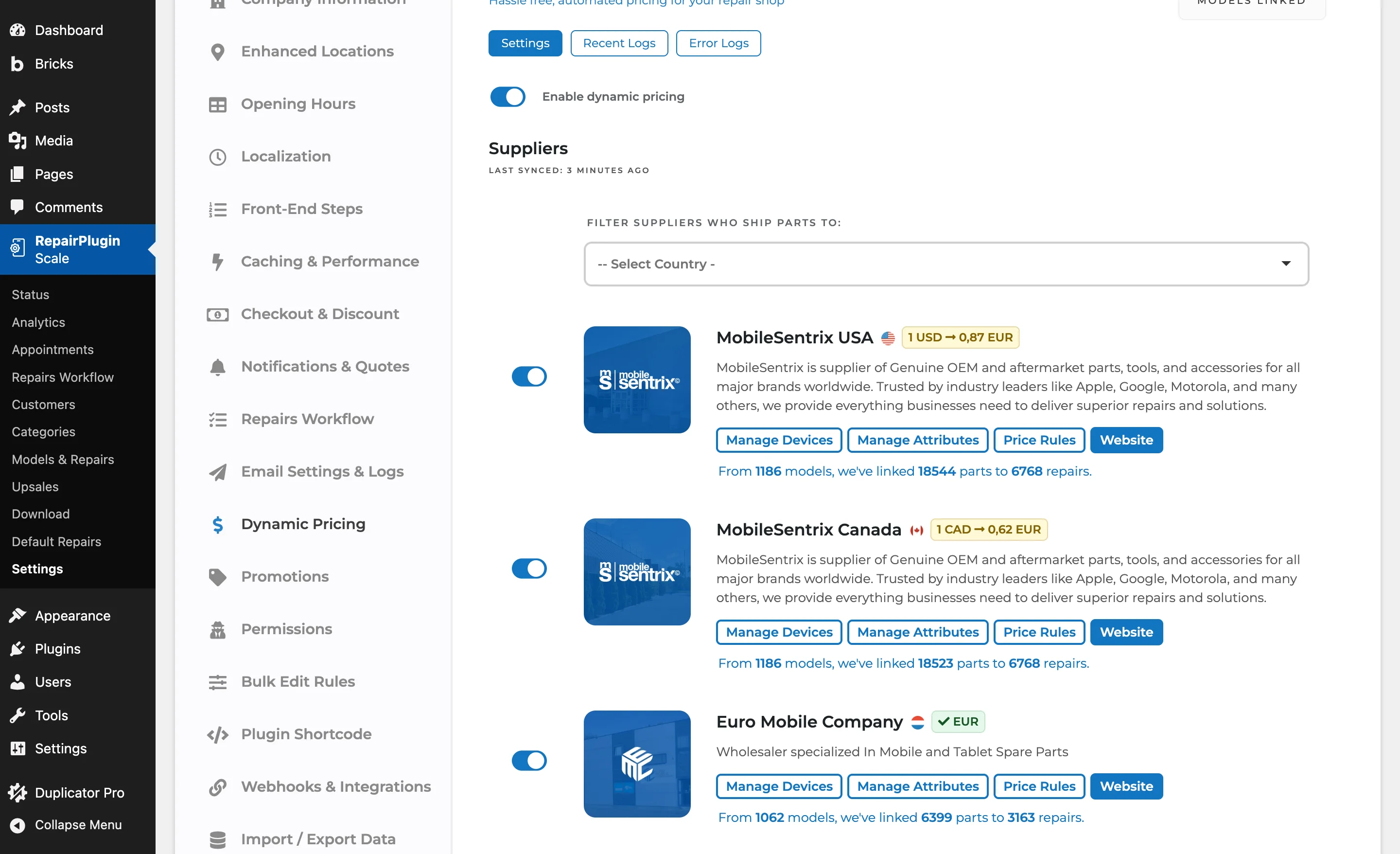
- Is Enable Dynamic Pricing switched ON? (
Settings > Dynamic Pricing > Settings) - Has a sync run recently? Check the Recent Logs tab for a green, recent timestamp.
- Is the supplier you expect enabled on its supplier card?
If a sync hasn't run in over an hour, see Setting Up Cronjobs -- WordPress sync mode depends on visitor traffic and may stall during quiet periods.
Step 4 — Quality attribute mapping
This is the most common cause when one specific quality level (e.g., the battery's "Premium" quality) isn't showing up while others are.
- Go to
Settings > Dynamic Pricing > Linking Profiles > [Supplier] > [Linking profile] > **Manage Attributes**. - Look at the relevant attribute group: Screen, Battery, or Other.
- For each of your repair attributes, verify that all the supplier's quality variants are mapped under "Your Linking".
- Unmapped supplier attributes are flagged with an alert indicator -- don't miss them.
- Compare against "Our Suggestion" and accept the mappings that match your branding.
- Click Update.
For more detail on attribute mapping and the suggestion system, see Suppliers & Linking and the attribute mapping section of Dynamic Pricing FAQ.
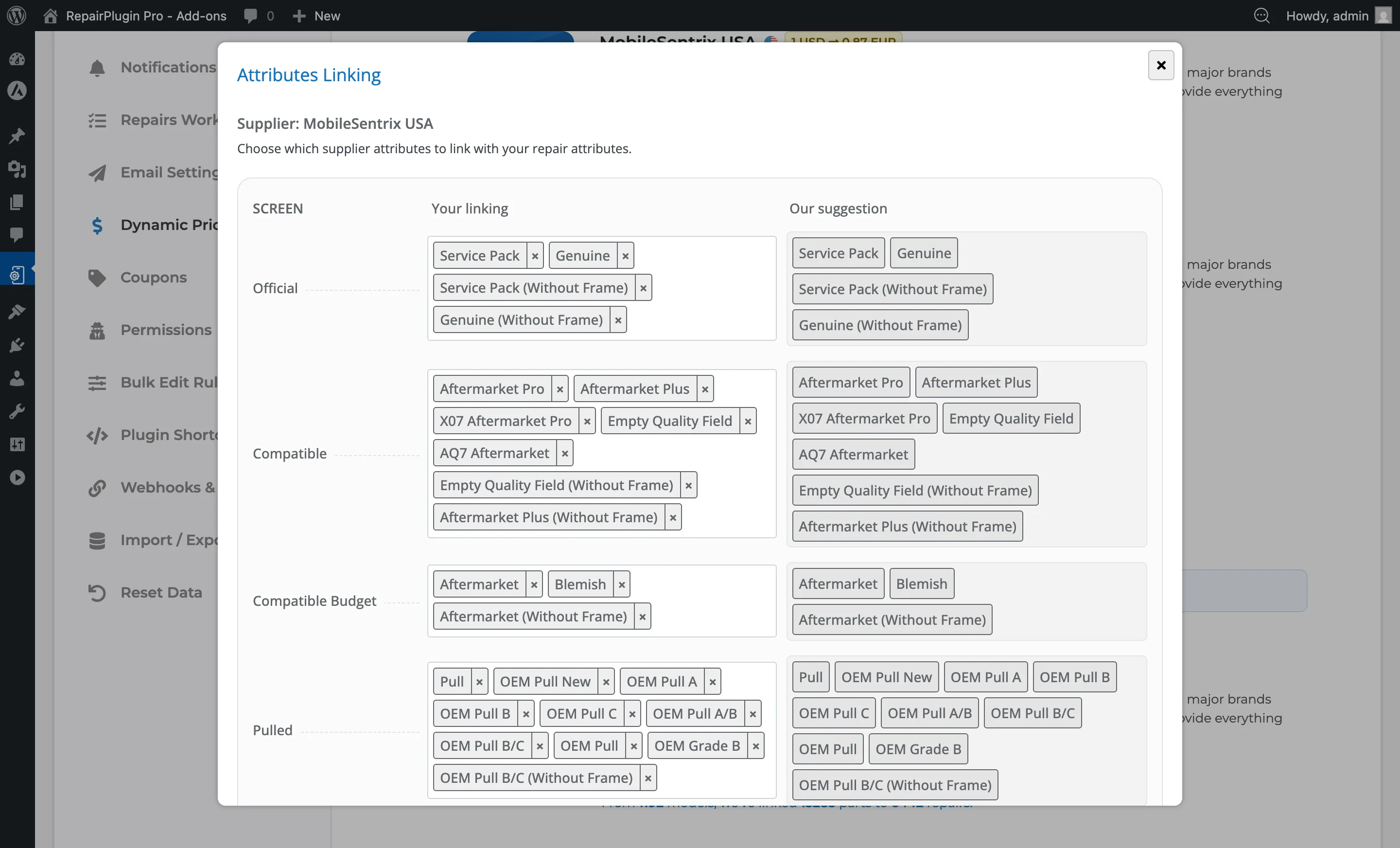
Step 5 — Are the quality attributes switched on?
This is separate from attribute mapping (Step 4). Even if the supplier's attributes are mapped correctly, each quality level (Official, Compatible, Pulled, etc.) must also be toggled on at the repair level. If the toggles are off, Dynamic Pricing has nowhere to place the calculated price and the repair shows "Price on Request."
How to check:
- Go to
RepairPlugin > Default Repairs(orModels & Repairs). - Open the repair that isn't showing a price (e.g., Screen).
- Look at the quality rows underneath. Each row has a toggle switch on the left.
- If the toggles are off (gray), the quality level is inactive -- Dynamic Pricing skips it entirely.
The fix: switch on the quality levels you want to offer. If you want this to apply to all models at once, do it in Default Repairs and make sure the models are still linked (see Step 8).
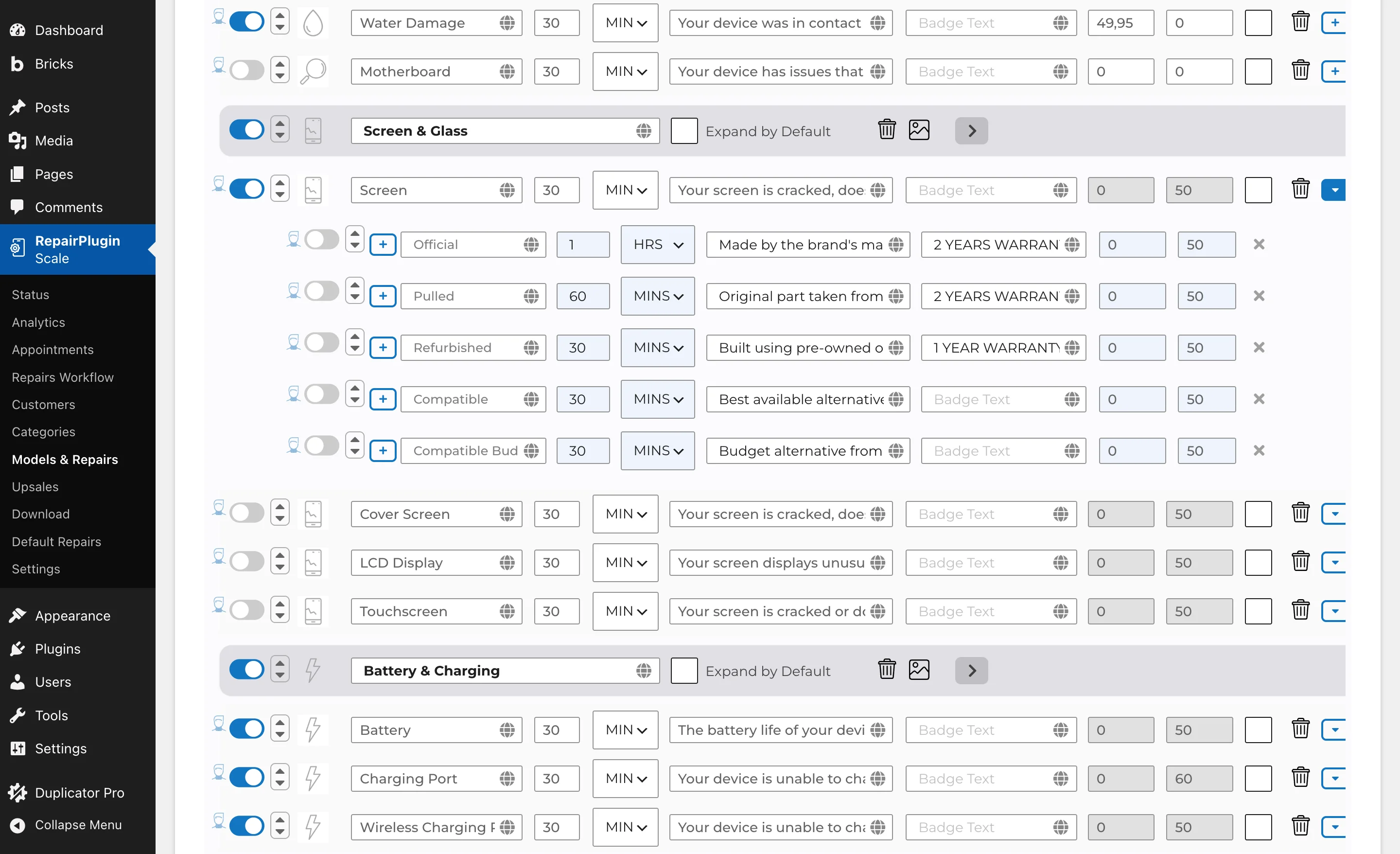
Common pattern: shops that set up repairs before activating Dynamic Pricing often have all quality attributes switched off because they weren't needed yet. After enabling Dynamic Pricing, the attributes still need to be activated manually.
Step 6 — Brand and model coverage
A supplier may be enabled but limited to certain brands or categories.
- Click Manage Linking on the supplier card. RepairPlugin opens the Linking Profiles tab for that supplier.
- Check the brands shown on each linking profile. Click Edit to see the full list.
- If the brand isn't in any linking profile, that supplier won't deliver prices for those devices -- add the brand to a profile or rely on another supplier.
Step 7 — Did you fill the right column?
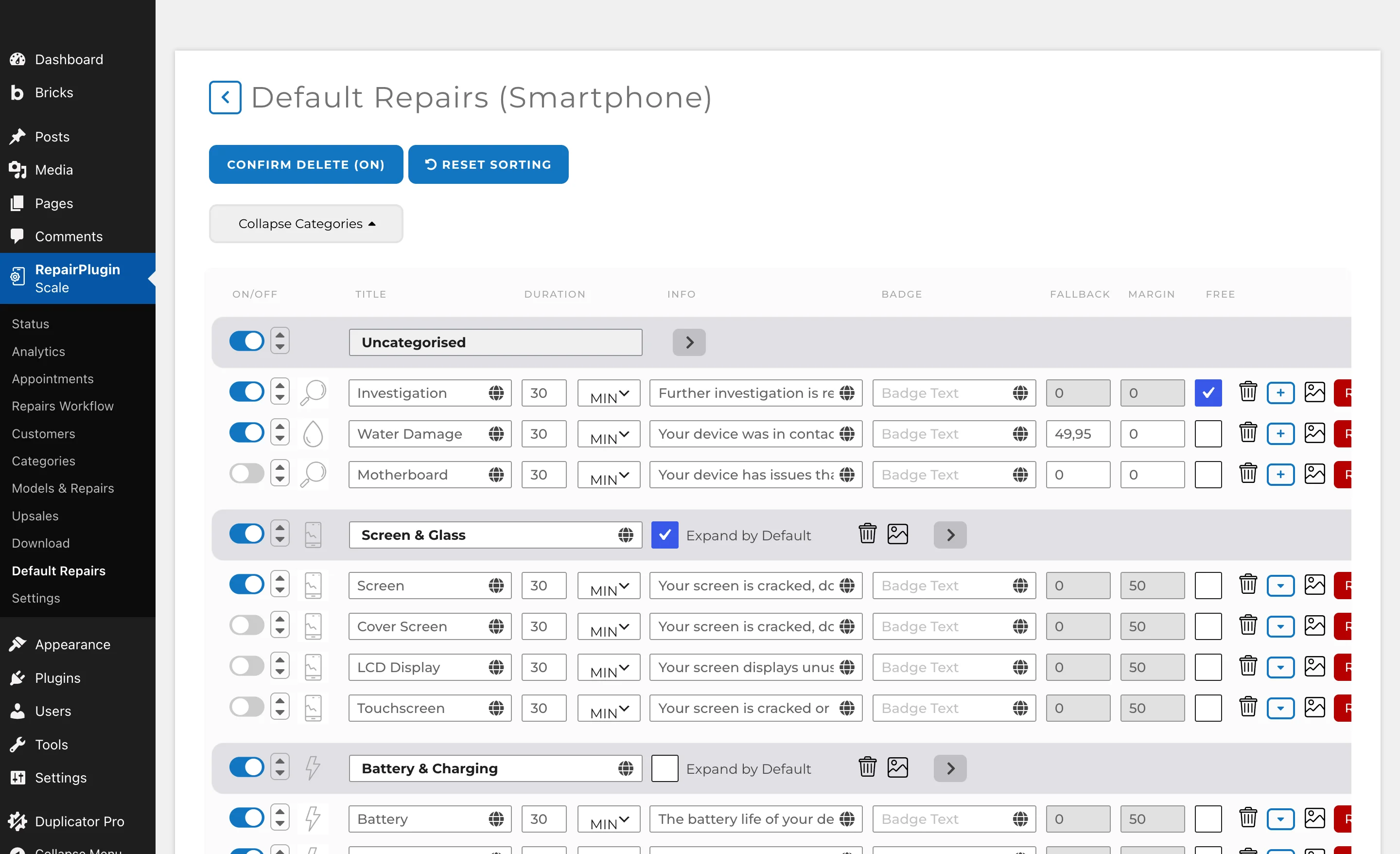
In Default Repairs and Models & Repairs there's a margin column as well as fallback price fields. Make sure your value is in the margin column -- not in a fallback or "Price on Request" field by accident. A repair with no margin set falls back to the manual price or shows "Price on Request," depending on your global fallback setting.
See Default Repairs and Models & Repairs for the editor layout.
Step 8 — Are you working at the right level?
This catches the situation many shops run into: "I changed the margin in Default Repairs, but I don't see it on this specific model."
- Recommended: set margins in Default Repairs. The margin then applies to every model in that category and updates automatically on every sync.
- Watch out for model-level edits. The moment anyone enters a margin (or any other change) for a specific model in
Models & Repairs, that model disconnects from Default Repairs for that repair type -- forever. Future Default Repairs changes no longer apply to it.
How to spot disconnected repairs:
- Go to
RepairPlugin > Models & Repairsand open a model. - Look for a red indicator button on the repair row. Red means the repair is disconnected from Default Repairs.
- Changes you make in Default Repairs (including activating quality attributes) won't reach these repairs.
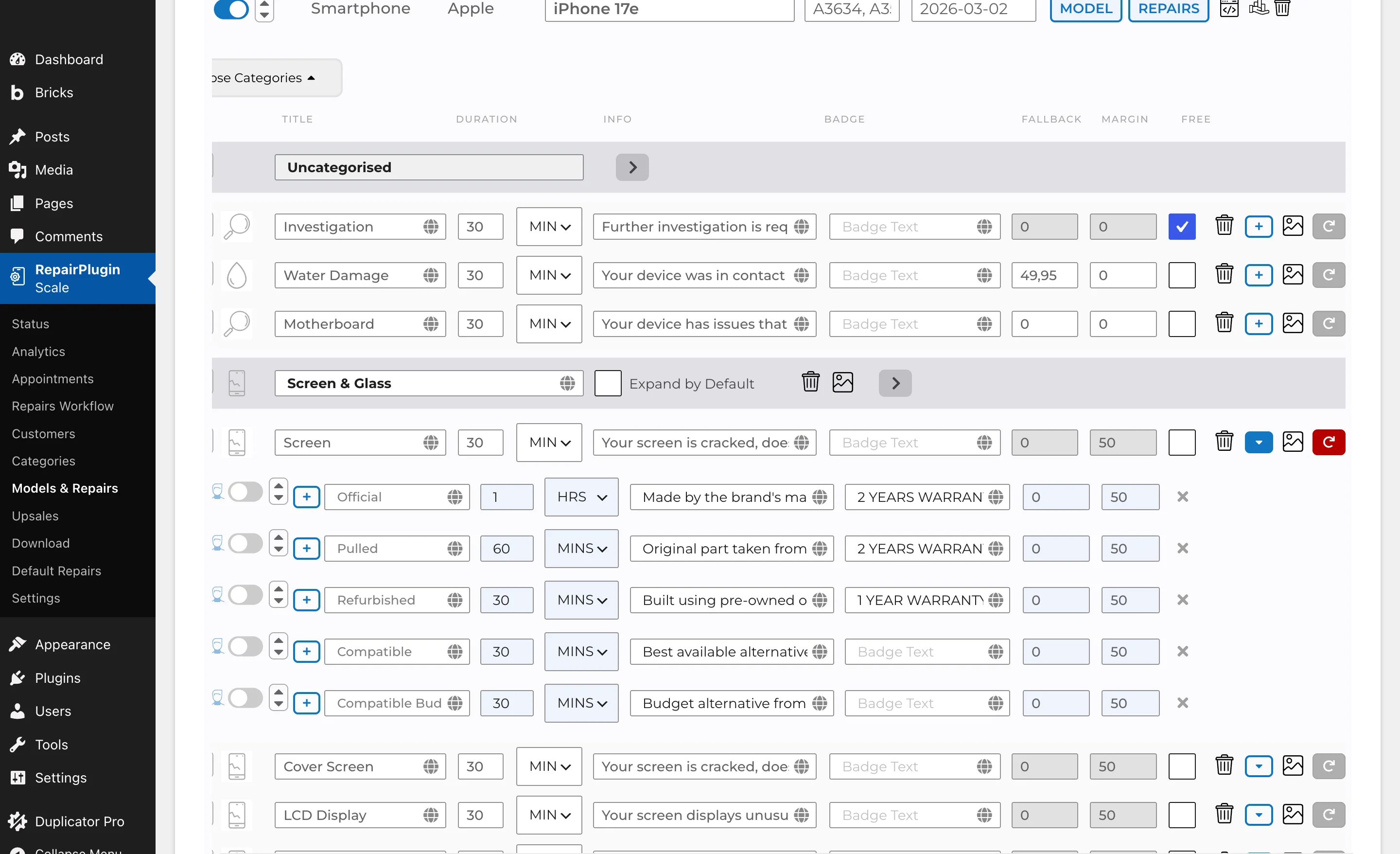
The fix: go to RepairPlugin > Default Repairs, select the correct category, and click the Reset Repair button on each affected repair. This reconnects all models to the default settings. After resetting, any changes you make in Default Repairs (margins, active attributes, etc.) apply to all models again.
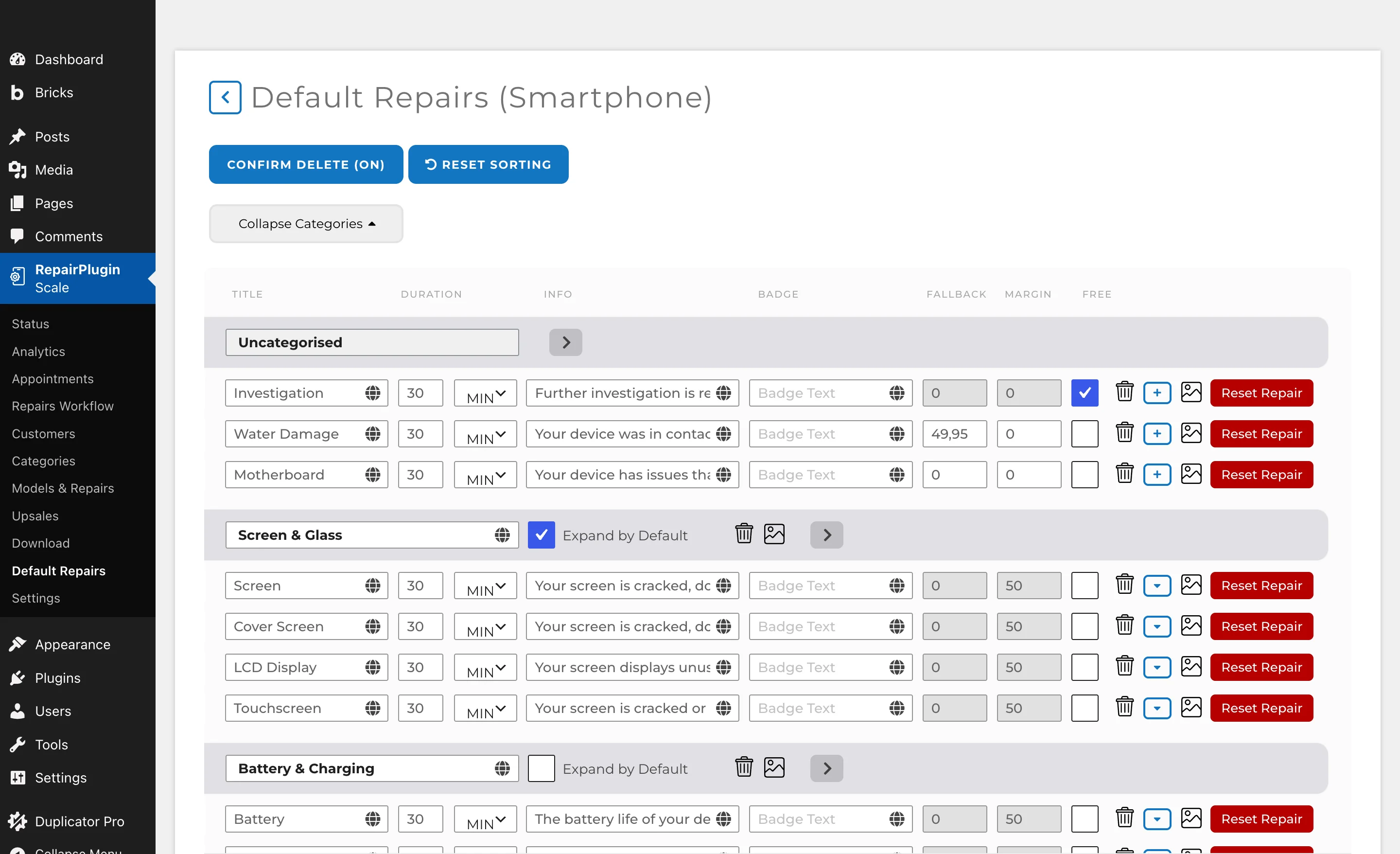
- Warning: Reset Repair overwrites all manual changes you've made at model level for that repair type. If specific models need custom values, re-enter those after resetting.
- For groups of models that need different margins, use Bulk Edit with presets -- not individual model overrides. See Bulk Editing and Margins & Price Strategy for details.
Step 9 — Global fallback and hide settings
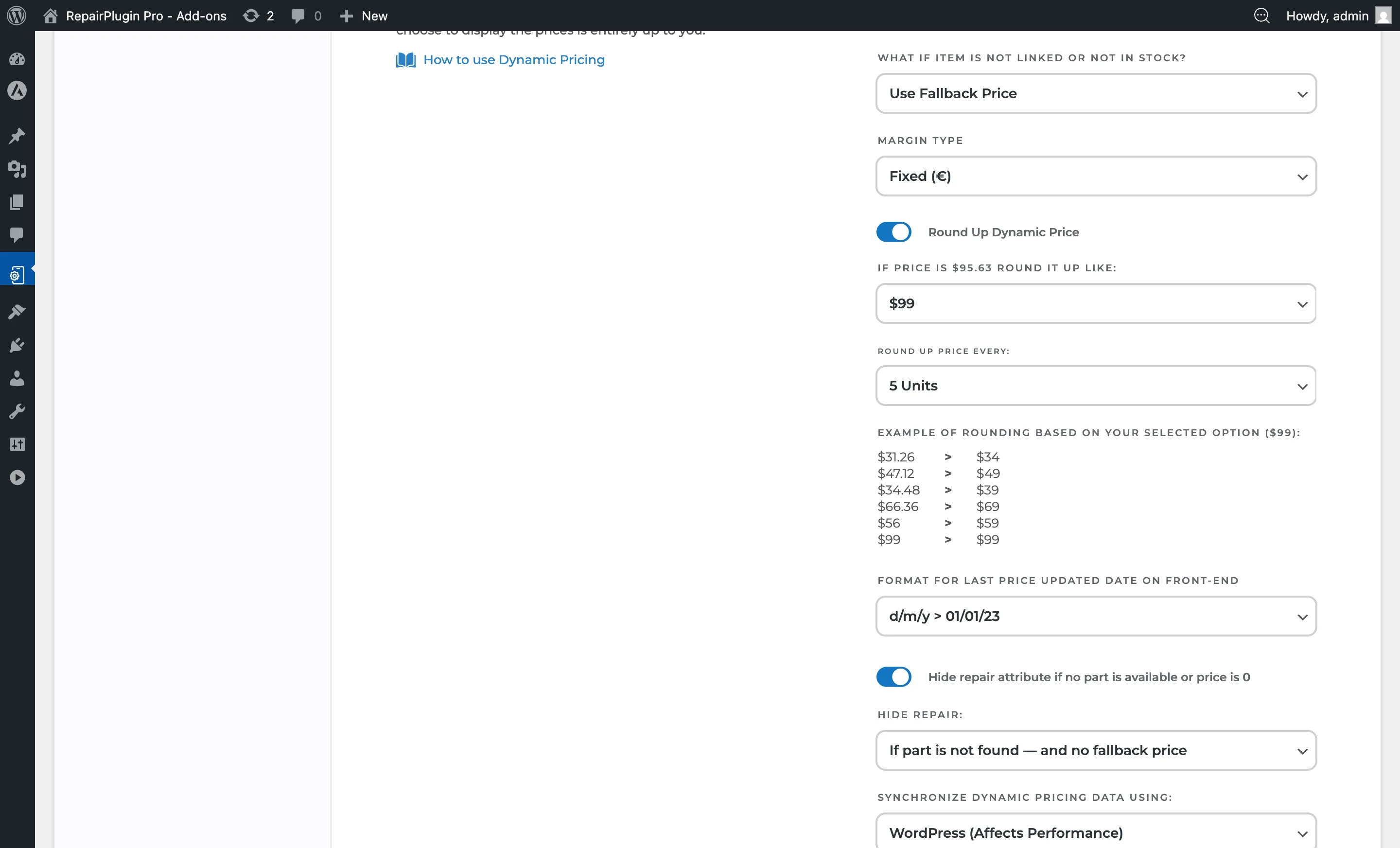
Three settings can make prices disappear even when everything else is correct. All are at Settings > Dynamic Pricing > Settings:
- "What If Item Is Not Linked or Not in Stock" -- if set to Price on Request, every repair that can't be priced via supplier data hides its price and shows a "Price on Request" label instead of falling back to your manual price. See Price on Request.
- "Hide Repair Attribute If No Part Is Available or Price Is 0" -- when ON, quality levels with no linked part or a zero margin are hidden completely instead of showing "Price on Request." This is the most common reason a quality level "disappears" entirely.
- "Hide Repair If..." -- hides entire repairs based on supplier inventory status. If set to "Not found" or "Not found or not in stock," repairs without supplier links won't appear in the booking flow at all.
Step 10 — Stock and supplier feed
Only in-stock parts count. Out-of-stock parts are skipped during sync.
Quick test 1 -- enable more suppliers: in Settings > Dynamic Pricing > Settings, temporarily switch on additional suppliers. If the price appears once another supplier is enabled, the original supplier simply didn't have the part in stock.
Quick test 2 -- check the supplier's own website: go to the supplier's website directly and look up the part. If it's listed as out of stock there, that confirms it's not a RepairPlugin issue -- you're waiting on the supplier to restock.
Other things to check:
- For multi-quality repairs, at least one quality must remain active for sync to work.
- Check the Error Logs tab for SKU mismatches, parsing errors, or feed timeouts.
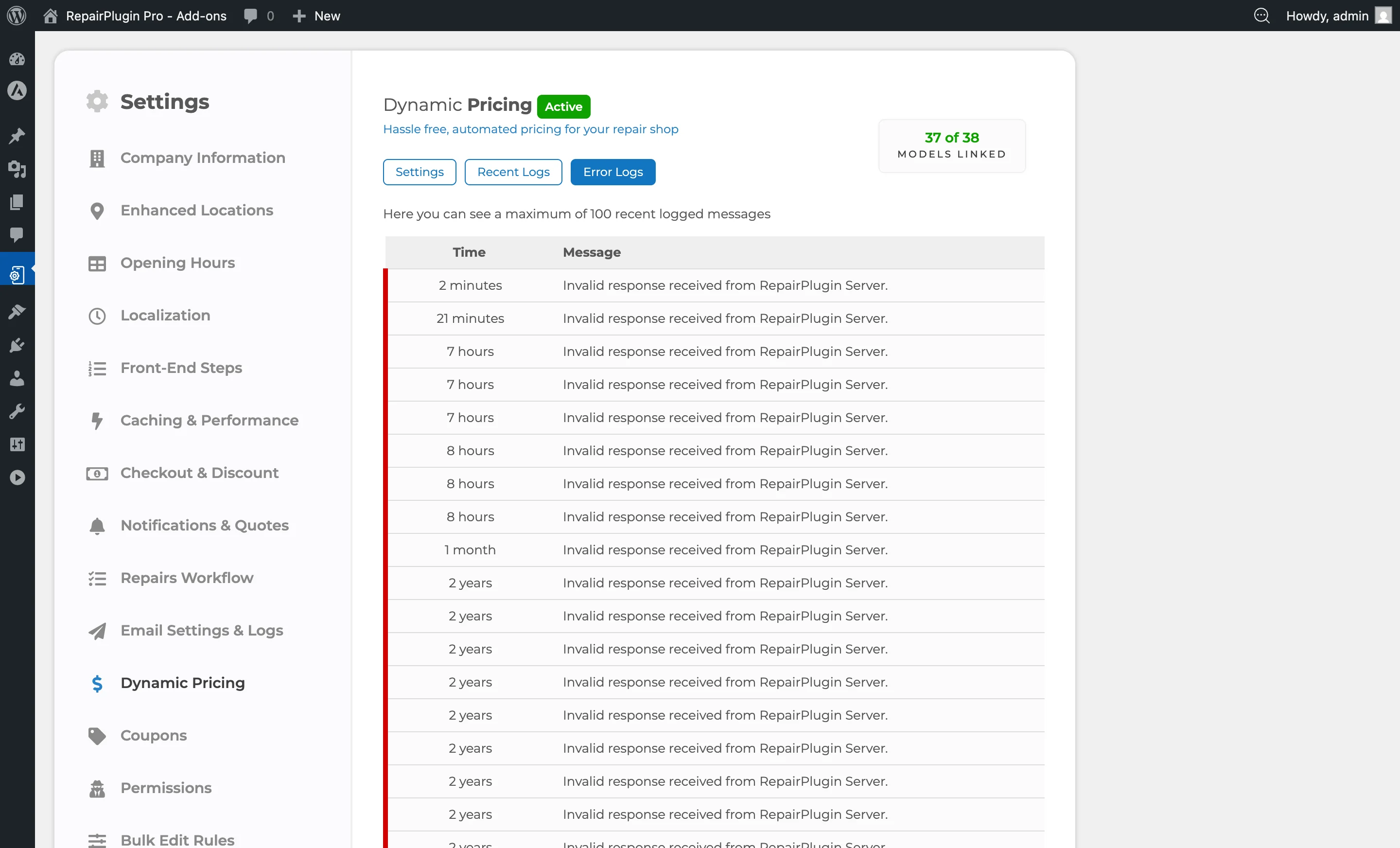
Rule of thumb: if the part is in stock on the supplier's website and the correct quality is mapped under Manage Attributes, then dynamic pricing must work. If it still doesn't, the issue is back in step 1 (custom repair), step 5 (attributes switched off), step 7 (wrong column), or step 8 (model-level disconnect).
Step 11 — Verify with a test appointment
If everything above checks out and you still don't understand what's happening, make a test appointment with the affected repair.
- Book the repair through the frontend.
- Open the booking on the Appointments page.
- Click the info icon next to the repair name. A tooltip opens with the full pricing breakdown for that line: purchase price, currency conversion, custom price rules, margin, tax, rounding, and final price.
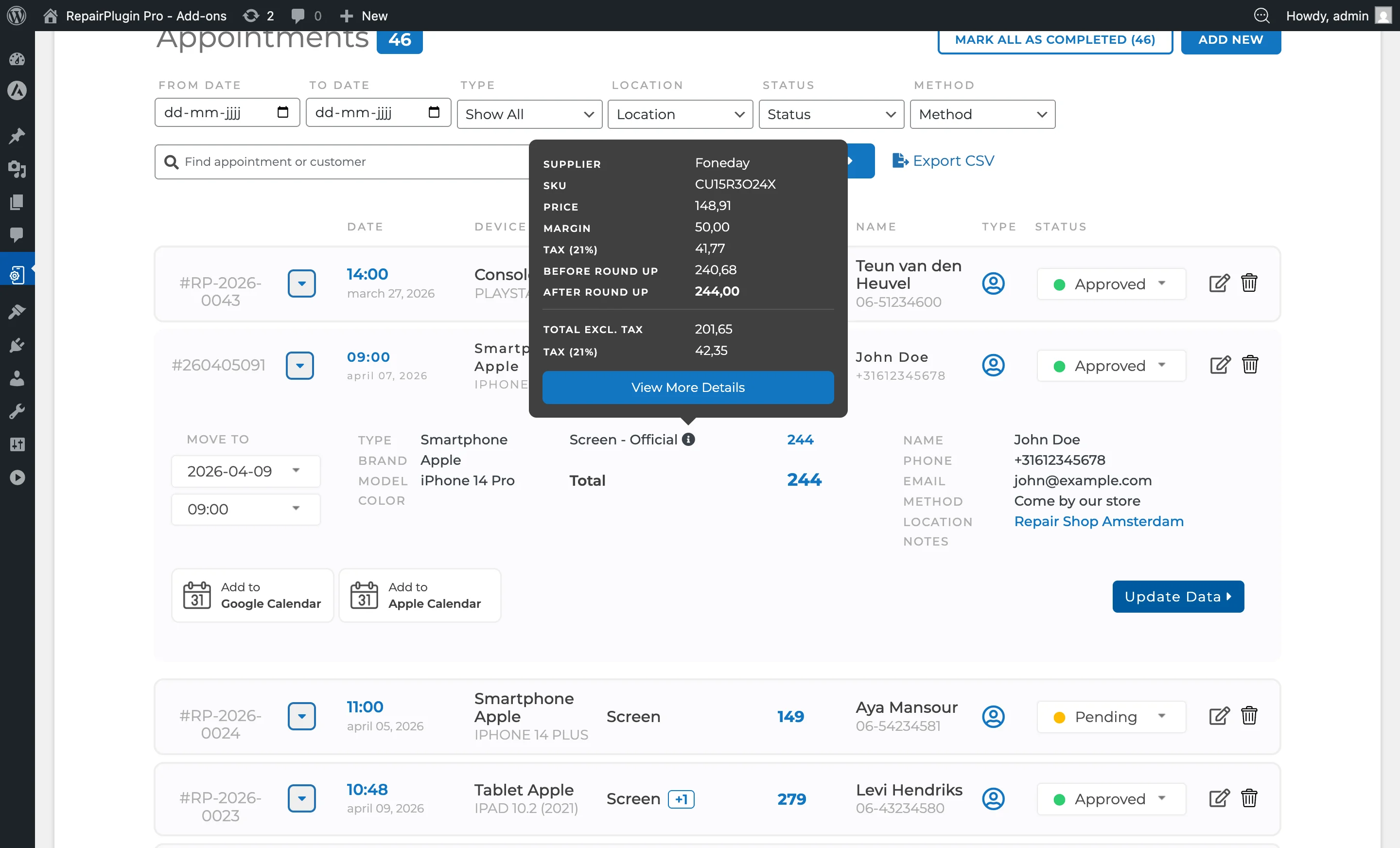
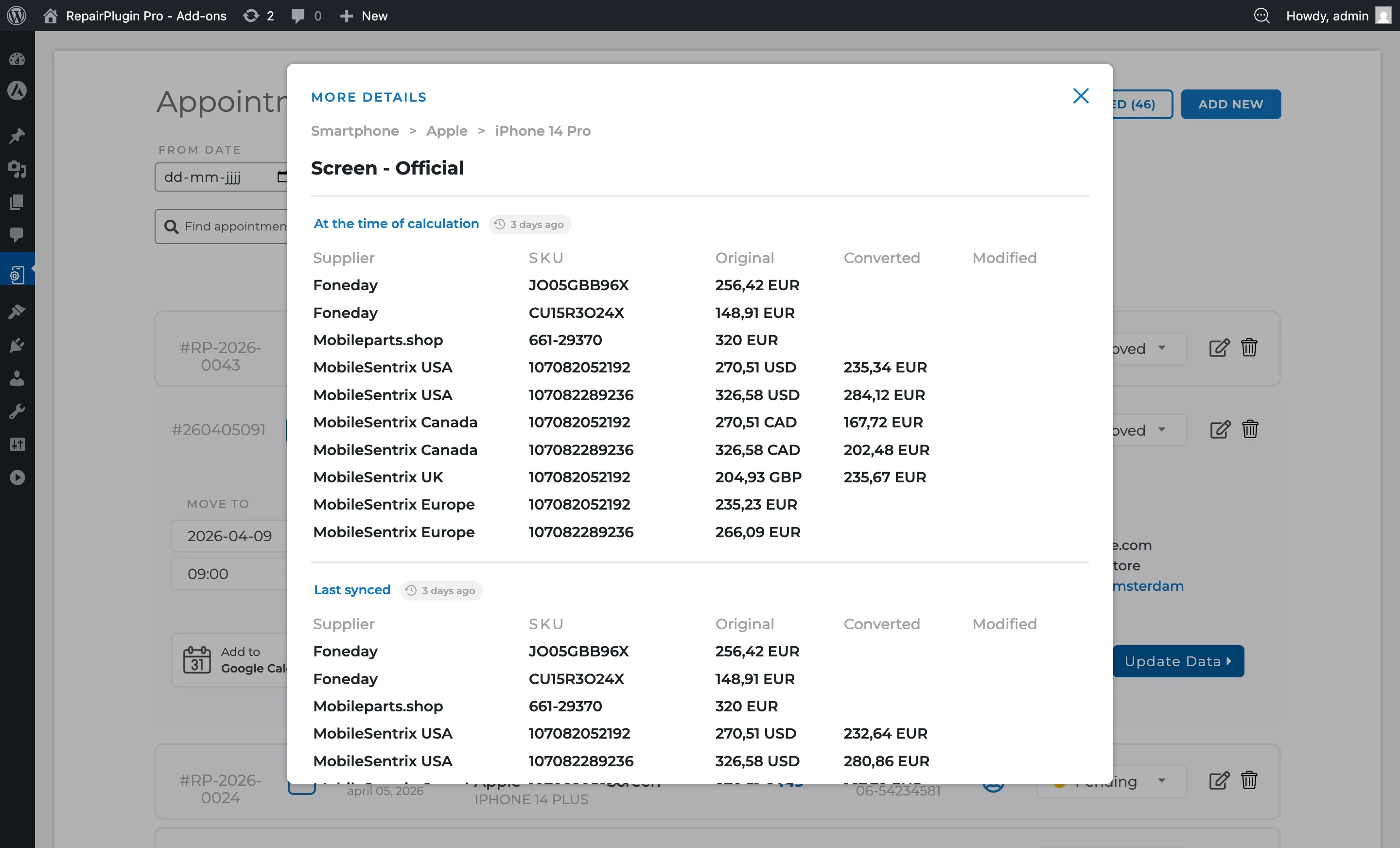
- At the bottom of the tooltip, click the "View More Details" button. A modal opens titled "More details" with two tables.
Why this matters when you have multiple suppliers enabled:
Many shops enable several suppliers at once, which makes it impossible to tell from the frontend which supplier actually delivered the winning price. The "More details" modal solves that -- it shows you every supplier that had the part in stock at sync time and was therefore considered in the calculation.
What you'll see in the modal:
- Top table -- the SKUs that were matched against your repair, per quality level, with their purchase prices.
- Bottom table ("Last synced ...") -- the live list of suppliers, SKUs, and prices that were actually fed into the "cheapest / most expensive / average" calculation you configured in Dynamic Pricing. Suppliers that were out of stock at sync time don't appear here.
This tells you three things at once: whether Dynamic Pricing is reaching the repair at all, which supplier produced the frontend price, and in which step of the pipeline the number came from. See Managing Appointments for details.
Step 12 — Force a re-sync and wait
If you've fixed something during the steps above, the change won't be visible until the next sync.
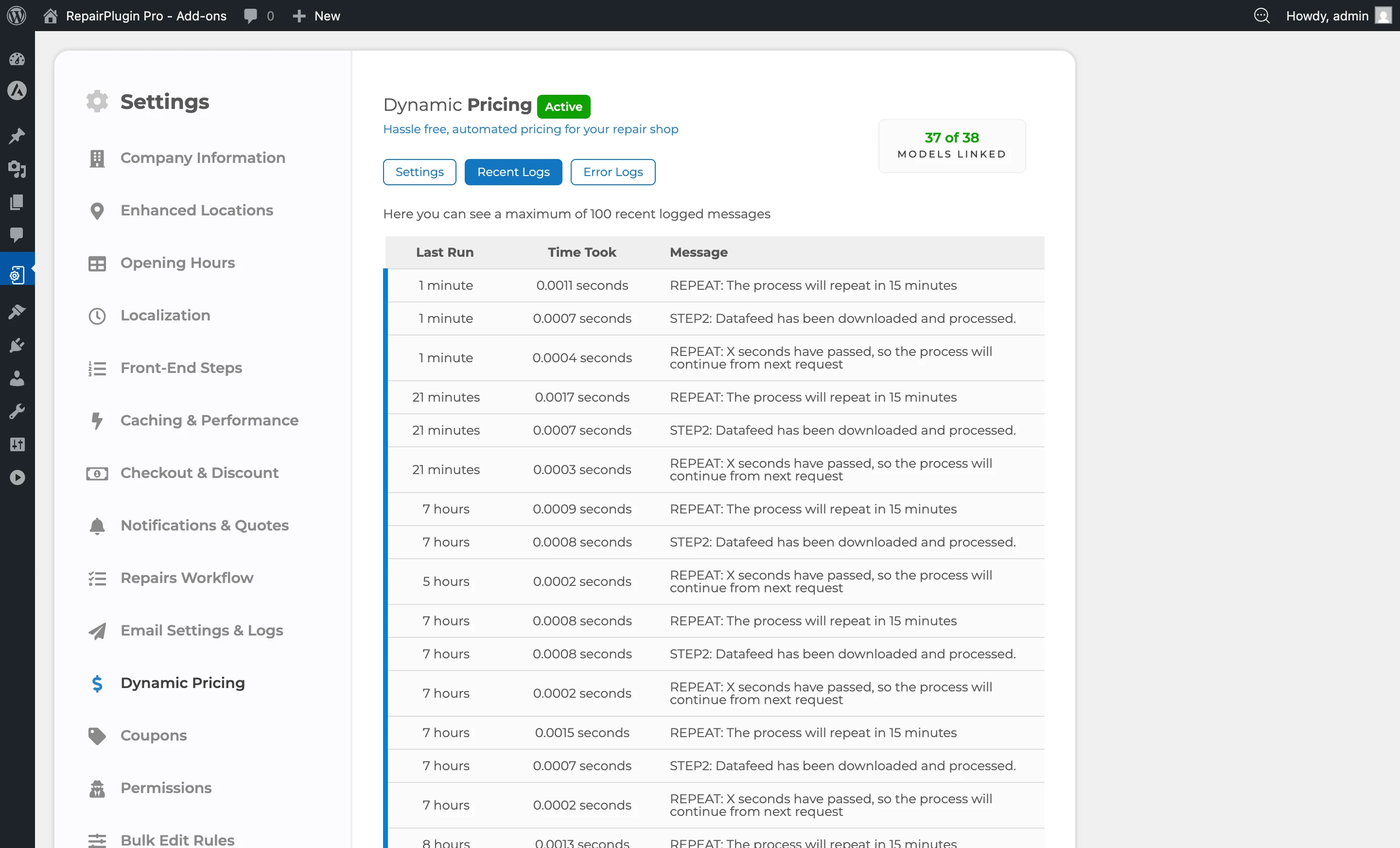
- Run a manual re-sync from
Settings > Dynamic Pricing > Settings. - Verify in Recent Logs that the sync completed successfully.
- Prices update within 60 minutes on a normal sync schedule.
- Cronjob mode is more reliable than WordPress mode, which depends on visitor traffic. See Setting Up Cronjobs for setup instructions.
Frequently asked questions
Why can't I link my self-created repairs to Dynamic Pricing?
Dynamic Pricing matches supplier parts to RepairPlugin repairs by an internal ID, not by name. Custom repairs you create yourself don't have that ID -- they exist only in your installation, not in the central RepairPlugin catalog. The only way to use Dynamic Pricing for a given repair is to download the standard version from the Download Page. See Downloading Models.
I changed the margin in Default Repairs but it's not showing on a specific model. Why?
That model has been disconnected from Default Repairs for that repair type. Disconnection happens automatically the first time anyone makes a change at model level in Models & Repairs. Future Default Repairs changes don't apply to disconnected models. To fix it, re-enter the margin at model level, or use Bulk Editing with a preset for the affected group.
How do I know if Dynamic Pricing is working for a specific repair?
Open the repair in the booking flow on your live website. If you see a small "last updated" date next to the price, Dynamic Pricing is active for that repair. If the date is missing, it isn't -- work through the checks above.
A part is in stock on the supplier's website but my price still isn't showing. What now?
Go back to step 1 (is it a downloaded repair?), step 4 (attribute mapping), step 5 (attributes switched off), and step 8 (model-level disconnect). One of those is almost always the cause when stock and supplier connection are confirmed.