
Margins & Price Strategy
Configure margins, choose between percentage and fixed pricing, and set up rounding rules for Dynamic Pricing in RepairPlugin.
What can you do with this?
- Set margins at different levels -- apply a margin to an entire repair category through Default Repairs, or override it for a specific model.
- Choose between percentage and fixed margins -- scale your markup with part cost, or keep it flat and predictable.
- Protect your profit with min/max caps -- set a minimum margin so cheap parts still earn enough, and a maximum so expensive parts stay competitive.
- Round prices for a professional look -- turn raw calculated prices into clean numbers like 95.00 or 99.99.
- Update margins in bulk -- change margins across multiple models at once using Bulk Edit with saved presets.
Where to find it
Margins are configured in multiple places within RepairPlugin:
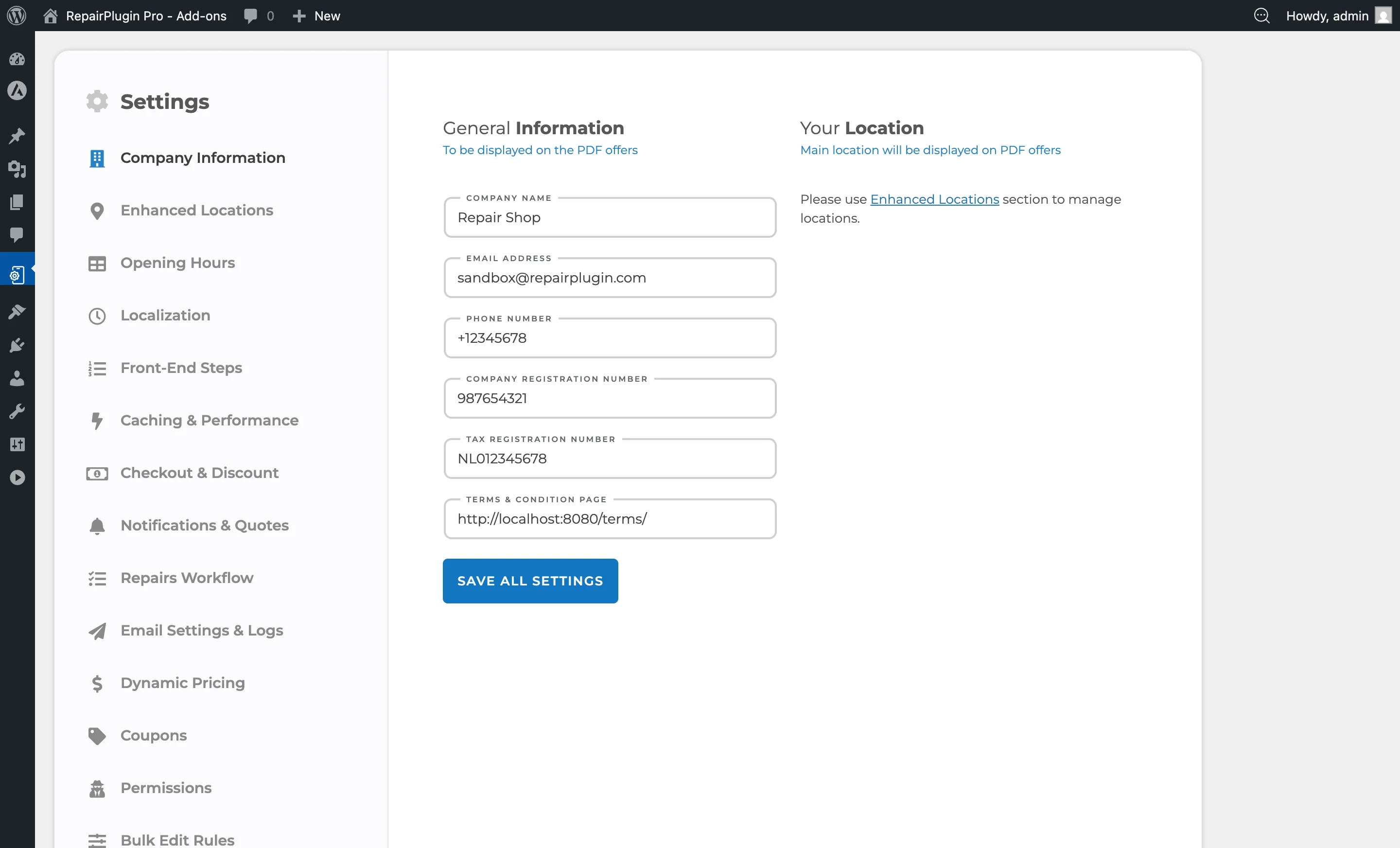
- Global margin type and rounding:
RepairPlugin > Settings > Dynamic Pricing > Settings-- choose between Percentage or Fixed Amount, set minimum/maximum margins, configure rounding, and find the Reset Margins button. - Default Repairs margins:
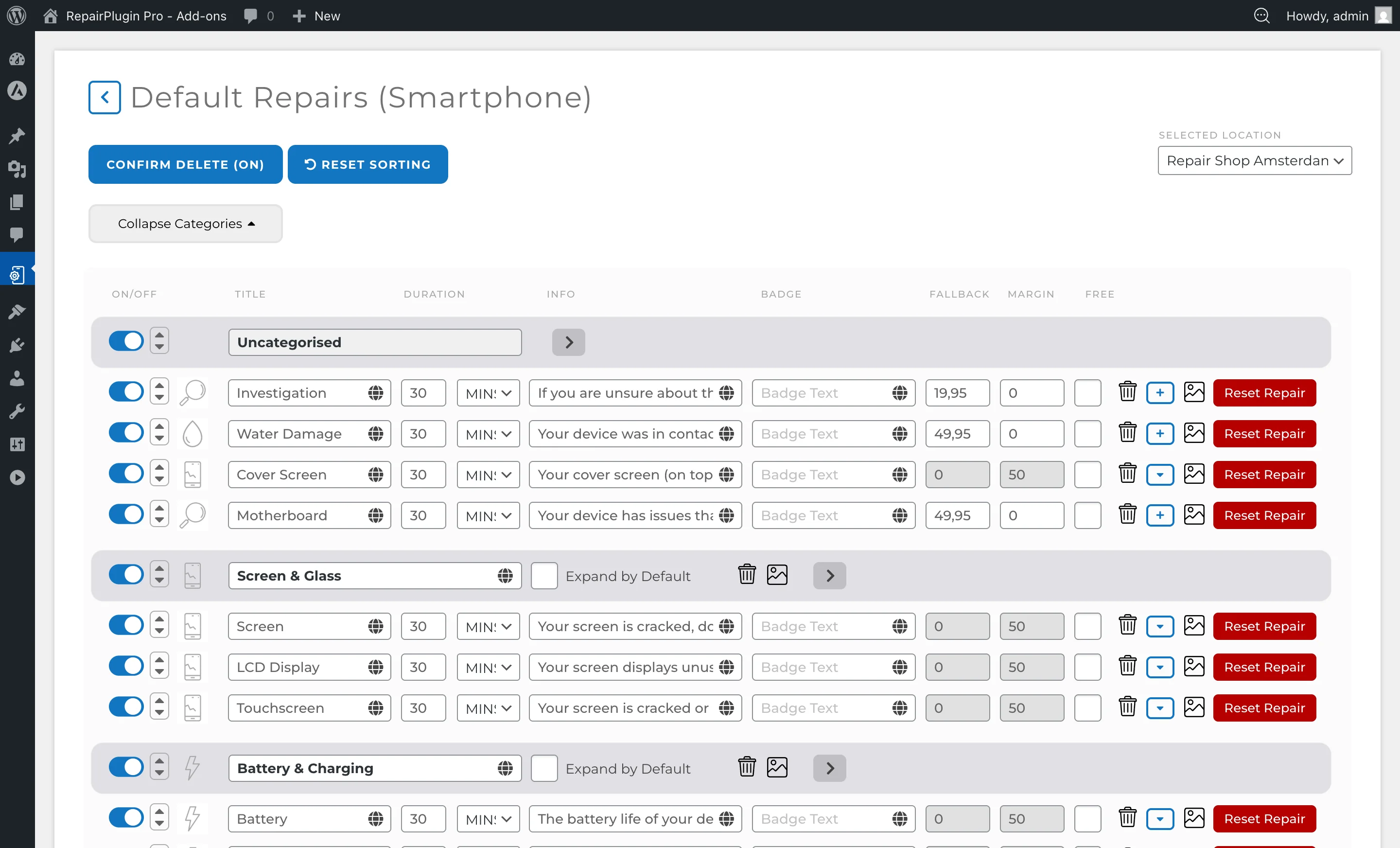
RepairPlugin > Default Repairs-- set a margin per repair type within a category (e.g., "Screen Module" for Smartphones). Applies to all models in that category. - Model-level margins:
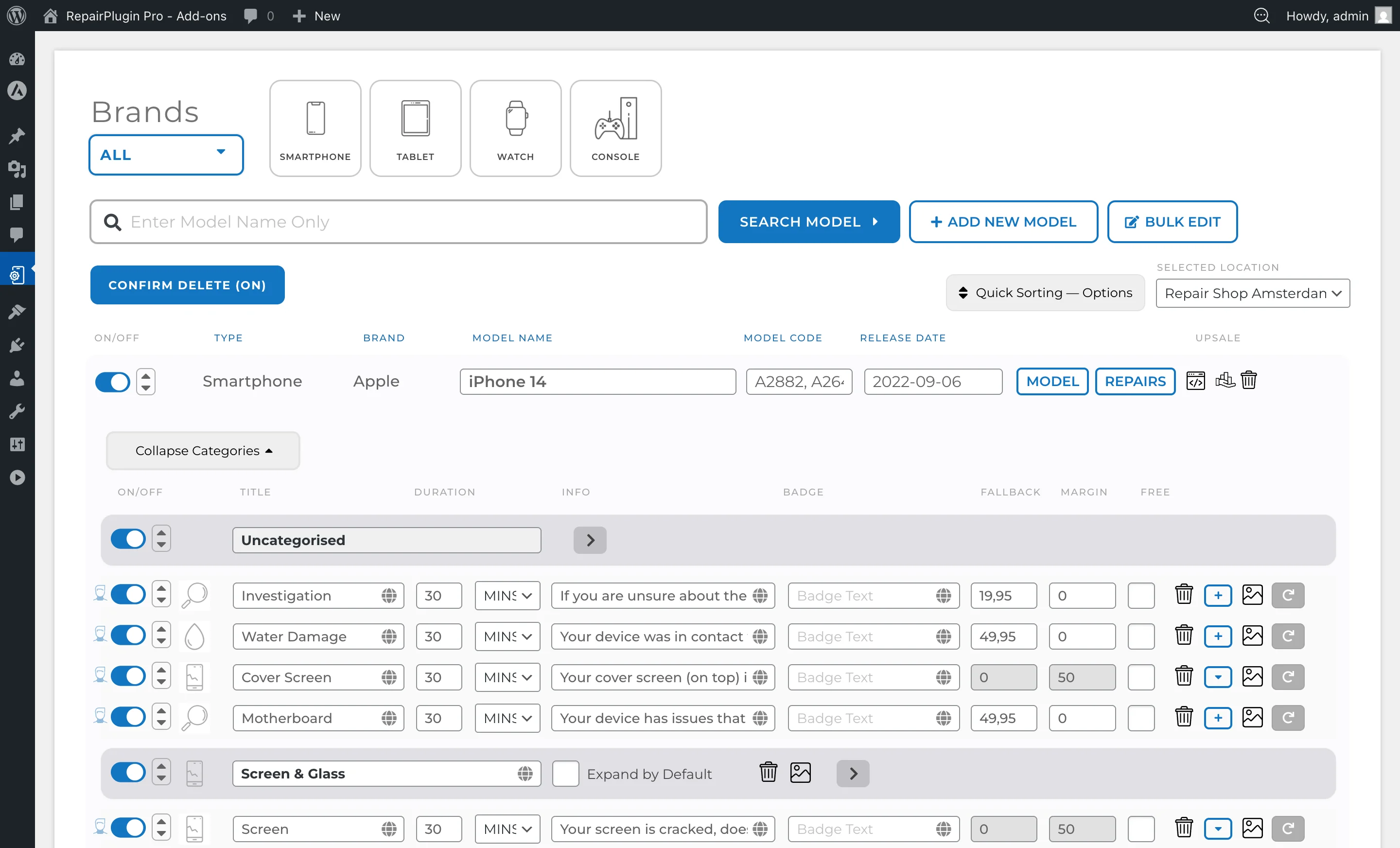
RepairPlugin > Models & Repairs-- set a margin for a specific model. Overrides the Default Repairs margin for that model. - Bulk Edit margins:
RepairPlugin > Models & Repairs > Bulk Edit-- update margins across multiple models at once, with the option to save presets.
How to set it up
Understand the pricing hierarchy
RepairPlugin uses a layered pricing system. The full pipeline looks like this:
Supplier purchase price --> Currency conversion (if needed) --> Custom price rules (if any) --> Margin applied --> Tax added --> Rounding --> Final customer price
Margins can be set at three levels. More specific levels override more general ones:
1. Default Repairs -- your foundation
Default Repairs is a master list of repairs per category (e.g., Smartphone, Tablet, Watch). Any repair added to Default Repairs automatically appears on every model within that category. This is where Dynamic Pricing is most powerful:
- Set a margin once on a Default Repair, and it applies to all models in that category automatically.
- When supplier prices change, the margin is recalculated for every model -- no manual work needed.
- Adding a new model to the category instantly inherits all Default Repairs settings, including margins.
This is the recommended starting point for any pricing strategy. See Default Repairs for full details.
2. Model-level overrides -- use with caution
You can set margins on individual models through Models & Repairs. This gives maximum control, but comes with a significant trade-off:
Warning: When you make a change at model level, that model disconnects from Default Repairs for that repair type. This means:
- Future Default Repairs changes no longer apply to that model.
- You must maintain that model's pricing manually going forward.
- Over time, this creates exactly the kind of manual work that Dynamic Pricing is designed to eliminate.
Recommendation: Avoid model-level overrides unless absolutely necessary. If you need different margins for a group of models, use Bulk Edit with presets instead. See Models & Repairs for details.
3. Bulk Edit -- a middle ground
Bulk Edit lets you update multiple models at once (e.g., all Samsung Galaxy A screen repairs). It offers more control than Default Repairs without the overhead of model-level maintenance:
- Select models by brand, category, or other filters.
- Apply margin changes across the entire selection in one action.
- Save changes as a preset so new models matching the same criteria automatically receive the same settings.
This approach is ideal when you need different margins for groups of models but want to avoid the disconnection problem of model-level overrides. See Bulk Editing for full details.
Choose your pricing strategy
Before configuring margins, answer two key questions to find the best approach for your business.
Question 1: Do you use the same margin for every model within a category?
| Answer | Recommended approach |
|---|---|
| Yes | Set margins through Default Repairs. This is the most efficient and centralized method. |
| Mostly yes, with a few exceptions | Start with Default Repairs for the baseline. Use Bulk Edit with presets for the exceptions. |
| No, margins vary significantly | Use Bulk Edit with presets to manage groups of models efficiently. |
Question 2: Do you offer different quality levels to customers?
| Answer | Action |
|---|---|
| Yes (e.g., Official + Compatible) | Download all relevant quality levels from the Download Page and add them to Default Repairs. Configure margins per quality level if needed. |
| No (single quality only) | Download only the quality you offer. Remove or deactivate the rest to keep things clean for customers. |
Choose your margin type
The global margin type is set at Settings > Dynamic Pricing > Settings. This determines how margins are calculated across the entire system.
Option A: Percentage (%) margin
Selling price = purchase price + (purchase price x margin %).
| Scenario | Purchase price | Margin % | Calculated margin | Min margin | Max margin | Selling price (excl. tax) |
|---|---|---|---|---|---|---|
| Standard | EUR 100 | 20% | EUR 20 | -- | -- | EUR 120 |
| Low-cost part with minimum | EUR 1.50 | 40% | EUR 0.60 | EUR 25 | -- | EUR 26.50 |
| Expensive part with maximum | EUR 500 | 40% | EUR 200 | -- | EUR 60 | EUR 560 |
The minimum margin protects you from underpricing cheap parts (where a percentage yields too little profit). The maximum margin keeps expensive parts competitively priced (where a percentage would add too much).
Option B: Fixed amount margin
Selling price = purchase price + fixed margin amount.
| Scenario | Purchase price | Fixed margin | Selling price (excl. tax) |
|---|---|---|---|
| Standard | EUR 100 | EUR 40 | EUR 140 |
| Low-cost part | EUR 5 | EUR 40 | EUR 45 |
| Expensive part | EUR 500 | EUR 40 | EUR 540 |
Which should you choose?
- Use Percentage if your profit should scale with the purchase price. Higher-cost parts generate higher absolute margins.
- Use Fixed if you want a consistent, predictable markup per repair regardless of part cost.
- Set a minimum margin on percentage-based pricing to avoid underpricing on low-cost parts.
- Set a maximum margin on percentage-based pricing to stay competitive on high-cost parts.
Reset margins
The Reset Margins button is located at Settings > Dynamic Pricing > Settings. Clicking it resets ALL margins across the system back to 0.
This is useful when switching between Percentage and Fixed Amount margin types. Previously configured values may no longer make sense for the new type (e.g., a 40% margin doesn't translate directly to a EUR 40 fixed margin, or the other way around). Resetting gives you a clean starting point.
Set margins in Default Repairs
- Go to
RepairPlugin > Default Repairs. - Select the category (e.g., Smartphone).
- Find the repair type (e.g., "Screen Module").
- Enter the margin value in the margin field.
- Save your changes.
The margin now applies to every model in that category. When supplier prices change during sync, the new selling price is automatically recalculated using this margin.
Set margins in Models & Repairs
- Go to
RepairPlugin > Models & Repairs. - Select the specific model.
- Find the repair and enter a margin value.
- Save your changes.
This margin overrides the Default Repairs margin for this specific model and repair combination. The model is now disconnected from Default Repairs for this repair -- future Default Repairs changes won't apply to it.
Configure repair attributes (quality levels)
Repair attributes represent different quality levels for parts (e.g., Official, Pulled, Refurbished, Compatible). They're configured in Default Repairs and affect how Dynamic Pricing handles pricing:
- Selecting qualities: Choose which quality levels to use per repair type. Only selected qualities are synced with supplier data.
- Deactivating a quality: Parts of that quality won't be synced or displayed. For repairs with attributes, at least one quality must stay active for syncing to work.
- Customizing names and descriptions: You can rename attributes to match your branding. These names are shown to customers on your website.
- Linked by ID, not name: Attributes are linked by their internal ID, not their display name. If you rename "Refurbished" to "Reconditioned," RepairPlugin still connects refurbished parts from suppliers correctly.
Configure price rounding
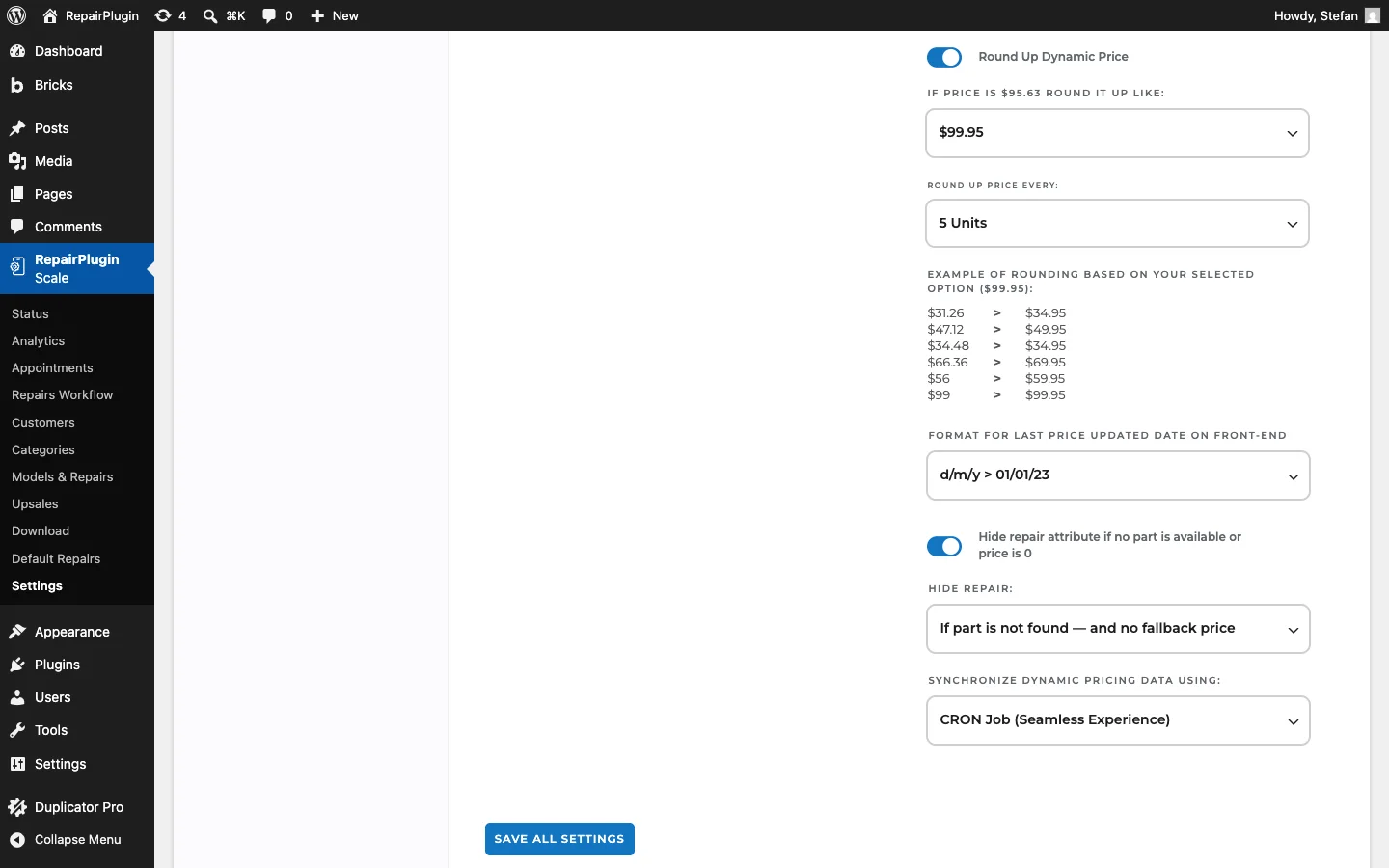
Rounding is the final step in the pricing pipeline. It's configured at Settings > Dynamic Pricing > Settings.
Round Up Dynamic Price controls the price ending:
| Option | What it does | Example (raw: EUR 92.63) |
|---|---|---|
| Ceil | Rounds up to the nearest whole number | EUR 93 |
| .00 | Rounds to end in .00 | EUR 93.00 |
| .95 | Rounds to end in .95 | EUR 92.95 |
| .99 | Rounds to end in .99 | EUR 92.99 |
| 1.00 | Rounds up to the next whole number | EUR 93.00 |
Round Up Every X Units controls the rounding increment:
| Setting | Raw price | Rounded result |
|---|---|---|
| 5 | EUR 92.63 | EUR 95 |
| 10 | EUR 92.63 | EUR 100 |
| 100 | EUR 92.63 | EUR 100 |
| 5 | EUR 47.20 | EUR 50 |
| 10 | EUR 47.20 | EUR 50 |
| 100 | EUR 310.00 | EUR 400 |
The combination of both settings determines the final customer-facing price. Use tighter rounding (5) for competitive pricing, wider rounding (10) for premium positioning, or 100-unit rounding for high-value pricing tiers.
Verify the pricing breakdown per appointment
After an appointment is made with dynamically priced repairs, you can trace the exact calculation on the Appointments page. Click the info icon next to a repair name to see every step of the pipeline: supplier name, SKU, purchase price, currency conversion, custom price rules, margin, tax, rounding, and final price. This is useful for verifying that your margin and rounding settings produce the results you expect. Requires a Growth or Scale plan. See Managing Appointments for details.
Settings reference
The following settings are found at RepairPlugin > Settings > Dynamic Pricing > Settings:
| Setting | Description | Default | Customers see |
|---|---|---|---|
| Margin Type | Controls how the margin is calculated. "Percentage" adds a proportional amount based on the purchase price. "Fixed amount" adds a constant value regardless of purchase price | Fixed amount | This directly affects all dynamically priced repairs. Changing it recalculates every price on the next sync. |
| Minimum Margin | Sets a floor for the margin. When the calculated margin (from percentage) falls below this value, the minimum is used instead. Only applies to the Percentage margin type | empty (no minimum) | Low-cost repairs show a higher price than pure percentage calculation would produce, ensuring you maintain a minimum profit. |
| Maximum Margin | Sets a cap for the margin. When the calculated margin exceeds this value, the maximum is applied instead. Useful with the Percentage margin type to keep expensive repairs competitive | empty (no maximum) | High-cost repairs show a more competitive price because the markup is capped. |
| Reset Margins | Resets ALL margins across the system back to 0. This affects Default Repairs, Models & Repairs, and Bulk Edit presets. This action can't be undone Tip: Use Reset Margins when switching between Percentage and Fixed Amount margin types. Old values from the previous type usually don't make sense for the new one. | N/A | All dynamically priced repairs show the purchase price only (zero margin) until you set new margins. Prices update on the next sync cycle. |
| Round Up Dynamic Price | Rounds the final calculated price to a cleaner value. This is applied after margin and tax calculations | Ceil (round up to nearest whole number) | Rounded, professional-looking prices instead of raw calculated values (e.g., EUR 95.00 instead of EUR 92.63). |
| Round Up Every X Units | Sets the rounding increment. With 5-unit rounding, prices round to the nearest 5 (e.g., EUR 92.63 becomes EUR 95). With 10-unit rounding, prices round to the nearest 10 (e.g., EUR 92.63 becomes EUR 100). With 100-unit rounding, prices round to the nearest 100 (e.g., EUR 310 becomes EUR 400) | 5 | Higher increments produce rounder numbers but may push the price further from the calculated amount. |
| Deduct Specific Amount from Final Price | When using 100-unit rounding, optionally subtracts a fixed amount from the rounded price for psychological pricing. Options: Do not deduct, Deduct 1 unit, Deduct 5 units, Deduct 10 units. For example, with "Deduct 10 units," a price that rounds to EUR 400 becomes EUR 390 Tip: Combine 100-unit rounding with a deduction for premium pricing like EUR 990 instead of EUR 1000. | Do not deduct. Only visible when Round Up Every X Units is set to 100 | The final price reflects the deduction -- e.g., EUR 390 instead of EUR 400. |
Frequently asked questions
What happens when I set a margin at model level?
That model disconnects from Default Repairs for that repair type. Future changes to Default Repairs won't apply to it, and you'll need to maintain that model's pricing manually. Use Bulk Edit with presets if you need different margins for groups of models.
Should I use percentage or fixed margins?
Use percentage if you want your profit to scale with part cost -- more expensive parts earn more. Use fixed if you want a flat, predictable markup on every repair. You can combine percentage margins with minimum and maximum caps for the best of both worlds.