
Form Submission Failed
Fix the 'Form submission failed' error in RepairPlugin caused by caching plugins that store outdated security codes.
What can you do with this?
- Fix "Form submission failed" errors that happen on and off for different visitors
- Stop caching plugins from breaking your booking forms
- Keep your site fast while making sure RepairPlugin forms always work
- Understand why this error happens so you can prevent it in the future
Example: A customer opens your repair page, picks a screen replacement, fills in their details — and gets a "Form submission failed" message at the end. Meanwhile, another customer completes the exact same steps without a problem. The difference? The first customer got a cached page with an expired security code.
Where to find it
The fix depends on which caching plugin you use. You may also need to adjust a setting in RepairPlugin:
- Go to your caching plugin's settings in the WordPress admin
- For the RepairPlugin setting: go to RepairPlugin > Settings > Front-End Steps
How to fix it
Why it happens
RepairPlugin adds a unique security code to every form. When a visitor loads your page, they get their own code. When they submit the form, RepairPlugin checks that the code matches. If it doesn't, the form is rejected.
The problem with caching: when a caching plugin saves your page, it also saves the security code from the first visitor. Every visitor after that gets the same old code, which doesn't match their session. That's what causes the error.
This can also happen if a visitor opens your page, leaves it for a few hours, and then tries to submit — the code may have expired by then.
Exclude RepairPlugin pages from your caching plugin
This keeps the rest of your site fast while making sure RepairPlugin forms always work.
WP Rocket:
- Go to WP Rocket Settings > File Optimization
- Scroll to Never Cache URL(s)
- Add the URL(s) of pages with RepairPlugin (e.g.,
/repair/,/booking/) - Click Save Changes
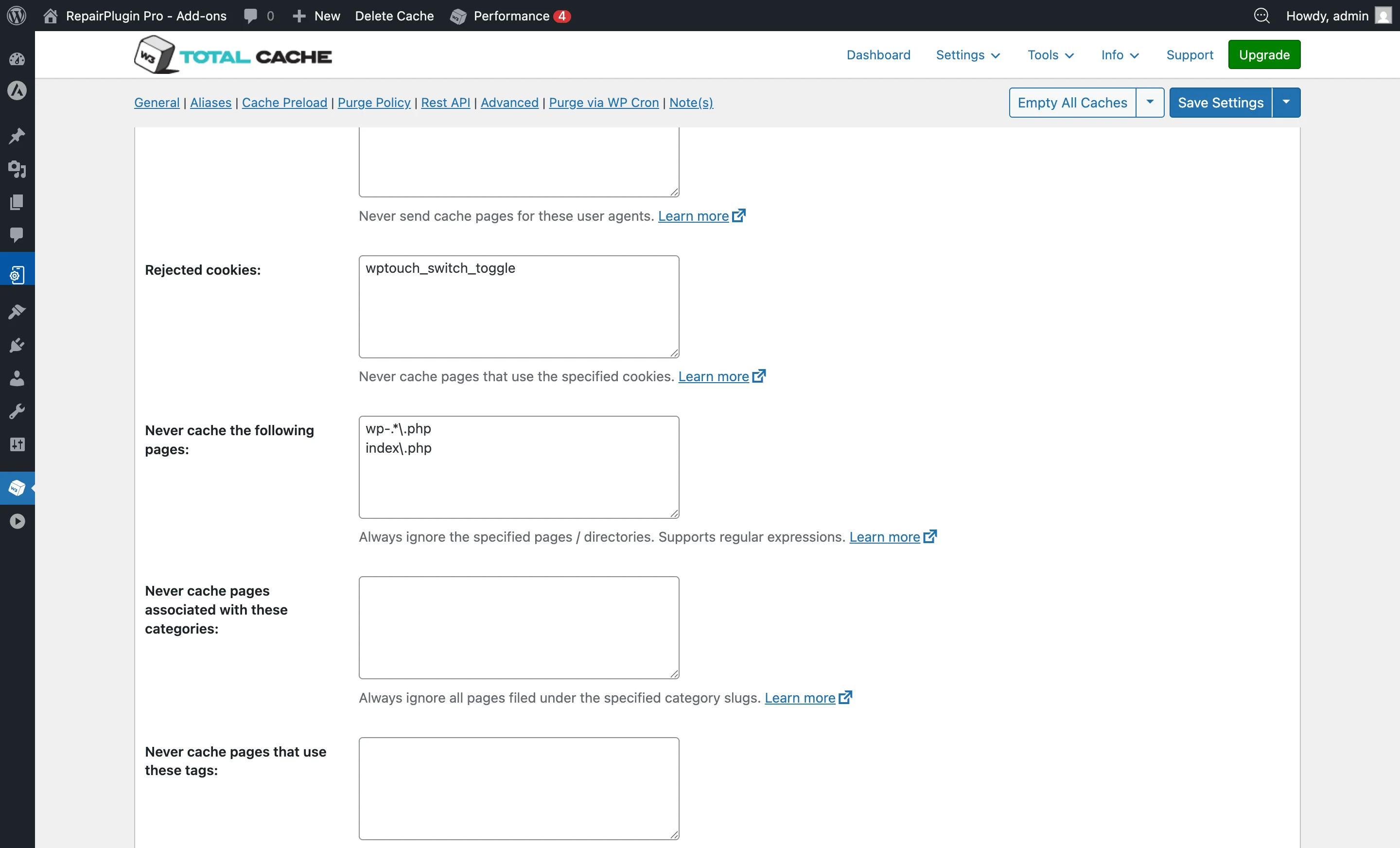
W3 Total Cache:
- Go to Performance > Page Cache
- Scroll to Never Cache the Following Pages
- Enter the paths where RepairPlugin runs (e.g.,
/repair,/booking) - Click Save Settings & Purge Caches
WP Super Cache:
- Go to Settings > WP Super Cache
- Click the Advanced tab
- Under Accepted Filenames & Rejected URIs, find the field for strings that prevent caching
- Add the RepairPlugin page URLs (e.g.,
/repair-form/) - Save settings
LiteSpeed Cache:
- Go to LiteSpeed Cache > Cache > Excludes
- Under Do Not Cache URIs, add RepairPlugin page paths (e.g.,
/repair-quote/) - Click Save Changes
SG Optimizer (SiteGround):
- Go to SG Optimizer > Caching > Exclude URLs from Caching
- Enter the RepairPlugin page URLs (e.g.,
/book-repair/) - Click Save Changes
Cloudflare or other CDN: If you use a CDN like Cloudflare, create a Page Rule to bypass caching for RepairPlugin pages.
Last resort: turn off form security protection
If excluding pages from caching doesn't solve it, you can turn off form security protection entirely:
- Go to RepairPlugin > Settings > Front-End Steps
- Find CSRF Protection for Front-End Forms
- Turn the switch to Off
- Warning: This removes a security layer from your forms. Only do this if nothing else works.
Settings reference
| Setting | Description | Default | Customers see |
|---|---|---|---|
| CSRF Protection for Front-End Forms | Adds security codes to your forms to prevent unauthorized submissions. Turn this off only if cache exclusion doesn't solve form submission errors Tip: Always try excluding RepairPlugin pages from your caching plugin first. Only turn this off as a last resort. | on | Nothing — this works behind the scenes. When it's on, forms are protected. When it's off, forms still work the same way but without the extra security check. |
Frequently asked questions
I excluded RepairPlugin pages from caching but forms still fail. What now?
First, clear all caches (your caching plugin, any CDN like Cloudflare, and your browser cache). Test in a private/incognito window. If the problem continues, try turning off the CSRF protection switch under RepairPlugin > Settings > Front-End Steps as a temporary workaround, and contact support@repairplugin.com to investigate further.
Can this error happen without a caching plugin?
Yes, but it's rare. If a visitor opens your page, leaves it for a few hours, and then tries to submit the form, the security code may have expired. This is normal behavior and doesn't require any changes.