
System Status
Check your server health, fix database issues, and download error logs from the RepairPlugin System Status page to keep your site running smoothly.
What can you do with this?
- Check server requirements — verify that your PHP version, memory, and WordPress version meet the minimum requirements.
- Fix database issues — detect and automatically repair problems with RepairPlugin's database structure.
- Download error logs — grab log files to send to RepairPlugin support when you need help.
- Clear old errors — clean up resolved error logs to keep things tidy.
Where to find it
- In your WordPress admin sidebar, click RepairPlugin (the main RepairPlugin menu item).
- The main landing page shows your license information at the top.
- Scroll down below the license section to find the System Status, Database Status, and Error Logs panels.
Note: This page is only visible to WordPress administrators.
How to set it up
Review your WordPress environment
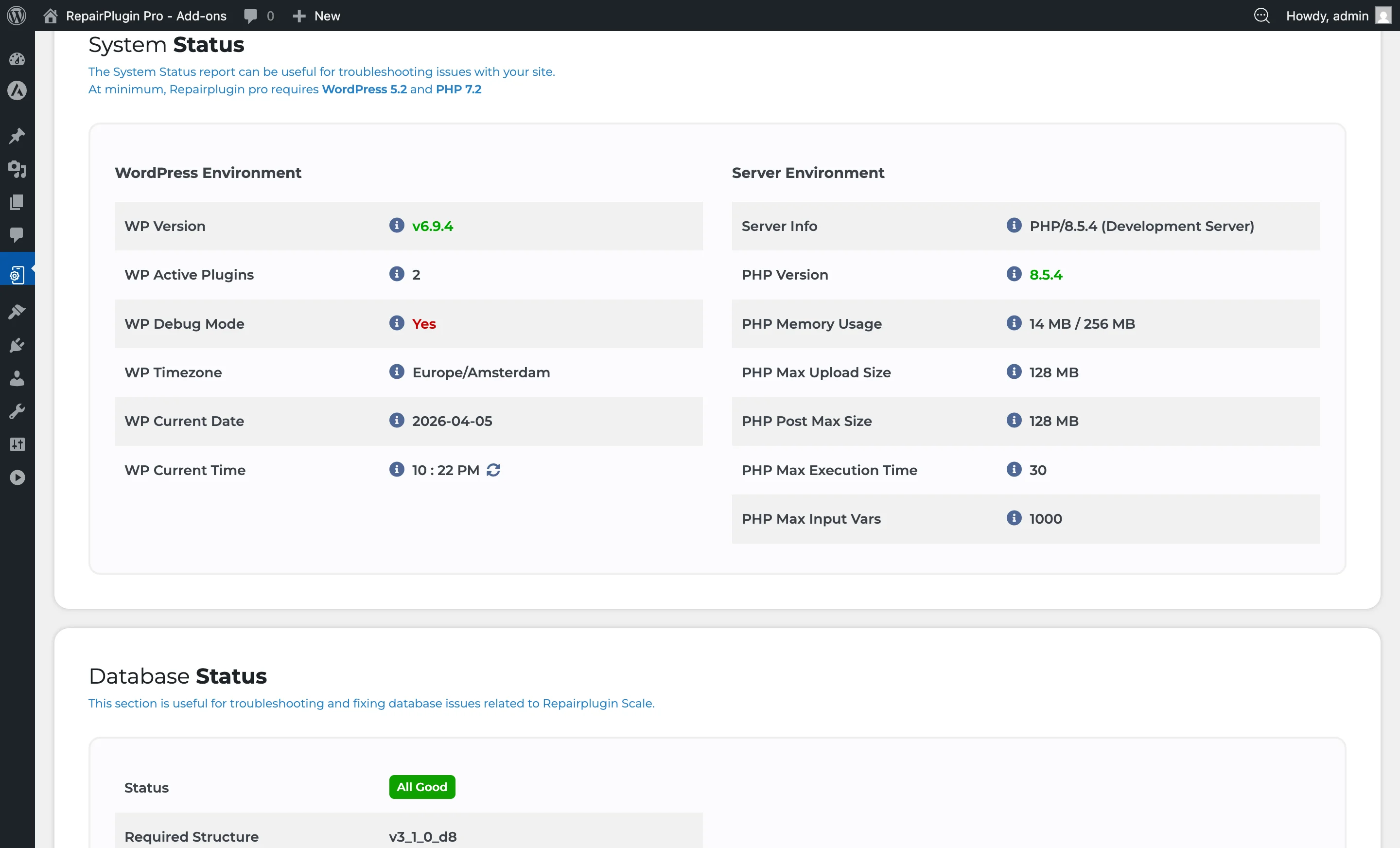
The WordPress Environment table shows read-only information about your WordPress installation. You can't change anything here — it simply reflects your current setup:
| Field | What it shows |
|---|---|
| WP Version | Your WordPress version. Highlighted red if below 5.2. |
| WP Active Plugins | Total number of active plugins on the site. |
| WP Debug Mode | Whether debug mode is enabled. Green if "No", red if "Yes". |
| WP Timezone | Your WordPress timezone. Flagged red if set to "UTC" or missing a region (should be something like Europe/Amsterdam, not UTC+1). |
| WP Current Date | The server's current date. |
| WP Current Time | The server's current time, with a refresh button. |
Review your server environment
The Server Environment table shows your PHP and server settings:
| Field | What it shows |
|---|---|
| Server Info | Web server software (e.g., Apache, Nginx). |
| PHP Version | Your PHP version. Flagged red if below 7.2. |
| PHP Memory Usage | Used memory vs. total allocated. Flagged red if above 80% usage. |
| PHP Max Upload Size | Maximum file upload size allowed by your server. |
| PHP Post Max Size | Maximum size for form submissions. |
| PHP Max Execution Time | Script timeout in seconds. Flagged red if below 30 seconds. |
| PHP Max Input Vars | Maximum number of input variables accepted per request. |
Fix database issues
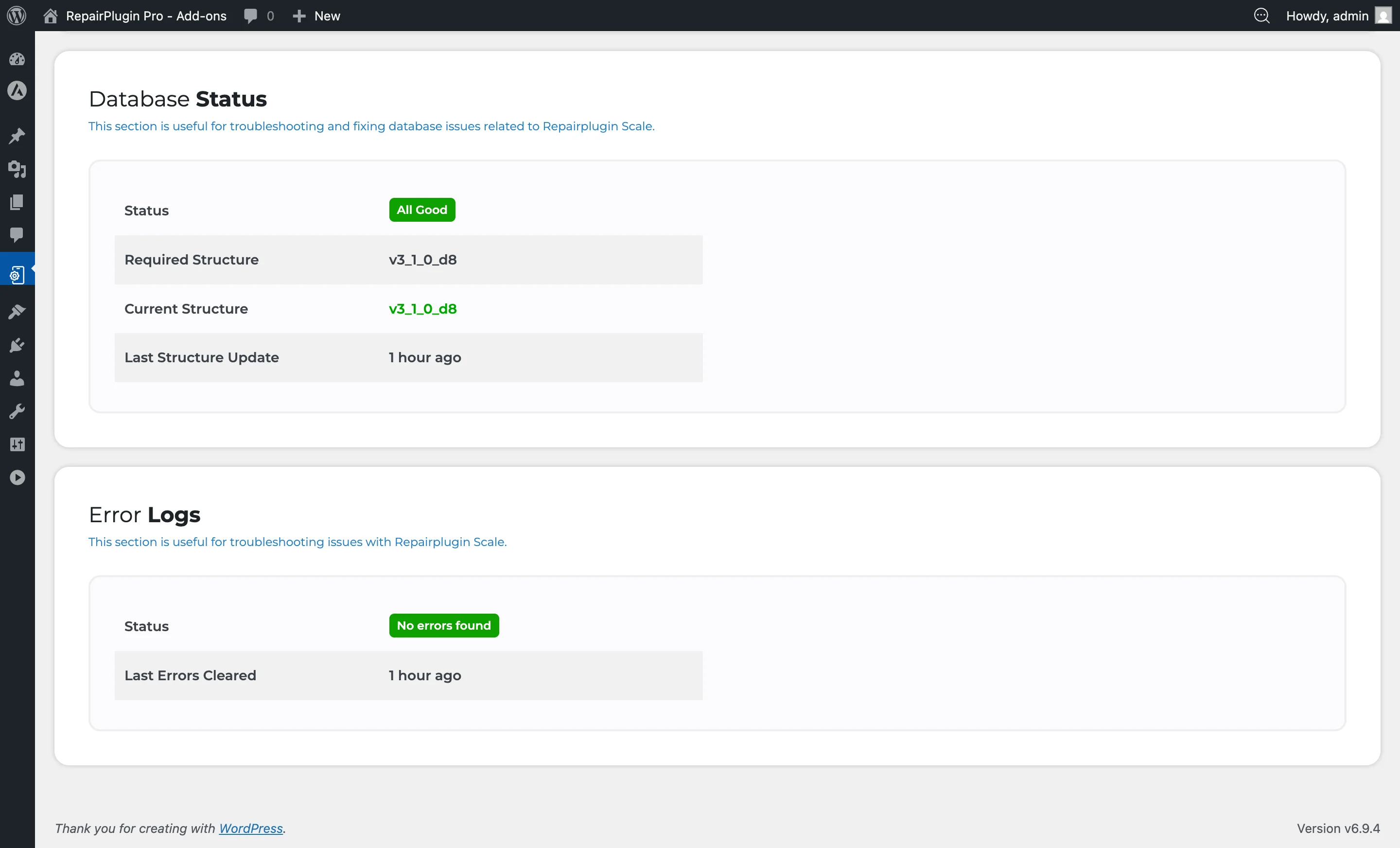
The Database Status section compares the required structure against what's currently installed. If there are issues:
- A red badge shows the number of issues found (e.g., "3 issues").
- The specific issues are listed in a table on the right side.
- Click the Fix Issues button to automatically repair the structure.
- Wait while the repair runs (the button text changes to "Fixing...").
- After completion, the status should change to All Good (green badge).
The section also shows:
- Required Structure — the version your installed plugin expects
- Current Structure — the version currently in your database
- Last Structure Update — when the structure was last updated
Manage error logs
If RepairPlugin encounters errors during operation, they're saved to log files. The Error Logs section shows:
- Status — "No errors found" (green) or "Issues" (red)
- Last Errors Cleared — when errors were last cleaned up
When errors are present, you can:
- Click Download All (zip) to download all error log files as a ZIP archive — useful for sending to RepairPlugin support.
- Click Clear Errors to delete all error log files after you've resolved the issues.
- Browse individual log files on the left side and click a file to view its contents on the right.
Settings reference
| Setting | Description | Default | Customers see |
|---|---|---|---|
| Fix Issues | Automatically repairs the database structure by comparing the current tables against the expected layout and creating or updating tables as needed | — | Fixes database-related problems that may cause the booking form to malfunction or show errors. |
| Download All (zip) | Downloads a ZIP file containing all RepairPlugin error log files. Handy for sharing with support | — | No visible change — this is a diagnostic tool only. |
| Clear Errors | Deletes all error log files and records the timestamp. This doesn't fix underlying issues — it only clears the logs | — | No visible change. |
| RepairPlugin Inspect | Enables detailed inspection of queries and hooks used by RepairPlugin. Results appear after a page reload. This is a hidden developer tool — not needed for normal use Tip: This setting is part of the Development Toolkit, which is hidden by default. It's intended for the RepairPlugin support team. | off | Pages may load slower while this is enabled. Only use it for troubleshooting. |
| Safe Debug Mode | When enabled, RepairPlugin automatically deactivates itself if a serious PHP error occurs within the plugin. This prevents your entire site from going down while the support team investigates Tip: This setting is part of the Development Toolkit, which is hidden by default. It's intended for the RepairPlugin support team. | off | If a serious error occurs, the booking form stops working (because the plugin deactivates), but the rest of your website stays operational. |
Frequently asked questions
What does the Fix Issues button actually do?
It compares your current database tables against the structure RepairPlugin expects. If there are differences, it creates missing tables, adds missing columns, and corrects column types. It never deletes any of your data -- it only adds or adjusts the database structure.
What is Safe Debug Mode?
When enabled, RepairPlugin automatically deactivates itself if a serious PHP error occurs within the plugin. This prevents your entire website from going down. It's mainly useful when the RepairPlugin support team is debugging an issue on your site. Default: off.