
Setting Up Cronjobs
Configure server cron jobs for RepairPlugin so appointment reminders and aftersale emails are sent on time, every time.
What can you do with this?
- Send appointment reminders automatically -- Remind customers about their upcoming repair visit so they don't forget
- Follow up after repairs -- Send aftersale emails to ask for a review or offer a discount on the next repair
- Keep timing reliable -- A server-side cron job runs on a fixed schedule regardless of website traffic, so emails go out on time
- Set your own timing -- Choose how many hours before an appointment the reminder goes out, and how many hours after for the follow-up
Where to find it
To find the cron job command:
- Log in to your WordPress admin dashboard
- Click RepairPlugin in the left sidebar
- Click Settings in the submenu
- Click Notifications & Quotes in the Settings sidebar
- The cron job command/path is shown on this page
How to set it up
Prerequisites
- Access to your hosting provider's control panel (cPanel, Plesk, DirectAdmin, or similar)
- Or the ability to contact your hosting provider's support team
- RepairPlugin installed and activated with a valid license
- Correct WordPress timezone configured (see WordPress Time Sync)
Step 1: Check your hosting provider's control panel
Before contacting your hosting provider, check if your control panel already offers a cron job management interface:
- cPanel: Look for "Cron Jobs" under the "Advanced" section
- Plesk: Navigate to "Scheduled Tasks" in the domain settings
- DirectAdmin: Look for "Cron Jobs" in the "Advanced Features" section
- Custom panel: Search for "scheduled tasks", "cron", or "task scheduler"
If you can't find a cron job option, contact your hosting provider's support team and ask them to set it up for you.
Step 2: Locate the cron job command
- Navigate to RepairPlugin > Settings > Notifications & Quotes
- Find the cron job path shown on this page
- Copy the full command
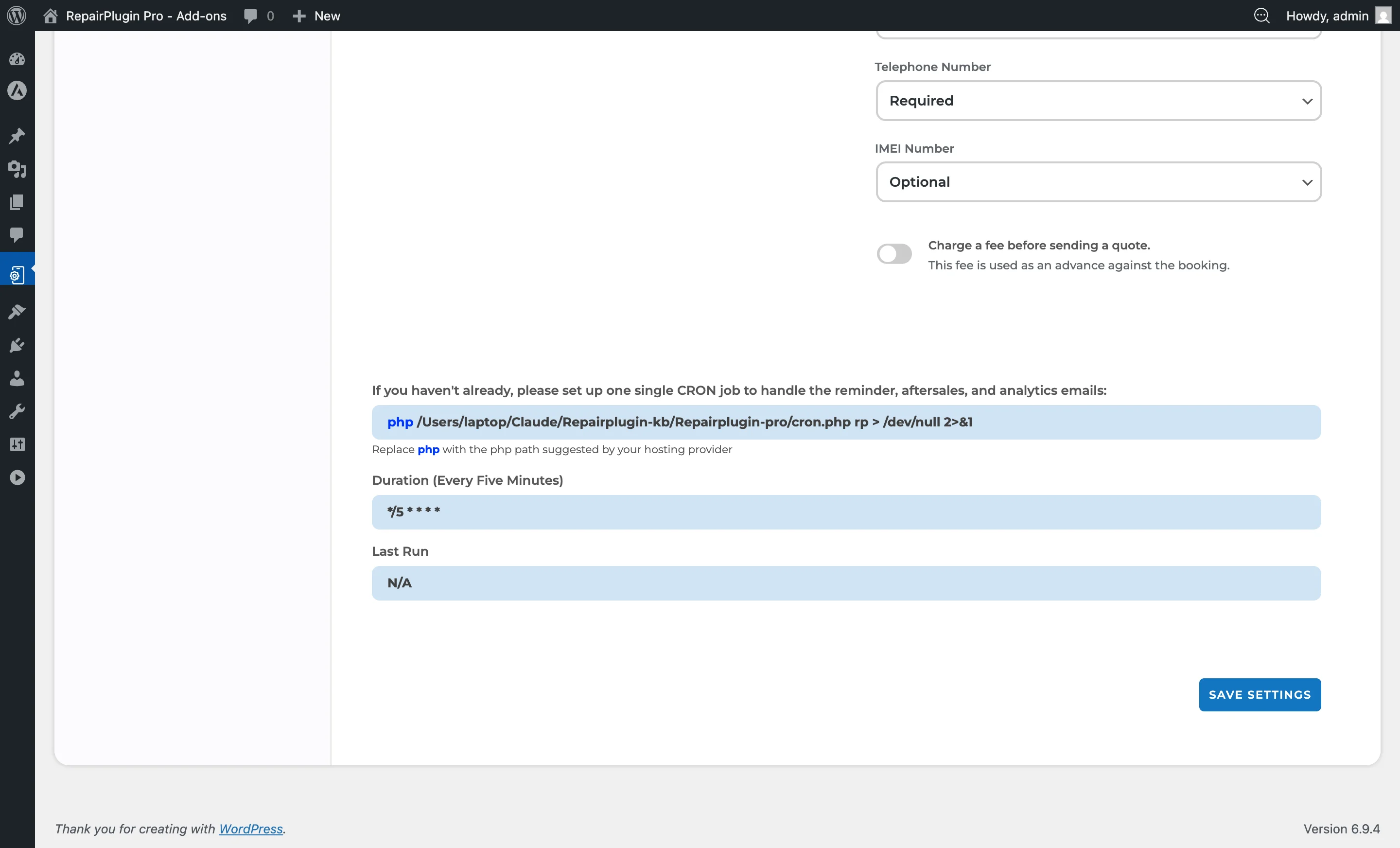
The command follows this general format:
cd /home/domain.com/subfolder/public_html && php /home/domain.com/subfolder/public_html/wp-content/plugins/Repairplugin-pro/cron.php rp > /dev/null 2>&1
Important: The exact path depends on your server's directory structure. The path shown in your RepairPlugin settings is specific to your installation -- always use that one instead of the example above.
Step 3: Create the cron job
In cPanel:
- Log in to cPanel
- Navigate to Advanced > Cron Jobs
- Under "Add New Cron Job", set the schedule:
- Select Every 5 minutes (or set the fields:
*/5 * * * *)
- Select Every 5 minutes (or set the fields:
- Paste the command from Step 2 into the "Command" field
- Click Add New Cron Job
In Plesk:
- Log in to Plesk
- Navigate to Domains > your-domain > Scheduled Tasks
- Click Add Task
- Set the task type to Run a command
- Paste the command from Step 2
- Set the schedule to run every 5 minutes
- Save the task
Via hosting provider support:
- Contact your hosting provider
- Ask them to set up a cron job that runs every 5 minutes
- Provide them with the command from Step 2
Step 4: Configure notification timing
After the cron job is set up, configure when emails should be sent:
- Navigate to RepairPlugin > Settings > Notifications & Quotes
- Find the Reminder Email section:
- Set the number of hours before the appointment that the reminder should be sent
- For example, setting "24" sends the reminder 24 hours before the scheduled appointment
- Find the Aftersale Email section:
- Set the number of hours after the appointment that the aftersale email should be sent
- For example, setting "48" sends the follow-up 48 hours after the appointment time
- Click Save or Update to apply your changes
Verifying the cron job works
To confirm the cron job is running correctly:
- Create a test appointment with a reminder time in the near future
- Wait for the cron job to trigger (up to 5 minutes if set to run every 5 minutes)
- Check if the reminder email was sent by reviewing the email logs at RepairPlugin > Settings > Email Settings & Logs
- If emails aren't being sent, verify:
- The cron job command path is correct
- Your server's
mail()function is enabled or an SMTP plugin is configured - The WordPress timezone is correct (see WordPress Time Sync)
Settings reference
| Setting | Description | Default | Customers see |
|---|---|---|---|
| Cron Job Command Path | Shows the exact server command to use when creating the cron job in your hosting panel | auto-generated based on your server path | Nothing. This is an admin-only setting that powers the email scheduling engine. |
| Reminder Email Timing | Sets how many hours before an appointment the reminder email is sent Tip: 24 hours is a good default. It gives customers enough time to reschedule if needed, without being so far ahead that they forget again. | varies | A reminder email in their inbox before their scheduled repair appointment. |
| Aftersale Email Timing | Sets how many hours after an appointment the aftersale follow-up email is sent Tip: 48 hours works well. The customer has had time to test their repaired device but the experience is still fresh. | varies | A follow-up email that can include a review request, discount code, or general thank-you message. |
Cron job frequency
| Schedule | Cron Expression |
|---|---|
| Every 5 minutes (recommended) | */5 * * * * |
| Every 10 minutes | */10 * * * * |
| Every 15 minutes | */15 * * * * |
| Every 30 minutes | */30 * * * * |
| Every hour | 0 * * * * |
The recommended interval is every 5 minutes (*/5 * * * *). This ensures emails are sent close to the configured time. A longer interval means less precision in email delivery timing. The cron job checks for pending emails each time it runs. If no emails are due, it completes without action. |
Frequently asked questions
Why can't RepairPlugin just use WordPress's built-in scheduler?
WordPress's built-in WP-Cron only runs when someone visits your site. A real server-side cron job runs on a fixed schedule regardless of traffic, so emails go out at the right time even if nobody is browsing your website at that moment.
What happens if my cron job stops working?
Reminder and aftersale emails won't be sent. Check your email logs at RepairPlugin > Settings > Email Settings & Logs to see if emails are going out. If not, verify the cron job is still active in your hosting panel.
Can I set the cron job to run more often than every 5 minutes?
You can, but it's unnecessary. Every 5 minutes is precise enough for email delivery, and running more frequently adds unnecessary server load.