
Missing Images After Move
Restore broken RepairPlugin images after moving your WordPress site to a new domain by updating image links in the database.
What can you do with this?
- Restore broken device, brand, and repair images after a domain or server migration
- Update image links in RepairPlugin's database tables to your new domain
- Fix broken images without losing any data or settings
- Understand why standard WordPress migration tools don't always cover RepairPlugin
Example: You move your repair shop website from
old-domain.comtonew-domain.com. WordPress pages and posts look fine, but all phone and laptop images in your booking flow are broken — just empty placeholders where brand logos and device pictures should be.
Where to find it
You'll need to install a search-and-replace plugin:
- Go to WordPress Admin > Plugins > Add New
- Search for Better Search Replace
- After installing: go to Tools > Better Search Replace
How to fix it
Why it happens
When you move a WordPress site, the image links stored in your database still point to the old domain. RepairPlugin stores image links in its own database tables (starting with rs_), and standard WordPress migration tools don't always update these.
Use Better Search Replace
-
Install Better Search Replace:
- Go to Plugins > Add New
- Search for Better Search Replace by WP Engine
- Click Install Now, then Activate
-
Create a backup of your database before you start (use your hosting panel's backup tool or a backup plugin)
-
Run the search and replace:
- Go to Tools > Better Search Replace
- In the Search for field, enter your old website URL (e.g.,
https://old-domain.com) - In the Replace with field, enter your new website URL (e.g.,
https://new-domain.com) - In the Select tables field, select only the tables that start with
rs_(these are RepairPlugin's tables) - Untick the "Run as dry run?" checkbox
- Click Run Search/Replace
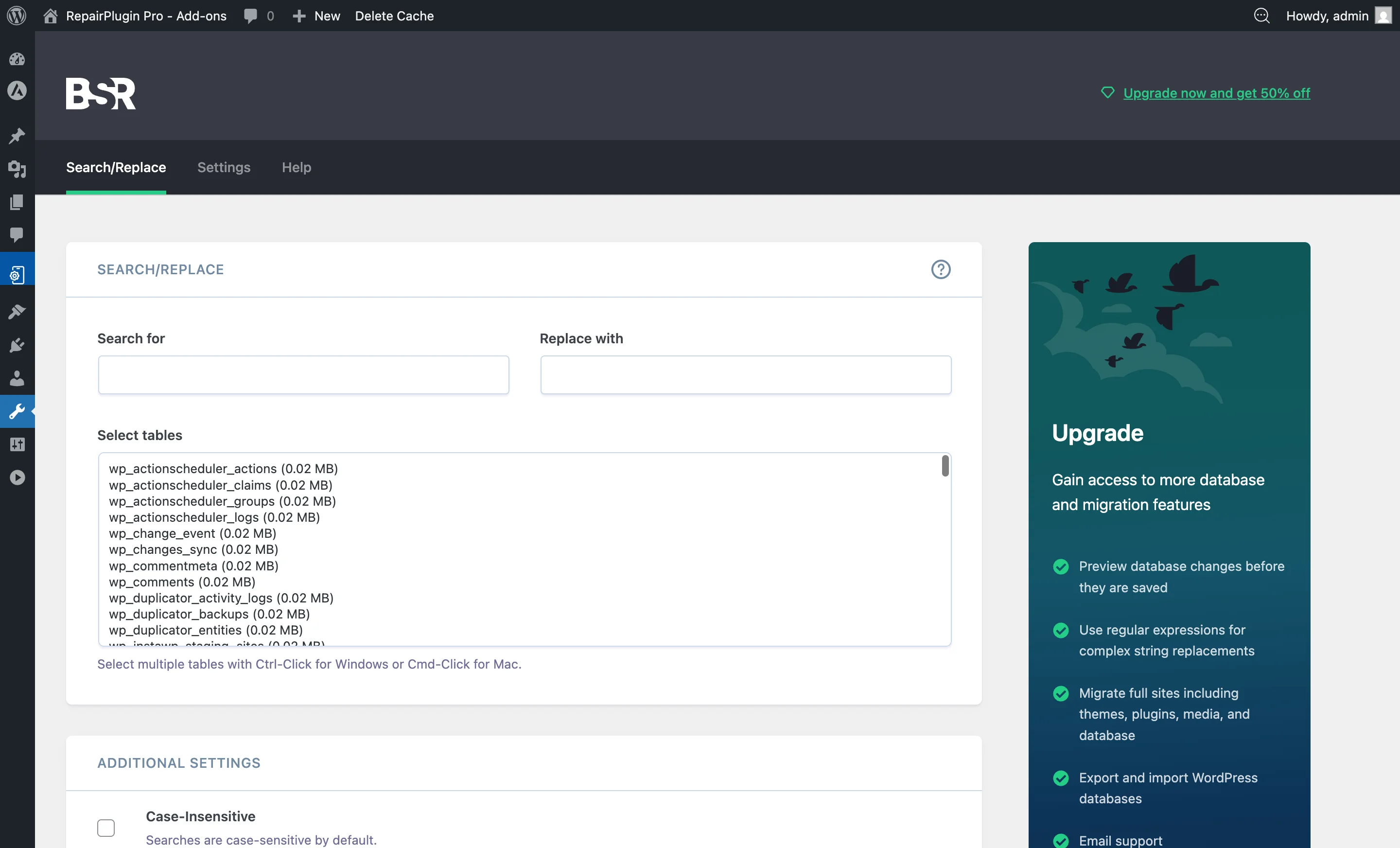
- Check your website to verify that images are showing correctly
Important notes
- Only select the
rs_tables to avoid unintended changes to other data - Make sure to include the correct protocol (http vs https) in both URLs
- If your old site used
http://and your new site useshttps://, update accordingly
Frequently asked questions
Do I need to update URLs in RepairPlugin's tables every time I move my website?
Yes. Standard WordPress migration tools usually don't update RepairPlugin's own tables (the ones starting with rs_). Use Better Search Replace and select only those rs_ tables to update the old domain to your new one.
Can I use a different search-and-replace plugin?
Yes, any search-and-replace plugin that lets you select specific database tables will work. The important thing is to select only the rs_ tables and enter the correct old and new URLs.