
Bulk Editing
Set up bulk editing in RepairPlugin to update repair prices, durations, and margins across multiple models in one action. Save hours of manual work.
What can you do with this?
- Update prices in bulk -- adjust repair prices across an entire brand or category after a supplier change.
- Change repair durations -- set new time estimates for a specific repair type across all matching models.
- Modify Dynamic Pricing margins -- update margins for multiple models at once (requires Dynamic Pricing, available on Growth and Scale plans).
- Link repairs to many models -- add a new repair to dozens of models in a single action.
- Undo mistakes -- restore your most recent bulk change if something went wrong.
Where to find it
- In your WordPress admin, go to RepairPlugin in the left sidebar.
- Click Models & Repairs.
- Click the Bulk Edit button at the top of the page (next to the other action buttons).
A full-width popup opens with filters on the left and actions on the right.
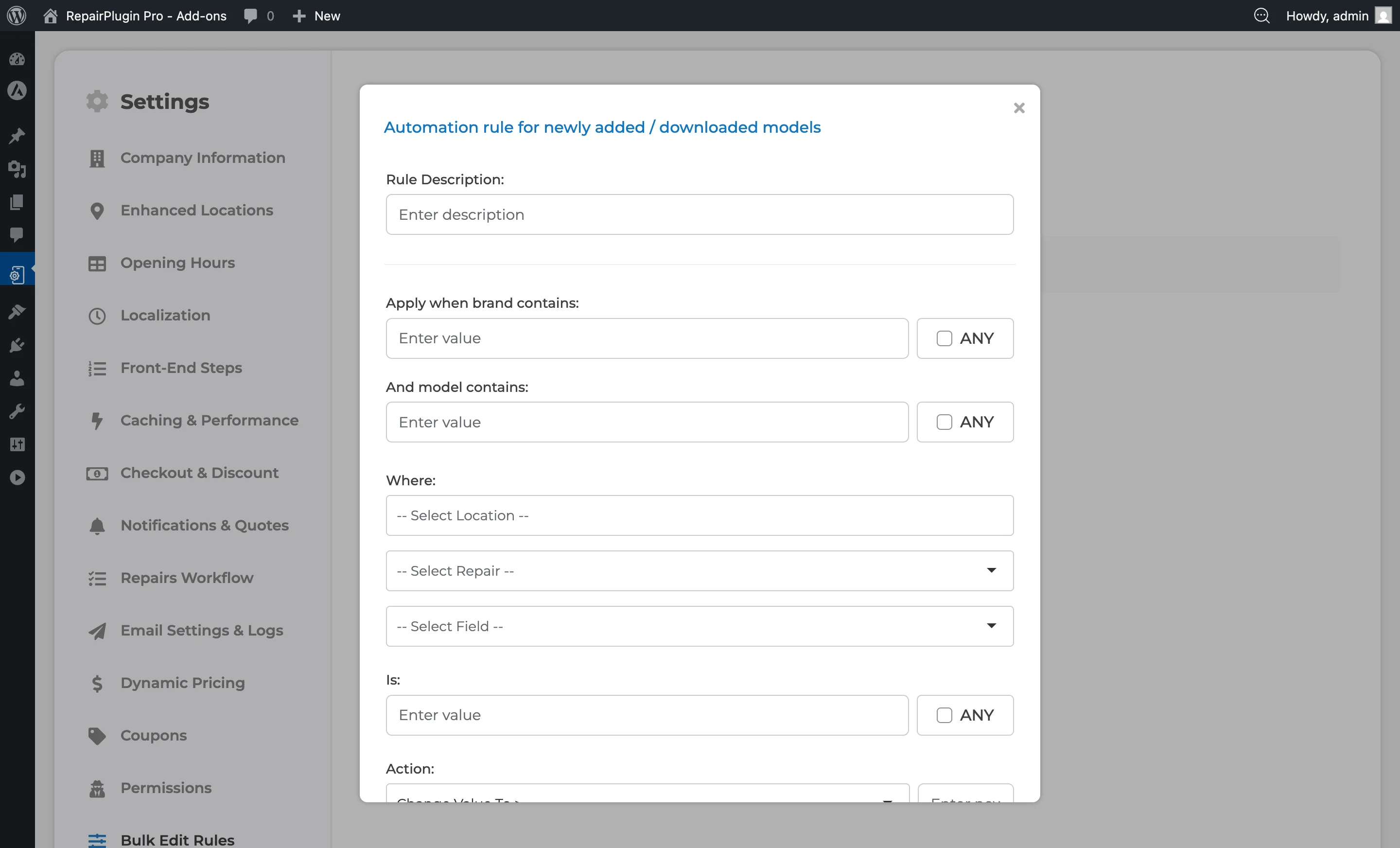
Bulk Edit Rules are saved automatically and can be reviewed at:
Path: RepairPlugin > Settings > Bulk Edit Rules
How to set it up
Filter models
- On the left side of the Bulk Edit popup, select one or more Brands (e.g., Samsung, Apple).
- Optionally narrow down by selecting specific Models.
- Optionally choose a Category (e.g., Screen Module, Battery).
The right side updates in real time to show which model-repair combinations match your filters.
Choose what to edit
- Select a Repair from the dropdown (e.g., "Screen Module > Refurbished").
- Pick the Field you want to change: Price, Duration, or Margin.
- Enter the new Value.
Apply changes
- Click Update to apply the changes and keep the popup open.
- Or click Update & Close to apply the changes and close the popup.
- If you change your mind, click Close Popup to leave without saving.
Tip: When the field action is set to delete, the button labels change to Delete, Delete & Close, and Close Popup.
Undo your last change
After each update, a last submission history section appears showing what was changed. Click Restore to revert your most recent bulk action.
Add a repair link in bulk
- Click the Add button (plus icon) at the top of the linking section.
- Select the repair category, default repair, and optionally an attribute.
- Choose the target models (filtered by brand, model, or category).
- Click Add to create the links.
Settings reference
| Setting | Description | Default | Customers see |
|---|---|---|---|
| Brand Filter | Narrows the list to only models belonging to the selected brand(s) | none selected (all brands shown) | Nothing -- this is an admin-only tool. |
| Model Filter | Narrows the list further to specific models within the selected brands | none selected (all models shown) | Nothing -- this is an admin-only tool. |
| Category Filter | Filters by repair category (e.g., Screen Module, Battery) | none selected | Nothing -- this is an admin-only tool. |
| Repair Selector | Picks which default repair to modify across all filtered models | none | Updated prices, durations, or margins appear in the booking flow after the change. |
| Field Selector | Determines which repair property you're changing | Price | Price changes show updated prices; duration changes affect time-slot availability; margin changes affect Dynamic Pricing calculations. |
| Value | Sets the new value that will be applied to the selected field across all matching models | empty | Depends on the field you're changing (price, duration, or margin). |
| Bulk Edit Rules | Stores rules created during bulk edit operations so you can review past changes | empty | Nothing -- rules are for your reference only. |
Frequently asked questions
Which repair fields can I bulk edit?
You can bulk edit price, duration, status, free (checkbox), and delete. If Dynamic Pricing is enabled, margin is also available. For each field, you can set an exact value, add or subtract a fixed amount, increase or decrease by percentage, or multiply/divide.