
Downloading Models
Download 2,900+ device models and repair types from the RepairPlugin cloud database to fill your catalog in minutes instead of hours.
What can you do with this?
- Fill your device catalog instantly -- Download thousands of models with brand images, model images, and color options in minutes
- Get pre-built repair types -- Each model comes with standard repairs (screen replacement, battery replacement, etc.) including suggested prices and durations
- Increase conversions -- The more devices and repairs your website shows, the more likely customers find exactly what they need
- Stay up to date -- New models are regularly added to the cloud database, so you can download them later without losing your customized prices
Where to find it
To get there:
- Log in to your WordPress admin dashboard
- Click RepairPlugin in the left sidebar
- Click Download in the submenu
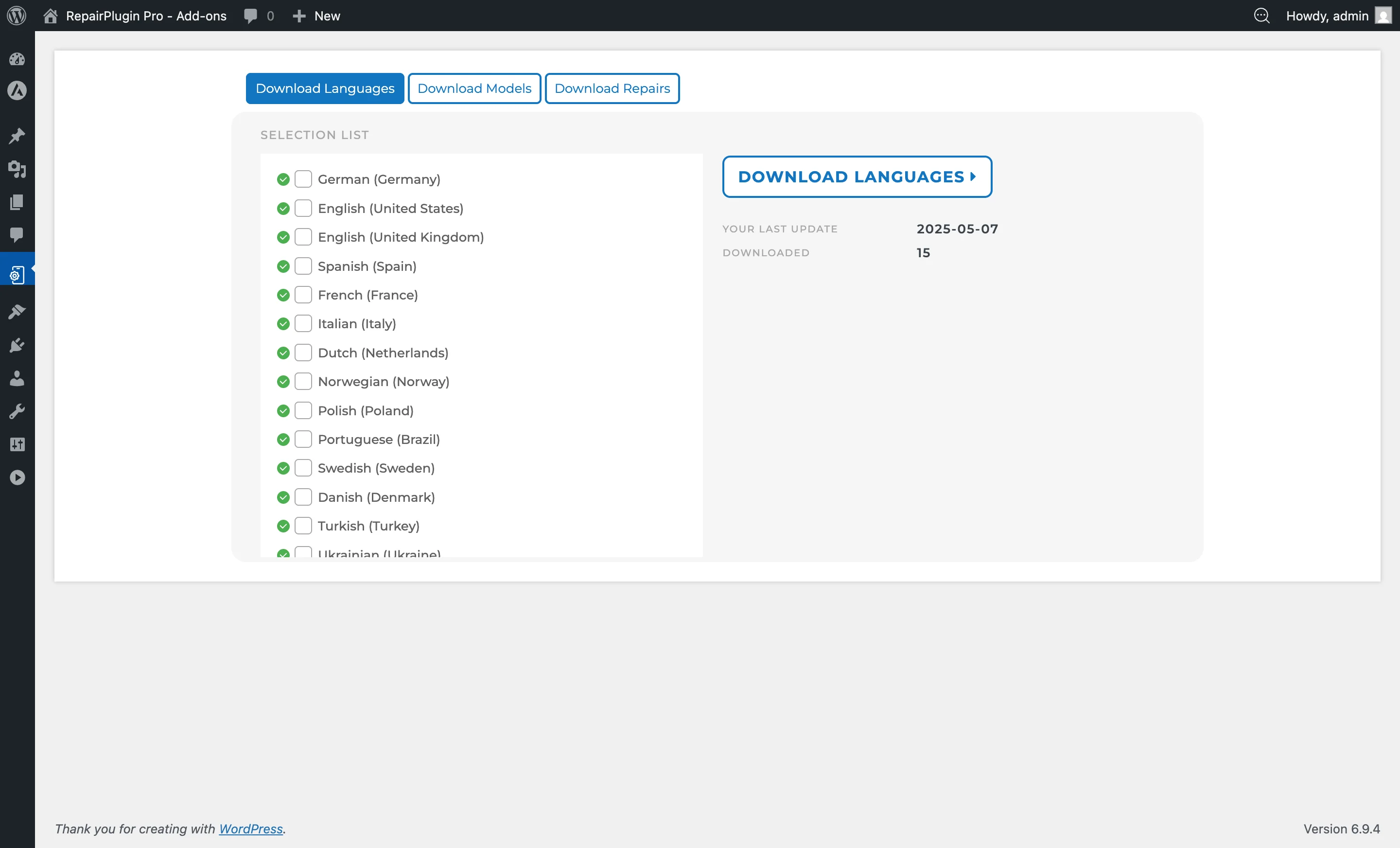
How to set it up
Downloading models and repairs
- Navigate to RepairPlugin > Download
- You'll see a list of available device categories (e.g., Smartphones, Tablets, Laptops, Game Consoles, Smartwatches)
- Select the categories you want to download by checking the boxes next to them
- It's recommended to select all categories for maximum coverage
- Click Download Libraries
- Wait for the download to complete -- the progress shows on screen
- Download time depends on the number of categories selected and your server speed
- For all categories, this typically takes 1-5 minutes
What gets downloaded
When you download libraries, the following data is imported into your WordPress database:
- Categories -- Device categories (e.g., "Smartphones", "Tablets")
- Brands -- Manufacturer brands (e.g., Apple, Samsung, Huawei) with brand images
- Models -- Individual device models (e.g., iPhone 15, Galaxy S24) with model images
- Default repairs -- Standard repair types (e.g., Screen Replacement, Battery Replacement) with suggested prices and durations
- Colors -- Device color options
After downloading
Review and adjust prices:
- Go to RepairPlugin > Models & Repairs
- Select a brand and model to see its repairs
- Adjust the price and duration for each repair to match your actual pricing
- RepairPlugin downloads with suggested prices -- you must customize these for your business
Enable or disable models:
- In RepairPlugin > Models & Repairs, you can switch individual models on or off
- Disabled models won't appear on the front-end
Add custom repairs:
- If you offer a repair type that isn't in the database, you can add it manually
- Go to RepairPlugin > Default Repairs to manage repair types
- Click Add New Repair and fill in the name, price, duration, and description
Update models later:
- New models are regularly added to the RepairPlugin cloud database
- Revisit RepairPlugin > Download periodically to check for new devices
- Downloading again adds new models without overwriting your customized prices
Should you download every model?
Yes, downloading all models is recommended. The RepairPlugin database is lightweight and importing all models won't noticeably slow down your website or consume significant disk space. Having a complete device catalog means customers are more likely to find their exact device, which increases the chance they'll book.
Should you download every repair type?
Customers searching for a repair shop are looking for:
- Whether you can fix their specific problem
- How much the repair costs
- How long it'll take
Download all available repair types for the devices you service. You can always adjust prices, disable specific repairs, or add custom repair types after downloading. Having more repair options visible provides better information to potential customers.
Troubleshooting download issues
If the download gets stuck or fails to complete:
- Check your security plugin -- Firewalls from Wordfence, Sucuri, or iThemes Security may block the connection to RepairPlugin's servers
- Whitelist the domain -- Add
*.repairplugin.comto your firewall's whitelist - Check server timeout settings -- Some hosting providers have low PHP execution time limits; contact your host to increase
max_execution_timeif needed - Try downloading in smaller batches -- Select fewer categories at a time instead of all at once
See Models Download Stuck for detailed troubleshooting steps.
Settings reference
| Setting | Description | Default | Customers see |
|---|---|---|---|
| Category Checkboxes | Selects which device categories to import from the cloud database Tip: Select all categories. The database is lightweight and won't slow down your site. More models means more potential bookings. | none selected | Only downloaded categories and their models appear in the booking flow. |
| Download Libraries Button | Starts the download process for the selected categories | N/A | After the download completes, new models and repairs become immediately available on the front-end. |
Data management after download
- Models & Repairs Page (
RepairPlugin > Models & Repairs) -- Browse, edit, enable/disable downloaded models. Adjust pricing and durations per repair per model. Models can be individually switched active/inactive. - Default Repairs Page (
RepairPlugin > Default Repairs) -- Manage repair types that apply across all models. Add custom repair types not available in the cloud database. Set default prices and durations. - Bulk Edit Rules (
RepairPlugin > Settings > Bulk Edit Rules) -- Apply price changes or other edits across multiple models and repairs at once. Useful for applying a markup or discount across your entire catalog.
Frequently asked questions
Will downloading overwrite my custom prices?
No. When you download again later, RepairPlugin adds new models but doesn't overwrite prices you've already customized.
How often are new models added to the cloud database?
New models are added regularly. Check the Download page periodically to pick up newly released devices.
Can I add my own repair types that aren't in the database?
Yes. Go to RepairPlugin > Default Repairs and click Add New Repair to create custom repair types with your own name, price, and duration.