
Slow Performance
Speed up your WordPress site running RepairPlugin with this step-by-step guide covering caching, image optimization, hosting, and plugin cleanup.
What can you do with this?
- Find out why your website is loading slowly and fix it step by step
- Speed up your site by removing unnecessary plugins and setting up caching
- Optimize images so your pages load faster for customers
- Check whether your hosting plan is holding you back
- Identify plugin conflicts that might be slowing things down
Where to find it
There's no single performance settings page. Speed optimization involves a few different areas:
- RepairPlugin caching: Go to RepairPlugin > Settings > Caching & Performance
- Your plugins: Go to WordPress Admin > Plugins
- Your media files: Go to WordPress Admin > Media
- Your hosting panel: Log in to your hosting provider's control panel
How to fix it
Follow these steps in order. Test your site speed after each change to see what makes the biggest difference.
Step 1: Remove unnecessary plugins
Too many plugins slow down your site. Every active plugin adds extra work for your server on every page load.
- Go to Plugins in your WordPress admin
- Review all active plugins
- Deactivate and delete any plugins you're not actively using
- Pay special attention to plugins that load on every page — social media widgets, analytics with visible scripts, and chat widgets are common culprits
Step 2: Set up a caching plugin
A caching plugin saves copies of your pages so your server doesn't have to rebuild them for every visitor. This alone can make your site 50-80% faster.
Recommended caching plugins:
- WP Rocket (premium) — easiest to set up, excellent performance
- W3 Total Cache (free) — lots of caching options
- LiteSpeed Cache (free, requires LiteSpeed server) — great for LiteSpeed hosting
- WP Super Cache (free) — simple and reliable
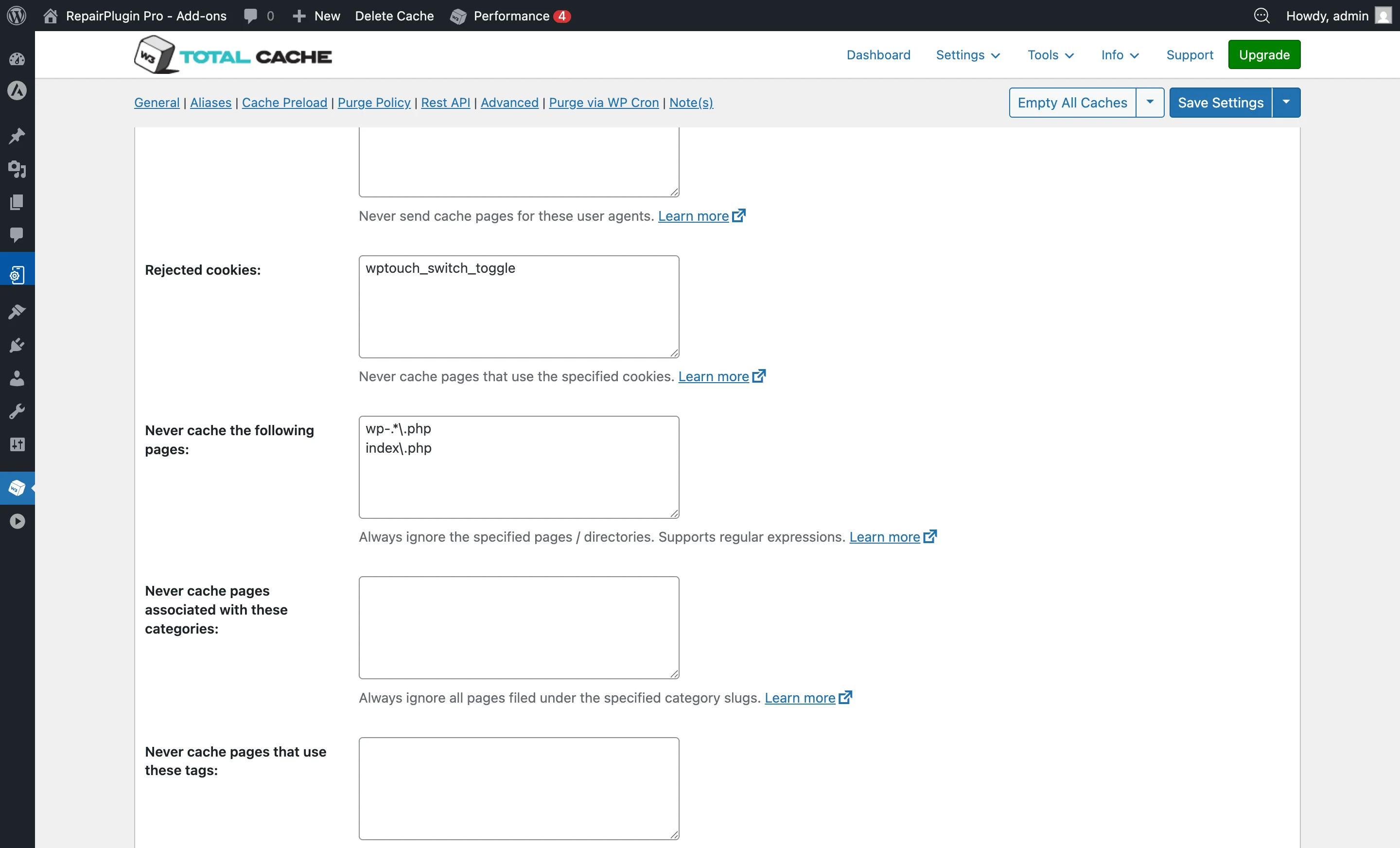
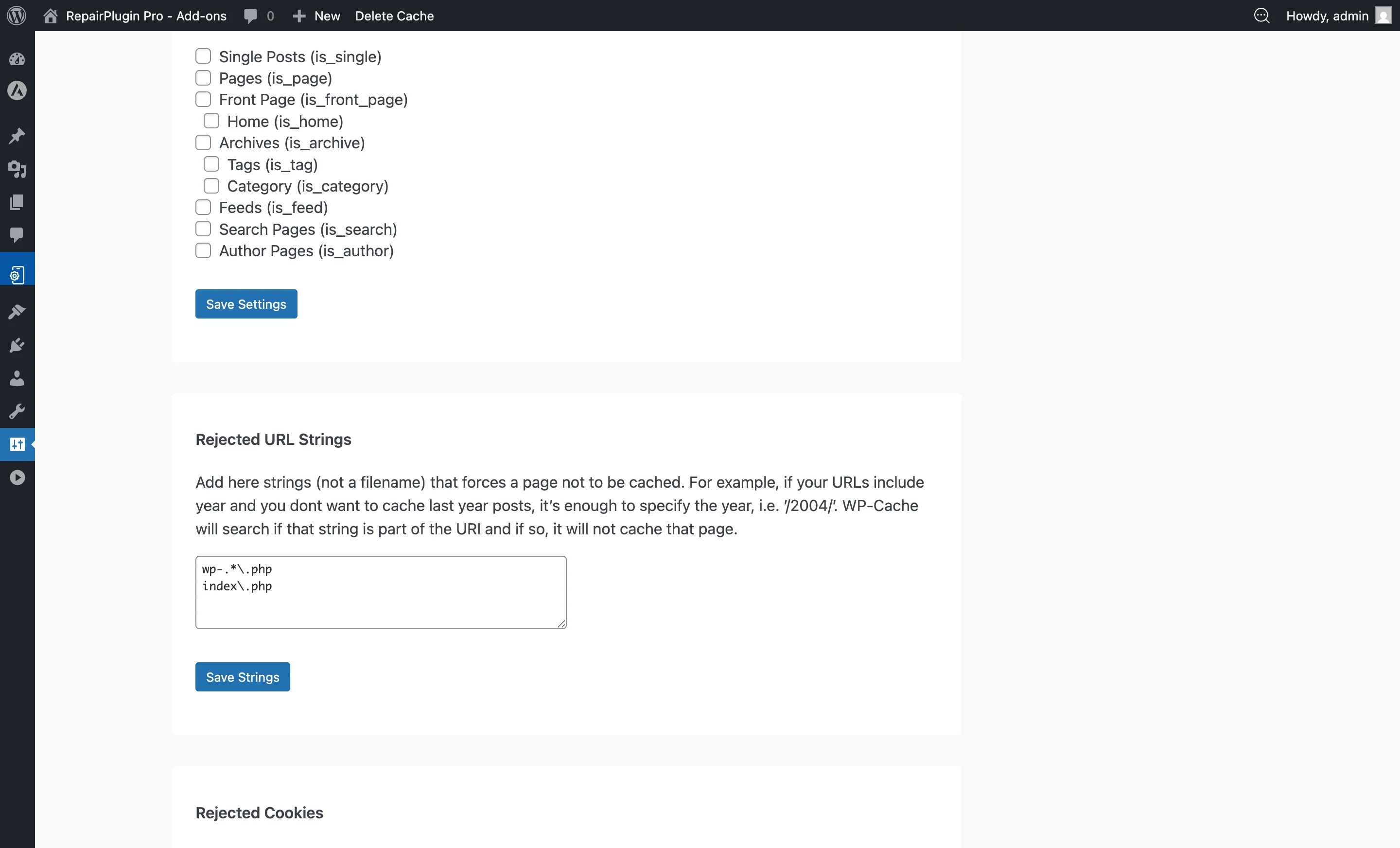
Important: Exclude RepairPlugin pages from full-page caching to avoid form submission errors. See Form Submission Failed for step-by-step instructions on cache exclusion.
W3 Total Cache example:
WP Super Cache example:
RepairPlugin also has its own caching options:
- Go to RepairPlugin > Settings > Caching & Performance
- Review and turn on the available caching options for RepairPlugin data
Step 3: Optimize your images
Large images are one of the biggest causes of slow pages.
- All images included with RepairPlugin (brand logos, model images, repair icons) are already optimized
- If you use your own custom images, make sure they're compressed:
- Install an image optimization plugin like ShortPixel, Smush, or Imagify
- Resize images to the right dimensions before uploading (e.g., 300x300px for thumbnails)
- Use WebP format where possible
Step 4: Reduce the number of files your pages load
Every CSS file, JavaScript file, and image your page loads adds to the load time.
- Use your caching plugin's optimization features to combine and minify CSS and JavaScript files
- Reduce the number of external fonts loaded
- Turn off unnecessary widgets and sidebars on RepairPlugin pages
- Use lazy loading for images that aren't visible right away
Step 5: Upgrade your hosting plan
If your site is still slow after the steps above, your hosting might be the bottleneck.
Signs that hosting is the problem:
- You're on a shared hosting plan with limited resources
- Your server response time is consistently above 500ms
- Your hosting panel shows high CPU or memory usage
Consider:
- Upgrading to a VPS or managed WordPress hosting plan
- Choosing a hosting provider optimized for WordPress (e.g., Cloudways, Kinsta, SiteGround)
- Making sure your server has at least 256MB PHP memory limit
Step 6: Check for plugin conflicts
A poorly built plugin can slow down your entire site.
- Temporarily deactivate all plugins except RepairPlugin
- Test your site speed
- If performance improves, reactivate plugins one by one to find the slow one
- See Troubleshooting Conflicts for the full conflict testing process
If only specific RepairPlugin features are slow
If your pages load fast overall but certain RepairPlugin actions are slow (like searching models, loading repairs, or submitting an appointment):
- Clean up your database: Over time, WordPress databases can get bloated. Use a plugin like WP-Optimize to clean up and optimize your database tables.
- Check server response times: Open your browser's developer tools (F12), go to the Network tab, and watch what happens when you use RepairPlugin. Slow server responses point to a server-side issue.
- Check your error logs: Look at RepairPlugin > Settings > Email Settings & Logs and your server's PHP error logs for any errors that might explain the slowness.
- Contact support: If specific features are consistently slow, email support@repairplugin.com with details about which feature is slow and any error messages you see.
Frequently asked questions
Is RepairPlugin itself causing the slowness?
In most cases, no. RepairPlugin is built to be lightweight. You can see its performance on the live demo at repairplugin.com. When it appears slow on your site, the cause is usually too many plugins, no caching, unoptimized images, or limited hosting resources.
How can I quickly test if another plugin is the problem?
Deactivate all plugins except RepairPlugin and test your site. If it's fast now, reactivate plugins one at a time until you find the one slowing things down. See Troubleshooting Conflicts for detailed steps.
What's a good target for page load time?
Aim for under 3 seconds total page load. Your server response time should be under 500ms. Keep your total page size under 3 MB. You can check all of this with free tools like GTmetrix or Google PageSpeed Insights.