
Dynamic Pricing
Set up Dynamic Pricing in RepairPlugin to automatically sync repair prices with live supplier costs, margins, and quality levels.
What can you do with this?
- Stay competitive automatically -- RepairPlugin fetches supplier prices every 60 minutes and recalculates your customer-facing prices, so you don't have to.
- Choose how prices are calculated -- pick the cheapest, most expensive, or average supplier price, then add your own margin on top.
- Offer multiple quality levels -- let customers choose between Official, Pulled, Refurbished, or Compatible parts, each with its own price.
- Control what happens when parts aren't available -- show a fallback price or a "Price on Request" label when a part is out of stock or not linked to a supplier.
- Give your staff real-time pricing -- in-store quotes and walkthroughs use the same live prices your customers see online.
- Trace the full pricing breakdown per appointment -- on the Appointments page, click the info icon next to any dynamically priced repair to see the supplier, SKU, purchase price, margin, tax, rounding, and every step that led to the final price. Requires a Growth or Scale plan.
Where to find it
- In your WordPress admin, go to RepairPlugin in the left sidebar.
- Click Settings.
- Open the Dynamic Pricing section.
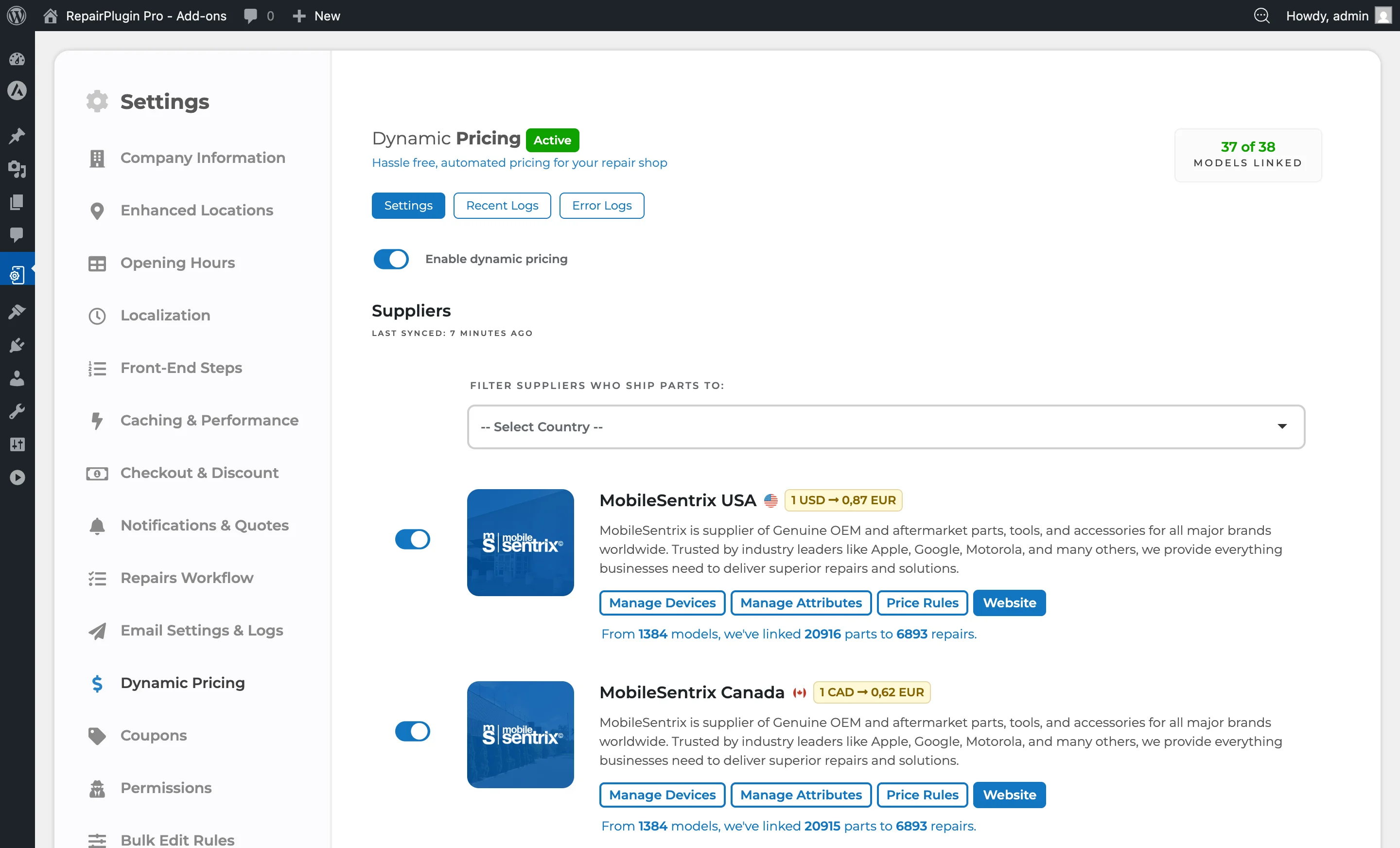
- You'll see four tabs:
- Settings -- main configuration for enabling Dynamic Pricing, choosing suppliers, setting margins, rounding rules, and picking a sync method.
- Linking Profiles -- shows the linking profiles of every enabled supplier. This is where you link brands and map quality attributes. See Suppliers & Linking.
- Recent Logs -- shows sync history with timestamps, processed suppliers, and sync status.
- Error Logs -- shows errors from data feed processing (failed connections, parsing issues, timeouts).
- A License tab appears when no valid Dynamic Pricing license is active. Enter your license key there to unlock the full settings.
How to set it up
Activate Dynamic Pricing
- Go to
RepairPlugin > Settings > Dynamic Pricing. - If no license is active, you'll see the License tab.
- Enter your license key and click Activate.
- The system validates your key against your Growth or Scale plan.
- Once activated, the Settings, Linking Profiles, Recent Logs, and Error Logs tabs become available.
Turn on Dynamic Pricing
- Go to
Settings > Dynamic Pricing > Settings. - Switch Enable Dynamic Pricing to ON.
- RepairPlugin starts calculating prices based on supplier data and your margin settings.
- Switch it OFF to deactivate -- prices revert to your fallback values (manually set prices or "Price on Request").
Choose how to handle multiple suppliers
When a part is available from more than one supplier, you decide which price to use:
- Go to
Settings > Dynamic Pricing > Settings. - Find the Consider Price When Part Is Available Through More Than One Supplier dropdown.
- Select one of these options:
- Cheapest in stock (default) -- uses the lowest available price. Most competitive for customers.
- Most expensive in stock -- uses the highest available price. Maximizes your margin.
- Average price -- calculates the average across all in-stock suppliers. A balanced approach.
- Only parts that are currently in stock are considered. Out-of-stock suppliers are excluded.
Set up fallback pricing
When a part isn't linked to any supplier, or all suppliers are out of stock:
- Find the What If Item Is Not Linked or Not in Stock dropdown.
- Select one of these options:
- Use fallback price (default) -- shows the manually set price from Models & Repairs or Default Repairs.
- Price on Request -- hides the price and shows a "Price on Request" label. See Price on Request for how the quote workflow works.
Choose a sync method
- Find the Synchronize Dynamic Pricing Data Using option.
- Pick one:
- WordPress (default) -- uses WP-Cron, which runs when visitors load your site. Simple to set up, but depends on regular traffic.
- Cronjobs (recommended) -- uses a server-side cron command that runs on its own, regardless of traffic. More reliable and doesn't slow down your site.
- If you pick Cronjobs, set up the cron command in your hosting control panel. See Setting Up Cronjobs for step-by-step instructions.
Set your margins
Margins control how much markup you add on top of the supplier's purchase price. You can set them at two levels:
- Default Repairs (
RepairPlugin > Default Repairs) -- set a margin for an entire repair category (e.g., all screen repairs). It applies to every model in that category. - Models & Repairs (
RepairPlugin > Models & Repairs) -- set a margin for a specific model. This overrides the default margin for that model.
For detailed instructions on margin types, minimum/maximum margins, and pricing strategy, see Margins & Price Strategy.
Understand quality levels
Parts are grouped by quality, so you can offer different price points per repair:
- Official -- made by the original brand (OEM). Highest quality and price.
- Pulled -- original parts carefully removed from a disassembled device. Genuine components at a lower cost.
- Refurbished -- pre-owned original parts combined with compatible replacement components (e.g., a refurbished screen with a new backlight). Good balance of quality and affordability.
- Compatible -- made by an independent third party. Most affordable option. For screens, Compatible is further split into OLED and LCD variants to reflect the big price and quality difference between display technologies.
Each quality level can have its own supplier link, margin, and pricing rules, giving you full control over how each tier is priced.
Settings reference
| Setting | Description | Default | Customers see |
|---|---|---|---|
| Enable Dynamic Pricing | Turns the entire Dynamic Pricing system on or off. When it's on, repair prices are calculated from supplier data and your margin rules. When it's off, prices revert to your fallback values | off | When on, customers see live supplier-based prices. When off, they see your standard manually set prices. |
| Consider Price When Part Is Available Through More Than One Supplier | Decides which supplier price to use when more than one supplier stocks the same part. Only in-stock parts count -- out-of-stock suppliers are excluded | Cheapest in stock | "Cheapest" gives the most competitive price. "Most expensive" results in a higher price. "Average" lands somewhere in between. |
| What If Item Is Not Linked or Not in Stock (Fallback) | Controls what happens when a part can't be priced through supplier data -- either because it isn't linked to any supplier or because all suppliers are out of stock. "Use fallback" shows your manually set price. "Price on Request" hides the price and prompts your customer to request a quote | Use fallback price | Either the fallback price or a "Price on Request" label, depending on what you've selected. See Price on Request. |
| Margin Type | Controls how the margin is calculated on top of the purchase price. "Percentage" means selling price = purchase price + (purchase price x margin %). "Fixed amount" means selling price = purchase price + a flat margin value. For detailed margin setup and strategy, see Margins & Price Strategy | Fixed amount | This directly affects the final price for all dynamically priced repairs. |
| Minimum Margin | Sets a floor for the margin. If the calculated margin falls below this value, the minimum margin is used instead. This prevents underpricing on cheap parts | empty (no minimum) | Low-cost repairs maintain a minimum profit margin in the displayed price. |
| Maximum Margin | Sets a cap for the margin. If the calculated margin exceeds this value, the maximum margin is applied instead. This prevents overpricing on expensive parts | empty (no maximum) | High-cost repairs stay competitively priced because the markup is capped. |
| Reset Margins | Resets all margin values back to 0 across all repairs and models. This is useful when switching between Percentage and Fixed Amount margin types, since previously set values may no longer make sense for the new calculation method | N/A | All dynamically priced repairs show the purchase price only (zero margin) until you set new margins. |
| Round Up Dynamic Price | Rounds the calculated price to a cleaner, more professional-looking value. For example, "Ceil" rounds 95.63 up to 96. The ".99" option produces prices ending in .99 | Ceil (round up to nearest whole number) | Rounded prices (e.g., 99.00 instead of 95.63) for a cleaner, more predictable look. |
| Round Up Every X Units | Sets the rounding increment. With 5-unit rounding, 92.63 rounds to 95. With 10-unit rounding, 92.63 rounds to 100 | 5 | Higher increments produce rounder numbers but may push the price further from the calculated amount. |
| Format for Last Price Updated Date on Frontend | Sets the date format for the small indicator shown next to each dynamically priced repair, telling customers when the price was last updated from supplier data | d/m/y | A small date next to dynamically priced repairs, formatted according to this setting (e.g., 05/04/26 vs. 04/05/26). |
| Hide Repair Attribute If No Part Is Available or Price Is 0 | When on, quality-level options that have no linked supplier part or a zero-value margin are hidden completely. When off, those options still show up with a "Price on Request" label | off | When on, unavailable quality options are invisible. When off, customers see "Price on Request" for those options. |
| Hide Repair If... | Hides the entire repair (not just a quality level) based on supplier inventory status. "Found but not in stock" hides repairs where the part exists in supplier feeds but is currently unavailable. "Not found" hides repairs with no supplier link at all. "Not found or not in stock" hides both cases | empty (do not hide) | Repairs that match the selected condition don't appear in the booking flow, so customers can't book repairs where parts aren't available. |
| Synchronize Dynamic Pricing Data Using | Picks the sync method. WordPress mode uses WP-Cron (needs site traffic to run). Cronjob mode uses a server-side cron command (runs on its own, recommended for live sites). See Setting Up Cronjobs for setup instructions | WordPress | This determines how often and reliably prices are updated. Cronjob mode ensures consistent updates regardless of how much traffic your site gets. |
Recent Logs tab
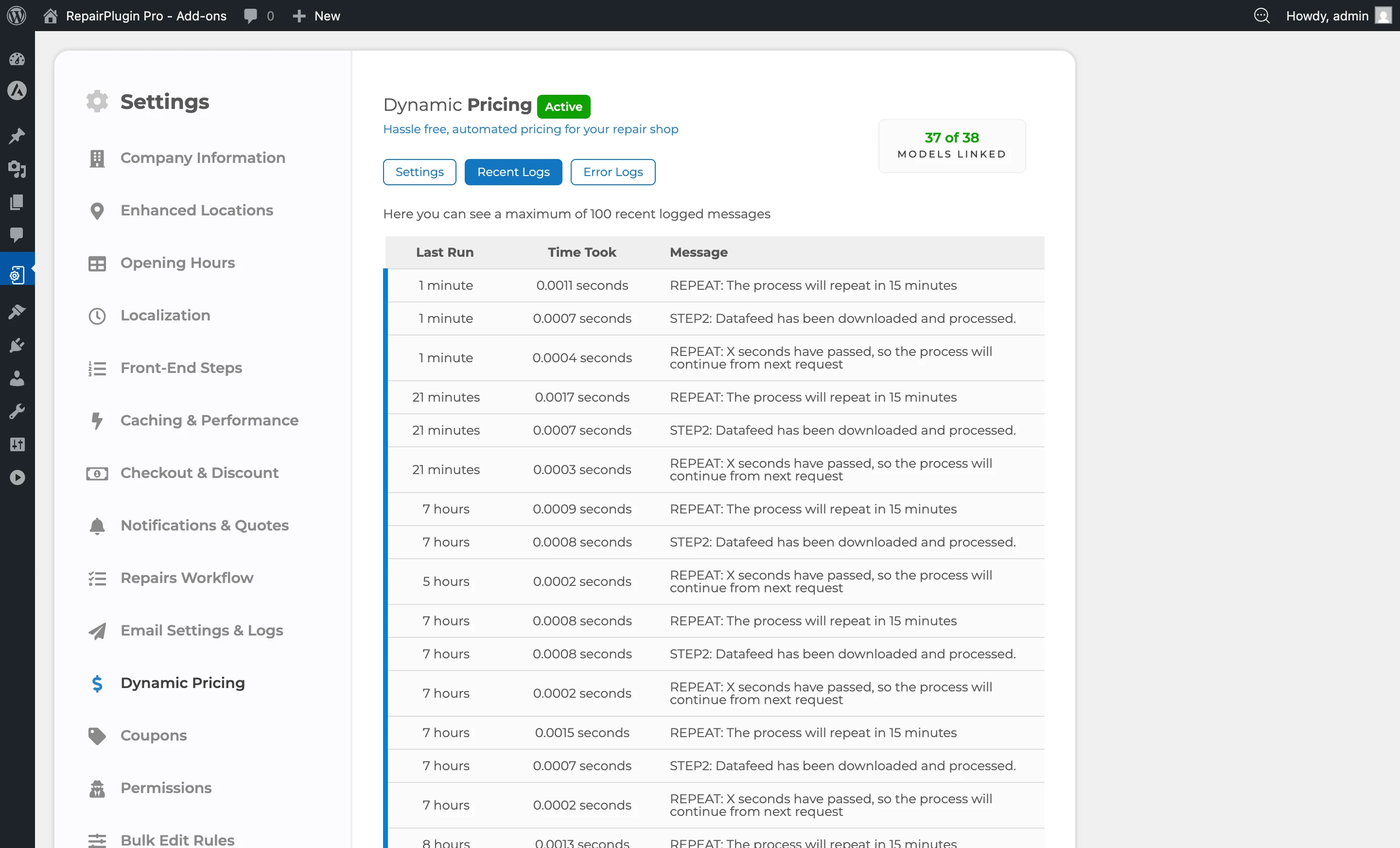
This tab shows your sync history -- when the last data feed was processed, which suppliers were updated, and whether each sync completed successfully. Use it to check that Dynamic Pricing is running on schedule.
Error Logs tab
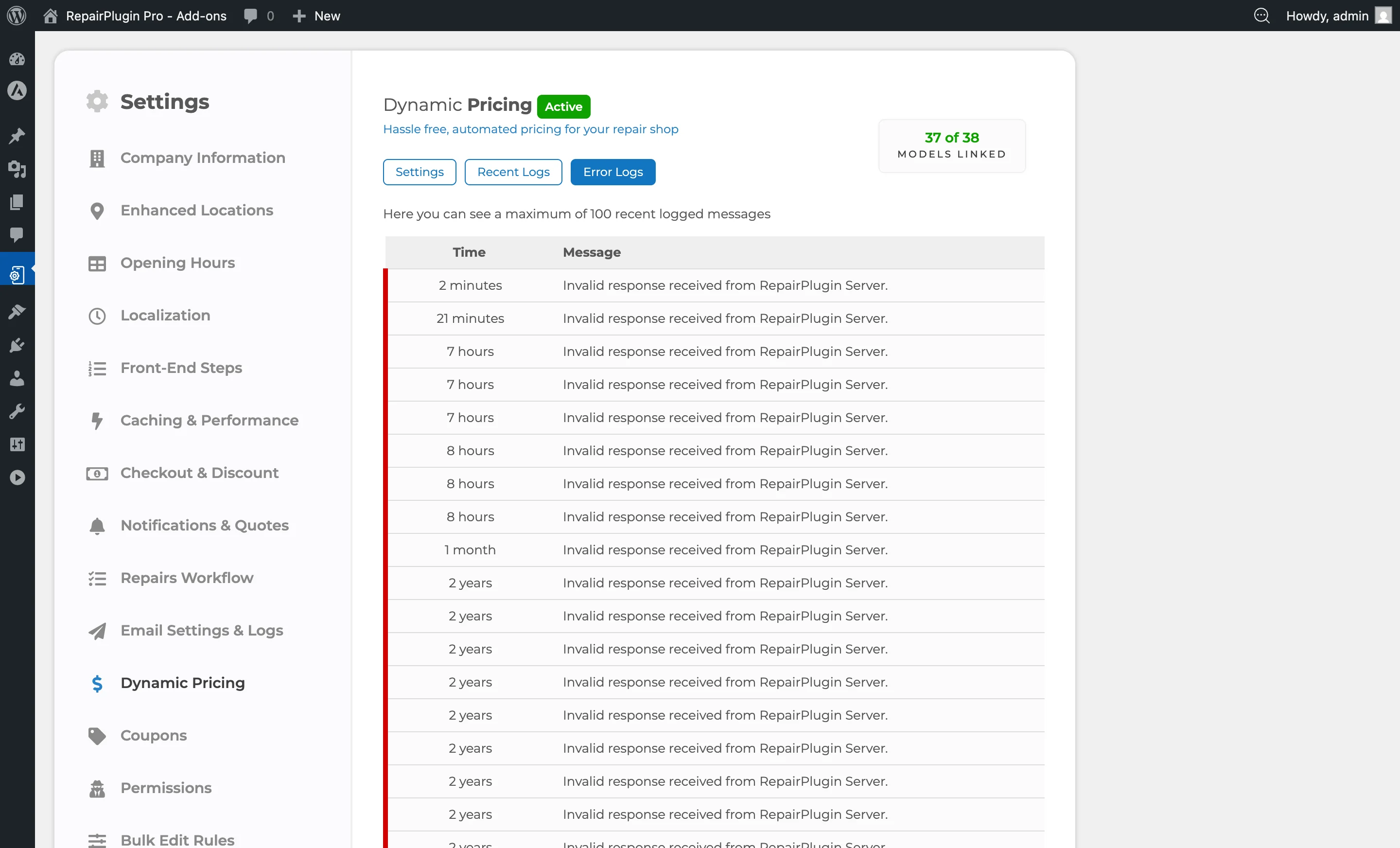
This tab shows errors from sync runs, including failed supplier connections, data parsing issues, timeout problems, and SKU mismatches. Use it to diagnose sync failures. For common error scenarios and solutions, see Dynamic Pricing FAQ.
Frequently asked questions
What happens when I turn Dynamic Pricing off?
Your prices revert to the fallback values -- either the manually set prices from your repair catalog or a "Price on Request" label, depending on your fallback setting.
Do I need to update prices manually?
No. RepairPlugin fetches supplier prices every 60 minutes and recalculates your selling prices automatically. You only need to set your margins and let the system do the rest.
Which license do I need?
Dynamic Pricing is included in the Growth and Scale plans. It requires an active RepairPlugin installation.