
Dynamic Pricing FAQ
Discover answers to common Dynamic Pricing questions and fix attribute mapping, synchronization, and error log issues in RepairPlugin.
What can you do with this?
- Solve attribute mapping notifications -- understand why update notifications appear and how to clear them.
- Fix synchronization issues -- get prices updating again when syncs stall or stop.
- Read error logs -- quickly diagnose supplier connection problems and API issues.
- Understand email alerts -- know what to do when you receive a "Data Sync Issue" email from RepairPlugin.
For a general overview, see Dynamic Pricing. For supplier management and SKU linking, see Suppliers & Linking. For margin configuration and pricing strategy, see Margins & Price Strategy.
Where to find it
- Recent Logs:
RepairPlugin > Settings > Dynamic Pricing > Recent Logstab - Error Logs:
RepairPlugin > Settings > Dynamic Pricing > Error Logstab - Attribute Linking:
RepairPlugin > Settings > Dynamic Pricing > Linking Profiles > [Supplier] > [Linking profile] > Manage Attributes
How to fix common issues
Attribute mapping notifications
Why you're seeing update notifications about attribute mapping:
This is NOT an error. It happens when you've manually changed supplier attribute linking. Here's how it works:
- RepairPlugin suggests quality mappings ("Our Suggestion") and automatically transfers them to "Your Linking."
- Once you manually adjust mappings, automatic transfers stop.
- New suggestions appear as update notifications until you review them.
- This is by design -- RepairPlugin never overwrites your manual decisions without your consent.
Option 1: Review and accept suggestions manually (recommended)
- Go to
Dynamic Pricing > Linking Profiles. - Unfold the supplier showing the notification and click Manage Attributes next to a linking profile.
- Review the changes shown under "Our Suggestion".
- Transfer the mappings you want to "Your Linking".
- Click "Mark as Reviewed".
- The notification disappears once you've reviewed it.
Option 2: Reset attribute linking
- Go to
Dynamic Pricing > Linking Profiles. - Unfold the supplier and open Manage Attributes next to a linking profile.
- Click "Reset Linking" (at the bottom of the modal).
- Be careful -- this overwrites any custom attribute mappings you've created for that linking profile.
Synchronization issues
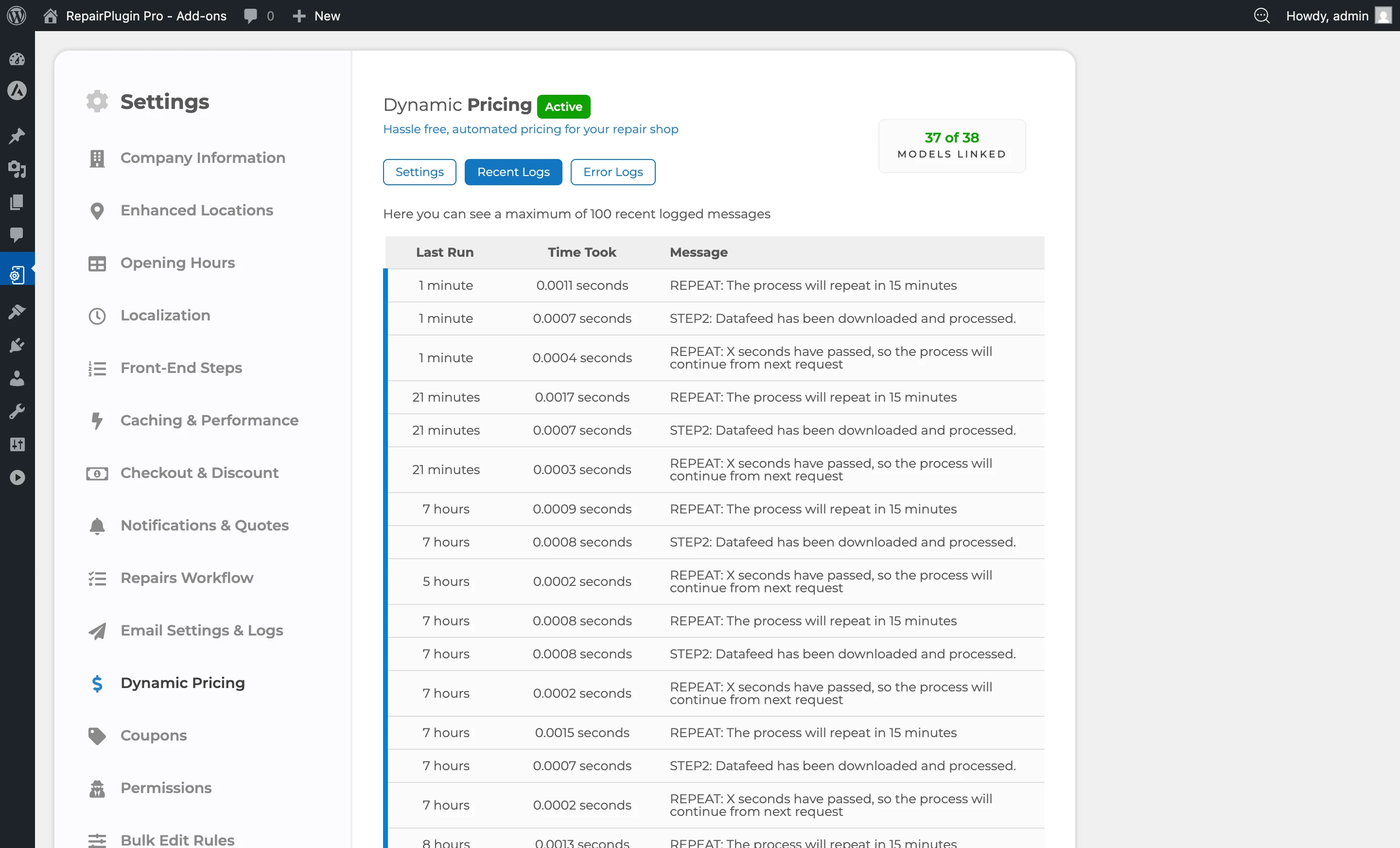
If prices aren't updating:
- Check Recent Logs -- look for timestamps showing the last successful sync.
- Review supplier connections -- make sure suppliers are enabled and data feeds are active.
- Restart synchronization -- run a manual re-sync from the Dynamic Pricing settings.
- Verify your cronjob -- if you're using cronjobs, confirm the job runs at the expected interval in your hosting panel. See Setting Up Cronjobs for setup instructions.
Sync stop email alerts:
- RepairPlugin monitors sync activity automatically.
- If there's no sync output for more than 2 hours, it sends an email alert to the site administrator.
- The email subject is: "Dynamic Pricing: Data Sync Issue."
- The email includes troubleshooting tips:
- For cron mode: check the last run time in settings.
- For WordPress mode: sync depends on site visitors, so low-traffic periods may cause gaps.
- A link to error logs.
- The alert is sent only once per incident (it won't repeat).
- An admin notice also appears in the WordPress dashboard.
Error logs
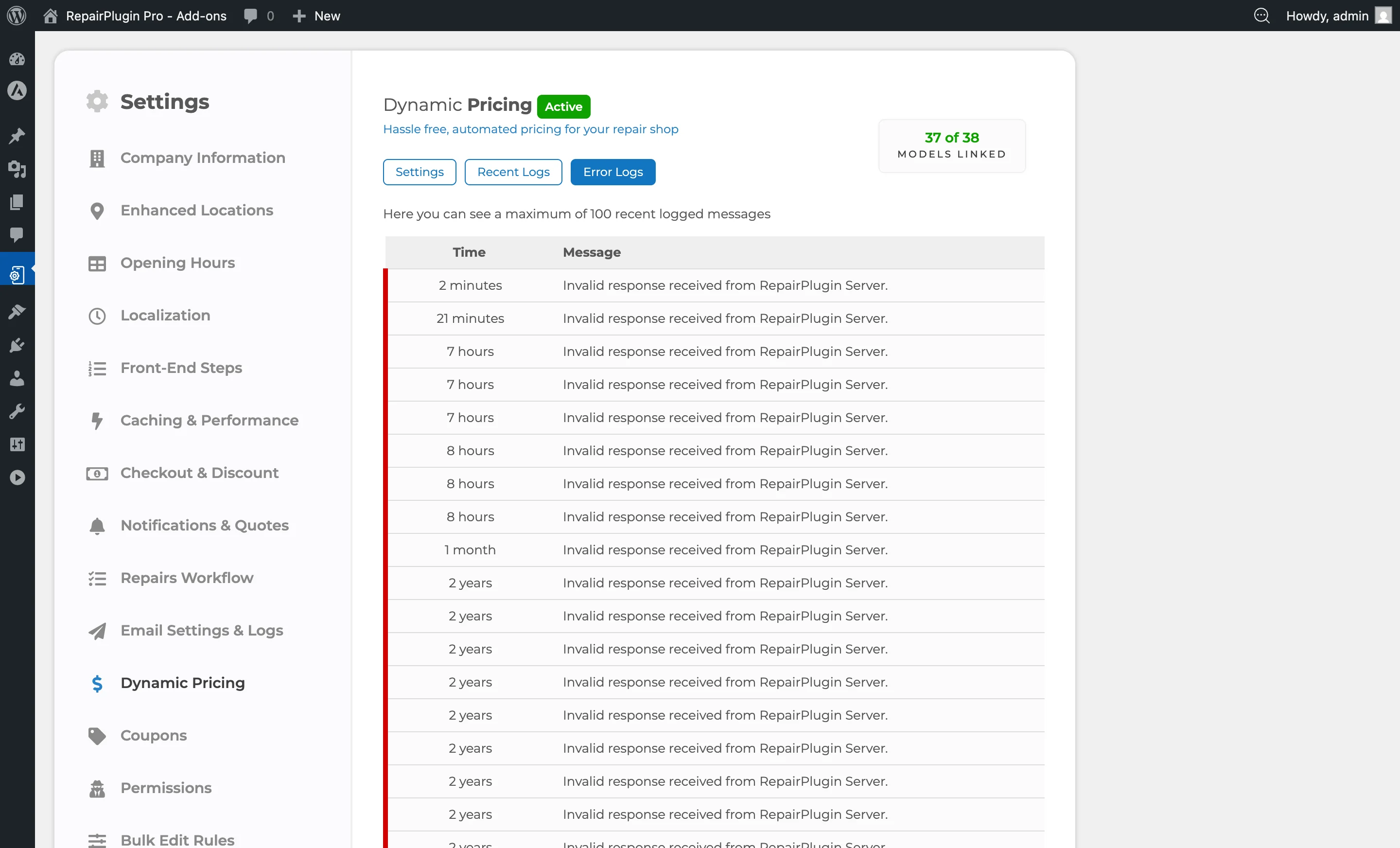
- RepairPlugin keeps the 100 most recent errors (older errors are removed automatically).
- Each entry shows: timestamp, supplier, error type, and message.
- Common error types: API timeouts, failed supplier connections, and data parsing issues.
- Use the Error Logs tab to diagnose sync failures and supplier feed problems. For general log navigation, see Dynamic Pricing.
Frequently asked questions
Do I need to set up every margin individually?
No. Set margins in bulk through Default Repairs, or individually through Models & Repairs. Default Repairs is recommended for initial setup. See Margins & Price Strategy for detailed guidance on choosing between percentage and fixed margins.
Do I still need to manually update prices?
No. Once you set your margin, repair prices update automatically within 60 minutes whenever the purchase price changes. Synchronization runs on the interval you've configured in your settings (WordPress or cronjob method).
Which suppliers are connected?
Check the current list at Settings > Dynamic Pricing > Settings. RepairPlugin continually integrates new suppliers. For details on how supplier connections work, see Suppliers & Linking.
How can my supplier apply for integration?
Contact the support team through the Intercom chat widget. Integration typically takes about two weeks, including setup, testing, and linking all SKUs.
What if a model or repair isn't connected, but a supplier has a valid SKU?
Send the SKU and supplier details through the Intercom support chat widget. The connection is made within one business day at no additional cost (it's included with Dynamic Pricing).
Can I change the names of connected repairs?
Yes. RepairPlugin uses unique IDs for connections, not repair names. Renaming repairs doesn't break any links.
Why is Dynamic Pricing only available on Growth and Scale plans?
It requires complex integration and constant monitoring of supplier product feeds, plus ongoing optimization to connect data to all repairs. This involves additional resources, development, and maintenance beyond the core plugin.
Can I use Dynamic Pricing without RepairPlugin?
No. Dynamic Pricing works exclusively with RepairPlugin. An active Growth or Scale plan is required.
What happens if I stop using Dynamic Pricing?
Prices on your website no longer sync with supplier data. They revert to your fallback prices -- the standard prices that were visible before Dynamic Pricing was activated. The fallback behavior depends on your configuration: either the manually set price or "Price on Request." See Dynamic Pricing for fallback pricing settings.
Why do I need a cronjob?
A cronjob automates price updates at regular intervals (typically every hour). Without it, prices only sync when visitors are on your site (WordPress method), which is less reliable. See Setting Up Cronjobs for setup instructions.