
Combo Discount
Set up automatic combo discounts in RepairPlugin to reward customers who book multiple repairs and increase your average order value.
combo-discountdiscountpricingcheckoutmulti-repair
What can you do with this?
- Increase average order value -- customers are motivated to add extra repairs instead of booking them one at a time.
- Offer flexible discount types -- choose between a fixed currency amount or a percentage off each additional repair.
- Automate the discount -- no coupon codes needed; the discount applies automatically at checkout.
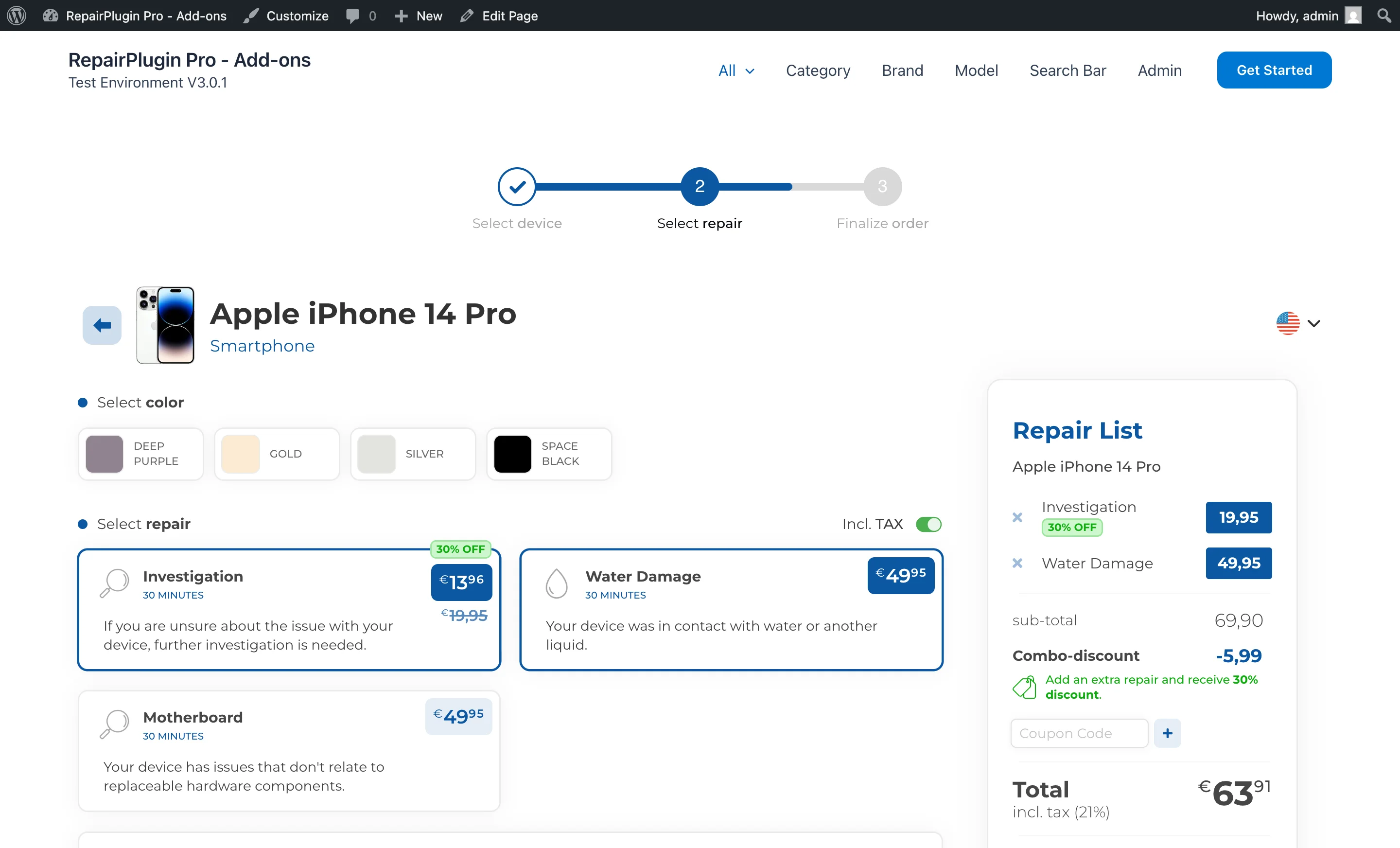
- Show customers what they save -- a clear "Combo-discount" line appears in the order summary so customers see the benefit right away.
- Encourage extra repairs -- a promotional message nudges customers to add another repair to unlock the discount.
Where to find it
- In your WordPress admin, go to RepairPlugin in the left sidebar.
- Click Settings.
- In the settings sidebar, click Checkout & Discount.
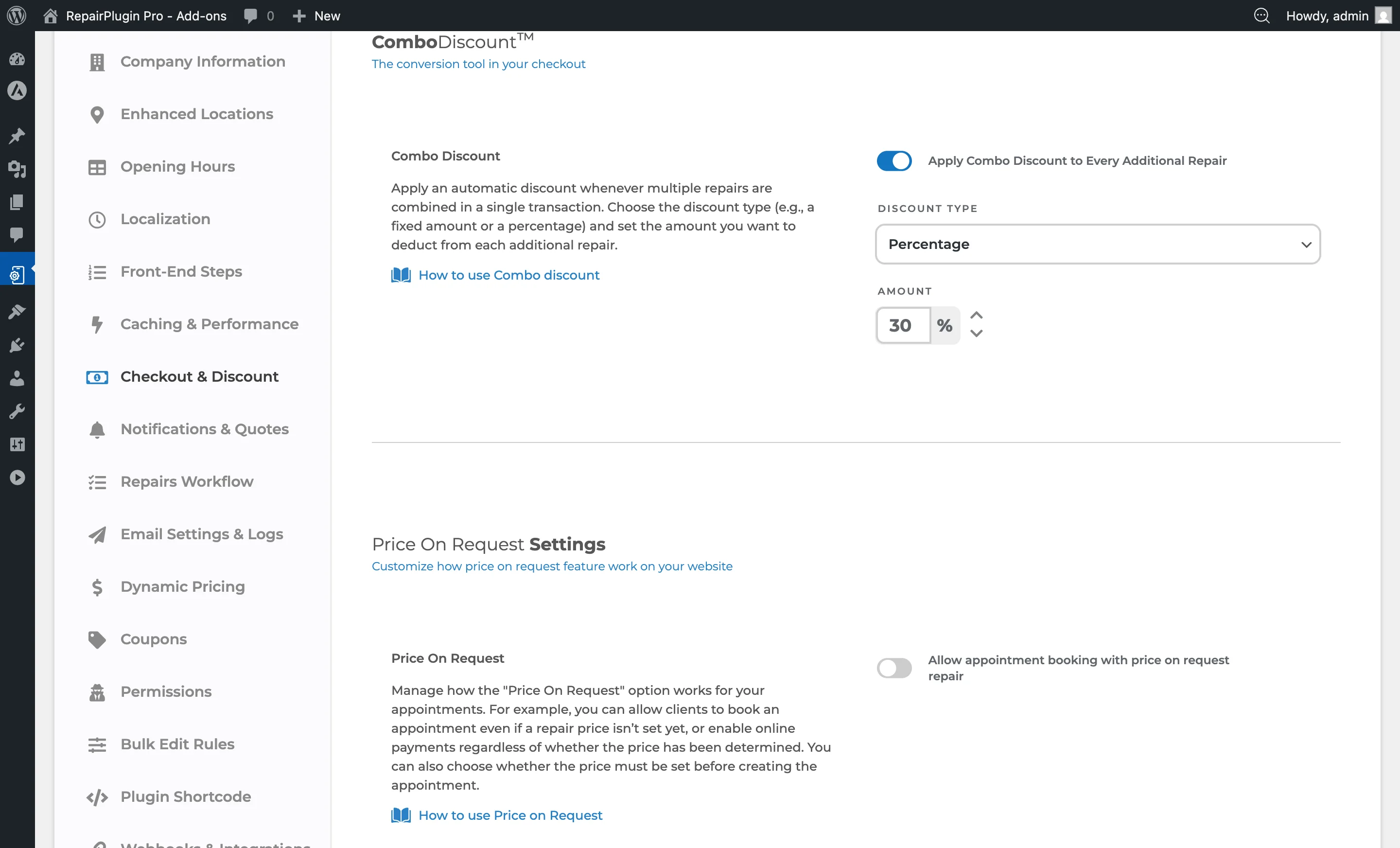
- Scroll down to the Combo Discount section.
https://www.repairplugin.com/wp-admin/admin.php?page=wp_repair_settings§ion=planning_discount
How to set it up
Enable Combo Discount
- Navigate to the Combo Discount section as described above.
- Switch Apply Combo Discount to Every Additional Repair to ON.
- Select a Discount Type from the dropdown (Fixed or Percentage).
- Enter the discount value in the Amount field.
- Click Save at the bottom of the page.
Change Discount Type or Amount
- Open the Discount Type dropdown and choose either Fixed or Percentage.
- Update the Amount field with the desired value.
- For Fixed: enter a currency amount (e.g.,
10for a 10-unit currency discount per additional repair). - For Percentage: enter a percentage value (e.g.,
30for 30% off each additional repair).
- For Fixed: enter a currency amount (e.g.,
- Click Save. Changes take effect immediately.
Disable Combo Discount
- Switch Apply Combo Discount to Every Additional Repair to OFF.
- Click Save. The discount will no longer appear in checkout.
Settings reference
| Setting | Description | Default | Customers see |
|---|---|---|---|
| Apply Combo Discount to Every Additional Repair | When you turn this on, the first repair is charged at full price and every additional repair in the same order gets the combo discount automatically | off | A "Combo-discount" line appears in the order summary. A promotional message encourages them to add another repair to receive the discount. |
| Discount Type | Controls how the discount is calculated | Fixed. "Fixed" subtracts a flat currency amount from each additional repair. "Percentage" subtracts a percentage of each additional repair's price | The discount line shows either a currency symbol or percentage symbol depending on the type you've selected. |
| Amount | Sets the discount value Tip: Start with a modest discount (e.g., 10--15%) and monitor whether it moves your average order value up. You can always increase it later. | 0. For Fixed type, this is the currency amount deducted. For Percentage type, this is the percentage deducted from each additional repair's price | The calculated discount appears on the "Combo-discount" line in the checkout summary and is deducted from the total. |
Example Scenario
| Repair | Price | Discount Applied |
|---|---|---|
| Screen repair (1st) | Full price | None |
| Battery repair (2nd) | Full price minus combo discount | Yes |
| Camera repair (3rd) | Full price minus combo discount | Yes |
 |
Frequently asked questions
Does the combo discount apply to the first repair?
No. The first repair is always charged at full price. Only the second, third, and any further repairs receive the discount.
Can I combine Combo Discount with a coupon code?
Yes. Combo Discount and Coupon Codes work independently. The combo discount is applied first, and the coupon is then applied to the remaining total.