
Coupon Codes
Learn how to create and manage coupon codes in RepairPlugin for targeted promotions, loyalty rewards, customer-assigned discounts, and marketing campaign tracking.
What can you do with this?
- Run promotions -- create seasonal or event-based discount codes with expiration dates.
- Reward loyal customers -- give business clients a fixed discount they can reuse.
- Track marketing campaigns -- assign a unique code to each campaign (e.g., a code printed on a flyer) and see how often it's redeemed.
- Target specific repairs -- link coupons to certain categories, brands, models, or repair types so the discount only applies when conditions are met.
- Control usage -- set usage limits, minimum purchase amounts, and expiration dates to stay in control of your margins.
Where to find it
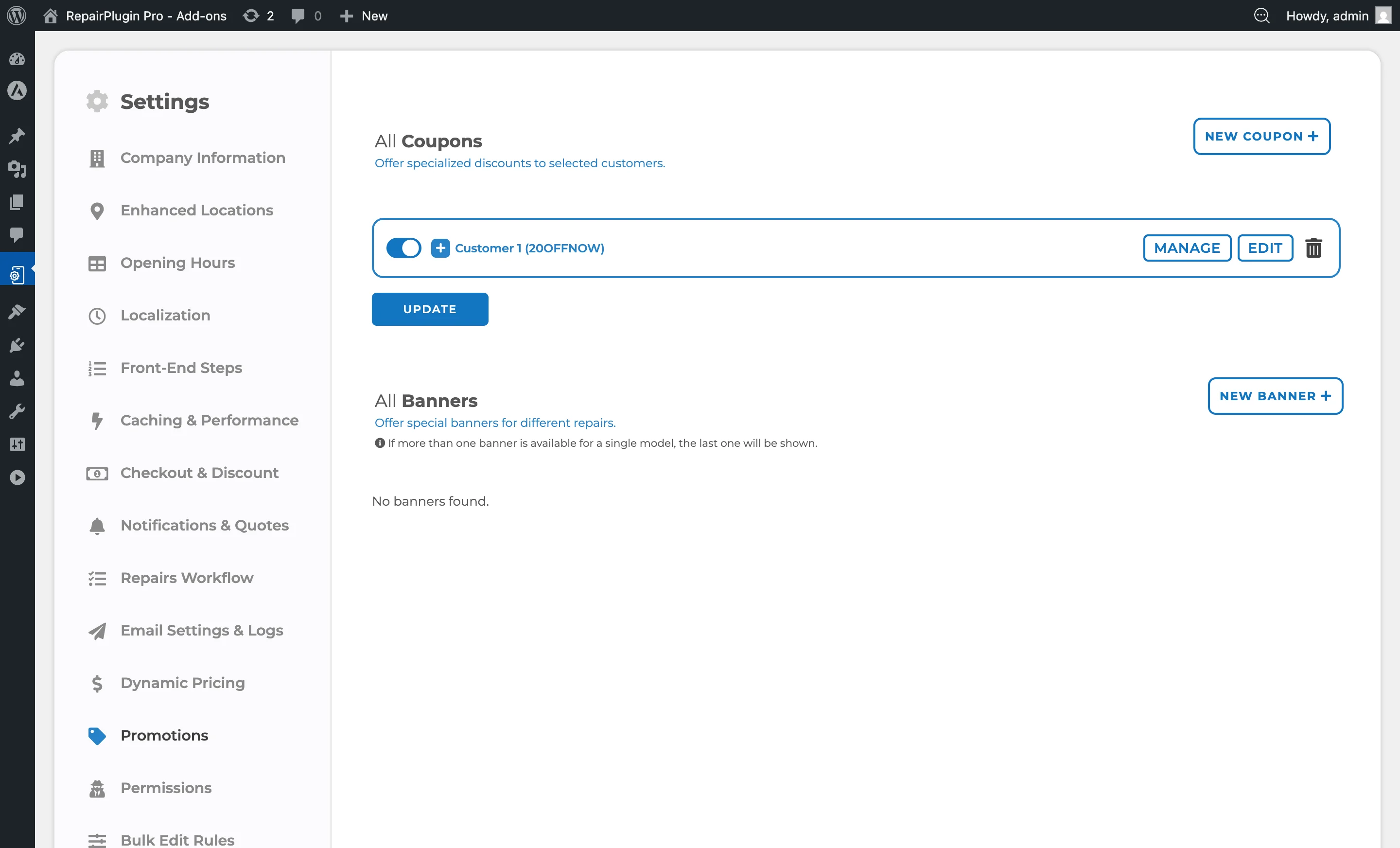
- In your WordPress admin, go to RepairPlugin in the left sidebar.
- Click Settings.
- In the settings sidebar, click Promotions.
- The Coupons section is at the top of the page. The Banners section is below it.
How to set it up
Create a New Coupon
-
On the Coupons page, click the New Coupon button in the top-right corner.
-
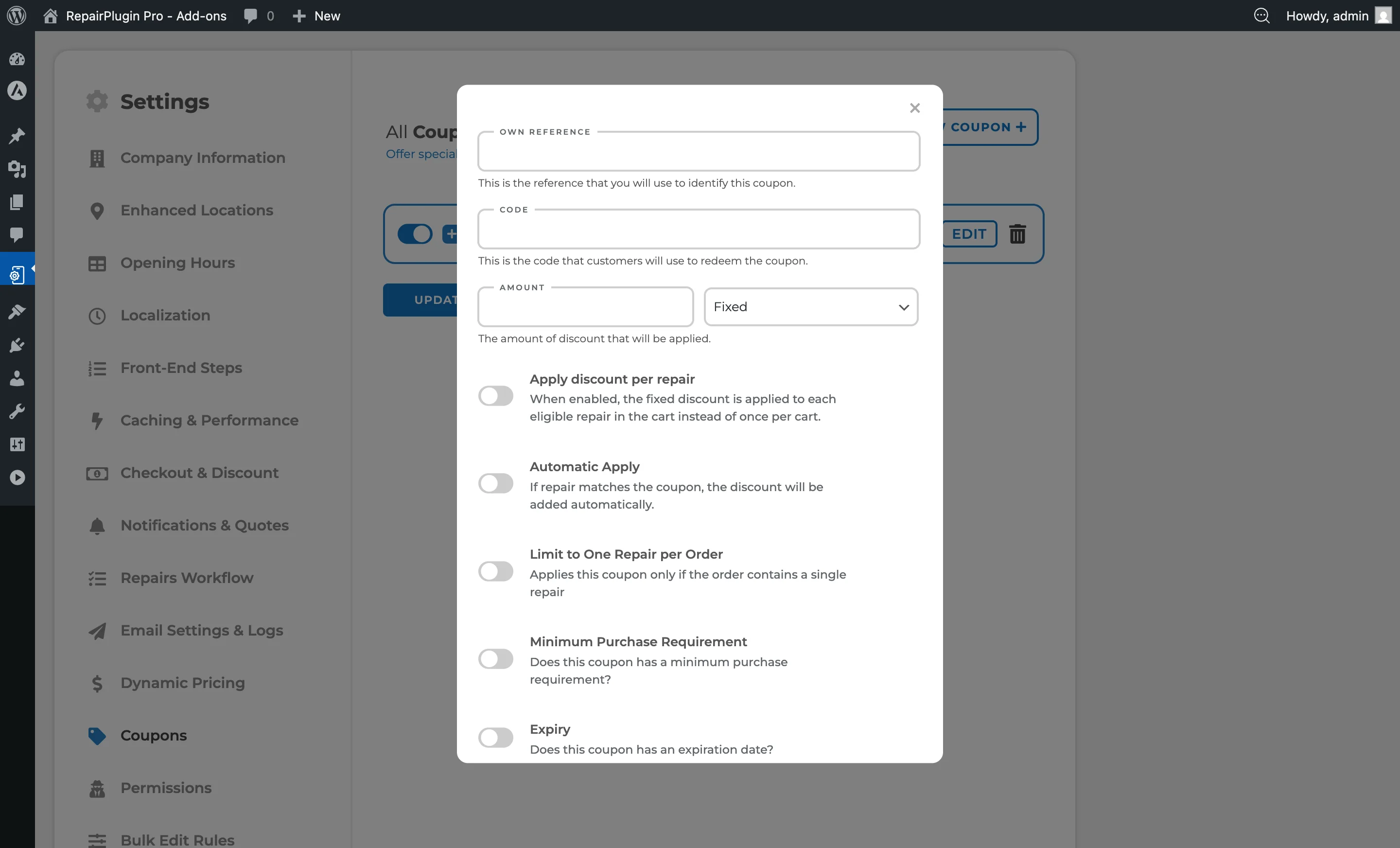
A modal window appears with the following fields:
- Own Reference -- your internal name for the coupon (e.g., "Summer Sale 2025").
- Code -- the code customers will enter at checkout (e.g., "SUMMER25").
- Description (Optional) -- a short text shown with the coupon in the Customer Portal, so assigned customers understand the offer and its terms.
- Amount -- the discount value.
- Type -- select "Fixed" for a flat amount or "Percent" for a percentage discount.
-
Configure optional settings (switches described below).
-
Click Add Coupon.
Edit an Existing Coupon
- On the Coupons page, find the coupon in the list.
- Click the Edit button or click the coupon name to expand its details.
- Modify any fields as needed.
- Click the Update button at the bottom to save all changes.
Enable or Disable a Coupon
Each coupon has an on/off switch on the left side of its row. Switch it on to activate or off to deactivate the coupon. Click Update to save the change.
Delete a Coupon
Click the trash icon on the right side of the coupon row. Confirm the deletion when prompted. This action is permanent.
Manage Coupon Targeting (Linking)
Coupons can be restricted to apply only to specific items. By default, a coupon with no links works for all repairs.
-
Click the Manage button next to a coupon.
-
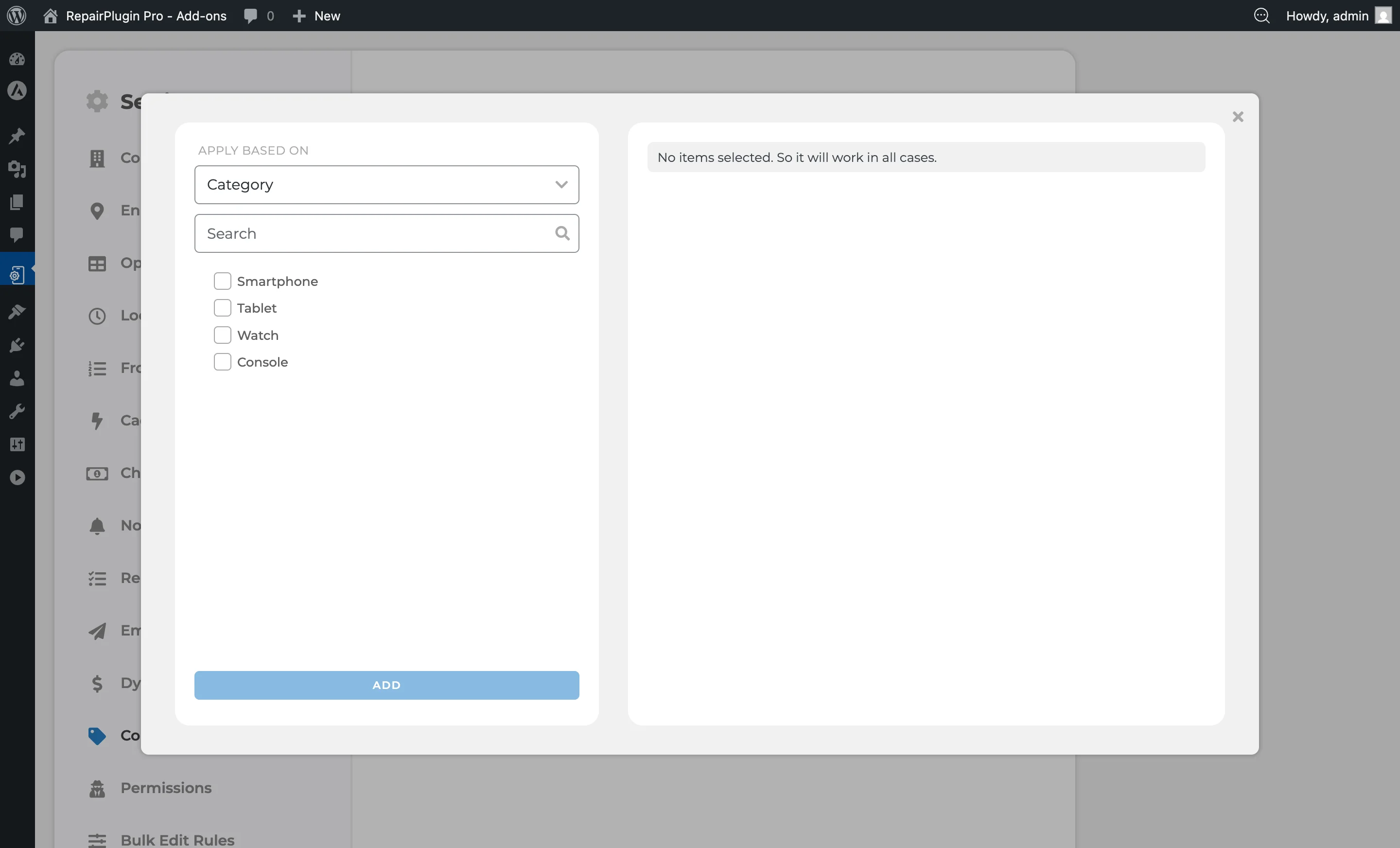
A linking modal opens with two panels:
- Left panel: Browse and search items to link. Use the "Apply Based On" dropdown to filter by Category, Brand, Model, Default Repair, or Default Attributes. Use the search field to find specific items.
- Right panel: Shows currently linked items.
-
Select items in the left panel and click Add to link them.
-
To remove a link, click the X icon next to an item in the right panel, or use the bulk selection tools (Select All, Unselect All, Delete Selected).
-
When linking multiple groups (e.g., both a Category and a Brand), choose a matching relation:
- Match any item from any group (OR) -- the coupon applies if the customer's repair matches any linked item in any group.
- Match at least one item from each group (AND) -- the coupon applies only if the customer's repair matches at least one item from every linked group.
Assign a Coupon to Specific Customers
You can tie a coupon to one or more customers so it works as a personal loyalty discount -- ideal for fixed price agreements with recurring business clients who use the Customer Portal. This section only appears when the Customer Portal addon is active on your plan (Growth and Scale).
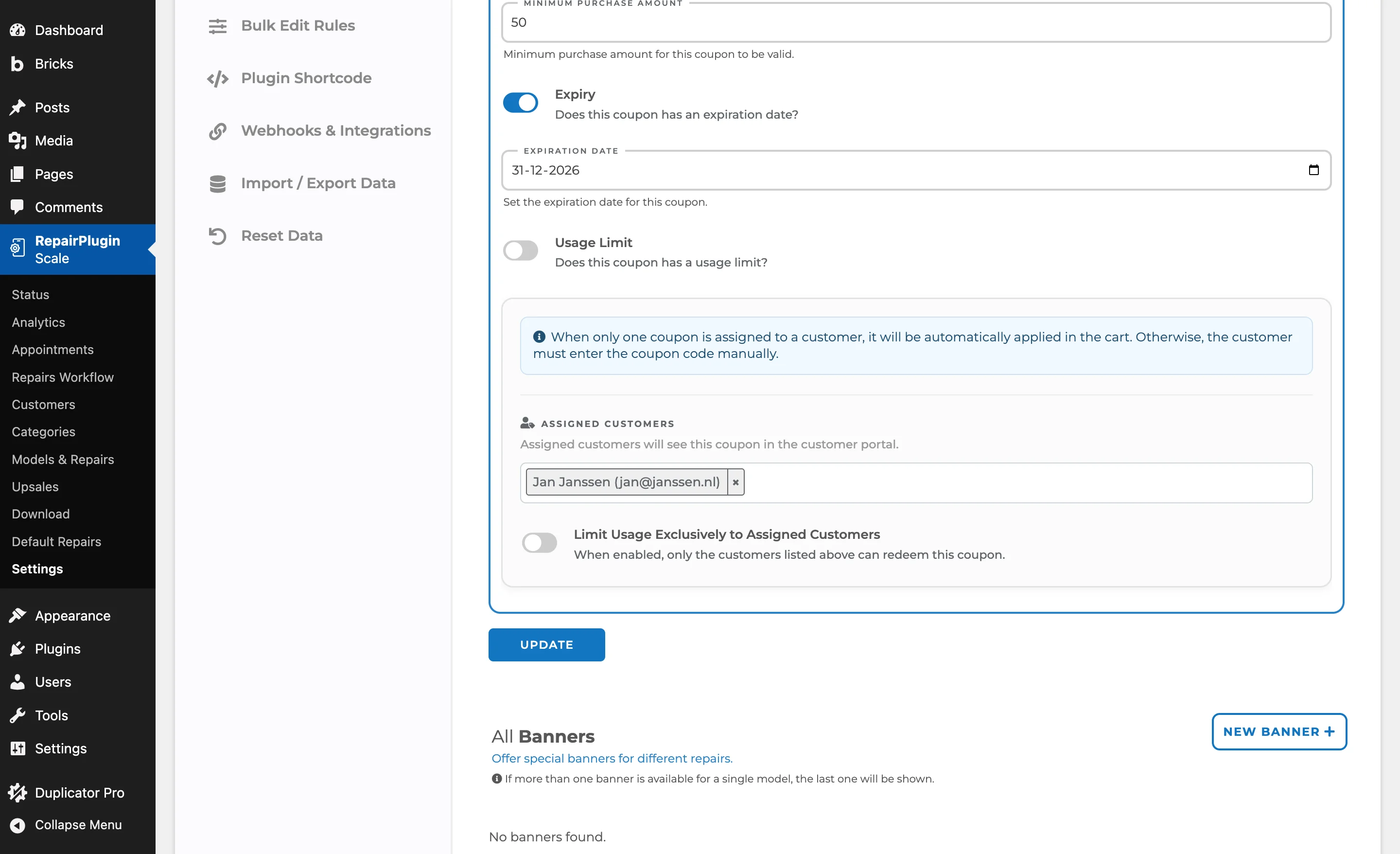
- Edit the coupon and find the Assigned Customers field.
- Start typing a name or email and select one or more customers from the list. The same coupon can go to many customers, and one customer can have several coupons.
- (Optional) Turn on Limit Usage Exclusively to Assigned Customers so only the listed customers can redeem the coupon.
- Click Update to save.
Assigned customers see the coupon in their Customer Portal, together with your coupon description and a copy button. If a customer has exactly one assigned coupon, it's applied automatically when they book; with more than one, they enter the code themselves. They can always type a different code to override it (the one-coupon-per-order rule still applies). Assigning a coupon doesn't send the customer an email -- they discover it in their portal.
Write a coupon description customers understand
The Description (Optional) field is shown with the coupon in the Customer Portal. Use it to explain the offer in plain words (e.g., "Thank you for being a loyal customer -- 30% off your next repair.").
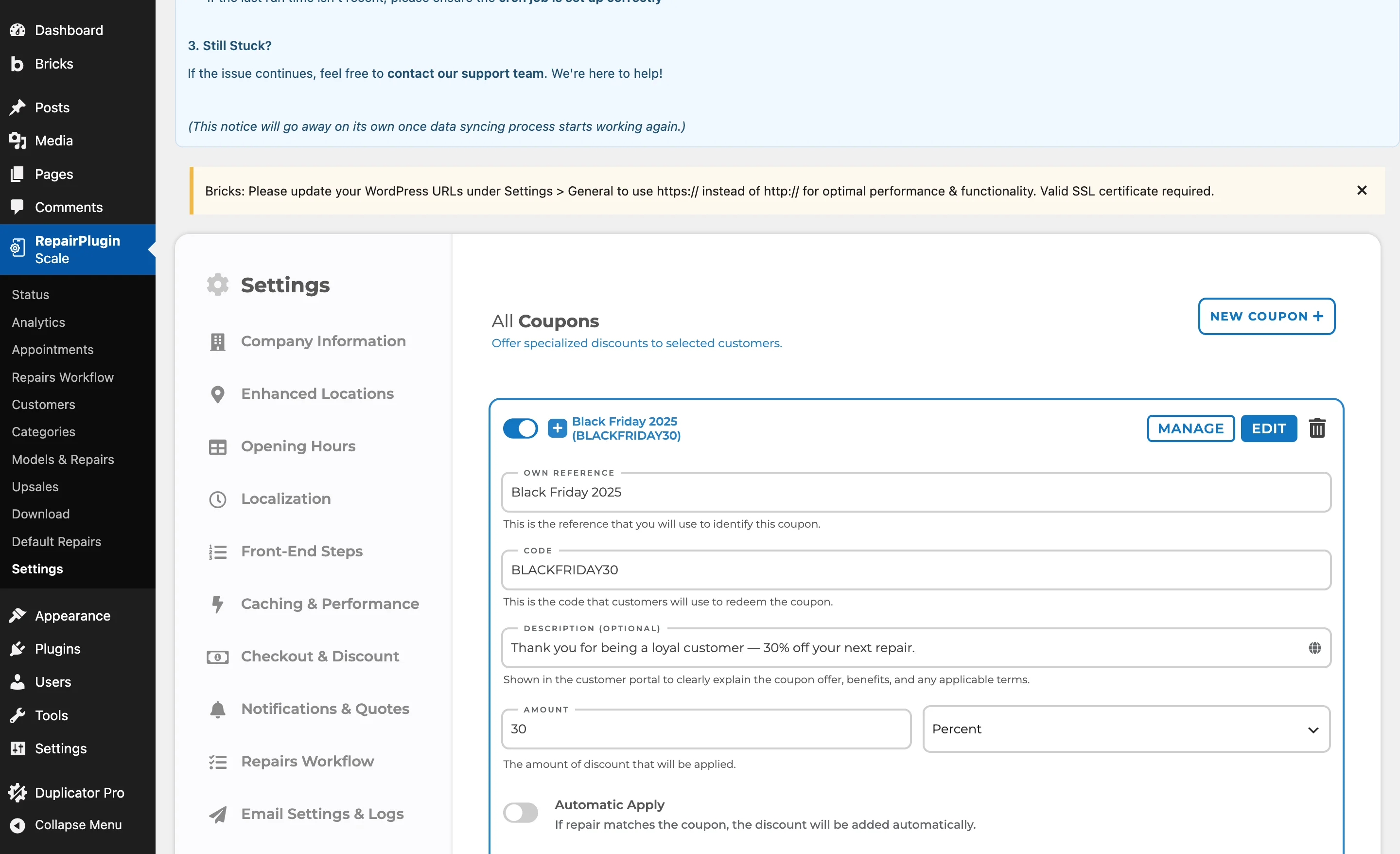
Click the globe icon next to the field to translate the description into each of your languages -- assigned customers see it in the language they've chosen. See Managing Languages for how languages work.
Settings reference
| Setting | Description | Default | Customers see |
|---|---|---|---|
| Own Reference | An internal label to help you identify the coupon in the admin list | empty. It isn't visible to customers | Nothing -- this is for your internal use only. |
| Code | This is the code customers type at checkout to redeem the discount | empty | A coupon code input field appears during checkout. They must enter this exact code to get the discount. |
| Description (Optional) | A short explanation of the coupon, shown with it in the Customer Portal. Translate it per language with the globe icon. Tip: mention the benefit and any terms, like a minimum amount. | empty | Assigned customers read this text next to the coupon code in their portal. |
| Amount | Sets the discount value | empty. RepairPlugin interprets this as a currency amount when Type is "Fixed" or as a percentage when Type is "Percent" | The discount is deducted from the order total (or per repair if that option is enabled). |
| Type | Controls whether the Amount is subtracted as a flat value or as a percentage of the order total | Fixed | The discount line in checkout shows the calculated discount. |
| Apply discount per repair | When enabled and the coupon type is "Fixed", the fixed discount amount is applied to each eligible repair in the cart rather than once per cart Tip: Use this when you want to reward customers for every repair, not just the overall order. | off. This option is only visible when the discount type is "Fixed" | Each eligible repair line receives the discount amount separately. |
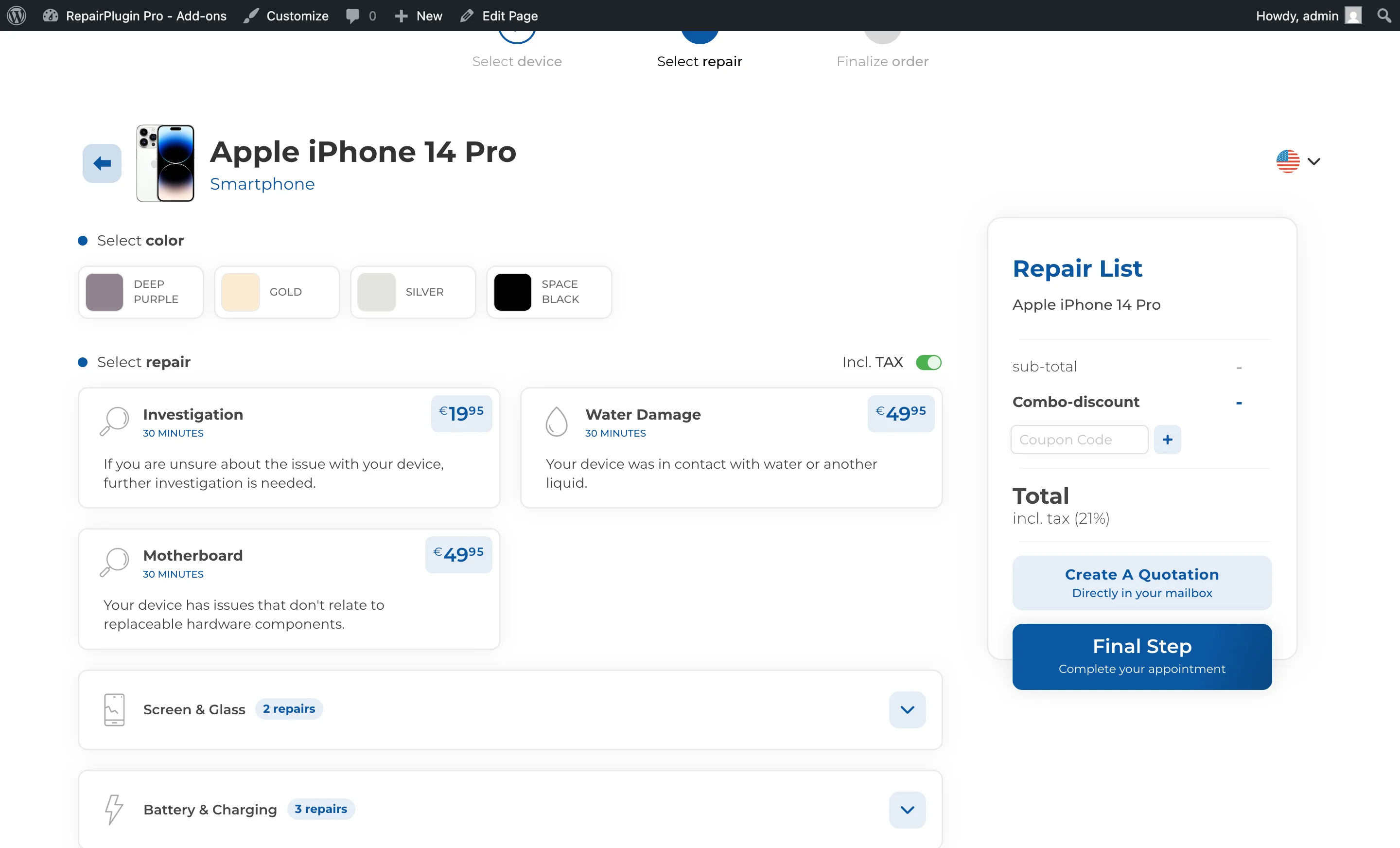
| Automatic Apply | When enabled, RepairPlugin automatically applies the coupon during checkout if the customer's repair matches the coupon's linking conditions Tip: Great for store-wide promotions where you don't want customers to have to remember a code. | off. Only one coupon can have Automatic Apply enabled at a time | The discount appears automatically without needing to enter a code. |
| Limit to One Repair per Order | When enabled, the coupon can only be used if the order contains exactly one repair | off. If the customer selects multiple repairs, the coupon won't apply | Customers with multiple repairs in their cart see the coupon rejected. |
| Minimum Purchase Requirement | When enabled, a "Minimum purchase amount" field appears | off. The coupon is only valid if the order subtotal (after combo discount) meets or exceeds this amount | The coupon is rejected with a message if the order total is below the minimum. |
| Expiry | When enabled, an "Expiration Date" date picker appears | off. The coupon becomes invalid after the specified date | Expired coupons are rejected when entered at checkout. |
| Usage Limit | When enabled, a "Usage limit" number field appears specifying how many times the coupon can be redeemed | off (unlimited). A read-only "Coupon Used Count" field shows the current redemption count | Once the usage limit is reached, the coupon is rejected. |
| Active Status (on/off switch) | Controls whether the coupon is currently active | on (for new coupons). Deactivated coupons aren't accepted at checkout | Inactive coupons are rejected if a customer tries to use the code. |
| Assigned Customers | Ties the coupon to specific customers as a personal loyalty discount. Search by name or email and add one or more. Tip: use this with the Customer Portal so recurring business clients get their discount automatically. | none assigned | Assigned customers see this coupon in the Customer Portal, and a single assigned coupon applies automatically when they book. |
| Limit Usage Exclusively to Assigned Customers | When enabled, only the customers listed in Assigned Customers can redeem the coupon | off | Customers who aren't on the list have the code rejected. |
Frequently asked questions
Can a customer use more than one coupon per order?
No. Only one coupon code can be applied per order. If you also have Combo Discount enabled, both discounts can apply together since they work independently.
What happens when I delete a coupon?
The coupon is permanently removed. Past orders that used the coupon keep their discount, but the code can't be used for new orders. If you just want to pause a coupon, switch it off instead of deleting it.
Can I restrict a coupon to specific categories, brands, or models?
Yes. Each coupon has a Linking feature that lets you target it to specific device categories, brands, models, or repairs. When linking is configured, the coupon only applies to orders that match the linked items. You can set the linking relation to require all conditions to match (AND) or any condition to match (OR).
Can I give a specific customer their own discount?
Yes. Use the Assigned Customers field on the coupon to tie it to one or more customers. When an assigned customer is logged into the Customer Portal and books, their coupon is available -- and a single assigned coupon applies automatically. Turn on Limit Usage Exclusively to Assigned Customers if you want only those customers to be able to use it.