
Priority Repairs
Set up priority repair tiers in RepairPlugin so customers can pay extra for express service or choose a discount for longer turnaround.
priorityexpress-repairsurchargediscountservice-methodsupsell
What can you do with this?
- Upsell faster turnaround -- customers who want same-day or next-day service can pay a surcharge for priority handling.
- Offer economy discounts -- give customers a price break if they're willing to wait longer for their repair.
- Create multiple tiers -- add as many priority options as you need (e.g., "Express - Same Day," "Standard - 3 Days," "Economy - 1 Week").
- Support multiple languages -- translate priority labels for multilingual repair shops using the built-in translation feature.
Where to find it
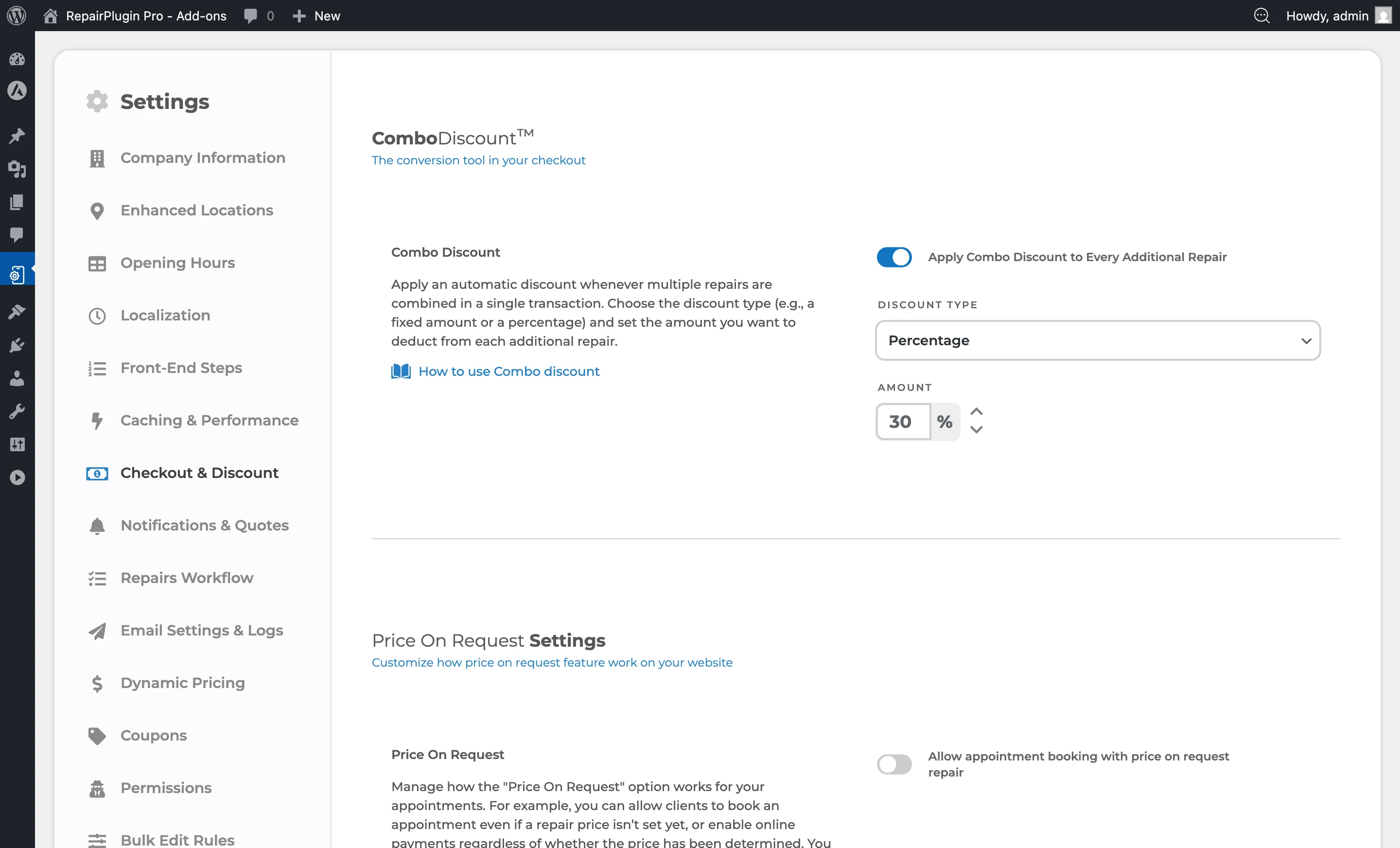
- In the WordPress admin menu, go to RepairPlugin.
- Click Settings.
- In the sidebar, select Checkout & Discount.
- Scroll down to the Service Methods section.
- Click the + icon next to Come By Our Store to expand its settings.
- Scroll down within the expanded section to find Priority Cost / Discount.
https://www.repairplugin.com/wp-admin/admin.php?page=wp_repair_settings§ion=planning_discount
How to set it up
Add a new priority option
https://www.repairplugin.com/wp-admin/admin.php?page=wp_repair_settings§ion=planning_discount
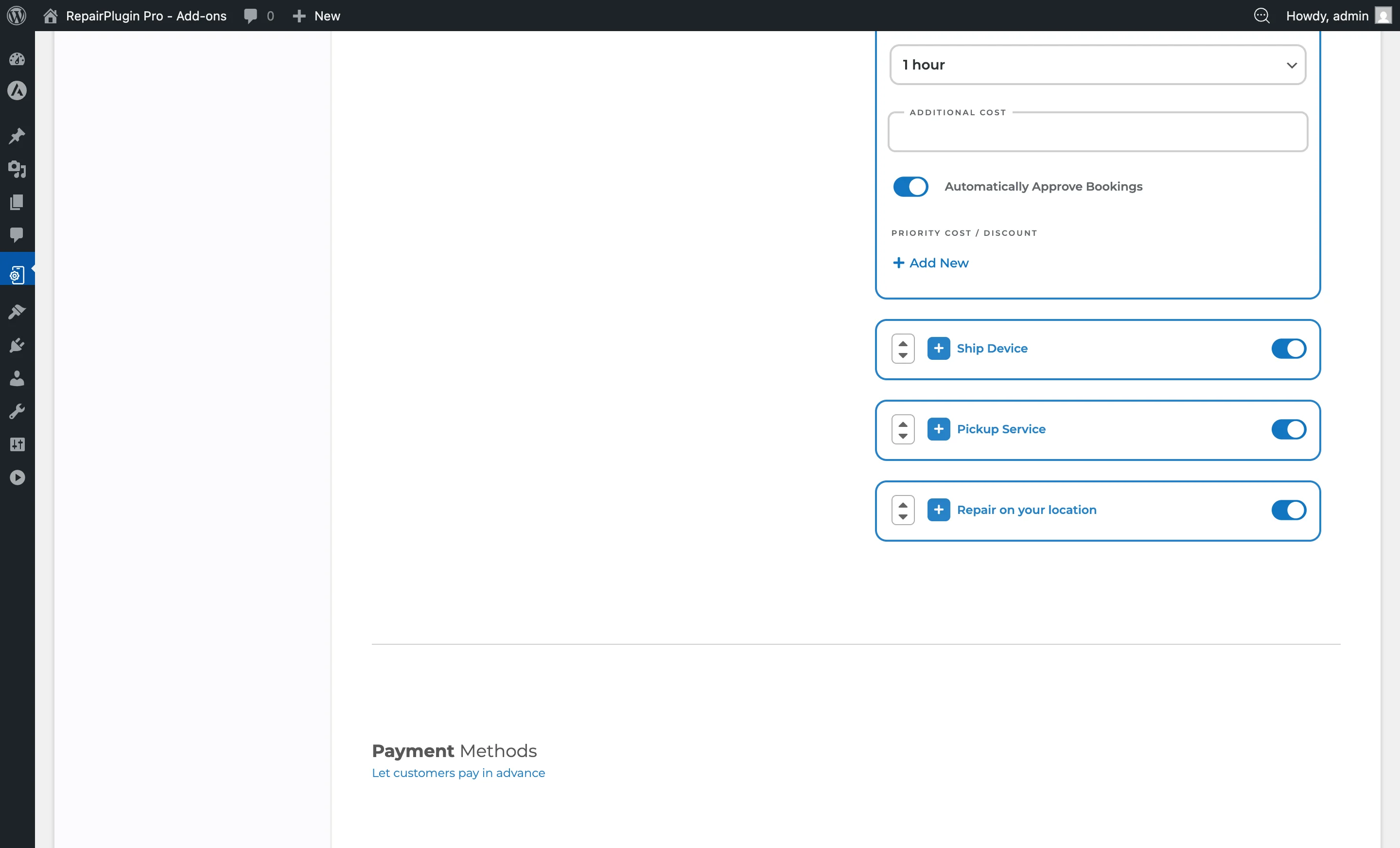
- Navigate to the Priority Cost / Discount section within Come By Our Store.
- Click the Add New link at the bottom of the priority options list.
- Fill in the Text field with the priority label (e.g., "Express Repair").
- Select the Type: either "Cost" (adds to the total) or "Discount" (subtracts from the total).
- Enter the Value as a number (currency amount for cost, currency amount for discount).
- Click Save at the bottom of the page.
Edit an existing priority option
- Locate the priority option in the list.
- Update the Text, Type, or Value fields as needed.
- Click Save.
Remove a priority option
- Click the X (close) button on the right side of the priority option you want to remove.
- Click Save to confirm the removal.
Reorder priority options
- Use the up/down arrow icons on the left side of each priority option to change their display order.
- Alternatively, drag and drop the options to rearrange them.
- Click Save to apply the new order.
Translate a priority option label
- Click the globe icon next to the Text field of the priority option.
- A translation modal opens showing all configured languages.
- Enter the translated text for each language.
- Click Update to save the translations.
Settings reference
| Setting | Description | Default | Customers see |
|---|---|---|---|
| Text | Sets the display label for the priority option | empty. This is the text customers see when picking a priority tier. You can translate it into multiple languages via the globe icon | The label appears inside the selectable priority box on the booking form, alongside the price badge. |
| Type | Controls whether the value is added to or subtracted from the order total | Cost. "Cost" increases the price (e.g., express surcharge). "Discount" decreases the price (e.g., economy option). If the value is 0, the type is automatically set to "Cost" and the badge shows "Free." | "Cost" options show a price badge (e.g., "$15.00"). "Discount" options show an "OFF" badge (e.g., "$5.00 OFF"). Zero-value options show a "Free" badge. |
| Value | Sets the monetary value of the priority option Tip: Always include at least one "Free" option (value of 0) so customers who don't want to pay extra still have a clear choice. | 0. For "Cost," this amount is added to the order total. For "Discount," this amount is subtracted. Negative values are corrected to 0. A value of 0 results in a "Free" badge | The value appears in the price badge next to the priority option label. It's also reflected in the order summary at checkout and in confirmation emails. |
Frequently asked questions
Which service methods support priority options?
Priority options are currently available for the Come By Our Store service method only. They appear as selectable boxes in a horizontal slider after the date/time selection step.
Can a customer select more than one priority option?
No. Customers can pick one priority option per booking.
What happens if I set the value to 0?
The option displays a "Free" badge and doesn't add to or subtract from the order total. This is useful for a default "Standard" tier.