
Email Notifications
Set up automated email notifications in RepairPlugin for booking confirmations, approvals, cancellations, and follow-ups to keep customers informed.
What can you do with this?
- Automate customer communication -- emails are sent automatically when a booking is created, approved, canceled, or updated.
- Control each notification individually -- turn specific email types on or off depending on what your shop needs.
- Get admin copies -- send duplicate emails to your company or location email address for internal tracking.
- Integrate with ticket systems -- use the customer's name and email as the sender on duplicate emails so your helpdesk creates a ticket per customer.
- Add private admin notes -- include internal-only content in emails using
[admin_only]tags that your customers never see. - Dates match your regional format -- email dates automatically use the date format you've configured in Localization settings, so customers see familiar date notation.
Where to find it
- In your WordPress admin sidebar, click RepairPlugin.
- Click Settings.
- In the settings sidebar, click Notifications & Quotes.
- The Email Notifications section is at the top of the page.
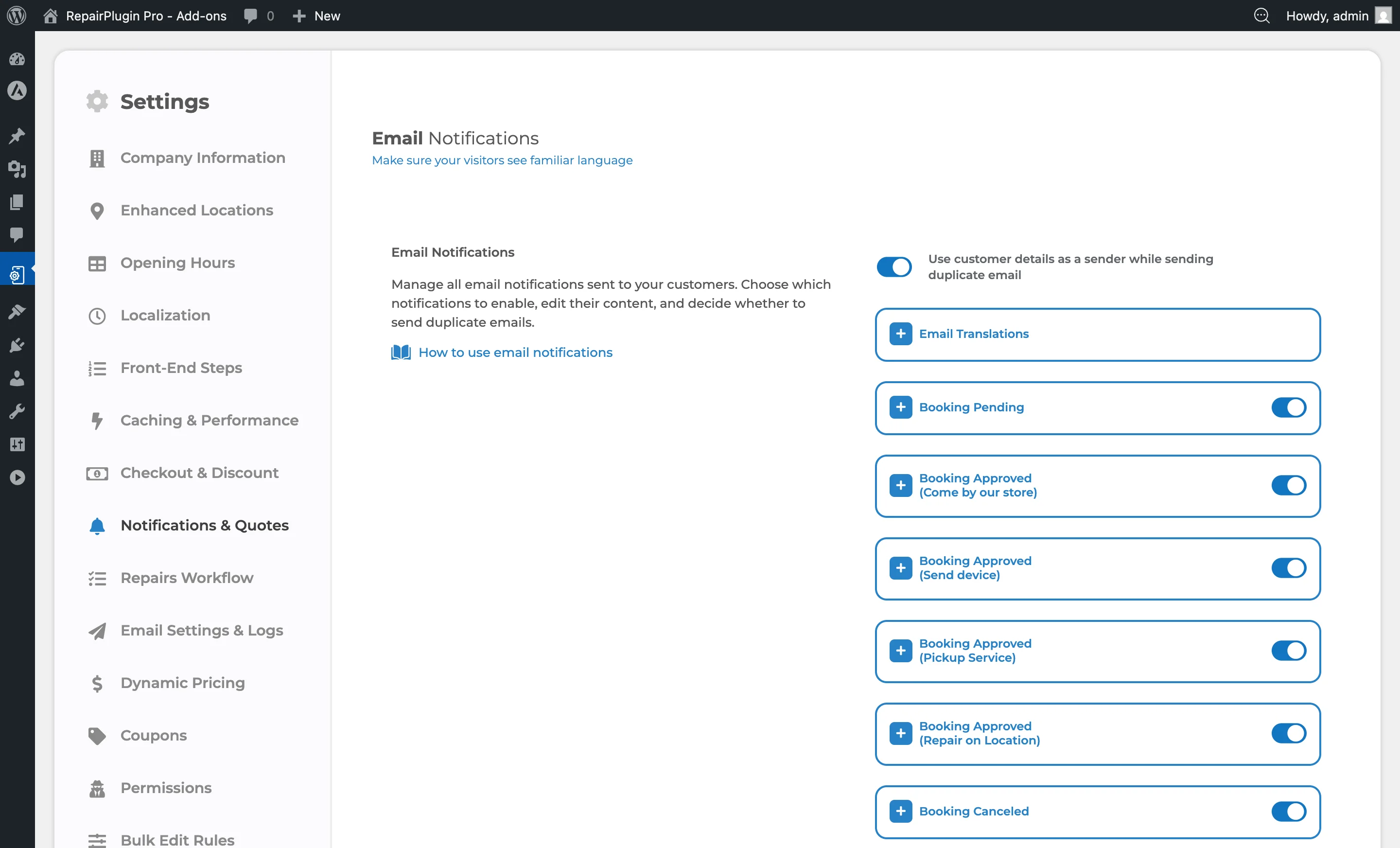
How to set it up
Available notification types
RepairPlugin includes these email notification types, each with its own switch, subject line, message body, and duplicate option:
| # | Notification type | When it's sent |
|---|---|---|
| 1 | Booking Pending | Customer submits a new booking (manual approval required) |
| 2 | PDF Quote | Customer requests a price quote (PDF attached) |
| 3 | Booking Approved (Come by our store) | Admin approves a walk-in booking |
| 4 | Booking Approved (Send device) | Admin approves a mail-in booking |
| 5 | Booking Canceled | A booking is canceled |
| 6 | Price On Request | Customer submits a price-on-request booking |
| 7 | Reminder Appointment | Sent X hours before the appointment |
| 8 | Aftersale Email | Sent X hours after the appointment |
| 9 | Booking Approved (Pickup Service) | Admin approves a pickup service booking |
| 10 | Booking Approved (Repair on Location) | Admin approves an on-location repair |
| 11 | Repairs Workflow Update | A repair status changes in the workflow |
| 12 | Booking Approved (On-site Repair) | Admin approves an on-site repair booking |
| 13 | Portal Register | A customer registers on the Customer Portal -- contains their set-password link |
| 14 | Portal Forgot Password | A customer uses "Forgot password" on the Customer Portal -- contains their reset-password link |
The two Portal emails are on by default and don't have a Send Duplicate option -- when someone registers, you receive WordPress's standard new-user email instead. The links in these emails point to your portal page; set that page under RepairPlugin > Settings > Plugin Shortcode > Customer Portal Shortcode (see Customer Portal).
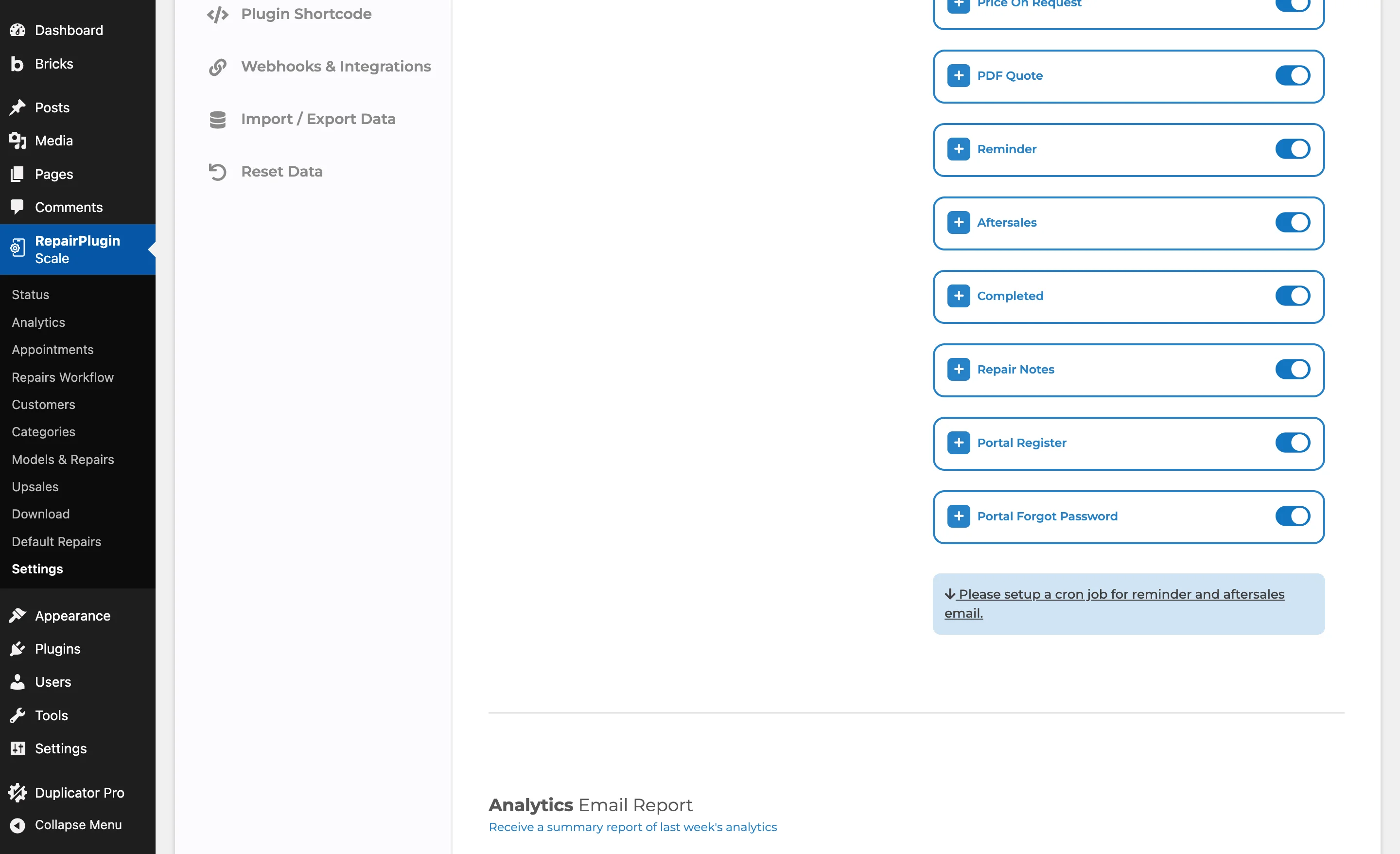
Turn a notification on or off
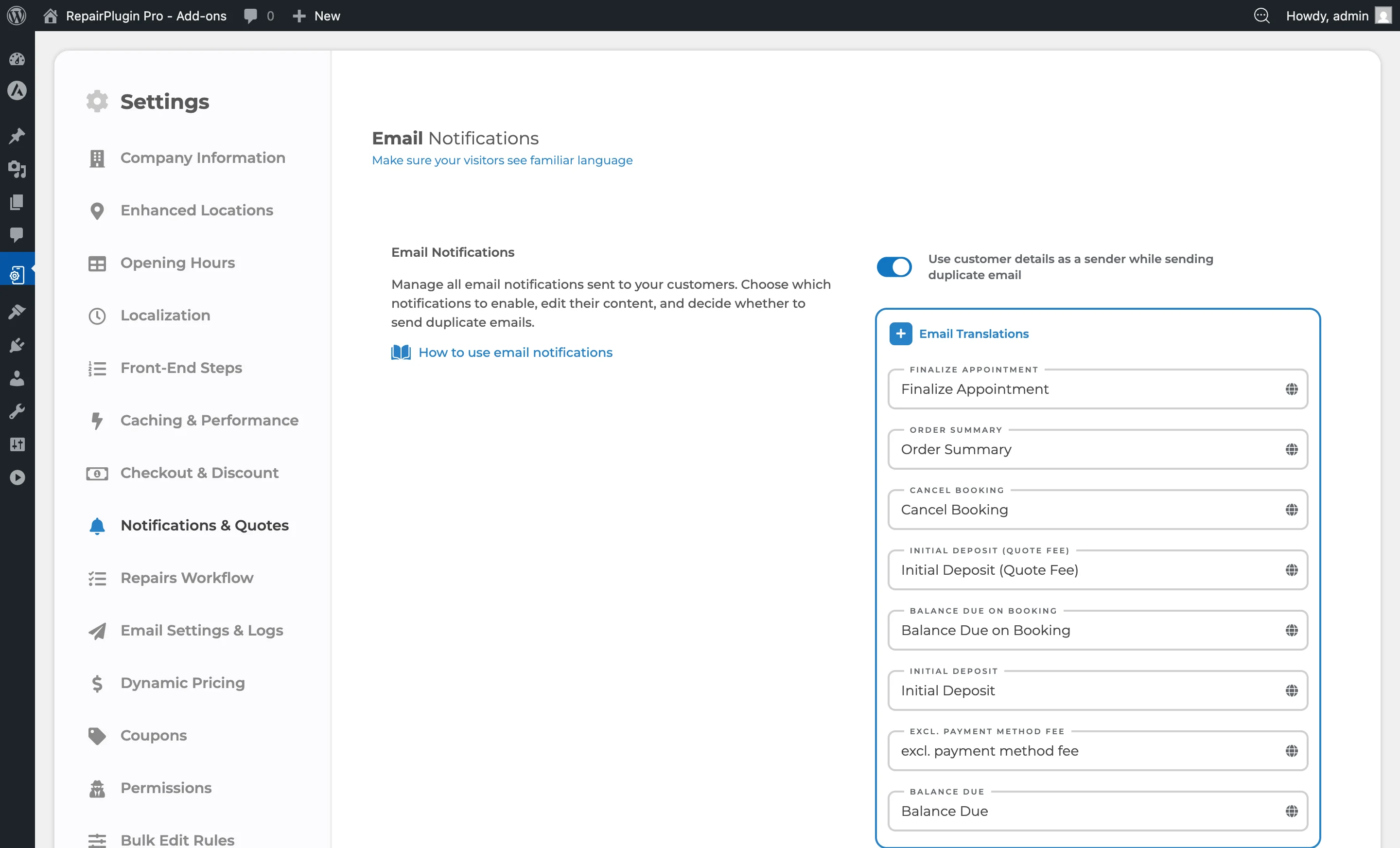
- Navigate to Notifications & Quotes.
- Click the notification type you want to configure to expand it.
- Switch the setting on the right side to ON or OFF.
- Click Save Settings at the bottom of the page.
Set up duplicate emails (admin notifications)
Each notification type has a Send Duplicate switch inside its expanded section:
- Expand the notification type.
- Switch Send Duplicate to ON.
- The duplicate email is sent to the Company Email from your Company Information settings.
- If Enhanced Locations is active (available on the Scale plan), the duplicate goes to the email address assigned to the selected location instead.
- Click Save Settings.
Use customer details as the sender for duplicate emails
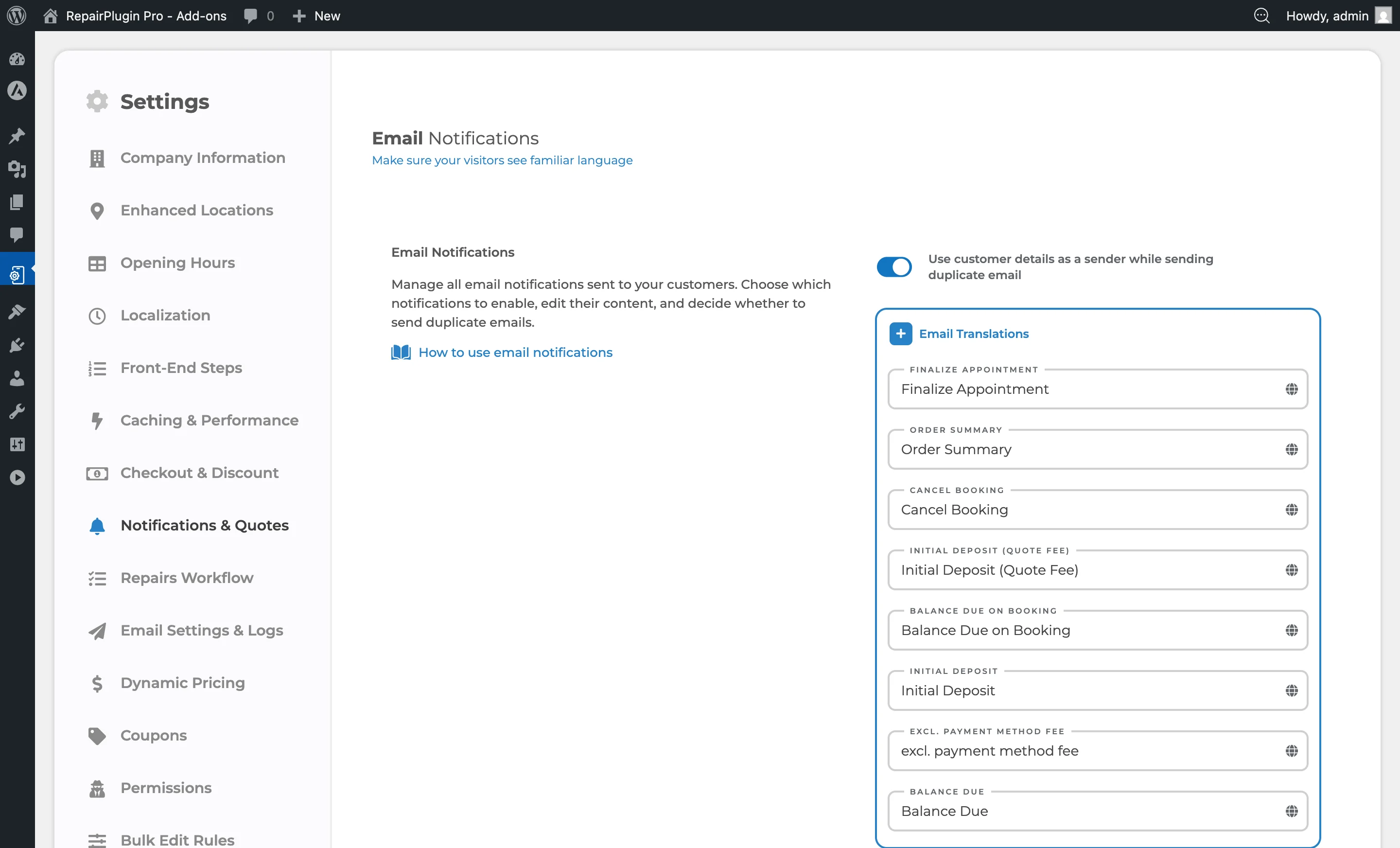
At the top of the Email Notifications section, there's a global switch:
- Switch Use customer details as a sender while sending duplicate email to ON.
- When turned on, the customer's name and email address are used as the sender in the duplicate email.
- This is useful when sending duplicate emails to a support ticket system -- each email creates a new ticket under the customer's name.
- Click Save Settings.
Add admin-only content in email templates
Within the email editor for each notification type, you can use [admin_only] and [/admin_only] tags:
- Content between these tags is only included in the admin duplicate email.
- It's hidden from the customer-facing email.
- Use this for internal notes, approval links, or operational details.
Example:
Dear $CustomerName$, your booking is confirmed.

[admin_only]
Internal note: Check stock for this repair before appointment.
[/admin_only]
What a booking confirmation email looks like
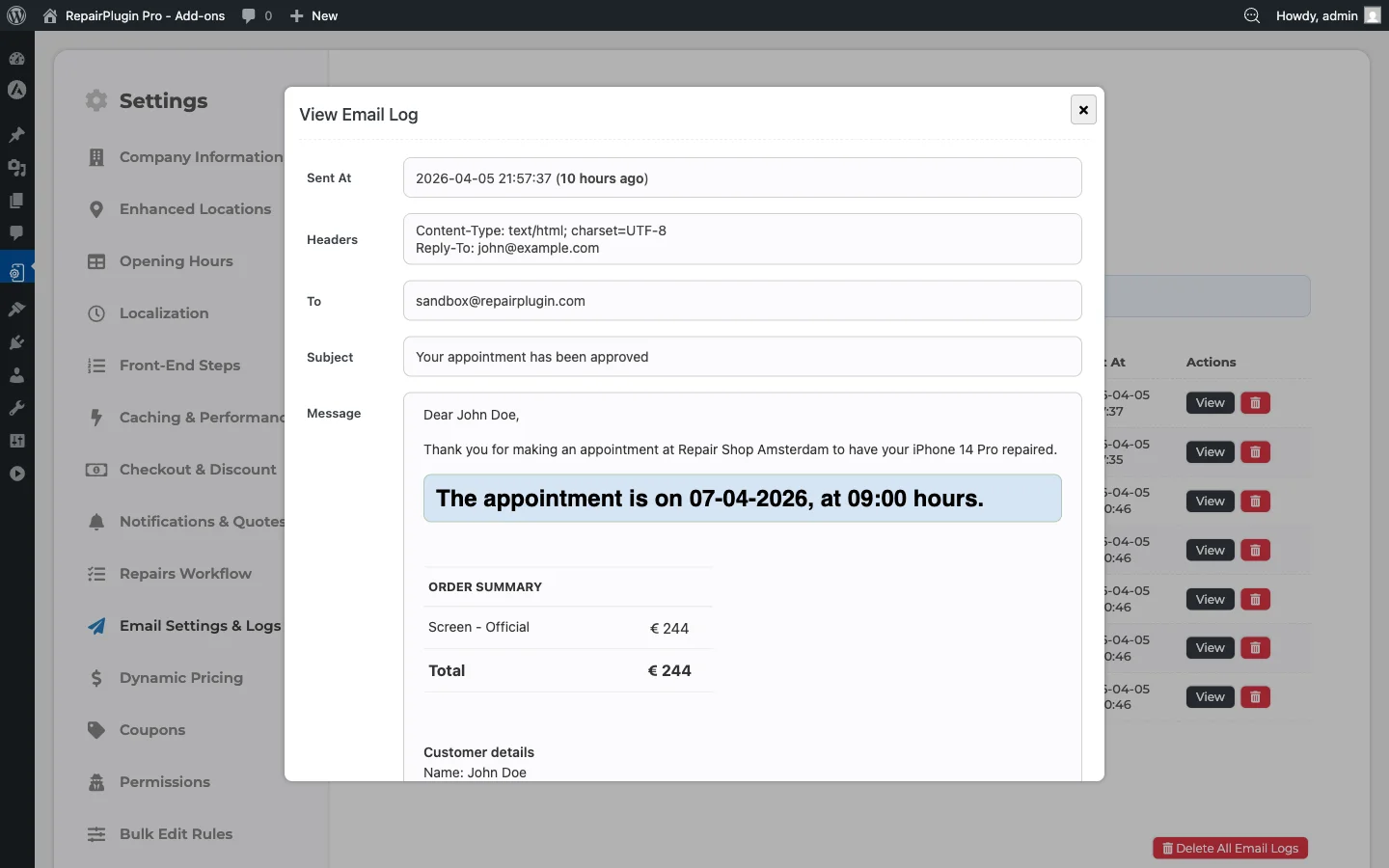
Set up the cron job (required for Reminder and Aftersale emails)
The Reminder and Aftersale email notifications need a server cron job to work. The cron job command is shown at the bottom of the Notifications & Quotes page:
- Command:
php /path-to-plugin/cron.php rp > /dev/null 2>&1 - Frequency: Every 5 minutes (
*/5 * * * *) - Replace
phpwith the PHP path recommended by your hosting provider.
Troubleshoot missing emails
If emails aren't being received:
- Confirm the notification is turned on.
- Check that Send Duplicate is on for admin notifications.
- Verify the Company Email or Location Email is correct.
- Check Email Logs under
RepairPlugin > Settings > Email Settings & Logs > Email Logs. - Make sure SMTP Settings are properly configured.
- Test basic WordPress email by using the "Lost your password?" feature on the login page.
- If the test email arrives but booking emails don't, check that your SMTP plugin is switched on under Optimized Ajax. See Booking Emails Not Arriving.
Settings reference
| Setting | Description | Default | Customers see |
|---|---|---|---|
| Use customer details as a sender while sending duplicate email | When turned on, duplicate emails use the customer's name and email as the sender instead of your system default | off | Nothing changes for customers. This only affects how duplicate emails appear in your inbox or ticket system. |
| Notification Enabled/Disabled (per type) | Controls whether a specific email notification is sent when its trigger event happens | on (for most notification types) | When turned off, customers won't receive that particular email notification. |
| Send Duplicate (per type) | Sends a copy of the customer email to your company or location email address | off | Nothing changes for customers. This makes sure you and your staff receive internal copies. |
| Email Subject (per type) | Sets the subject line of the email. Supports dynamic variables (see Email Templates) | pre-set subject per notification type | This text appears as the email subject in their inbox. |
| Email Message (per type) | Sets the body content of the email. Supports dynamic variables and HTML formatting | pre-set message per notification type | This is the email body content they receive. |
| Setting | Description | Default | Customers see |
|---|---|---|---|
| Send it X hours before the appointment time | Sets how many hours before the appointment the reminder email is sent. Requires a cron job to be set up | 2 | They receive a reminder email the set number of hours before their appointment. |
| Send it X hours after the appointment time | Sets how many hours after the appointment the aftersale email is sent. Requires a cron job to be set up | 2 | They receive a follow-up email the set number of hours after their appointment. |
Where does the duplicate email go?
By default, duplicate emails are sent to the Company Email set in your Company Information settings. If you have Enhanced Locations active, the duplicate goes to the email address assigned to the location linked to that booking.
Do I need a cron job for all notifications?
No. Only the Reminder and Aftersale emails need a cron job because they're time-based. All other notifications (booking confirmations, approvals, cancellations) are sent instantly when the event happens.
What happens when a customer clicks the cancel or approve link in an email?
Notification emails can contain a cancel link and an approve link. When a customer clicks the cancel link, they see a confirmation page asking them to confirm the cancellation. If confirmed, the appointment status changes to Canceled and cancellation emails are sent to both the customer and the admin. The approve link works similarly — clicking it changes the appointment status from Quoted to Approved and sends a status update email.
Do email dates follow my date format settings?
Yes. Dates in email notifications (like the created date and delivery date) use the format you've set under Currency, Tax & Dates. If you've configured multiple languages, month names are automatically translated too.