
Reminder Emails
Set up automatic reminder and aftersales emails in RepairPlugin to reduce no-shows and follow up after repairs with cron-based scheduling.
What can you do with this?
- Remind customers before their appointment -- send an automatic email a set number of hours before the scheduled time so customers don't forget.
- Follow up after the repair -- send an aftersales email a set number of hours after the appointment to ask for feedback or offer additional services.
- Control the timing -- choose exactly how many hours before or after the appointment each email goes out.
- Customize the content -- edit the subject line and message body for both reminder and aftersales emails, with support for dynamic variables and translations.
- Get admin copies -- send duplicates of these emails to your location email address for internal tracking.
Where to find it
- In your WordPress admin, click RepairPlugin.
- Click Settings.
- In the settings sidebar, click Notifications & Quotes.
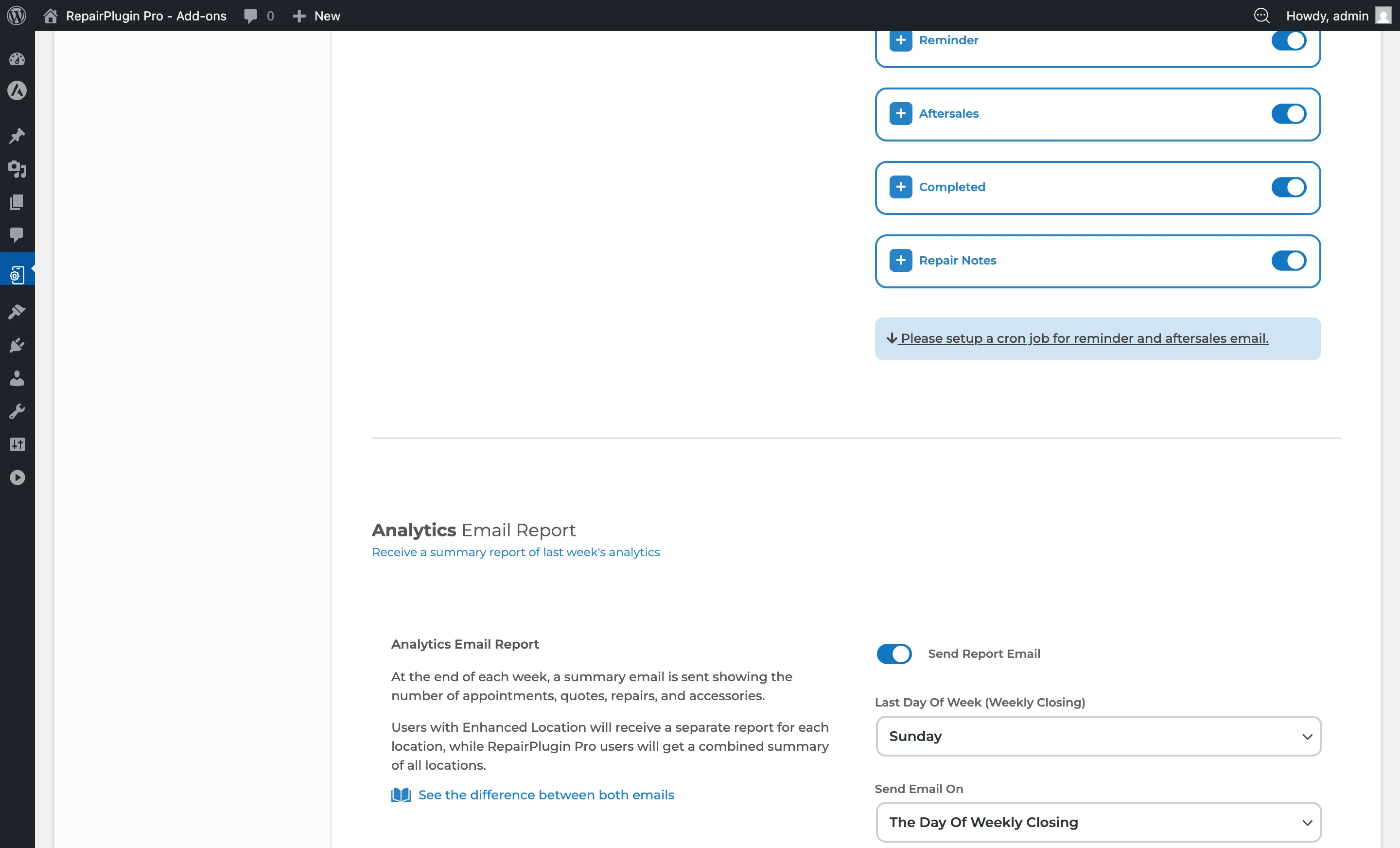
- In the Email Notifications list, look for:
- Reminder -- the pre-appointment reminder email.
- Aftersales -- the post-appointment follow-up email.
- At the bottom of the page, find the Cron Job Setup instructions needed to activate these automated emails.
How to set it up
Turn reminder or aftersales emails on or off
- Navigate to Notifications & Quotes.
- In the Email Notifications list, find the Reminder row.
- Use the switch on the right side to turn it on or off.
- Repeat for the Aftersales row.
- Click Save Settings.
Set the timing
- Expand the Reminder row by clicking it.
- In the Send it X hours before the appointment time field, enter the number of hours (e.g.,
24sends the email 24 hours before). - Expand the Aftersales row.
- In the Send it X hours after the appointment time field, enter the number of hours (e.g.,
2sends the email 2 hours after). - Click Save Settings.
Customize the email content
- Expand the Reminder or Aftersales row.
- Edit the EMAIL SUBJECT field to change the subject line.
- Edit the EMAIL MESSAGE field to change the body text. Click the globe icon to manage translations.
- Click Save Settings.
For advanced template customization (HTML layout, dynamic variables), see Email Templates.
Turn on duplicate emails for admin
- Expand the Reminder or Aftersales row.
- Switch Send Duplicate to ON.
- The duplicate email is sent to the location email address linked to the order.
- Click Save Settings.
Set up the cron job (required)
Reminder and aftersales emails won't be sent without a properly configured cron job. The cron job command and schedule are shown at the bottom of the Notifications & Quotes page.
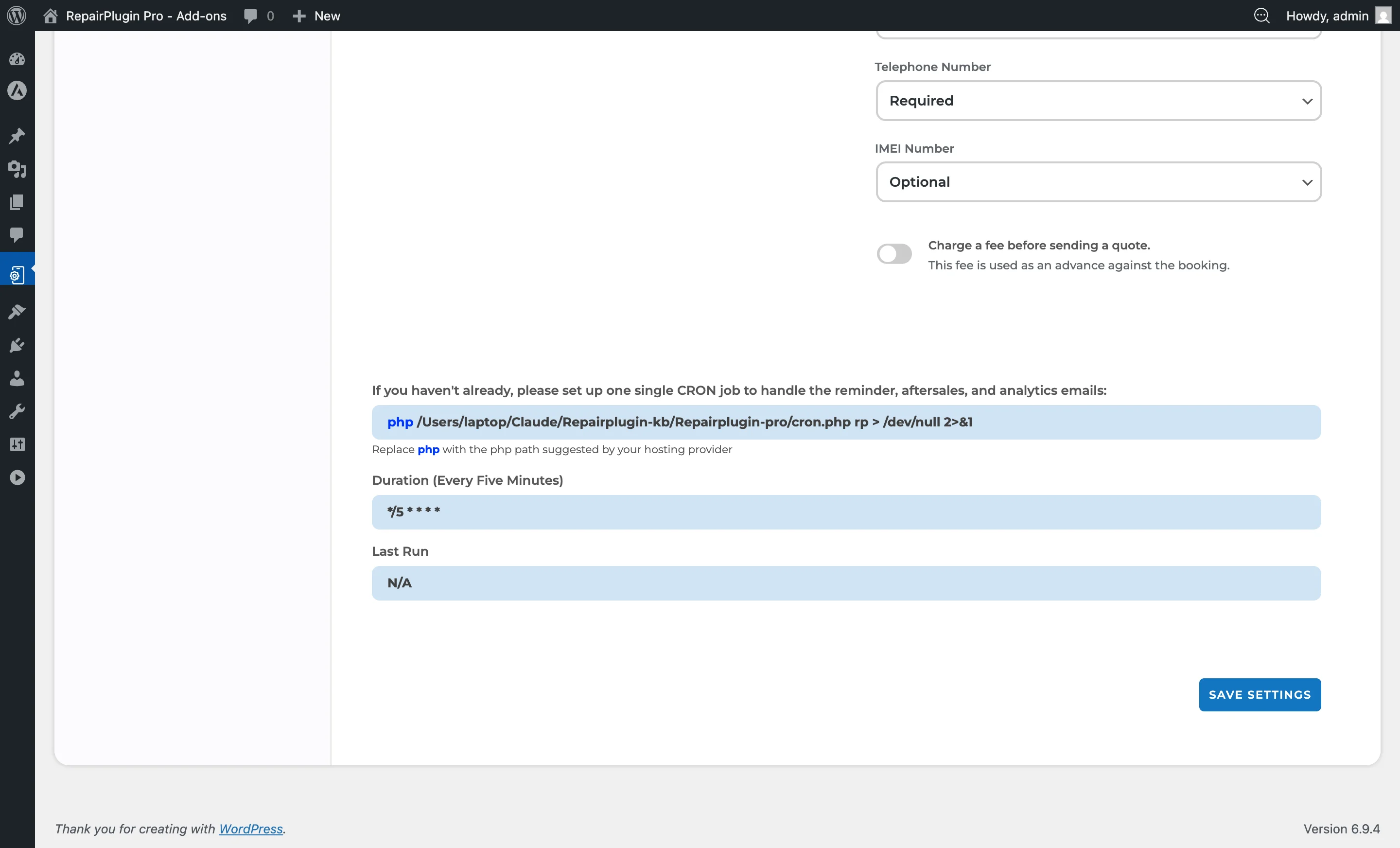
- Scroll to the bottom of the page to the cron job section.
- Copy the cron command:
Replacephp /path/to/wp-content/plugins/Repairplugin-pro/cron.php rp > /dev/null 2>&1phpwith the PHP binary path recommended by your hosting provider. - Set the cron schedule to every 5 minutes:
*/5 * * * * - Add this cron job through your hosting control panel (cPanel, Plesk, etc.) or by editing the server crontab.
- After saving, the Last Run timestamp on the settings page shows when the cron last ran. Verify it updates every 5 minutes.
This single cron job handles reminder emails, aftersales emails, and the analytics email report.
Troubleshoot timing issues
If emails are sent at unexpected times:
- Go to WordPress Dashboard > Settings > General and verify the Timezone is set correctly for your location.
- Confirm the cron job is running (check the Last Run timestamp on the Notifications & Quotes page).
- Create a test appointment with a short reminder window and check whether the email arrives at the expected time.
Settings reference
Reminder email
| Setting | Description | Default | Customers see |
|---|---|---|---|
| Reminder (enabled/disabled) | Turns the pre-appointment reminder email on or off | on | When turned on, they receive a reminder email before their appointment. When turned off, no reminder is sent. |
| Send it X hours before the appointment time | Sets how many hours before the scheduled appointment the reminder email is sent. The cron job checks every 5 minutes whether the time has been reached | 2 | They receive the reminder at approximately the set number of hours before their appointment. |
| Email Subject (Reminder) | Sets the subject line for reminder emails | "Subject for Reminder Email" | This text appears as the email subject in their inbox. |
| Email Message (Reminder) | Sets the body content of the reminder email. Supports dynamic placeholders like $CustomerName$, $AppointmentDate$, $AppointmentTime$, $OrderSummary$, $ShopName$, and more | "This is message for reminder email" | They receive a personalized message with their booking details filled in. |
| Send Duplicate (Reminder) | Sends a copy of the reminder email to the location email address | off | Nothing changes for customers. You receive a copy for your records. |
Aftersales email
| Setting | Description | Default | Customers see |
|---|---|---|---|
| Aftersales (enabled/disabled) | Turns the post-appointment aftersales email on or off | on | When turned on, they receive a follow-up email after their appointment. When turned off, no aftersales email is sent. |
| Send it X hours after the appointment time | Sets how many hours after the scheduled appointment the aftersales email is sent. If more than 7 days have passed since the intended send time, the email is automatically skipped to avoid sending stale follow-ups | 2 | They receive a follow-up email at approximately the set number of hours after their appointment. |
| Email Subject (Aftersales) | Sets the subject line for aftersales emails | "Subject for Aftersales Email" | This text appears as the email subject in their inbox. |
| Email Message (Aftersales) | Sets the body content of the aftersales email | "This is message for aftersales email" | They receive a personalized follow-up message after their repair. |
| Send Duplicate (Aftersales) | Sends a copy of the aftersales email to the location email address | off | Nothing changes for customers. You receive a copy for your records. |
Cron job section
| Setting | Description | Default | Customers see |
|---|---|---|---|
| Cron Command | Shows the exact command to add to your server's cron scheduler. This command triggers the processing of reminder, aftersales, and analytics report emails | — | — |
| Duration | Shows the recommended cron schedule interval | — | — |
| Last Run | Shows when the cron job last ran. Use this to verify it's working. If it shows "Never" or a timestamp that's hours old, the cron job isn't set up correctly | — | — |
Frequently asked questions
Do reminder emails work for all delivery methods?
Reminder emails are sent for all orders with "Approved" status, regardless of delivery method. As long as the order has a scheduled appointment date and time, the reminder will go out.
What happens if the cron job isn't set up?
Neither reminder nor aftersales emails will be sent. These emails depend entirely on the cron job to check timing and trigger delivery. All other notification types (booking confirmations, approvals) work without a cron job.