
Currency, Tax & Dates
Configure currency, tax rates, decimal separators, and time formats in RepairPlugin so prices and times match your region.
What can you do with this?
- Display prices in your local currency — choose from a full list of world currencies and place the symbol before or after the amount.
- Match your country's number format — use a comma or point as the decimal separator so prices look familiar to your customers.
- Set the right timezone and time format — make sure timeslots and opening hours show in 12-hour or 24-hour format, matching your region.
- Configure your tax rate — enter your VAT percentage so invoices and quotes automatically show the correct tax breakdown.
- Choose your date format — pick from 15 date format options (like d-m-Y, Y-m-d, or d F Y) so dates in emails, PDFs, and the booking calendar match your region's conventions.
- Control tax visibility on the frontend — choose whether to show or hide tax amounts on the booking form and quotes, and set whether prices display including or excluding tax by default.
Where to find it
- Log in to your WordPress admin dashboard.
- Go to RepairPlugin > Settings.
- Click Localization in the sidebar.
- The Regional Settings section is at the top of the page, with Tax Rules below it.
How to set it up
Set your country
- In the Regional Settings section, find the Set Country dropdown.
- Select your country from the list.
- Click Save Changes.
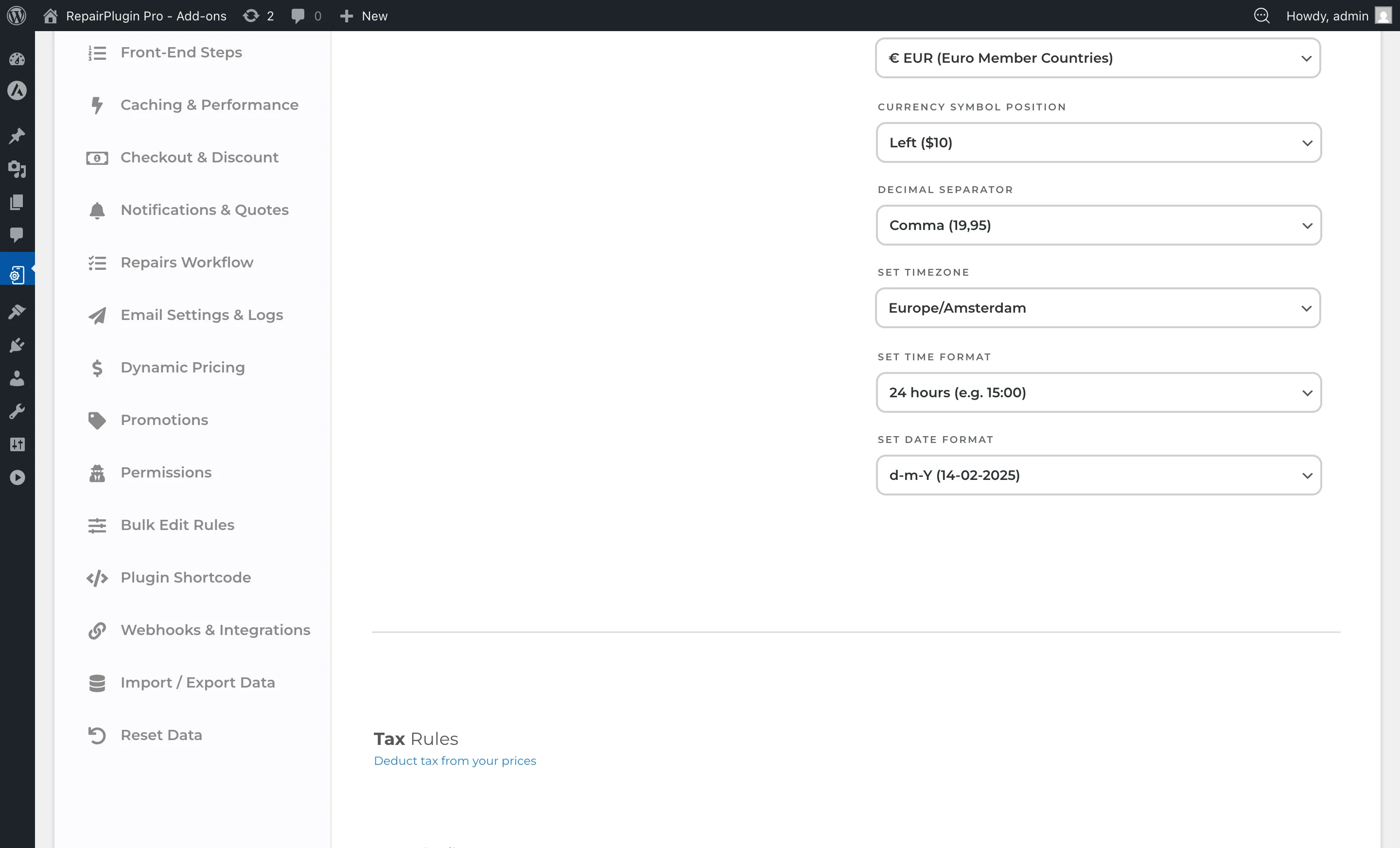
Set the currency
- Find the Set Currency dropdown.
- Select your preferred currency (for example, Euro, US Dollar, or British Pound).
- Click Save Changes.
Choose where the currency symbol appears
- Find the Currency Symbol Position dropdown.
- Pick one:
- Left ($10) — symbol before the amount.
- Right (10$) — symbol after the amount.
- Click Save Changes.
Set the decimal separator
- Find the Decimal Separator dropdown.
- Pick one:
- Comma (19,95) — common in most European countries.
- Point (19.95) — common in the US, UK, and other English-speaking countries.
- Click Save Changes.
Set the timezone
- Find the Set Timezone dropdown.
- Select your timezone from the list (for example, "Europe/Amsterdam" or "America/New_York").
- Avoid UTC-based offsets like "UTC+1" — they don't adjust for daylight saving time and can cause scheduling issues. RepairPlugin shows a warning if you select a UTC timezone.
- Click Save Changes.
Set the time format
- Find the Set Time Format dropdown.
- Pick one:
- 24 hours (e.g. 15:00) — used in most of Europe.
- 12 hours (e.g. 3:00 PM) — used in the US, UK, and other English-speaking countries.
- Click Save Changes.
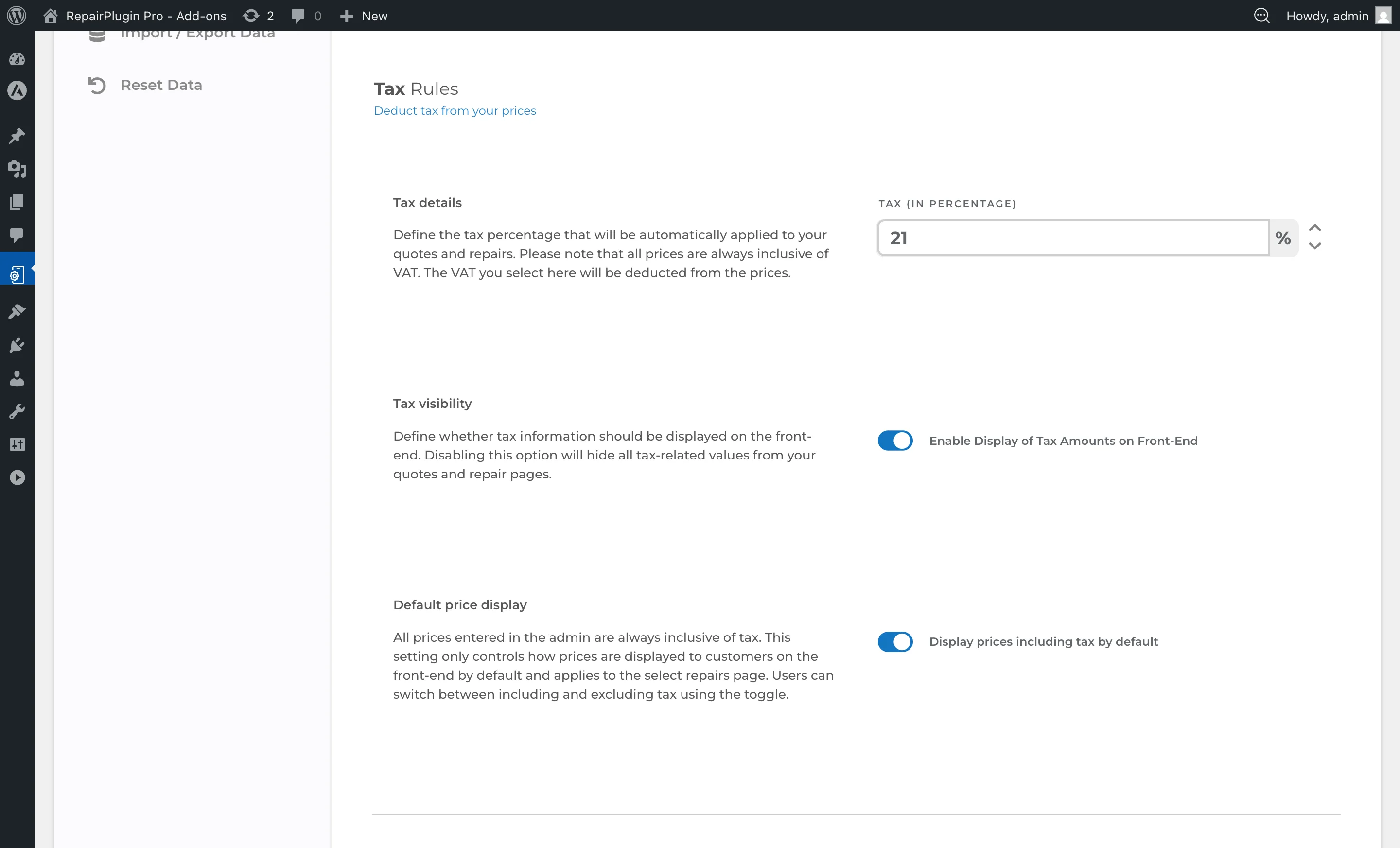
Configure tax (VAT)
- Scroll down to the Tax Rules section.
- In the Tax (in percentage) field, enter your VAT rate as a number (for example,
21for 21%). - Click Save Changes.
All prices in RepairPlugin are inclusive of tax. The tax rate you set here is used to calculate how much VAT to show on invoices and quotes. For example, if a repair costs 121.00 and the tax rate is 21%, the invoice shows a net price of 100.00 with 21.00 VAT.
Set the date format
- In the Regional Settings section, find the Set Date Format dropdown.
- Select your preferred format from the 15 available options (e.g.,
d-m-Y,Y-m-d,d/m/Y,d F Y,F d, Y). - Click Save Changes.
The date format applies to email notifications, PDF quotes, and booking calendar date labels. Month names in formats that include full (F) or abbreviated (M) month names are automatically translated when you've configured multiple languages.
Configure tax display on the frontend
- Scroll to the Tax Rules section.
- Switch Enable Display of Tax Amounts on Front-End to ON to show tax breakdowns on the booking form and quotes. Switch it OFF to hide all tax-related values from customers.
- When tax display is enabled, a second toggle appears: Display prices including tax by default. Turn this ON to show prices with tax included, or OFF to show prices excluding tax. Customers can still toggle between inclusive and exclusive views.
- Click Save Changes.
Settings reference
| Setting | Description | Default | Customers see |
|---|---|---|---|
| Set Country | Sets your country for regional defaults like currency and formatting | not set (must be selected) | May influence the default country in address fields on the booking form. |
| Set Currency | Determines the currency symbol used with all prices throughout the plugin | Euro (EUR) | All prices in the booking form, emails, and PDF documents display this currency symbol. |
| Currency Symbol Position | Controls whether the currency symbol appears before or after the price | Left ($10) | Prices display as either "$10.00" or "10.00$" (with your actual currency symbol). |
| Decimal Separator | Sets whether prices use a comma or point as the decimal separator Tip: Match this to what's standard in your country. Showing the wrong separator can confuse customers and make prices harder to read. | Comma | Prices display as "19,95" (comma) or "19.95" (point). |
| Set Timezone | Sets the timezone used for all time calculations — timeslots, opening hours, and appointment scheduling Tip: Always pick a city-based timezone (like "Europe/Amsterdam") instead of a UTC offset. City-based timezones automatically adjust for daylight saving time. | UTC | Timeslots and availability are calculated based on this timezone. An incorrect timezone means your customers see the wrong available times. |
| Set Time Format | Controls whether times appear in 24-hour or 12-hour (AM/PM) format | 24 hours (e.g. 15:00) | All times in the booking form, opening hours, and email notifications use this format. |
| Tax (in percentage) | Sets the VAT/tax percentage. RepairPlugin uses this to calculate the tax amount shown on invoices and quotes — it's deducted from the inclusive price, not added on top | 21 | The tax breakdown appears on quote PDFs and invoices. All prices throughout the booking form remain inclusive of tax. |
| Set Date Format | Sets the date format used in emails, PDF quotes, and booking calendar labels. Options include d-m-Y, Y-m-d, d/m/Y, m-d-Y, d.m.Y, d F Y, F d Y, and more (15 formats total). Month names in full or abbreviated formats are automatically translated Tip: Choose a format that matches your country's convention. European shops typically use d-m-Y, while US shops use m-d-Y. | d-m-Y | Dates in emails, PDF quotes, and calendar slots display in this format. |
| Enable Display of Tax Amounts on Front-End | Controls whether tax amounts are shown on the booking form and in PDF quotes. When turned off, all tax-related values (tax rows, tax columns) are hidden from the frontend and PDFs | off | When turned on, tax breakdowns are visible on the repair selection page and in PDF quotes. When turned off, only total prices are shown without tax details. |
| Display prices including tax by default | Sets whether prices on the repair selection page default to showing tax included or excluded. Only visible when "Enable Display of Tax Amounts on Front-End" is turned on. Customers can still toggle between inclusive and exclusive views | on (including tax) | Prices on the repair selection page initially show with or without tax. A toggle lets them switch between views. |
Frequently asked questions
Are prices shown with or without tax?
By default, all prices in RepairPlugin are inclusive of tax. If you turn on "Enable Display of Tax Amounts on Front-End," customers can see the tax breakdown and toggle between inclusive and exclusive views. The "Display prices including tax by default" setting controls which view they see first.
What happens if I pick a UTC offset instead of a city-based timezone?
UTC offsets don't adjust for daylight saving time. During summer, your timeslots could be off by an hour. RepairPlugin shows a warning if you select a UTC offset to remind you to pick a city-based timezone instead.