
Email Templates
Customize email templates in RepairPlugin with dynamic variables, multi-language translations, and admin-only content for every notification.
What can you do with this?
- Write your own email text -- customize the subject and message for every notification type (booking confirmations, reminders, quotes, and more).
- Insert order details automatically -- use dynamic variables like
$CustomerName$or$AppointmentDate$to pull in real booking data without typing it yourself. - Support multiple languages -- add translations for every email field so customers receive messages in their preferred language.
- Include admin-only content -- add internal notes or approval links that only show up in admin duplicate emails, never in customer emails.
- Tailor messages for multi-repair orders -- show extra content only when an order has more than one repair item.
Where to find it
- In your WordPress admin sidebar, click RepairPlugin.
- Click Settings.
- In the settings sidebar, click Notifications & Quotes.
- Click any notification type (e.g., "Booking Pending") to expand it.
- The EMAIL SUBJECT and EMAIL MESSAGE fields appear inside the expanded section.
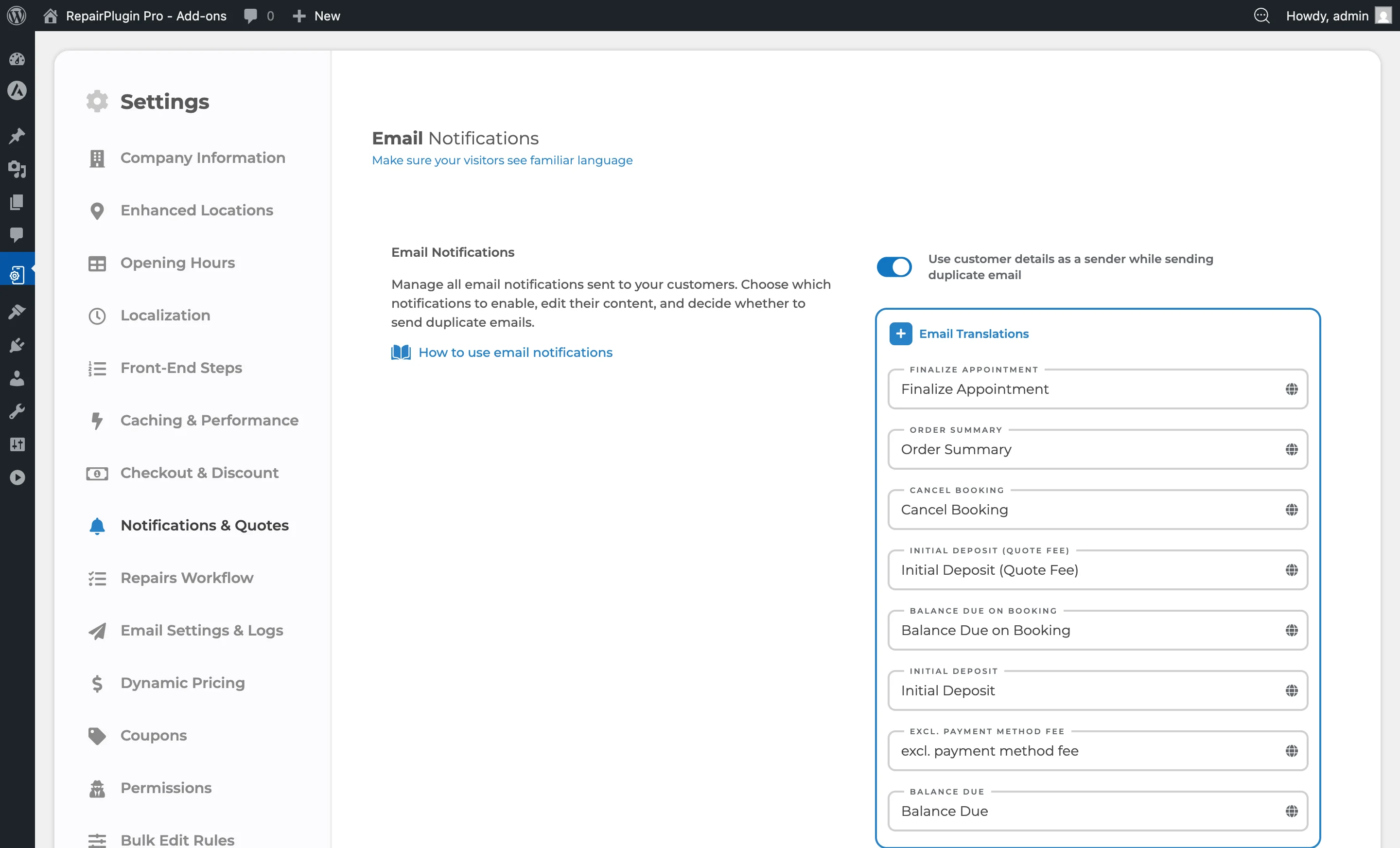
For shared email text (button labels, common phrases), expand the Email Translations section at the top of the same page.
How to set it up
Edit an email subject
- Navigate to Notifications & Quotes.
- Expand the notification type you want to customize.
- Find the EMAIL SUBJECT field.
- Type your custom subject line. You can include dynamic variables (see the reference list below).
- Click the globe icon on the right to add translations for other languages.
- Click Save Settings.
Edit an email message
- Expand the notification type.
- Find the EMAIL MESSAGE field.
- Write your custom message using the rich text editor. You can use HTML formatting and dynamic variables.
- Click the globe icon on the right to add translations for other languages.
- Click Save Settings.
Add multi-language translations
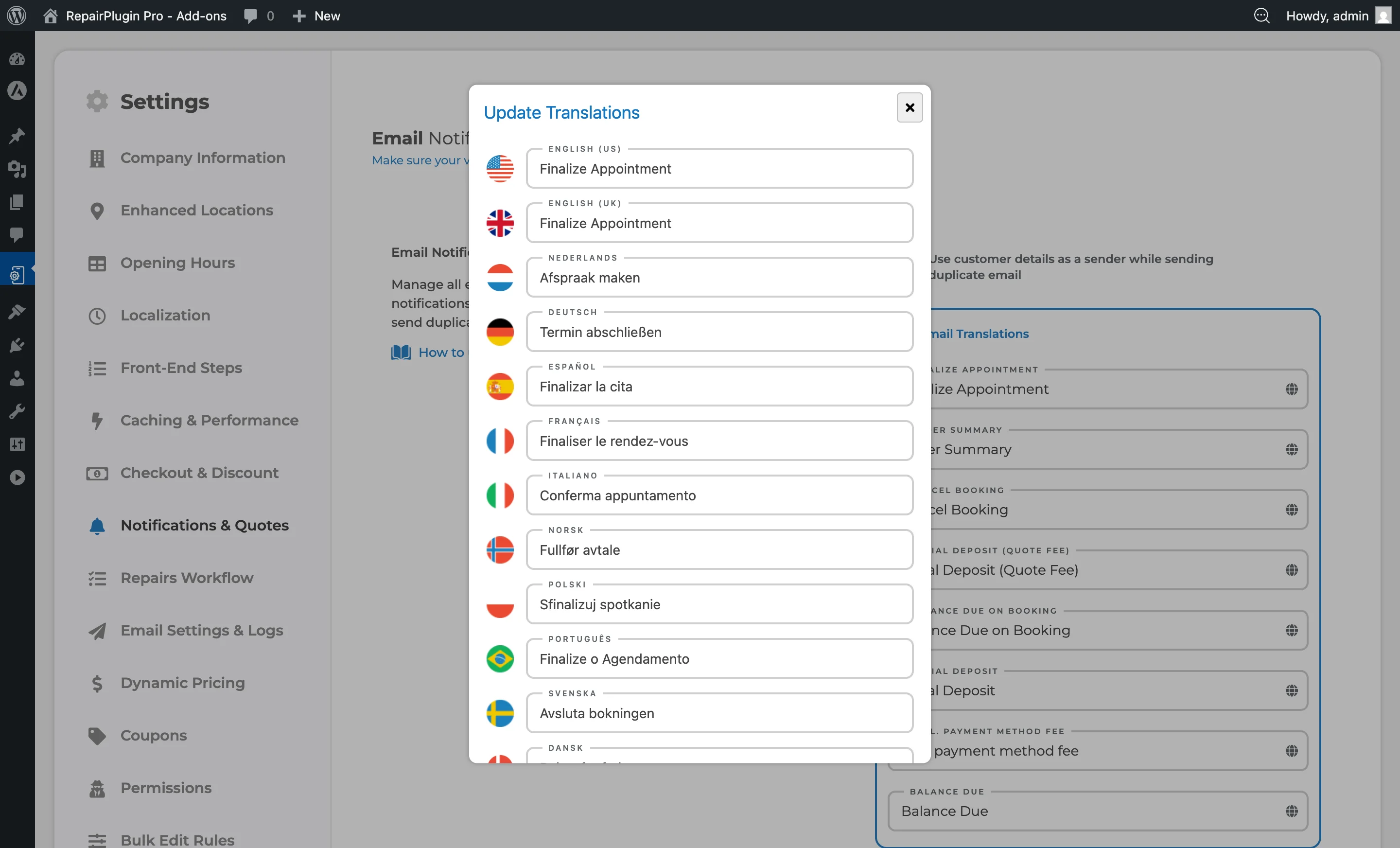
Each email subject and message field has a globe icon that opens the translation window:
- Click the globe icon next to any email field.
- A window appears with input fields for each language you've set up.
- Enter the translated text for each language.
- Click Save in the window.
Edit shared email text (Email Translations)
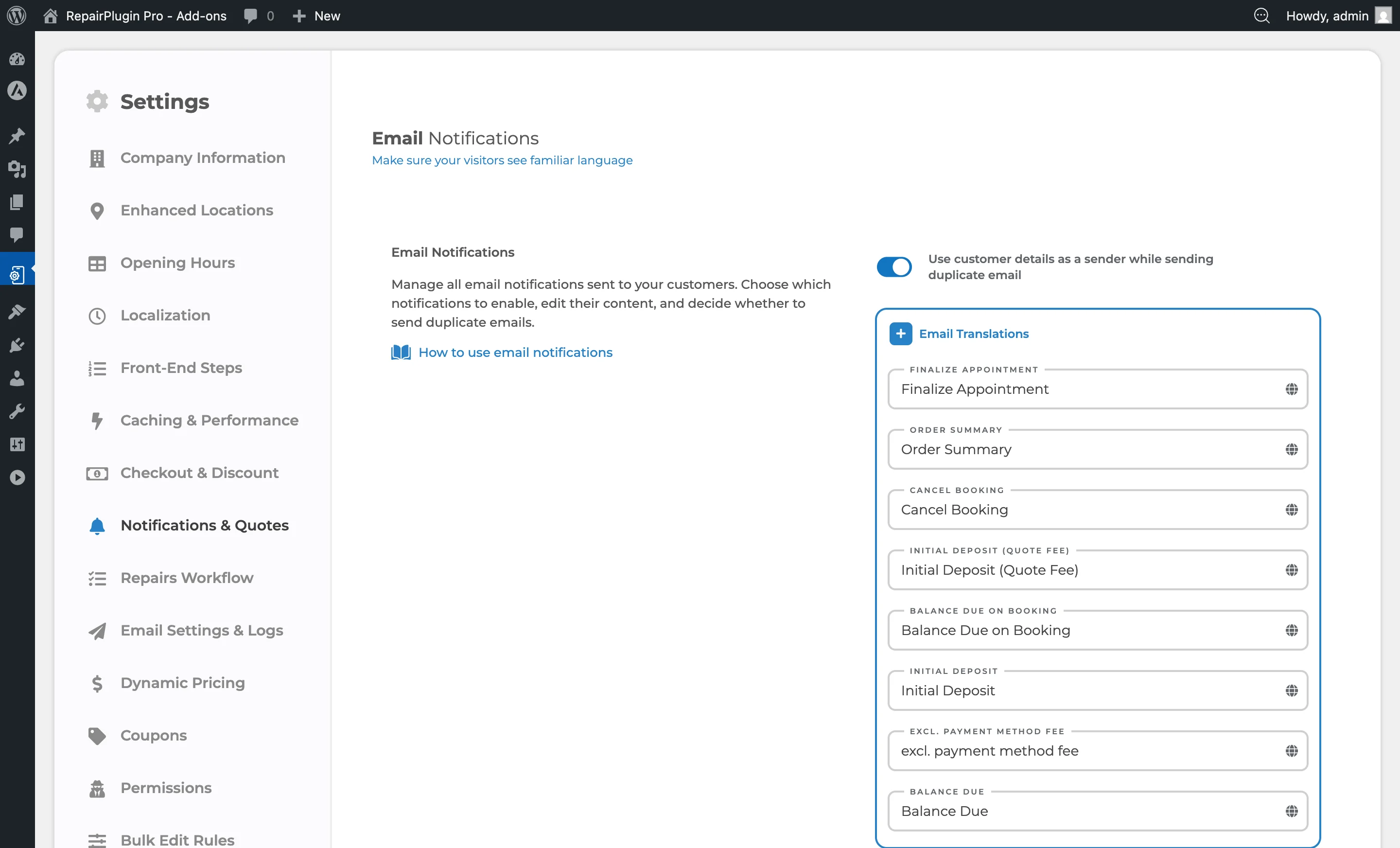
Common text strings used across multiple emails (button labels, shared phrases) can be edited separately:
- On the Notifications & Quotes page, expand the Email Translations section at the top.
- Edit the value for each string.
- Click the globe icon to add translations.
- Click Save Settings.
Add admin-only content
You can include content that only appears in admin duplicate emails:
- In any email message, wrap admin-specific content with
[admin_only]and[/admin_only]tags. - Content inside these tags won't appear in the customer email but will be included in the admin duplicate.
Example:
Hi $CustomerName$, your booking for $AppointmentDate$ is confirmed.

[admin_only]
Staff note: Priority repair - expedite if possible.
[ApproveLink="Click here to approve this booking"]
[/admin_only]
Add content for multi-repair orders only
For content that should only appear when the order has more than one repair item in the workflow:
- Wrap the content with
[multiple_repair_items_only]and[/multiple_repair_items_only]tags. - This content only shows up if the workflow has multiple repair rows.
Settings reference
| Setting | Description | Default | Customers see |
|---|---|---|---|
| Email Subject (per notification) | Sets the subject line of the outgoing email. Dynamic variables are replaced with real order data before the email is sent | pre-set subject per notification type | This text appears as the email subject in their inbox. |
| Email Message (per notification) | Sets the full body content of the email. Supports HTML formatting, dynamic variables, conditional sections, and action links | pre-set message per notification type | This is the main content of the email they receive. |
Dynamic variables reference
Dynamic variables are placeholders that get replaced with real order data when the email is sent. Type them directly into the subject or message fields. Customer information
| Variable | What it inserts |
|---|---|
$CustomerName$ | Customer's full name |
$CustomerFirstName$ | Customer's first name only |
$CustomerLastName$ | Customer's last name only |
$CustomerEmail$ | Customer's email address |
$CustomerPhone$ | Customer's phone number |
$CustomerNotes$ | Notes the customer entered during booking |
$CustomerStreetAddress$ | Customer's street address |
$CustomerHouseNo$ | Customer's house number |
$CustomerCity$ | Customer's city |
$CustomerZipcode$ | Customer's zip code |
$CustomerCountry$ | Customer's country (translated name) |
| Appointment information | |
| Variable | What it inserts |
| --- | --- |
$AppointmentDate$ | Appointment date (dd-mm-yyyy format) |
$AppointmentTime$ | Appointment time (uses your 12h/24h format from localization settings) |
$CreatedDate$ | Date the booking was created |
$CreatedTime$ | Time the booking was created |
$ServiceMethod$ / $DeliveryMethod$ | Selected service/delivery method (e.g., "Come by our store", "Ship device") |
| Device and repair information | |
| Variable | What it inserts |
| --- | --- |
$Category$ | Device category name (e.g., "Smartphone") |
$Brand$ | Device brand name (e.g., "Apple") |
$Model$ | Device model name (e.g., "iPhone 15 Pro") |
$Color$ | Selected device color |
$OrderSummary$ | Formatted order summary table with all repairs, accessories, discounts, coupons, and totals |
$RepairSummary$ | Repair workflow status table (only if Repairs Workflow is active) |
| Shop information | |
| Variable | What it inserts |
| --- | --- |
$ShopName$ | Company name from Company Information settings |
$LocationName$ | Name of the selected location |
$LocationAddress$ | Address of the selected location |
$LocationZipcodeCity$ | Zip code and city of the selected location |
$LocationTelephone$ | Location's phone number (requires Enhanced Locations) |
| Payment information | |
| Variable | What it inserts |
| --- | --- |
$PaymentMethod$ | Selected payment method name |
$PaymentStatus$ | Payment status (e.g., "paid", "unpaid") |
| Action links | |
| Variable | What it inserts |
| --- | --- |
[cancel="Cancel your booking"] | A clickable link that lets the customer cancel their booking. The text between the quotes becomes the link text. |
[RescheduleLink="Reschedule your appointment"] | A clickable link to reschedule the appointment. Works for Come by our store, Pickup service, and Repair on location methods only. |
[ApproveLink="Approve this booking"] | A clickable link for admins to approve a pending booking. Only appears in admin duplicate emails when the order has pending status. |
$FinalizeButton$ | Reserved for finalization workflows. |
| Conditional sections | |
| Variable | What it inserts |
| --- | --- |
[admin_only] ... [/admin_only] | Content inside only appears in admin duplicate emails -- hidden from customer emails. |
[multiple_repair_items_only] ... [/multiple_repair_items_only] | Content inside only appears when the order has multiple repair items in the workflow. |
| Portal emails (Growth and Scale plans) | |
| The Portal Register and Portal Forgot Password emails of the Customer Portal have their own, shorter list. Only these variables work in them. Pick them from the Dynamic Variables menu in the email editor. | |
| Variable | What it inserts |
| --- | --- |
$SiteName$ | Your website's name |
$CustomerEmail$ | Customer's email address |
$CustomerUsername$ | Customer's username |
$SetPasswordUrl$ | The link to set a password (Portal Register only) |
$ResetPasswordUrl$ | The link to reset a password (Portal Forgot Password only) |
$LocationName$ | Name of your main location |
$LocationAddress$ | Address of your main location |
$LocationZipcodeCity$ | Zip code and city of your main location |
The three location variables always use your main location -- the first location you created. They work in the email message, not in the subject. Custom fields If you've set up custom checkout fields, their email variables (defined during field creation) can also be used as dynamic placeholders in your email templates.
Frequently asked questions
Can I use dynamic variables in the subject line?
Yes. Dynamic variables work in both the email subject and the email message body. For example, you can write Booking confirmed for $CustomerFirstName$ as your subject line.
What happens if I leave a template empty?
If you clear out a subject or message field, RepairPlugin uses the pre-set default text for that notification type.
Can I use HTML formatting in email templates?
Yes. All RepairPlugin emails are sent as HTML, so you can use tags like <b>, <p>, <table>, and inline CSS in your templates.
What happens if I type a variable name incorrectly?
The incorrect variable appears as plain text in the email your customer receives. For example, if you type $CutomerName$ instead of $CustomerName$, the customer sees the literal text "$CutomerName$". Always copy variable names exactly, including the dollar signs.