
Managing Languages
Set up multiple languages in RepairPlugin with ready-made language packs, custom languages, and a front-end language selector for your booking form.
What can you do with this?
- Download pre-built language packs — get up and running with 13 languages, including English, Dutch, German, Spanish, French, and more.
- Add custom languages — create any language that isn't in the standard list, complete with its own name and flag.
- Set a default language — choose which language every visitor sees first.
- Show or hide a language selector — let customers switch languages in the booking form, or lock it to a single language.
- Force a language on a specific page — use a shortcode attribute to set the language for a particular page.
Where to find it
To manage languages:
- Log in to your WordPress admin dashboard.
- Go to RepairPlugin > Settings.
- Click Localization in the sidebar.
- Scroll down to the Setup Translations section.
To download language packs:
- Go to RepairPlugin > Download.
- Click Download Languages.
How to set it up
Download a language pack
- Go to RepairPlugin > Download > Download Languages.
- Select the languages you want. The 13 standard languages are:
- English (United States), English (United Kingdom), Dutch, German, Spanish, French, Italian, Norwegian, Polish, Portuguese, Swedish, Turkish, Ukrainian, Arabic
- Click Download.
- RepairPlugin adds the language to the selector, creates email notifications for that language, and translates the Default Repairs.
Add a custom language
- Go to RepairPlugin > Settings > Localization > Setup Translations.
- Click Add Language.
- Enter the Language Name (for example, "Romanian").
- Enter the Alternative Name — the name in the language itself so native speakers recognize it (for example, "Romana").
- Optionally upload a custom flag image.
- Click Save.
Set the default language
- In the Setup Translations section, find the Default Language dropdown at the top.
- Select the language you want as the default.
- Click Save Changes.
The default language is what every visitor sees first. It's also the main language used for repair names in Default Repairs and in the admin area.
Sort languages
- In the language list, use drag-and-drop or the arrow controls to reorder languages.
- The order you set here is the order your customers see in the language selector.
- Click Save Changes.
Enable or disable a language
- Turn the switch on or off next to each language in the list.
- Disabling a language hides it from the language selector on the booking form.
- Disabled languages stay in the system — you can keep working on translations before making a language visible to customers.
Edit a language
- Click on a language in the list to expand its settings.
- Change the language name, alternative name, or flag image as needed.
- Click Save.
Delete a language
- Click the delete button (trash icon) next to the language you want to remove.
- Confirm the deletion.
- All translations for this language are removed.
Turn the language selector on or off
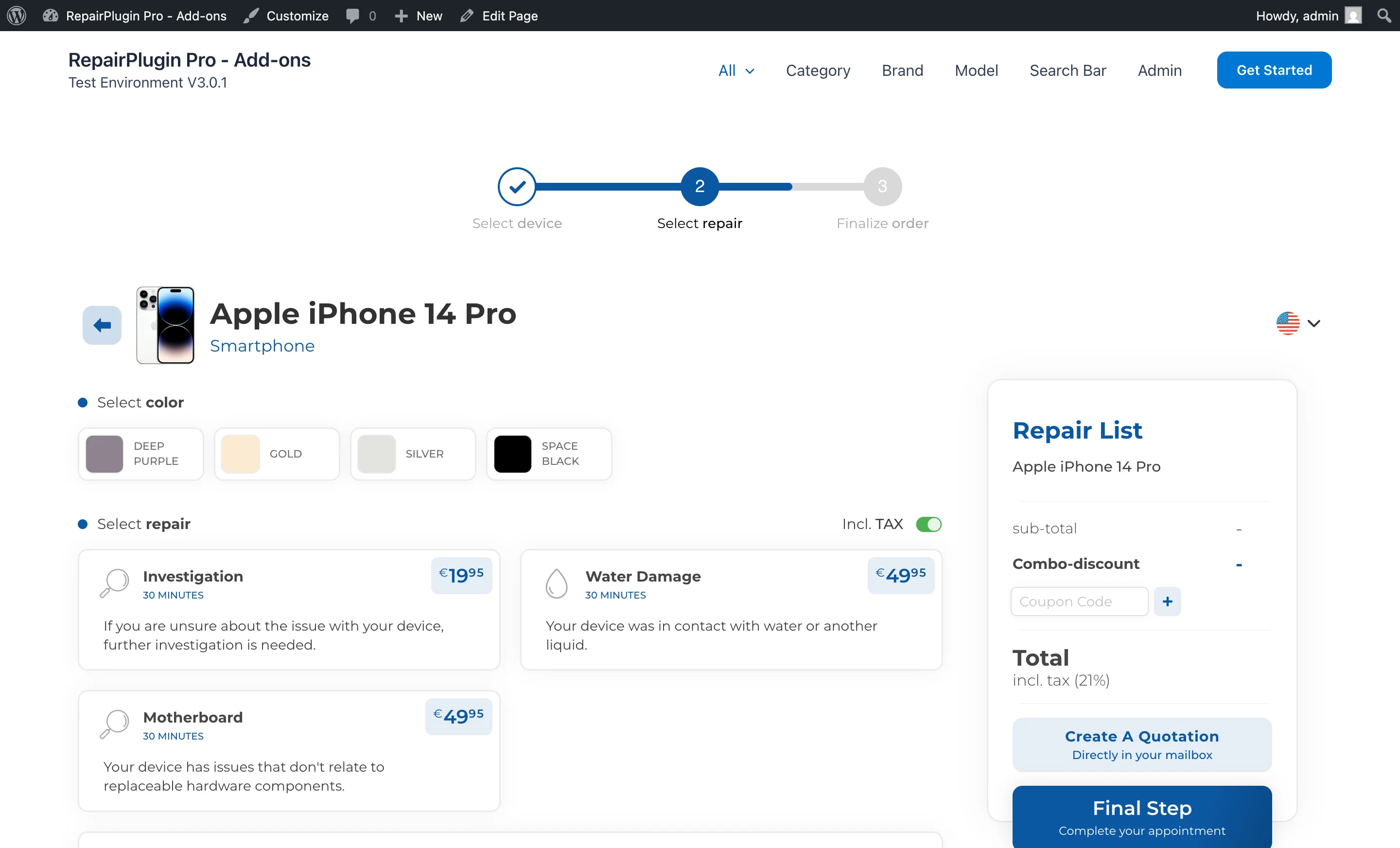
- In the Setup Translations section, find the Enable Language Selector on Front-End switch.
- Turn it on to show a language dropdown in the booking form.
- Turn it off to hide the selector — the booking form only shows the default language.
Force a language on a specific page
If RepairPlugin doesn't automatically detect the correct language for a page, add the language attribute to your shortcode:
[Repair_All language="Dutch"]
Use the exact language name as it appears in Settings > Localization. Examples:
| Language | Shortcode |
|---|---|
| English (United States) | [Repair_All language="English (United States)"] |
| Dutch | [Repair_All language="Dutch"] |
| German | [Repair_All language="German"] |
| Spanish | [Repair_All language="Spanish"] |
| French | [Repair_All language="French"] |
Tip: If a customer manually picks a language using the language selector, their choice takes priority over the shortcode. To test the forced language, use an incognito/private browser window.
Translate the Customer Portal
When you use the Customer Portal (Growth & Scale plans), its texts are translatable too:
- All portal texts (login, registration, appointments, account, notifications, discounts) live under the Customer Portal category in the translations list. English and Dutch ship out of the box.
- When more than one language is enabled, the portal shows a language selector. A logged-in customer's choice is saved as their preferred language and used for their order emails.
- Coupon descriptions shown in the portal are translated per coupon, with the globe icon on the coupon's description field — see Coupon Codes.
Settings reference
| Setting | Description | Default | Customers see |
|---|---|---|---|
| Default Language | Sets the language shown to all visitors by default. Also determines the main language for Default Repairs and repair text in the admin area | English (United States) | All booking form text, labels, and buttons appear in this language — unless the customer switches to another language. |
| Enable Language Selector on Front-End | Shows or hides the language selector dropdown in the booking form | on | When on, a language picker appears and customers can switch to any enabled language. When off, the booking form only shows the default language — no selector is visible. |
| Language Name | The internal name used to identify the language in settings and shortcodes | set by language pack | Not shown directly — the alternative name appears in the language selector instead. |
| Alternative Name | The name shown to customers in the language selector. Should be in the native language (for example, "Nederlands" for Dutch) | set by language pack | This name appears in the language selector dropdown on the booking form. |
| Flag Image | The flag icon shown next to the language name in the selector | set by language pack | The flag appears in the language selector for quick visual identification. |
| Language Enable/Disable | Controls whether a language is visible on the booking form. Disabled languages stay available for translation work in the admin area | on | Disabled languages don't appear in the language selector and can't be selected. |
Frequently asked questions
Does RepairPlugin work with Polylang?
Yes. When the Polylang plugin is active, RepairPlugin can detect the current page language and automatically switch to the matching language.
What happens when I download a language pack?
RepairPlugin adds the language to your language selector, creates translated email notifications, and translates the Default Repairs into that language — all in one step.