
Step Translations
Learn how to translate and customize every label, button, and message in the RepairPlugin booking form for any language.
What can you do with this?
- Translate the full booking flow — every step, from brand selection to confirmation, can be shown in any of your enabled languages.
- Change button labels and instructions — rename "Next" to "Continue", "Book Now" to "Schedule Repair", or anything else that fits your business.
- Adjust wording to match your terminology — change "Repair" to "Service" or "Fix" throughout the booking form.
- Customize placeholder text and error messages — make sure every piece of text speaks your customers' language.
- Edit quote PDF content — translate or rephrase the text that appears on quote documents.
Where to find it
- Log in to your WordPress admin dashboard.
- Go to RepairPlugin > Settings.
- Click Localization in the sidebar.
- Scroll down past Regional Settings and Setup Translations to the Steps Translations section.
- You'll see a list of translation categories.
How to set it up
Find the right category
The Steps Translations section groups all text by area. Click a category to expand it and see the text fields inside:
| Category | What it covers |
|---|---|
| Step wizard | Navigation buttons (next/previous), progress indicators |
| Searchbar [Repair_All] | Search bar in the main booking form |
| What Model Popup | The popup where customers select their device model |
| iDEAL in3 Popup | The iDEAL in3 payment popup |
| Pre-select location | Location selection step (when pricing is location-based) |
| Step 1 | Brand/device selection |
| Step 2 | Model selection |
| Step 3 | Repair selection |
| Step 4 | Offer/quote review |
| Step 5 | Customer information and scheduling |
| Step 6 | Confirmation/payment |
| Offer Popup | The quote/offer popup |
| Offer PDF | Content of the quote PDF document |
| Offer PDF Filename | The file name used for generated quote PDFs |
| Chat Widget | Texts in the chat window of the AI Booking Agent, like the heading, the welcome message, and the buttons |
| Approved Page | The page shown when a quote is approved |
| Canceled Page | The page shown when a quote is canceled |
| Searchbar (Shortcode) | Search bar shortcode ([Repair_Search]) |
| Pricing Table (Shortcode) | Pricing table shortcode |
Edit a text field
- Click on a category name to expand it.
- Click inside any text field to edit the default language text directly.
- Changes take effect immediately on the booking form.
Translate a text field into other languages
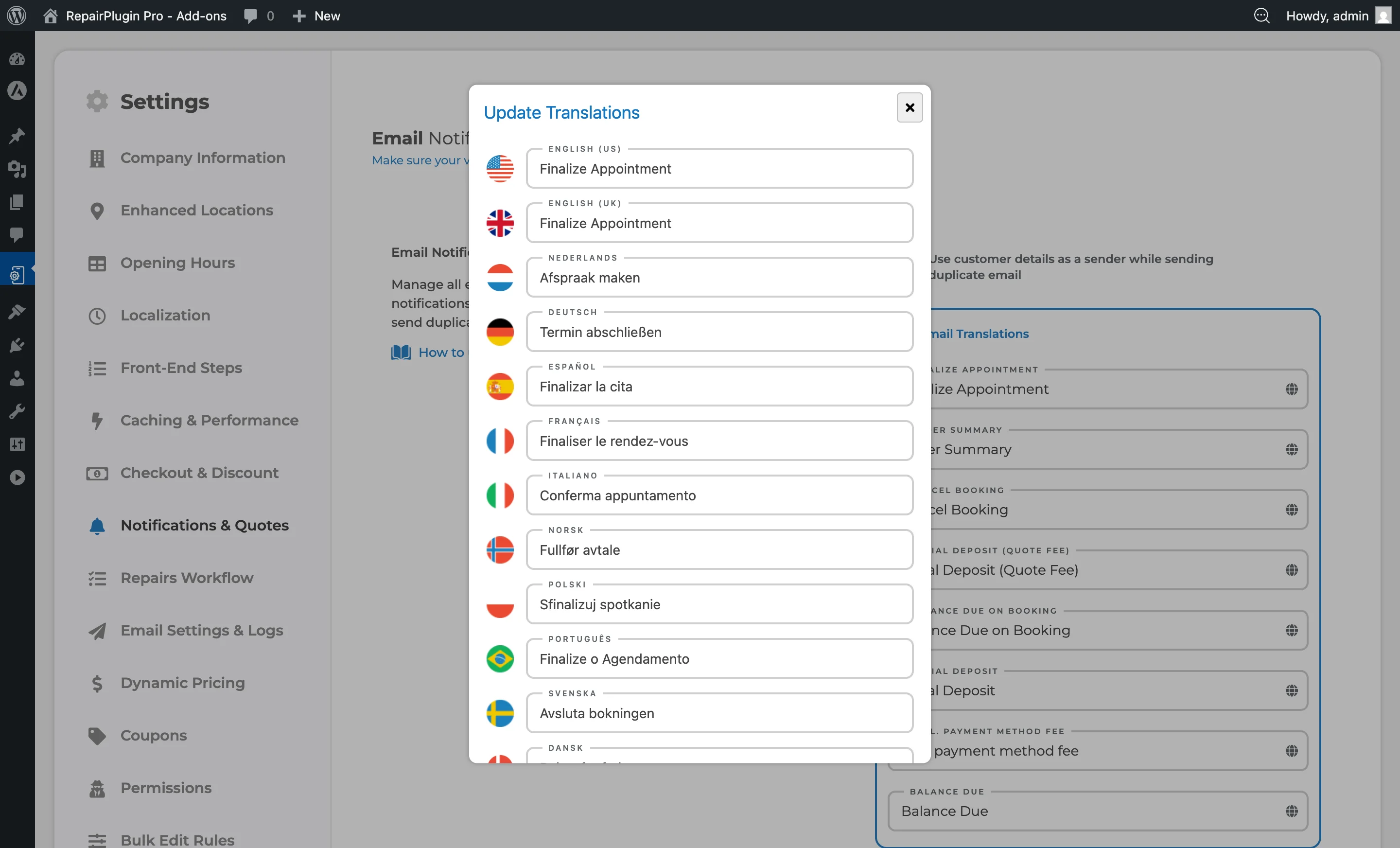
- Click the globe icon next to any text field.
- A popup opens showing an input field for each enabled language, with its flag and name.
- Enter the translated text for each language.
- Click Update to save all translations.
Translate day names
Step 5 includes special fields for day names used in the appointment calendar:
translation_of_day_monthroughtranslation_of_day_sun
Use these to show localized day abbreviations in the date picker.
Work with HTML in translation fields
Some fields (especially for emails and quotes) contain HTML formatting. When editing these:
- Click the globe icon to open the translation popup.
- Look at the source of an existing translation and copy it as a template.
- Change only the text — keep the HTML structure intact.
Tip: Use your browser's Inspect tool to view the HTML source of formatted fields, then copy the structure from one language to another.
Settings reference
| Setting | Description | Default | Customers see |
|---|---|---|---|
| Translation string fields | Controls the exact text shown for each label, button, message, and instruction in the booking form | set by the downloaded language pack, or the default English text | Changes appear immediately. Each language shows its own translated version when the customer switches languages. |
| Globe icon (translation popup) | Opens a multi-language editor showing input fields for each enabled language, pre-filled with existing translations | N/A | The text matching their selected language appears in the booking form. |
| Category sections | Groups related text fields by booking step or feature area, making it easier to find and update specific text | collapsed | Nothing directly — this is an organizational feature in the admin area. |
Frequently asked questions
Do I need to translate every single field?
No. If you leave a field empty for a language, RepairPlugin falls back to the default language text. You can start with the most visible text (buttons and headings) and add more translations over time.
What's the difference between Managing Languages and Step Translations?
Managing Languages is where you download language packs, add languages, and control which languages are available. Step Translations is where you edit the actual text shown in each step of the booking form.