
SMS & WhatsApp via Twilio
Connect Twilio to RepairPlugin to send booking updates and reminders to your customers by SMS or WhatsApp, with a test tool and message logs.
What can you do with this?
- Reach customers on their phone -- send booking updates by SMS or WhatsApp, with Twilio as the sender.
- Pick the messages you want to send -- turn each notification on or off, like Booking Pending, Booking Canceled, or Reminder.
- Write your own short texts -- edit the message for every notification and every language, with dynamic variables like the customer's name.
- Start with SMS in minutes -- SMS works as soon as you save your Twilio details. There are no templates and nothing to sync.
- Let RepairPlugin handle WhatsApp templates -- WhatsApp requires an approved template for every message. RepairPlugin creates and updates them in Twilio for you.
- Test and track delivery -- send a test message and check the log of every message RepairPlugin sent.
Example: A customer books a screen repair for tomorrow at 2 PM. They get a WhatsApp message from your shop that confirms the booking. Two hours before the appointment, they get a reminder on their phone.
Where to find it
- In your WordPress admin, click RepairPlugin.
- Click Settings.
- In the settings sidebar, click SMS Settings & Logs.
- Use the Settings, SMS Test, and SMS Logs tabs at the top of the page.
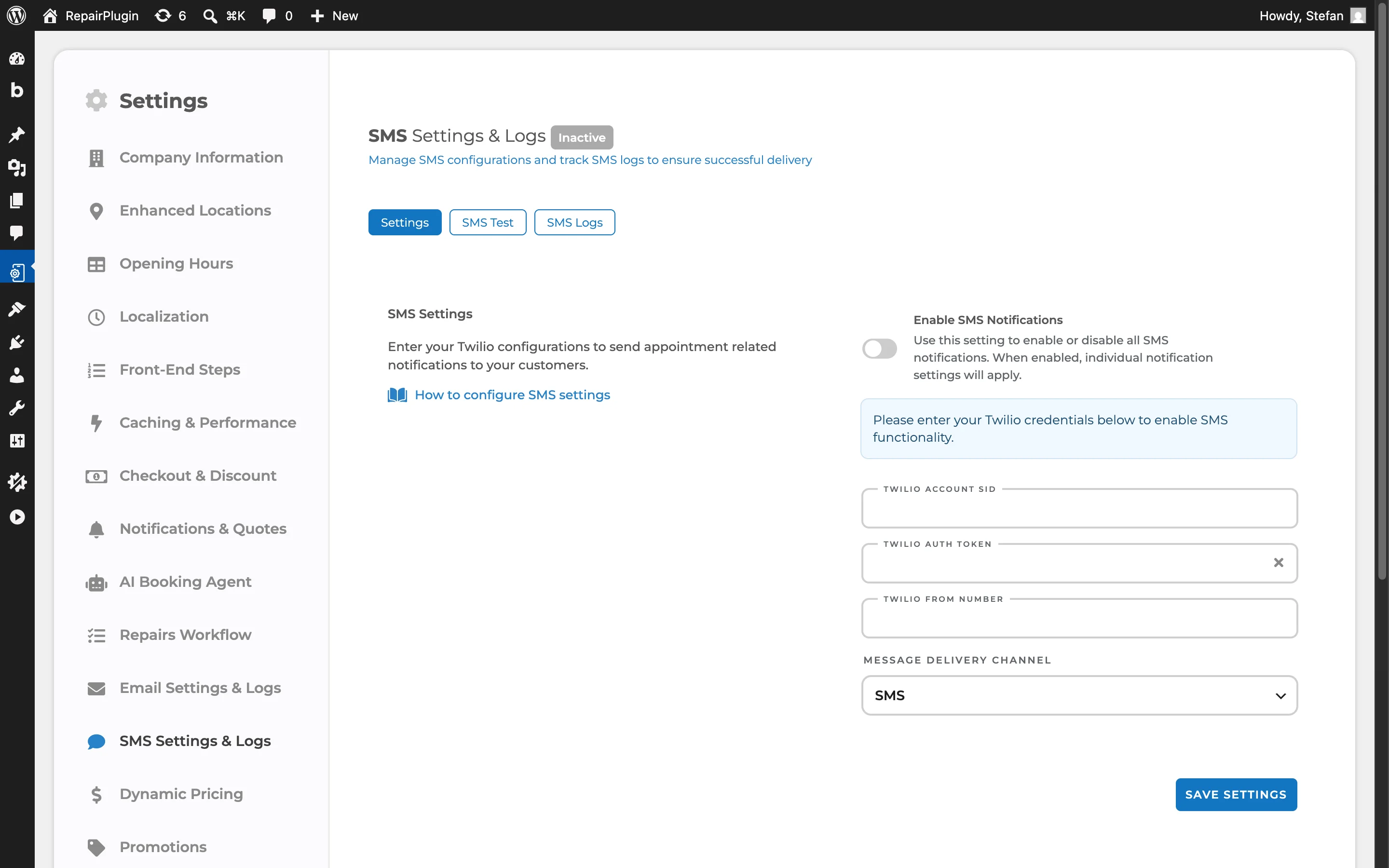
You edit the messages themselves on another page: RepairPlugin > Settings > Notifications & Quotes, in the SMS Notifications section.
How to set it up
Choose SMS or WhatsApp first
Both channels use the same Twilio account and the same settings page. The big difference is the setup:
| SMS | ||
|---|---|---|
| Ready to use | Right after you save your Twilio details | After WhatsApp approves your templates |
| Templates | Not needed | Required by WhatsApp. RepairPlugin creates them for you |
| Sync with Twilio | None | RepairPlugin syncs your templates with Twilio |
| Template overview on the settings page | Not shown | Shown at the top of the page |
| Rules for your message text | None from WhatsApp | WhatsApp reviews every text |
| Extra step in Twilio | None | Register your number as a WhatsApp sender |
| Approve Link and conditional sections in your text | Available | Not available |
Using SMS? Follow the steps under Set up SMS below. You can skip everything under Extra steps for WhatsApp. You won't see any template messages, and nothing syncs with Twilio.
Using WhatsApp? Follow the steps under Set up SMS first, then continue with Extra steps for WhatsApp.
Before you start
Make sure you have:
- RepairPlugin version 3.4.0 or higher, with an active license key.
- A Twilio account. You can create one for free at twilio.com.
- A Twilio phone number that can send SMS.
- Enough Twilio balance for your messages and the monthly fee of your number.
Set up SMS
1. Create a Twilio account and log in
- Go to twilio.com and click Create an account for free.
- Already have an account? Enter your email address, click Continue, and log in with your password. Twilio also asks for a verification code.
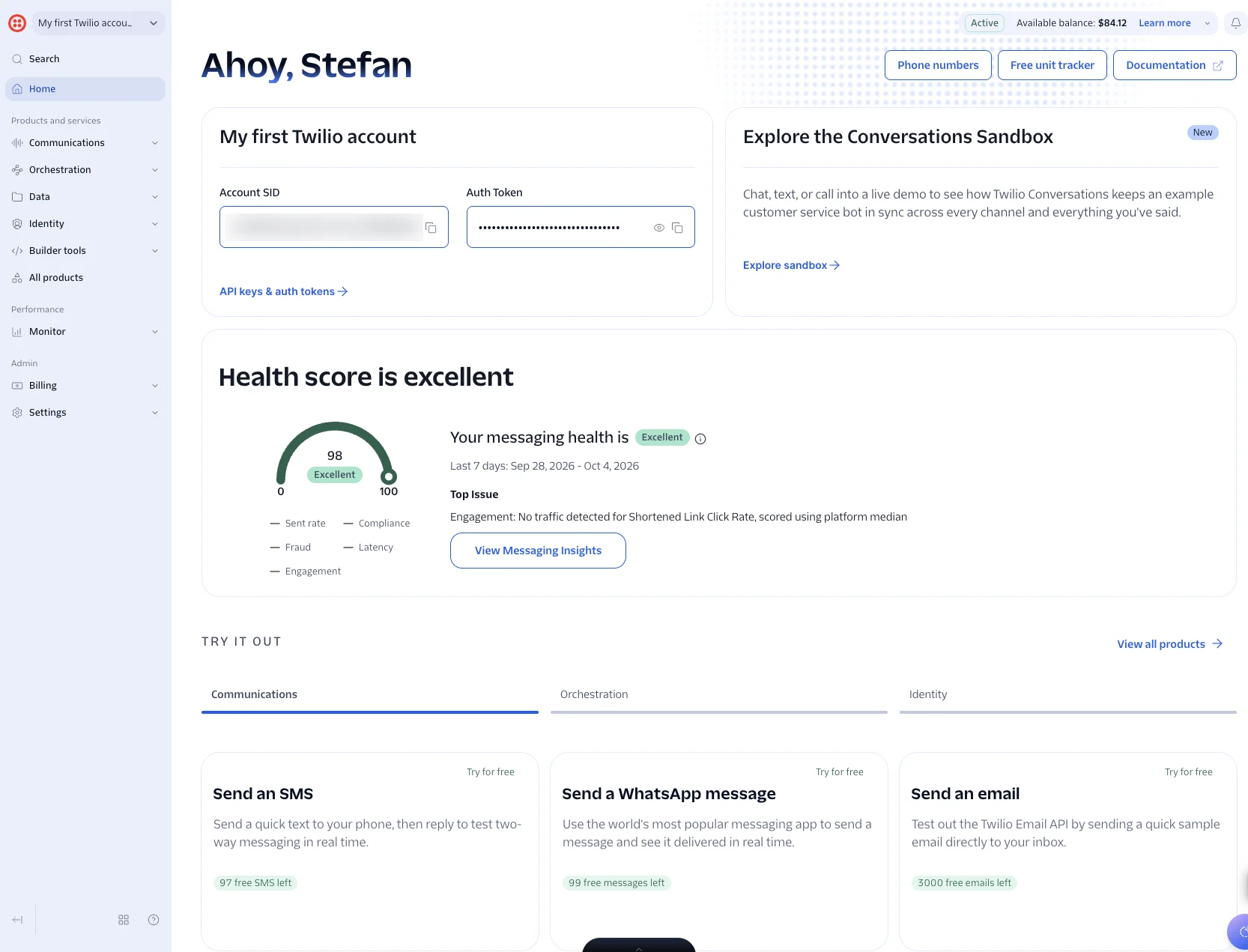
After you log in, you land in the Twilio Console. That's the dashboard of your account.
2. Get a phone number with SMS
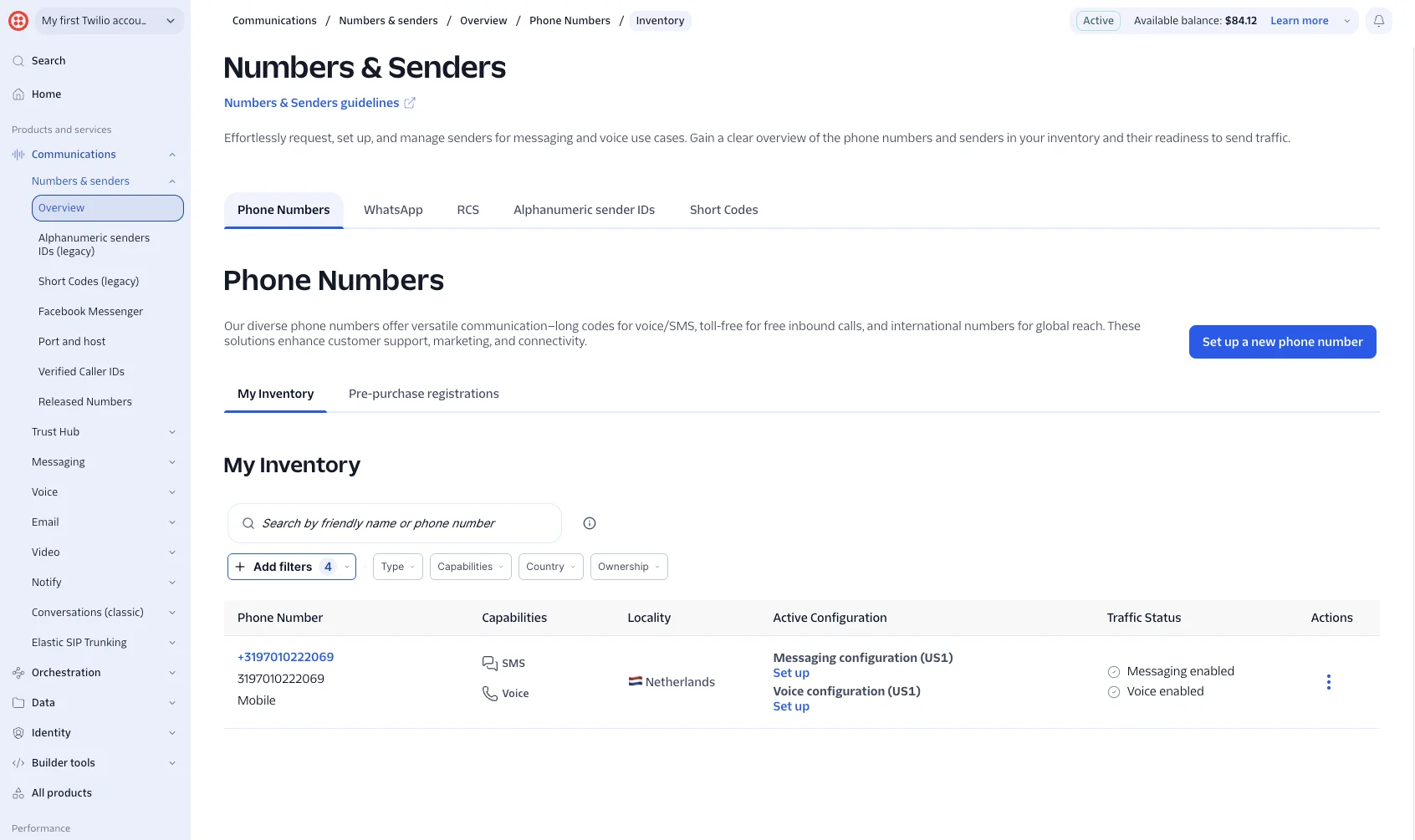
- In the Twilio menu on the left, go to Communications > Numbers & senders.
- Click Set up a new phone number and pick a number.
- Make sure SMS is on under Capabilities.
Your number now shows under My Inventory. Check that Traffic Status says Messaging enabled before you continue.
3. Check your Twilio balance
Twilio charges per message and per month for your phone number. When your balance runs out, Twilio stops sending your messages.
- Find your balance at the top right of the Twilio Console, next to Available balance.
- Top up through Billing in the menu on the left.
4. Connect Twilio to RepairPlugin
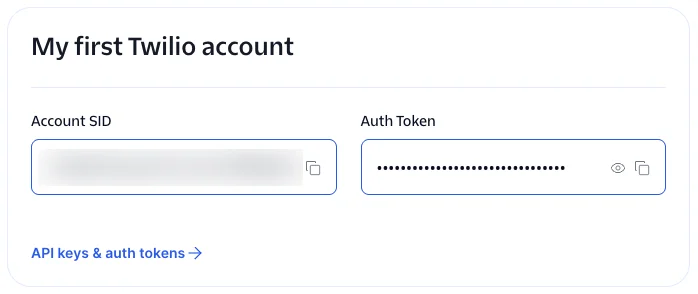
You need three things from Twilio: your Account SID, your Auth Token, and your phone number. You find the Account SID and Auth Token on the home page of the Twilio Console, below your account name.
- In WordPress, go to RepairPlugin > Settings > SMS Settings & Logs.
- Turn on Enable SMS Notifications.
- Paste your Account SID into Twilio Account SID.
- Paste your Auth Token into Twilio Auth Token.
- Enter your Twilio number in Twilio From Number, in international format (for example
+31 6 12345678). - Leave Message Delivery Channel on SMS.
- Click Save Settings.
After saving, you'll see Active next to the page title. That's it: SMS works right away. There are no templates to wait for.
Do you see "There was an error while saving the settings"? Check your Account SID, Auth Token, and phone number, and save again.
From now on, customers have to enter their phone number in international format when they book, like +31 6 12345678.
5. Write your messages
Every notification starts with a placeholder text, like "This is SMS template for Booking Pending Notification." Replace these texts with your own before you go live. Otherwise your customers get the placeholder.
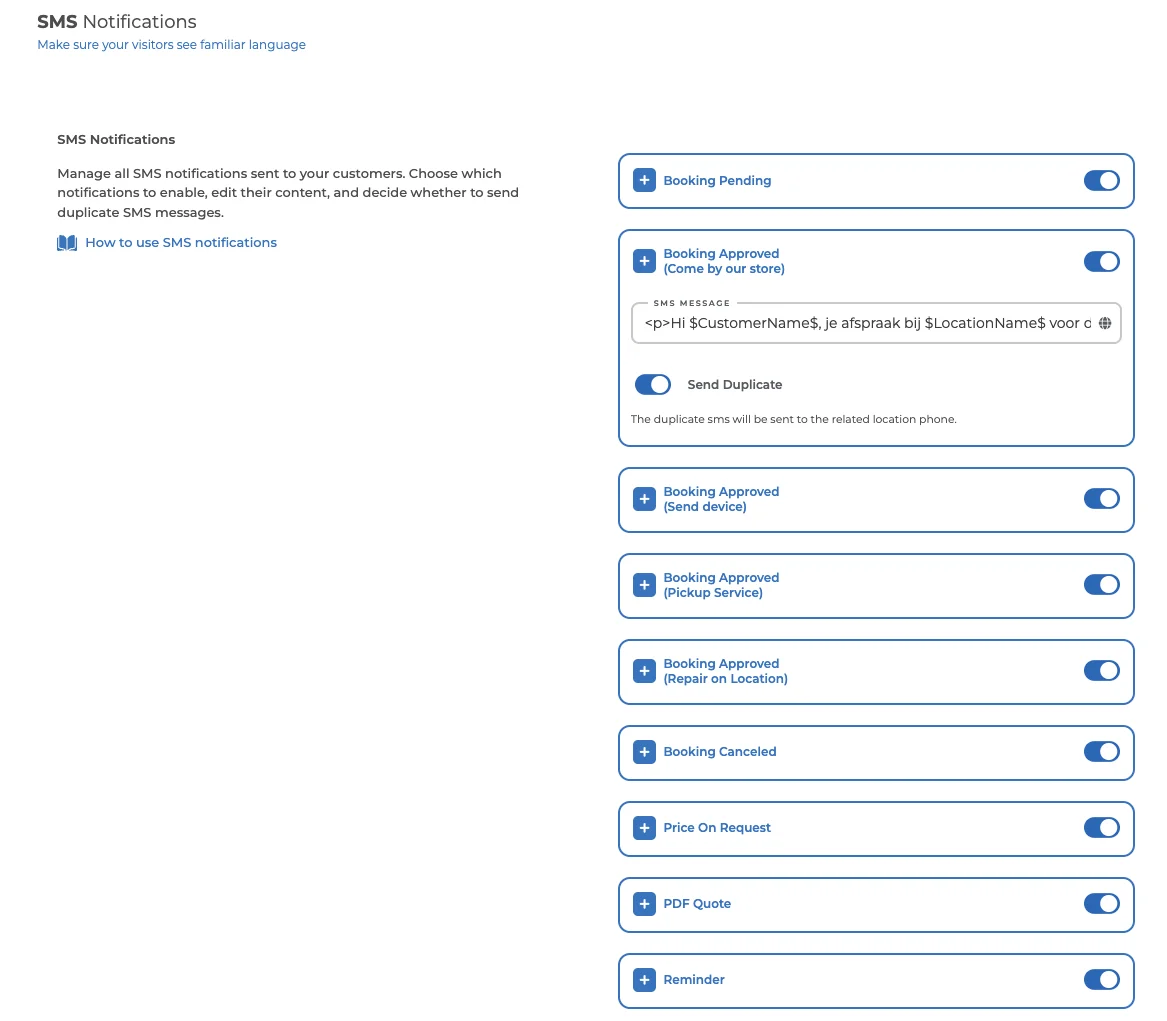
- Go to RepairPlugin > Settings > Notifications & Quotes and scroll to SMS Notifications.
- Use the switch next to a notification to turn its message on or off.
- Click + to open a notification.
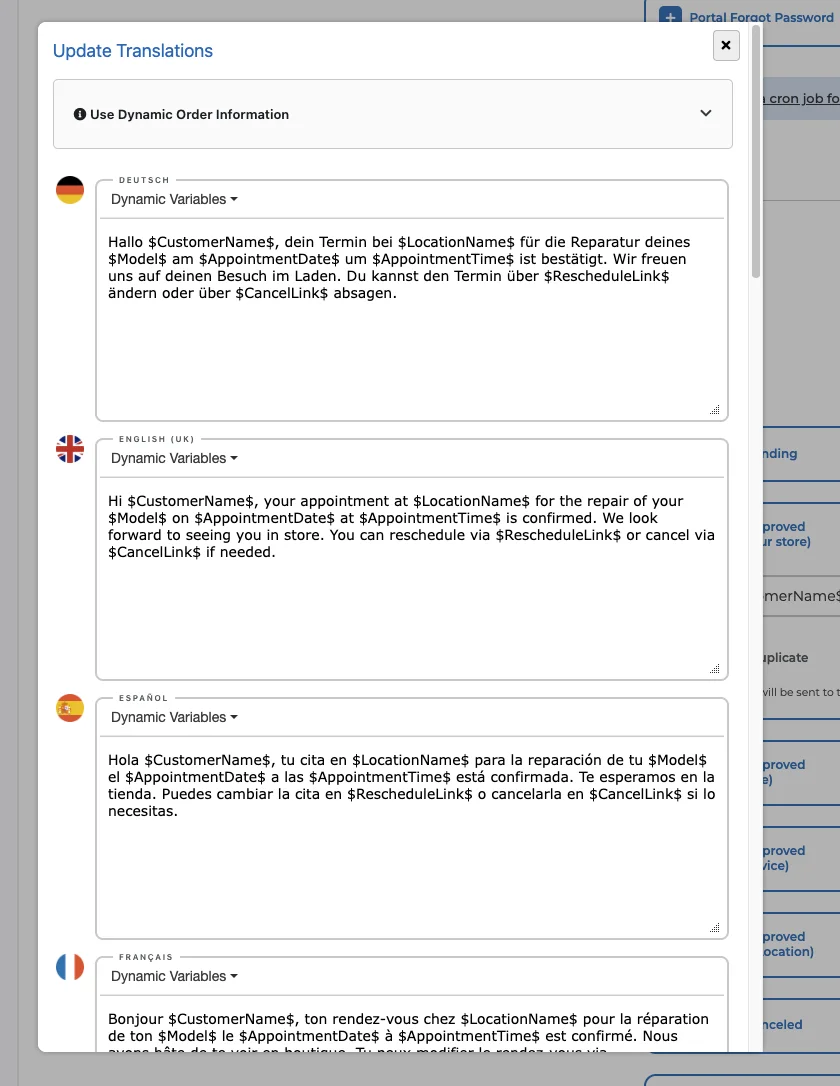
- Click the globe icon in the SMS Message field to open Update Translations.
- Write the text for each language. Use the Dynamic Variables menu to add things like the customer's name or the appointment date.
- Turn off Send Duplicate if you don't want the location's phone number to get a copy.
- Click Save Settings.
You can write a message for these notifications:
- Booking Pending
- Booking Approved -- one for each service method: Come by our store, Send device, Pickup Service, and Repair on Location
- Booking Canceled
- Price On Request
- PDF Quote
- Reminder and Aftersales
- Completed
- Repair Notes -- only when you use the Repairs Workflow
- Portal Register and Portal Forgot Password -- only when you use the Customer Portal
Good to know about the text:
- Plain text only. An SMS message has no bold text, colors, or images.
- No order summary. The Order Summary variable isn't available. Use Order Total instead.
- Short links. Use Cancel Link and Reschedule Link to add a link. RepairPlugin shortens these links for you.
Do you use the Repairs Workflow? Each workflow status has its own Status sms template field. You find it under RepairPlugin > Settings > Repairs Workflow. See Repairs Workflow.
RepairPlugin uses these same messages for SMS and for WhatsApp.
6. Set the timing for reminders and aftersales
- Open the Reminder notification and fill in Send it X hours before the appointment time.
- Open the Aftersales notification and fill in Send it X hours after the appointment time.
- Click Save Settings.
Reminder and aftersales messages need a cron job. The command is at the bottom of the Notifications & Quotes page. See Setting Up Cronjobs for the steps.
7. Send a test message
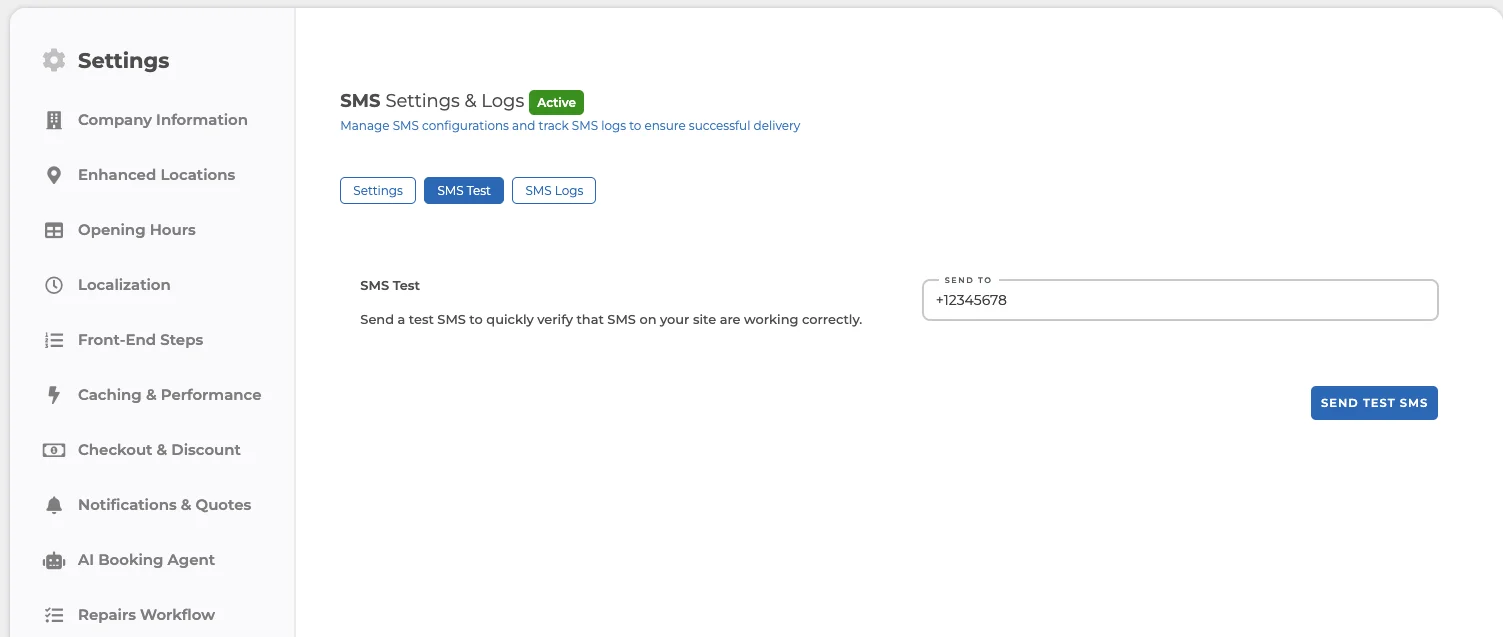
- In SMS Settings & Logs, open the SMS Test tab.
- Enter your own mobile number in Send To, in international format (for example
+31 6 12345678). - Click Send Test SMS.
The test goes through the channel you chose under Message Delivery Channel. RepairPlugin adds the test to the queue. Check the SMS Logs tab to see what happened to it.
8. Check the logs
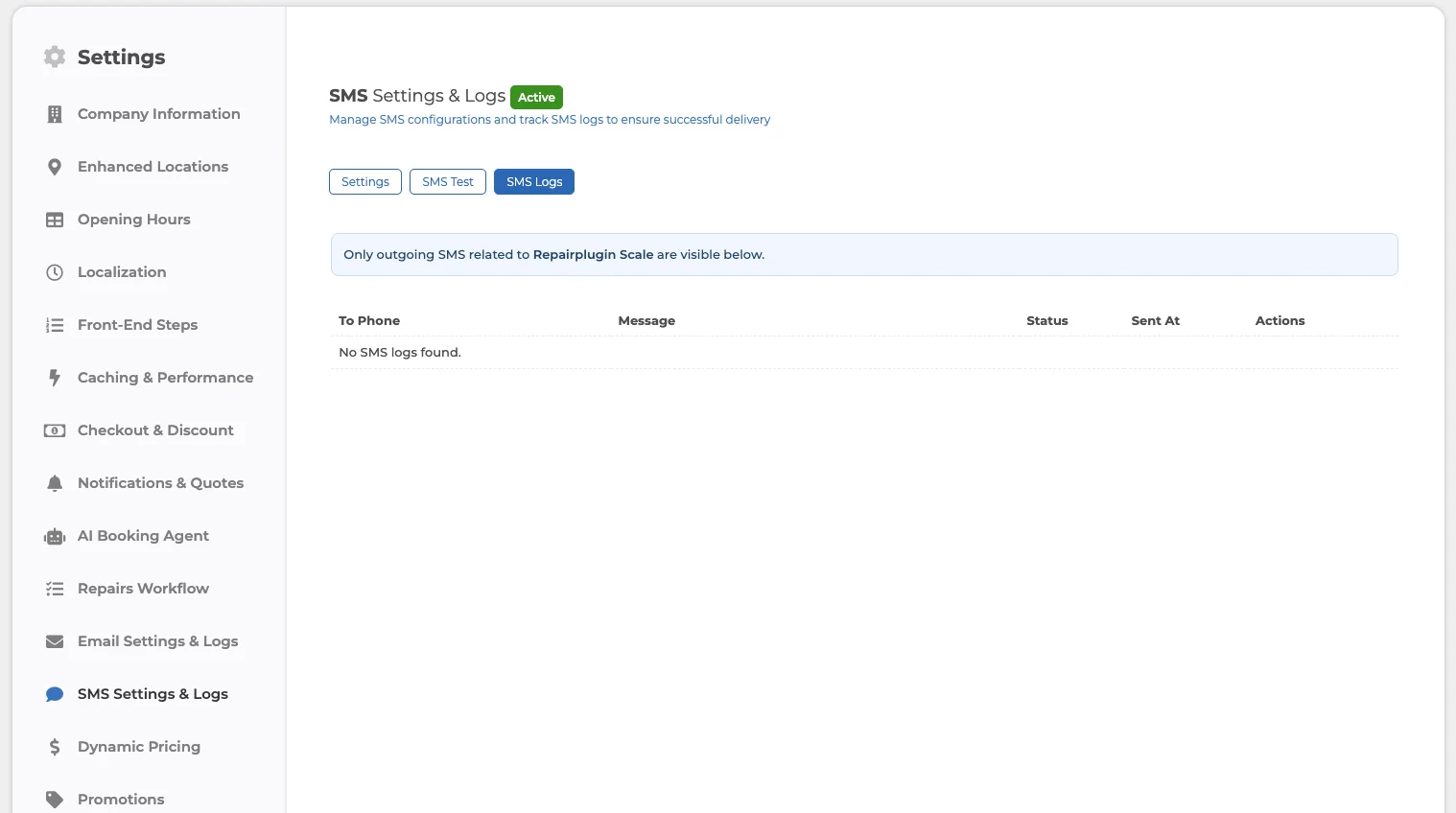
- In SMS Settings & Logs, open the SMS Logs tab.
- Look at To Phone, Message, Status, and Sent At for each message. The status is queued, success, or failed.
- Click View to read a message, or click the trash icon to delete it.
- Click Delete All SMS Logs to clear the whole log.
Extra steps for WhatsApp
Everything in this part is for WhatsApp only. If your channel is SMS, you can stop here.
Why WhatsApp needs templates
WhatsApp only lets a business start a conversation with a template that WhatsApp approved first. Every notification needs its own template, in every language you use. That quickly adds up to hundreds of templates.
Keeping all of those up to date by hand in Twilio isn't doable. So RepairPlugin does it for you: it creates the templates in Twilio and updates them every time you change a message. That's the sync you see on the settings page.
1. Register your number as a WhatsApp sender
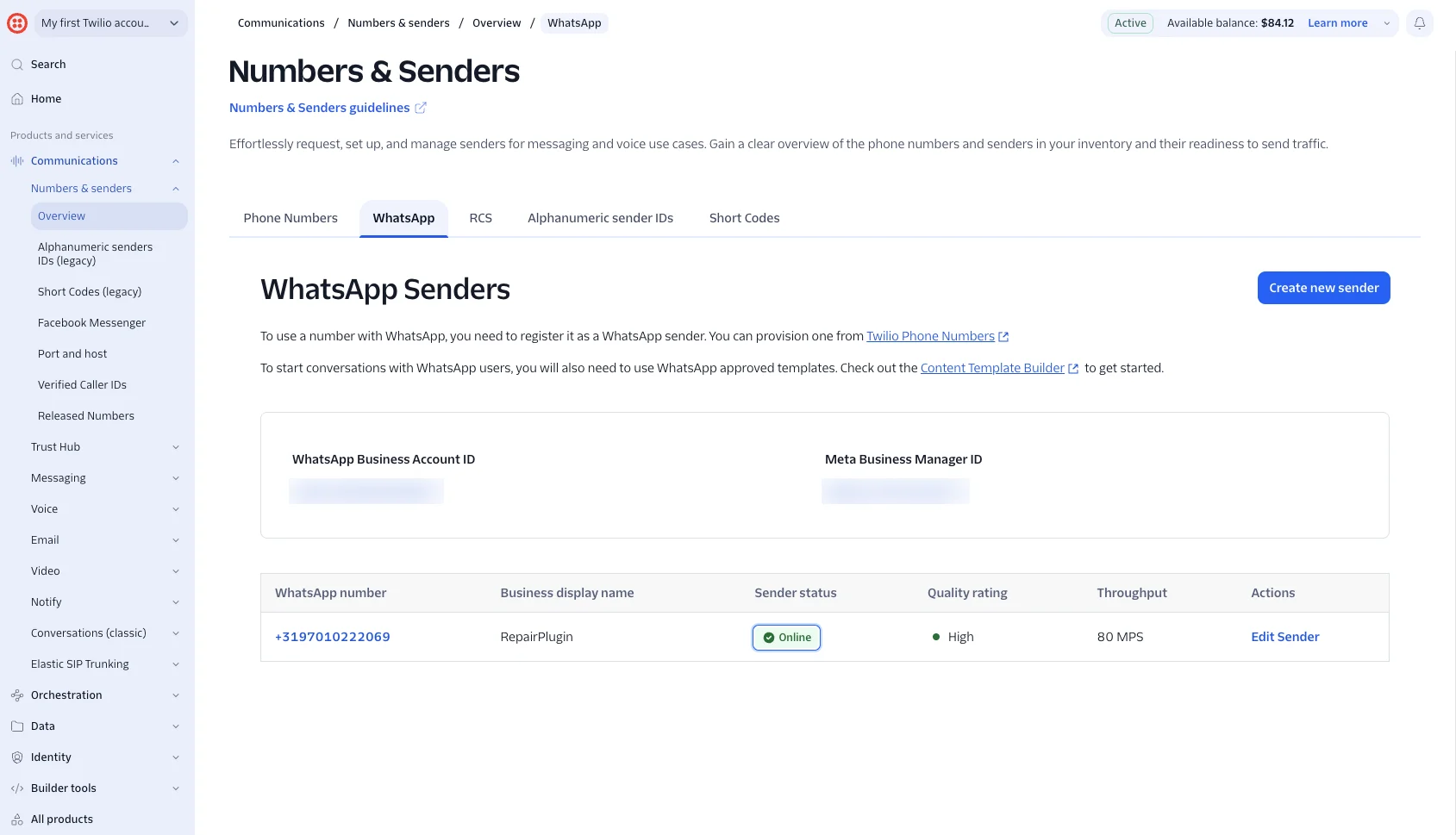
- In Twilio, go to Communications > Numbers & senders and open the WhatsApp tab.
- Click Create new sender and register the same number as a WhatsApp sender.
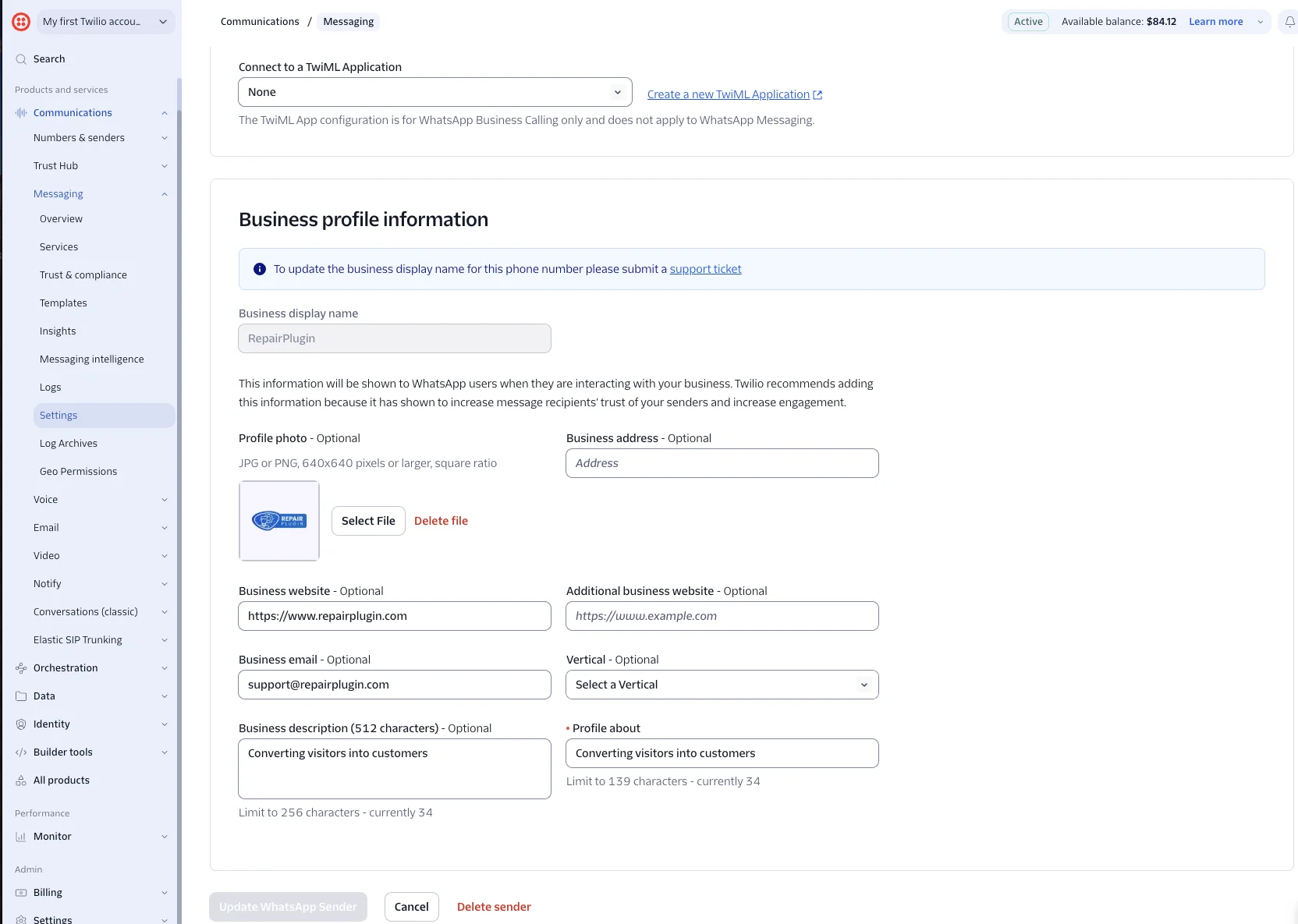
- Click Edit Sender next to your number and fill in your business profile.
- Click Update WhatsApp Sender to save.
Your customers see this profile in WhatsApp when they get a message from you:
- Profile photo -- your logo as a JPG or PNG, square, at least 640 x 640 pixels.
- Profile about -- a short line about your business, up to 139 characters. This field is required.
- Business description, address, website, and email -- optional, but a good idea.
- Business display name -- the name customers see as the sender. You can't change it here. To change it, send a support ticket to Twilio.
When Twilio approves the sender, Sender status shows Online.
2. Switch the channel to WhatsApp
- In WordPress, go to RepairPlugin > Settings > SMS Settings & Logs.
- Set Message Delivery Channel to WhatsApp.
- Click Save Settings.
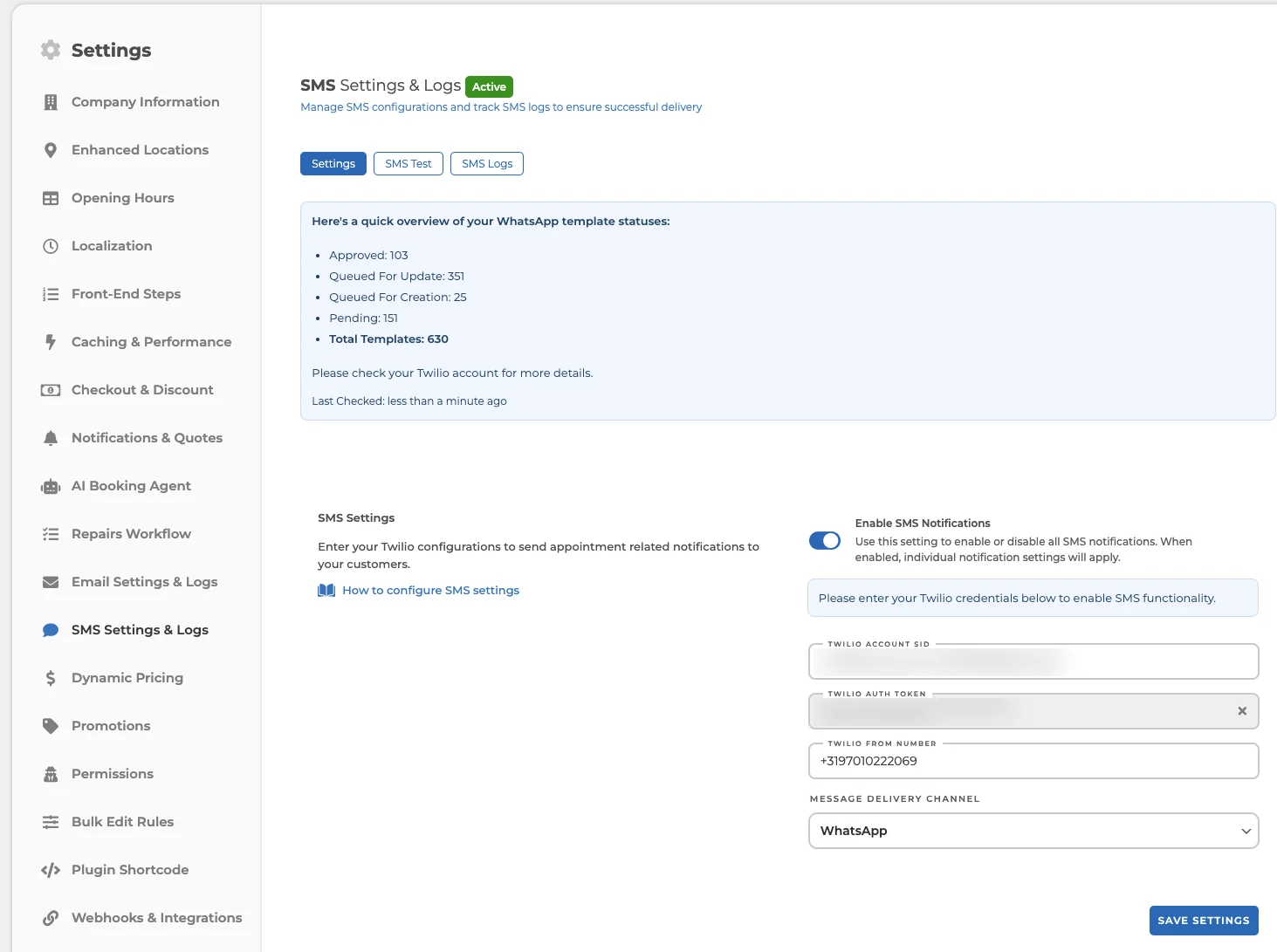
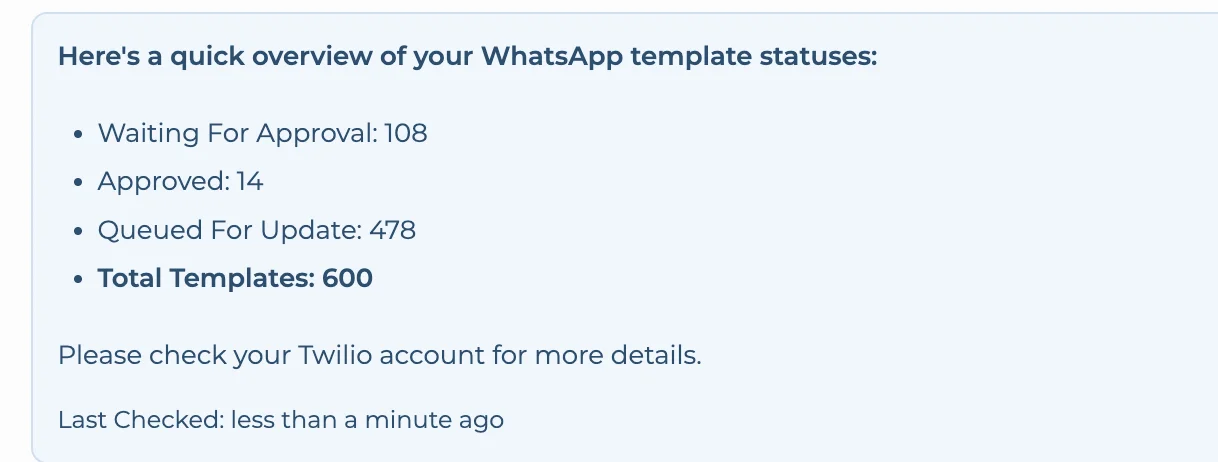
RepairPlugin now starts creating your templates in Twilio. An overview of your WhatsApp templates appears at the top of the page. You only see this overview when your channel is WhatsApp.
3. Wait for your templates to be approved
The overview shows how many templates have each status:
- Queued For Creation -- new templates that still need to be created in Twilio.
- Queued For Update -- templates you changed that still need to go to Twilio.
- Waiting For Approval -- templates WhatsApp is reviewing. This usually takes a few minutes, but it can take up to 48 hours.
- Approved -- templates WhatsApp approved. RepairPlugin can send these notifications by WhatsApp.
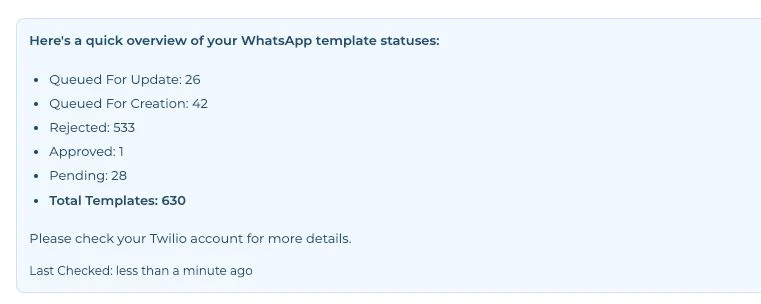
- Rejected -- templates WhatsApp rejected. RepairPlugin can't send these notifications by WhatsApp until you fix the text.
- Paused or Disabled -- templates WhatsApp paused or turned off, for example because customers often block your messages. Click Save Settings to check the status with WhatsApp again, or change the text and save it.
- Unsupported Language -- WhatsApp templates aren't available in these languages yet. Customers who use these languages don't get these messages on WhatsApp.
- Unsubmitted -- templates that weren't sent to WhatsApp for review earlier. RepairPlugin sends them again. You don't have to do anything.
- Failed -- a technical error stopped RepairPlugin from creating these templates or getting WhatsApp's review. Click Save Settings to try again. With fewer than three templates, open each one and save it instead.
- Missing -- templates that haven't been sent to WhatsApp yet. Click Save Settings to send them. With fewer than three templates, open each one and save it instead.
- Unknown -- RepairPlugin couldn't check the status of these templates. Click Save Settings to try again.
- Total Templates -- the total number of templates.
Right after you switch to WhatsApp, the overview shows all your templates under Queued For Update. That's normal: RepairPlugin still has to send them to Twilio.
Click Show details next to a status to see which templates and languages it covers, what the status means, and what you can do. Statuses that need your attention get an Edit template link that takes you straight to the message.

After a few minutes, the numbers start to move: templates go from Queued For Update to Waiting For Approval, and then to Approved as WhatsApp reviews them.
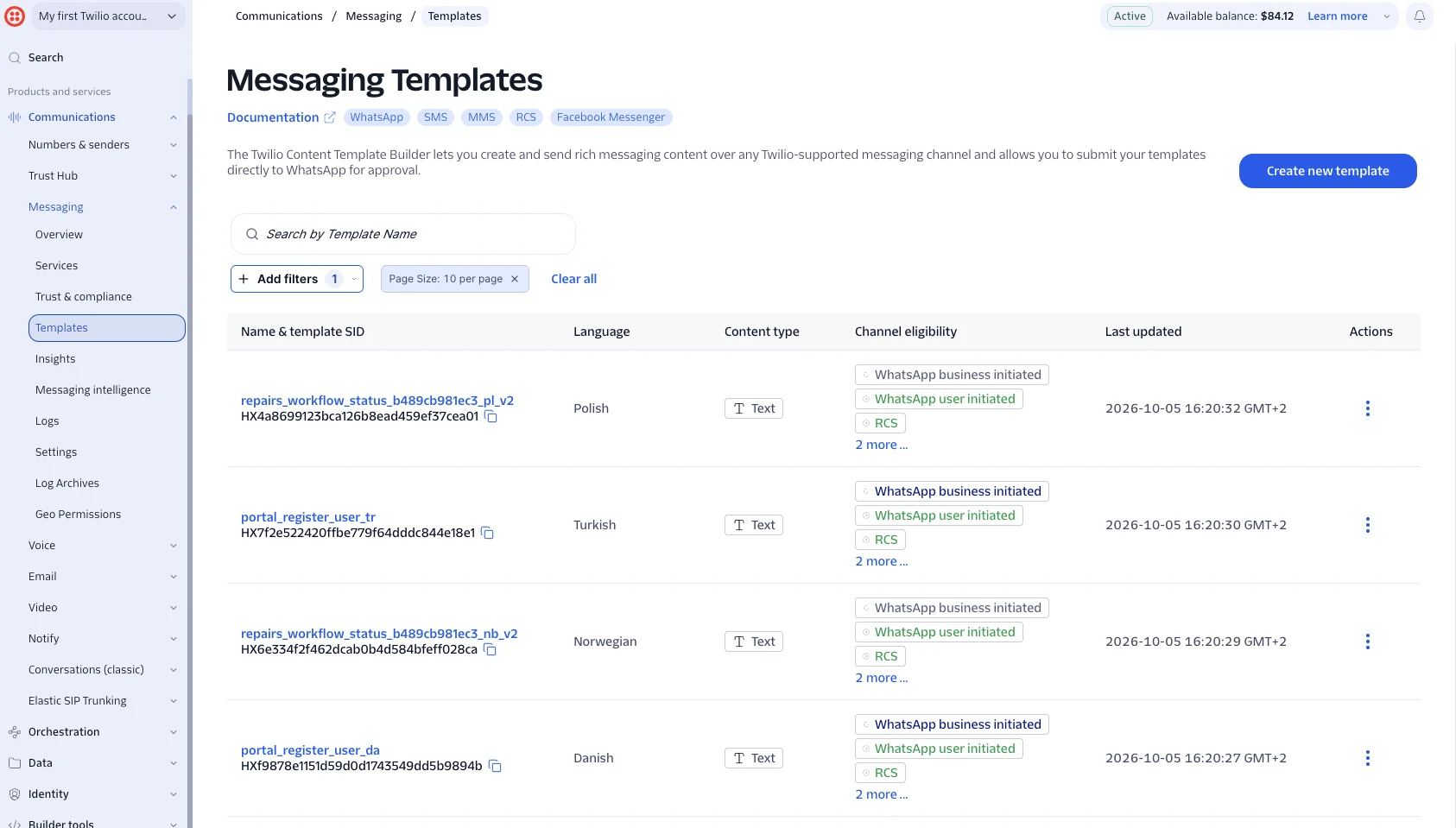
RepairPlugin sends the queue to Twilio every 5 minutes, so give it a moment. In Twilio, you'll find the templates under Messaging > Templates. The end of each template name shows the language code, like _pl for Polish.
To test WhatsApp, open the SMS Test tab and use a number that has WhatsApp. RepairPlugin sends the test with one of your templates.
4. Follow the WhatsApp rules when you change a message
When you change an SMS message, its template moves to Queued For Update. Within 5 minutes, RepairPlugin removes the old template in Twilio and creates a new one with a version number at the end of the name (_v2, _v3, and so on). WhatsApp reviews the new template again, so it shows as Waiting For Approval for a while. This also happens when the old template was already approved.
With WhatsApp as your channel, the Dynamic Variables menu is a bit shorter. The Approve Link and the conditional sections, like Admin Only Section, aren't available.
WhatsApp checks every template. Follow these rules to get your templates approved:
- Don't start or end with a variable. Always put text before the first variable, like
$CustomerName$, and after the last one. - Don't put two variables right next to each other. Put at least one word between them.
- Say what the message is about. A text like
Hi $CustomerName$, thanksis too general. - Keep the message on one line. Don't use line breaks, tabs, or more than 4 spaces in a row. This is one of the most common reasons for rejection.
- Use 10 emojis or fewer per message.
- Leave out WhatsApp links, like wa.me links. Write out a phone number instead.
- Write each message in its own language. The German version has to be in German.
- Avoid words about lotteries or prizes, like "win". WhatsApp also rejects texts that look like spam.
- Stick to service messages. Messages about a booking or repair fall under the Utility category. If you add advertising, the template falls under Marketing, with other rules and rates.
5. Fix rejected templates
When the overview in RepairPlugin shows a number next to Rejected, WhatsApp rejected those templates.
Click Show details next to Rejected to see which templates and languages WhatsApp rejected. Click Edit template to open the message right away. You can also find them in Twilio:
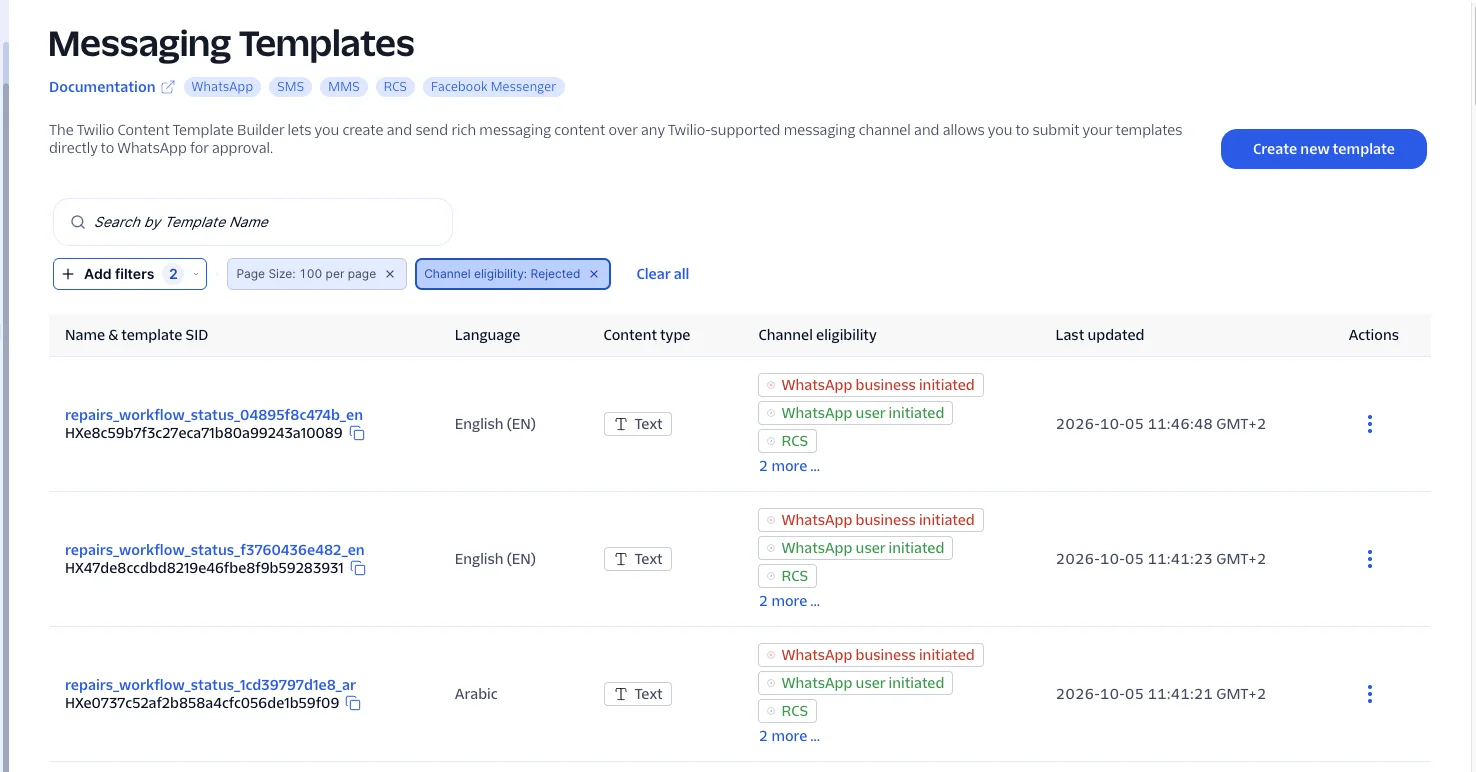
- In Twilio, go to Messaging > Templates.
- Click Add filters and choose Channel eligibility: Rejected.
- Look at the template name to see which notification and language it is. For example,
repairs_workflow_status_..._enis a status message in English. - Change that message in RepairPlugin so it follows the rules above.
Within 5 minutes, RepairPlugin creates a new template with a new version in its name and sends it to WhatsApp again. You don't have to do anything in Twilio.
WhatsApp can also pause or turn off an approved template when customers often block your messages or report them as spam. You'll see this as Paused or Disabled, both in RepairPlugin and in Twilio. Click Save Settings to check the status with WhatsApp again. If it stays paused, change the text and save it. Read more in Twilio's guide: WhatsApp template approvals & statuses.
Solve common problems
SMS and WhatsApp
- No messages go out -- check your Twilio balance and make sure Enable SMS Notifications is on.
- Reminders and aftersales messages don't arrive -- set up the cron job. See Setting Up Cronjobs.
- A customer can't finish a booking because of the phone number -- ask them to enter it in international format, like
+31 6 12345678. - You see an error about invalid phone numbers -- enter your company and location phone numbers in international format. Otherwise RepairPlugin can't send duplicate messages to that location.
WhatsApp only
- Templates stay on Queued -- wait at least 5 minutes. RepairPlugin sends new and changed templates to Twilio every 5 minutes.
- The WhatsApp test doesn't arrive -- check that your WhatsApp sender shows Online in Twilio and that the test number has WhatsApp.
Settings reference
SMS Settings
| Setting | Description | Default | Customers see |
|---|---|---|---|
| Enable SMS Notifications | Turns all SMS and WhatsApp notifications on or off. When it's on, the switch of each notification decides what RepairPlugin sends. | off | When it's on, they get your notifications on their phone. They also have to enter their phone number in international format when they book. |
| Twilio Account SID | The Account SID of your Twilio account. | empty | — |
| Twilio Auth Token | The Auth Token of your Twilio account. After you save, RepairPlugin hides part of the token and locks the field. Tip: Use the clear button in the field to enter a new token. | empty | — |
| Twilio From Number | The Twilio phone number that sends your messages. Enter it in international format, like +31 6 12345678. | empty | — |
| Message Delivery Channel | Sets how RepairPlugin sends your notifications: SMS or WhatsApp. With SMS, there are no templates and nothing syncs with Twilio. With WhatsApp, RepairPlugin creates and syncs your templates, and shows a template overview at the top of the page. Tip: Register your number as a WhatsApp sender in Twilio before you choose WhatsApp. | SMS | They get your messages as a text message or as a WhatsApp message. |
SMS Notifications
You find these settings under RepairPlugin > Settings > Notifications & Quotes.
| Setting | Description | Default | Customers see |
|---|---|---|---|
| Notification switch | Turns the SMS or WhatsApp message for one notification on or off. Tip: Turn off the notifications you haven't written a text for yet. | on | They only get the notifications you leave on. |
| SMS Message | The text of the message, in plain text. Click the globe icon to edit it per language and to add dynamic variables. Tip: Replace the placeholder text before you go live. Keep the text on one line if you use WhatsApp. | A placeholder text per notification, like "This is SMS template for Reminder Notification." | They get this text, with their own booking details filled in. |
| Send Duplicate | Sends a copy of the message to the phone number of the location. If a location has no phone number of its own, RepairPlugin uses your company phone number. Not available for the two Customer Portal notifications. | on | Nothing changes for customers. |
| Send it X hours before the appointment time | Sets how many hours before the appointment RepairPlugin sends the Reminder message. Needs a cron job. | 2 | They get the reminder around that time before their appointment. |
| Send it X hours after the appointment time | Sets how many hours after the appointment RepairPlugin sends the Aftersales message. Needs a cron job. | 2 | They get the follow-up message around that time after their appointment. |
Frequently asked questions
Can I use SMS without WhatsApp?
Yes. Leave Message Delivery Channel on SMS and skip the extra steps for WhatsApp. SMS works right after you save your Twilio details. You don't need templates, you won't see the template overview, and nothing syncs with Twilio.
Why does RepairPlugin sync templates with Twilio?
Only for WhatsApp. WhatsApp requires an approved template for every notification in every language, which quickly adds up to hundreds of templates. RepairPlugin creates them in Twilio and updates them when you change a message, so you don't have to keep them up to date by hand.
Why didn't my customer get a WhatsApp message?
Check the template overview at the top of SMS Settings & Logs. RepairPlugin can only send a notification by WhatsApp when its template is Approved. Then check the SMS Logs tab for the status of the message.