
Customer Database
Discover how RepairPlugin automatically builds your customer database — search contacts, view repair history, and export data to CSV in one click.
What can you do with this?
- Look up any customer instantly -- search by name, email, or phone number to find the person you need.
- See full repair history -- click on a customer to view all their past repair orders in one place.
- Export to CSV -- download your entire customer list for use in a CRM, mailing tool, or spreadsheet.
- Zero manual entry -- customer records are created automatically whenever someone submits a booking.
Where to find it
- Open RepairPlugin in the WordPress admin menu.
- Click Customers.
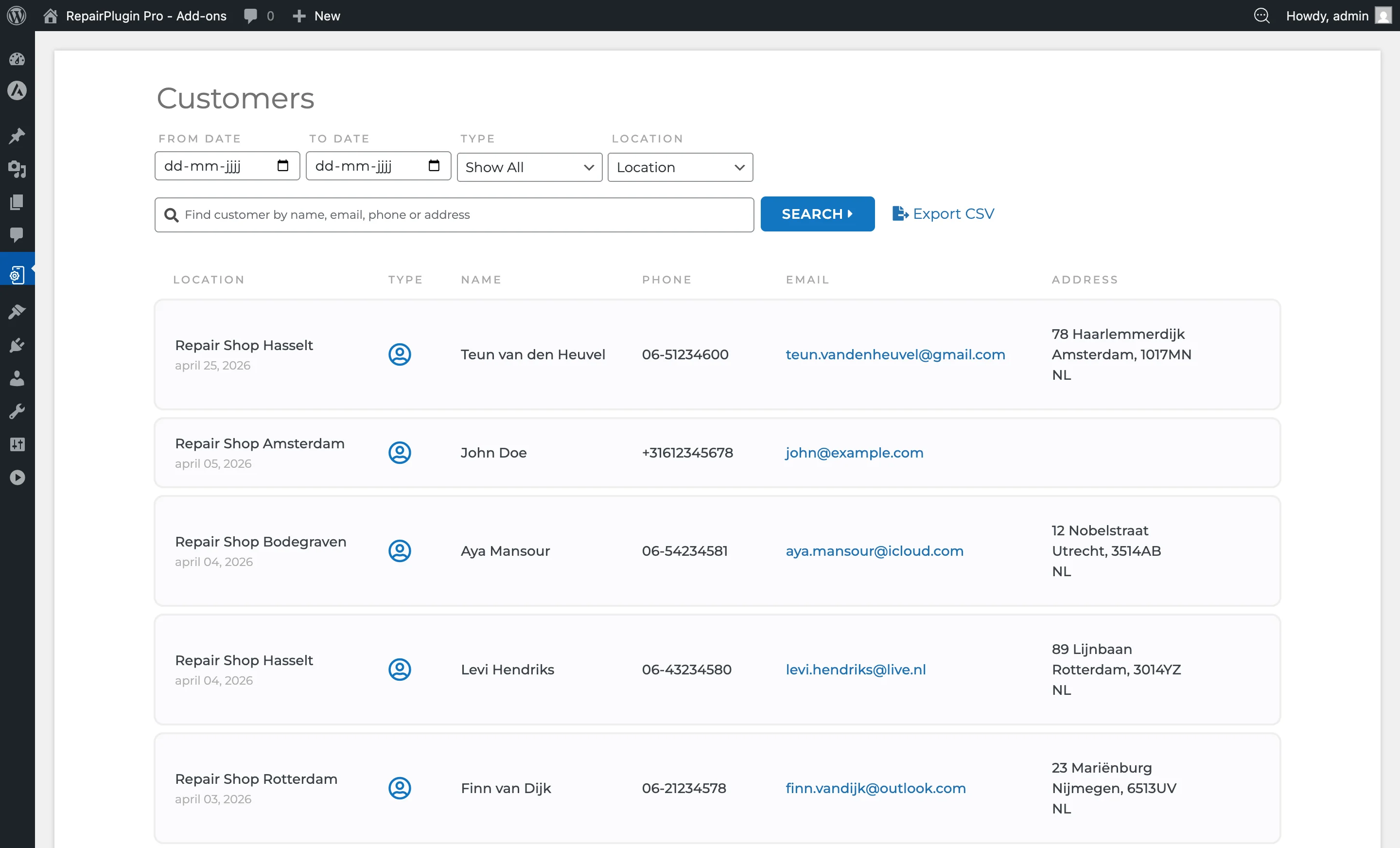
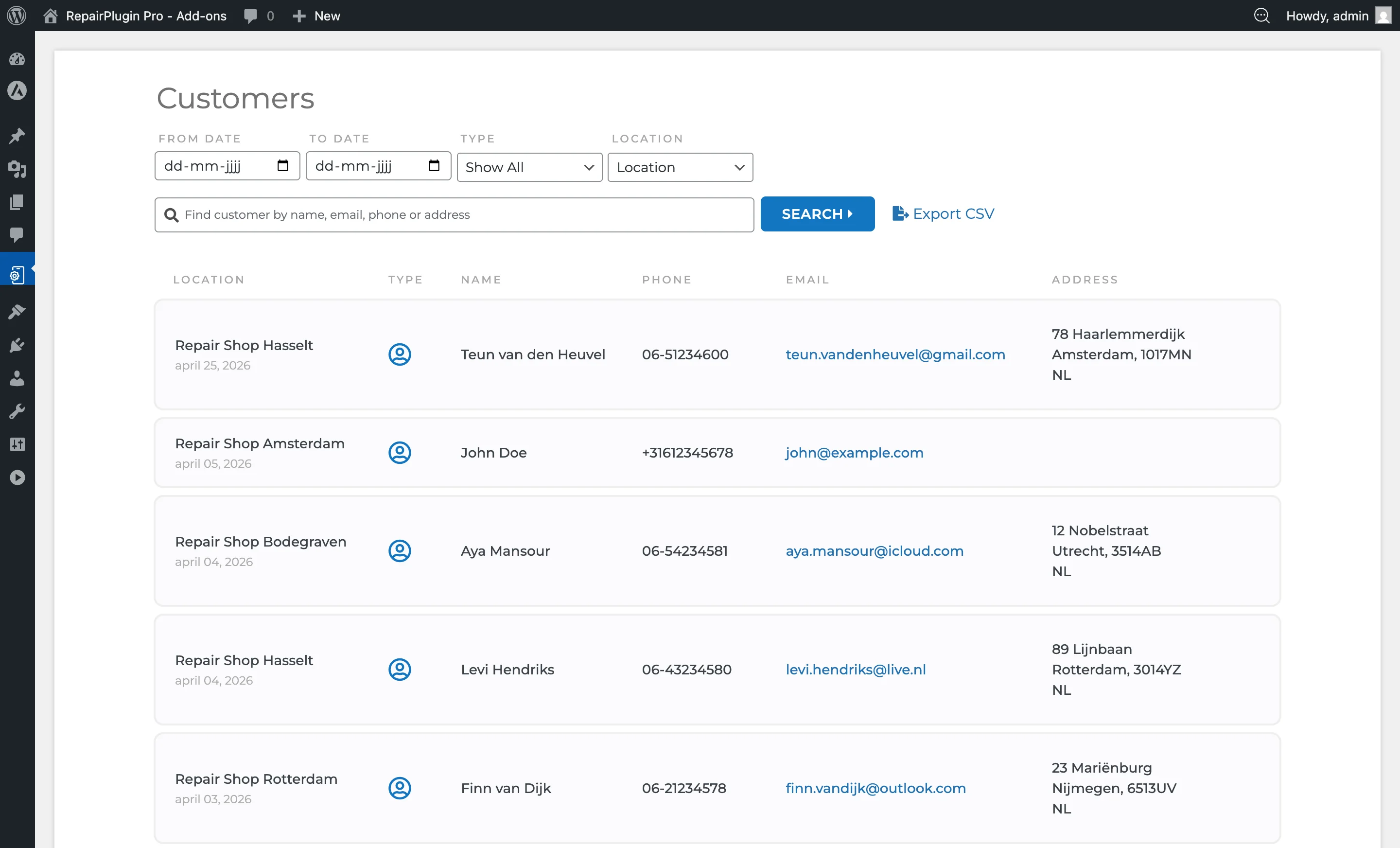
- The customer list appears with search and filter options.
How to set it up
The customer database works automatically -- no setup is needed. Every time a customer submits a booking, their details are saved. Here's how to use it:
Search for a customer
- Go to RepairPlugin > Customers.
- Type a name, email, or phone number in the search bar at the top.
- Results update as you type.
View customer details
- In the customer list, click on a customer row.
- Their full details and all associated repair orders appear.
Export customers to CSV
- Go to RepairPlugin > Customers.
- Click the Export CSV button.
- A CSV file downloads with all customer records.
Note: Only users with full access or location head permissions can export customer data.
Settings reference
| Setting | Description | Default | Customers see |
|---|---|---|---|
| Search bar | Filters the customer list by matching against name, email, or phone number | empty | Nothing -- this is an admin-only feature. |
| Export CSV | Creates a CSV file with all customer records, including their details and associated order data | N/A | Nothing -- exporting is an admin-only action. |
| Customer details view | Shows full customer information and a list of all repair orders linked to that customer | N/A | Nothing -- customers don't have access to this view. |
Customer data fields
Each customer record stores the following information:
| Field | Description |
|---|---|
| First name | Customer's first name |
| Last name | Customer's last name |
| Full name | First and last name combined |
| Phone number | Customer's phone number |
| Email address | Customer's email |
| House number | House number (when address fields are enabled) |
| Street name | Street address (when address fields are enabled) |
| City | City (when address fields are enabled) |
| Postal code | Postal/ZIP code (when address fields are enabled) |
| Country | Country (when address fields are enabled) |
| Customer type | Private or Business |
| Business name | Company name (for B2B customers who select "Business" as customer type during checkout) |
| Date created | When the customer record was added |
When a customer selects "Business" as their customer type during checkout, their business name is stored alongside their personal details. This is useful for B2B repair shops that need to track which company a device belongs to. Custom metadata from additional checkout fields is also stored per customer.
Works with the Customer Portal: when a customer registers on the Customer Portal (Growth & Scale plans), RepairPlugin matches their email against these customer records. Their details are pre-filled and their full booking history appears in the portal — even when the same email exists on more than one record.
Frequently asked questions
Do I need to add customers manually?
No. Customer records are created automatically every time someone books a repair. There's no manual data entry required.
Who can export customer data?
Only users with full access or location head permissions can use the Export CSV button.