
Booking Emails Not Arriving
Fix booking emails that never arrive even though the test email works, by letting your SMTP plugin load during RepairPlugin's requests.
What can you do with this?
- Get booking confirmations to your customers and your shop again
- Understand why the test email works while booking emails don't
- Make sure a newly installed SMTP plugin also sends RepairPlugin's booking emails
- Keep your emails working after you turn on multi-factor authentication (MFA) for Microsoft 365
Where to find it
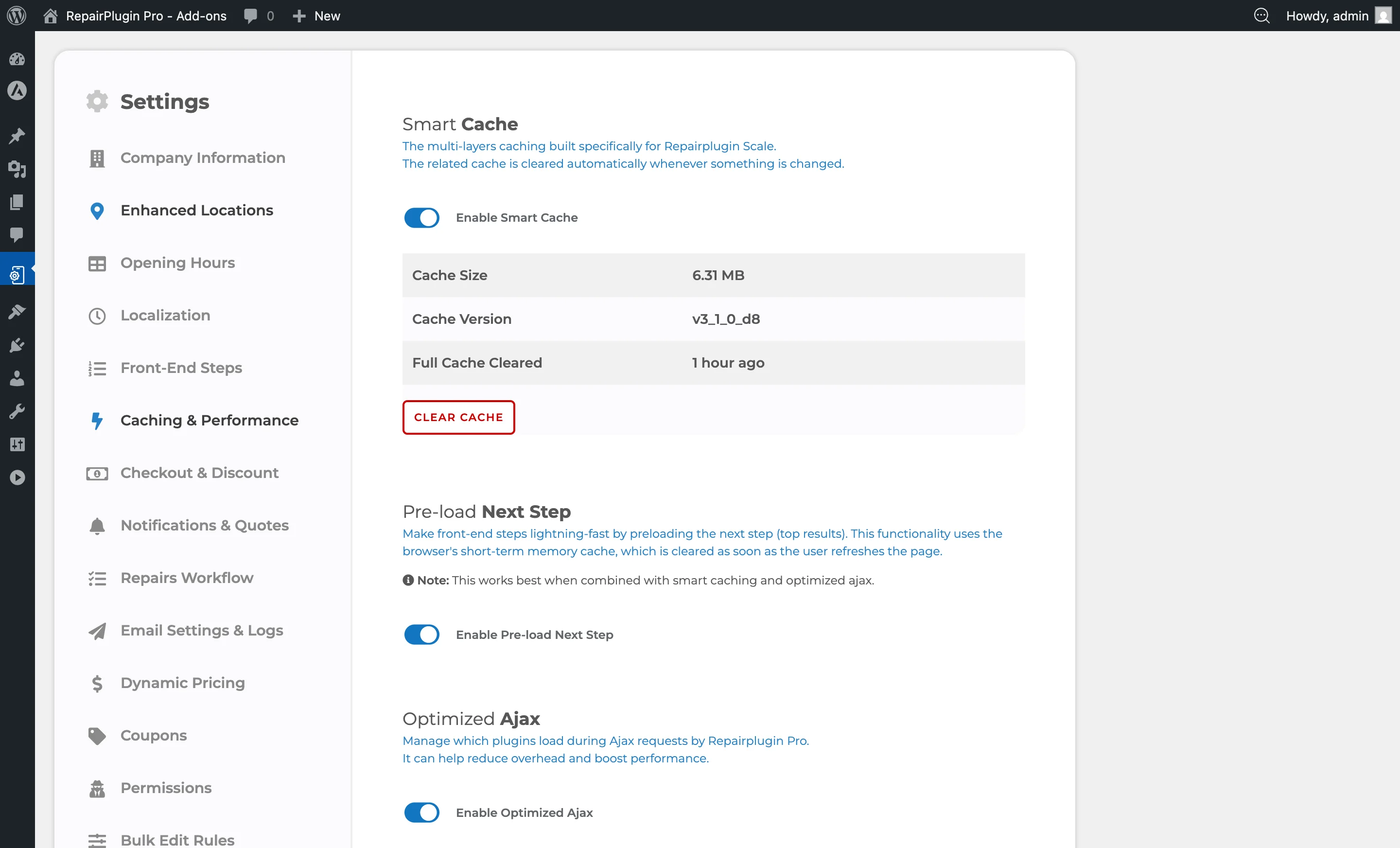
- Go to RepairPlugin > Settings > Caching & Performance
- Scroll down to Optimized Ajax
- Look at the Active Plugins list below the switch
How to fix it
Why it happens
When Optimized Ajax is on, RepairPlugin only loads the plugins you selected while a customer goes through the booking form. That keeps your booking flow fast.
RepairPlugin saves that selection when you click Save Settings. A plugin you install later isn't part of the saved selection, so it starts switched OFF in the list.
If that plugin is your SMTP plugin, this is what happens:
- Test email -- you send it from the settings page, where all your plugins load. Your SMTP plugin sends it, and it arrives.
- Booking emails -- RepairPlugin sends them while the customer completes the booking. Your SMTP plugin isn't loaded at that moment, so your server sends the email itself. Many mail providers block or filter those emails.
Check if this is the problem
- Go to RepairPlugin > Settings > Caching & Performance.
- Check if Enable Optimized Ajax is switched ON. It's off by default.
- Find your SMTP plugin in the Active Plugins list and check if it's switched OFF.
If both are true, you've found the cause. You'll often see these signs too:
- The test email under Email Settings & Logs > Email Test arrives.
- Booking emails show the status success under Email Settings & Logs > Email Logs.
- If your SMTP plugin keeps its own log, the booking emails aren't in it.
Fix: switch your SMTP plugin on
- Go to RepairPlugin > Settings > Caching & Performance.
- Scroll down to Optimized Ajax.
- In the Active Plugins list, find your SMTP plugin and switch it ON.
- Click Save Settings.
- Make a test booking on your website and check that the confirmation email arrives.
Quick test: turn Optimized Ajax off
Not sure which plugin to switch on? Run this quick test:
- Switch Enable Optimized Ajax to OFF and click Save Settings.
- Make a test booking on your website.
- If the email arrives now, the Active Plugins list was the cause.
You can turn Optimized Ajax back on afterwards. Just make sure your SMTP plugin is switched ON in the list.
Using Microsoft 365 with MFA
RepairPlugin's built-in SMTP settings sign in with a username and password. Once MFA is on for your Microsoft 365 account, that sign-in can stop working. Use a separate SMTP plugin instead:
- Go to RepairPlugin > Settings > Email Settings & Logs and switch Use Custom SMTP Settings to OFF.
- Install an SMTP plugin that lets you sign in with your Microsoft account, for example FluentSMTP or WP Mail SMTP.
- Connect the plugin to your Microsoft 365 account.
- If you use Optimized Ajax, switch the plugin ON in the Active Plugins list, as described above.
RepairPlugin now hands its emails to WordPress, and your SMTP plugin sends them through Microsoft 365.
Frequently asked questions
Why does the email log say "success" when the email never arrives?
The log shows that RepairPlugin handed the email over to WordPress without an error. It doesn't show whether the email reached the inbox. If your SMTP plugin wasn't loaded, your server sent the email itself, and the receiving mail provider may have blocked it.
Do I need to do this again when I install another plugin?
Only if RepairPlugin needs that plugin during a booking. Every plugin you install after saving the Caching & Performance settings starts switched OFF in the Active Plugins list. Switch it ON if the booking flow depends on it -- like an SMTP plugin.