
Quotes (PDF Offers)
Configure PDF price quotes in RepairPlugin to capture leads with automated offers, expiration dates, quote fees, and one-click booking conversion.
What can you do with this?
- Offer a no-commitment option -- visitors can request a price quote instead of booking right away, which lowers the barrier for new customers.
- Send professional PDF quotes automatically -- the quote is generated and emailed the moment a customer submits the form.
- Set an expiration date -- control how long a quote stays valid (anywhere from 1 to 365 days).
- Charge a small quote fee -- optionally collect an advance payment before sending the quote, which gets deducted from the final booking cost.
- Convert quotes to bookings -- every quote email includes a "Make an Appointment" button that takes the customer straight to booking with their details pre-filled.
- Control address fields individually -- choose which address sub-fields (street name, house number, city, zip code, country) appear on the quote form and PDF, each with their own Required/Optional/Disabled setting.
Where to find it
- In your WordPress admin, click RepairPlugin.
- Click Settings.
- In the settings sidebar, click Notifications & Quotes.
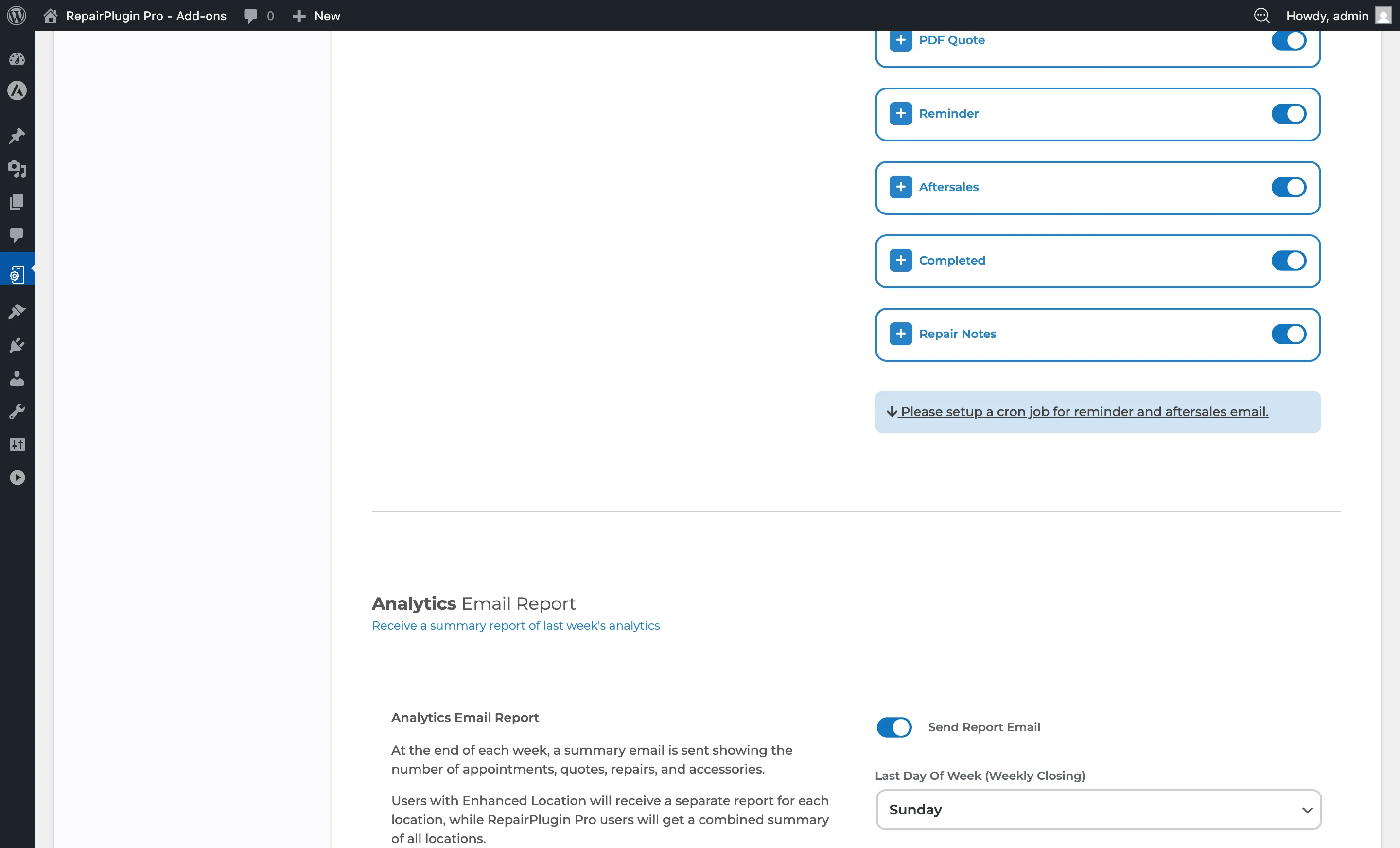
- Scroll down past the Email Notifications section to find the PDF Quotes section.
How to set it up
Turn on PDF quotes
- Navigate to Notifications & Quotes.
- Scroll to the PDF Quotes section.
- Switch Send personalized price quotes to your prospects in PDF format to ON.
- Click Save Settings.
When turned on, a "Send Quote" option appears in the booking flow (at step 4). When turned off, customers can only proceed with a standard booking.
Set the quote expiration period
- In the PDF Quotes section, find the Expire offer in X days field.
- Enter a number between 1 and 365.
- Click Save Settings.
The expiration date is printed on the generated PDF. After this period, the quote is considered expired.
Choose which form fields to show
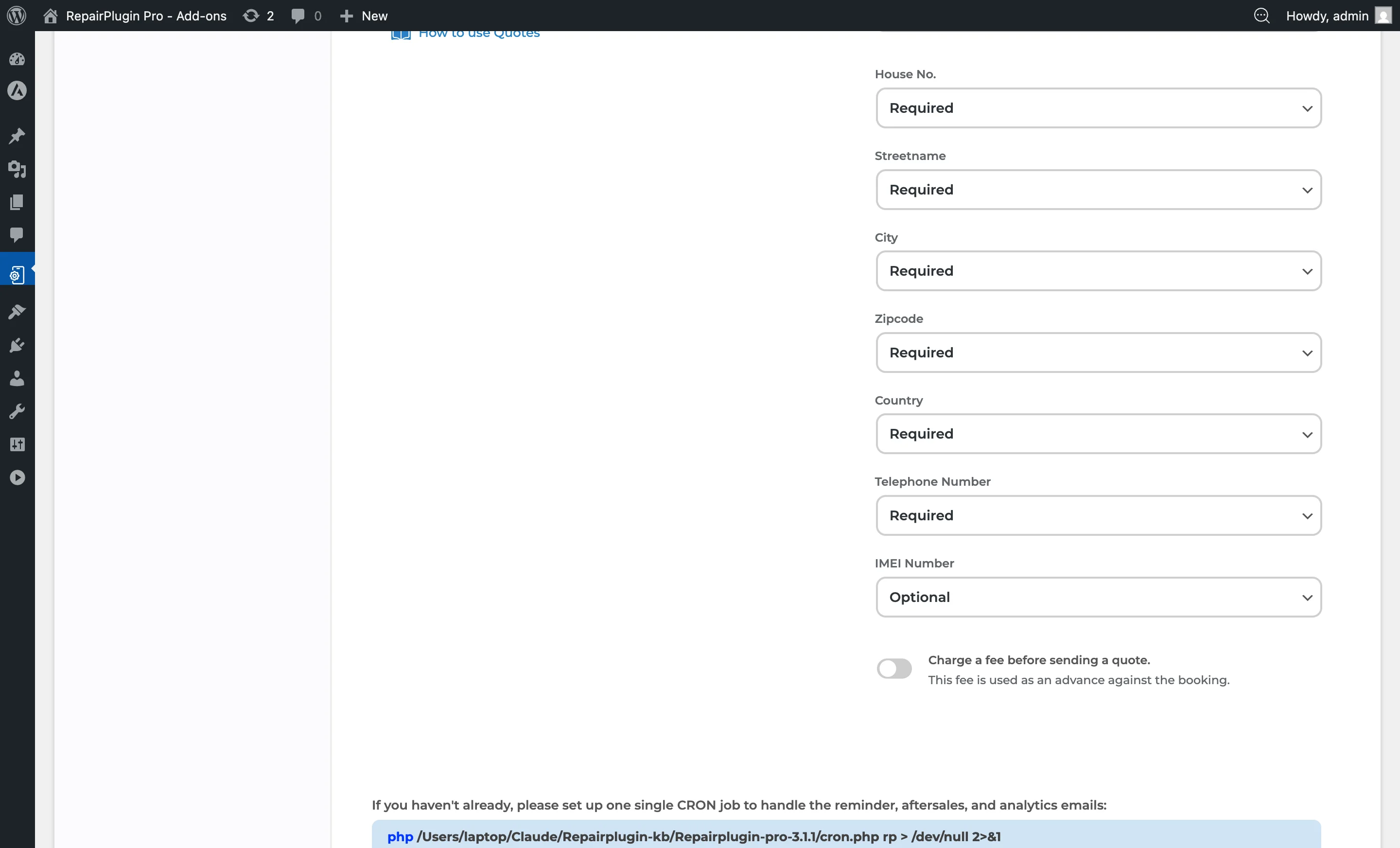
The quote request form can include extra fields beyond the standard name and email. Each field can be set to Required, Optional, or Disabled.
- In the PDF Quotes section, find the form field settings.
- For each field, select from the dropdown:
- Customer Address — each sub-field (Street Name, House Number, City, Zip Code, Country) can be set individually to Required, Optional, or Disabled.
- Telephone Number
- IMEI Number
- Click Save Settings.
Charge a quote fee (advance payment)
You can charge a small fee before sending the quote. This fee acts as an advance against the final booking cost.
- Switch Charge a fee before sending a quote to ON.
- Enter the fee amount in the Quote Fee field (in your configured currency).
- Click Save Settings.
Important: At least one online payment method must be active in RepairPlugin for this to work. If no payment method is active, you'll see an error message.
Customize the PDF text and email template
The text on the generated PDF (greeting, footer, labels) is managed through the localization system:
- Navigate to Notifications & Quotes.
- In the Email Notifications section, expand PDF Quote.
- Edit the EMAIL SUBJECT and EMAIL MESSAGE fields to customize the quote email.
- Click the globe icon to manage translations.
Additional PDF-specific text (e.g., "Kind regards", "Do not hesitate to contact us", "Quotation", column headers) is managed in the translation system. Navigate to Settings > Localization and look for the Offer PDF and Offer PDF Filename translation keys.
About the "Make an Appointment" button
The quote email automatically includes a "Make an Appointment" button. When your customer clicks it, they jump directly to selecting a delivery method, date, and time -- with their contact details already pre-filled. This button is active by default. You can adjust its text and placement via the email template in Notifications & Quotes.
Settings reference
| Setting | Description | Default | Customers see |
|---|---|---|---|
| Send personalized price quotes to your prospects in PDF format | Turns the entire PDF quote feature on or off | off | When turned on, a "Send Quote" option appears in the booking flow (step 4), letting them request a PDF quote instead of booking immediately. When turned off, this option is hidden. |
| Expire offer in X days | Sets how many days the quote stays valid. The expiration date is calculated from the moment the quote is generated and printed on the PDF | 14 | The PDF shows a validity period so they know how long they have to act on the quote. |
| Customer Address: Street Name | Controls whether the street name field appears on the quote request form and the PDF | Required | When Required, they must enter their street name. When Optional, the field appears but can be left empty. When Disabled, the field is hidden from the form and PDF. |
| Customer Address: House Number | Controls whether the house number field appears on the quote request form and the PDF | Required | When Required, they must enter their house number. When Optional, they can skip it. When Disabled, the field is hidden. |
| Customer Address: City | Controls whether the city field appears on the quote request form and the PDF | Required | When Required, they must enter their city. When Optional, they can skip it. When Disabled, the field is hidden. |
| Customer Address: Zip Code | Controls whether the zip code field appears on the quote request form and the PDF | Required | When Required, they must enter their zip code. When Optional, they can skip it. When Disabled, the field is hidden. |
| Customer Address: Country | Controls whether the country field appears on the quote request form and the PDF | Required | When Required, they must enter their country. When Optional, they can skip it. When Disabled, the field is hidden. |
| Telephone Number | Controls whether the telephone number field appears on the quote request form | Required | When Required, they must enter their phone number. When Optional, they can skip it. When Disabled, the field is hidden. |
| IMEI Number | Controls whether the IMEI number field appears on the quote request form. Useful for device identification on repair quotes | Optional | When shown, the IMEI is included on the generated PDF under "Device Details." |
| Charge a fee before sending a quote | When turned on, your customer must pay a fee before the PDF quote is generated and sent. This fee works as an advance payment against the final booking cost. Requires at least one online payment method to be active | off | A payment step appears before they receive their quote. The fee amount is shown during this step. |
| Quote Fee | Sets the amount charged before a quote is sent. Only visible when "Charge a fee before sending a quote" is turned on. The currency symbol matches your configured currency | 0 | They're charged this amount through the active payment method before the PDF is generated and emailed. |
| Email Subject (PDF Quote) | Sets the subject line of the email that delivers the PDF quote | pre-set subject | This text appears as the email subject in their inbox. |
| Email Message (PDF Quote) | Sets the body content of the quote delivery email. Supports dynamic placeholders | pre-set message | This is the email message they receive, alongside the attached PDF. |
| Send Duplicate (PDF Quote) | Sends a copy of the quote email (with PDF attachment) to the location email address | off | Nothing changes for customers. You receive a copy for your records. |
Frequently asked questions
Does the quote fee get deducted from the final booking price?
Yes. The quote fee acts as an advance payment. When the customer decides to book, the fee amount is deducted from the total cost.
Can customers book directly from the quote email?
Yes. Every quote email includes a "Make an Appointment" button. When customers click it, they go straight to choosing a delivery method, date, and time -- with their contact details already filled in.