
Special Opening Times
Set up holiday closures and adjusted hours for special dates in RepairPlugin so your booking calendar always reflects your real availability.
What can you do with this?
- Close on holidays -- mark dates like Christmas, Easter, or New Year's Day as closed so no bookings are created.
- Set date ranges -- apply special hours to an entire period (e.g., a week-long summer holiday) by entering a start and end date instead of adding each day individually.
- Set reduced hours -- open later or close earlier on specific dates (e.g., Christmas Eve from 9:00 AM to 1:00 PM).
- Extend hours for busy periods -- stay open longer on specific dates when you expect more walk-ins.
- Apply per location -- choose which locations or service methods each special date applies to.
- Translate date names -- show holiday names in your customers' language for multi-language shops.
Where to find it
- Open RepairPlugin in the WordPress admin menu.
- Click Settings.
- Select Opening Hours in the sidebar.
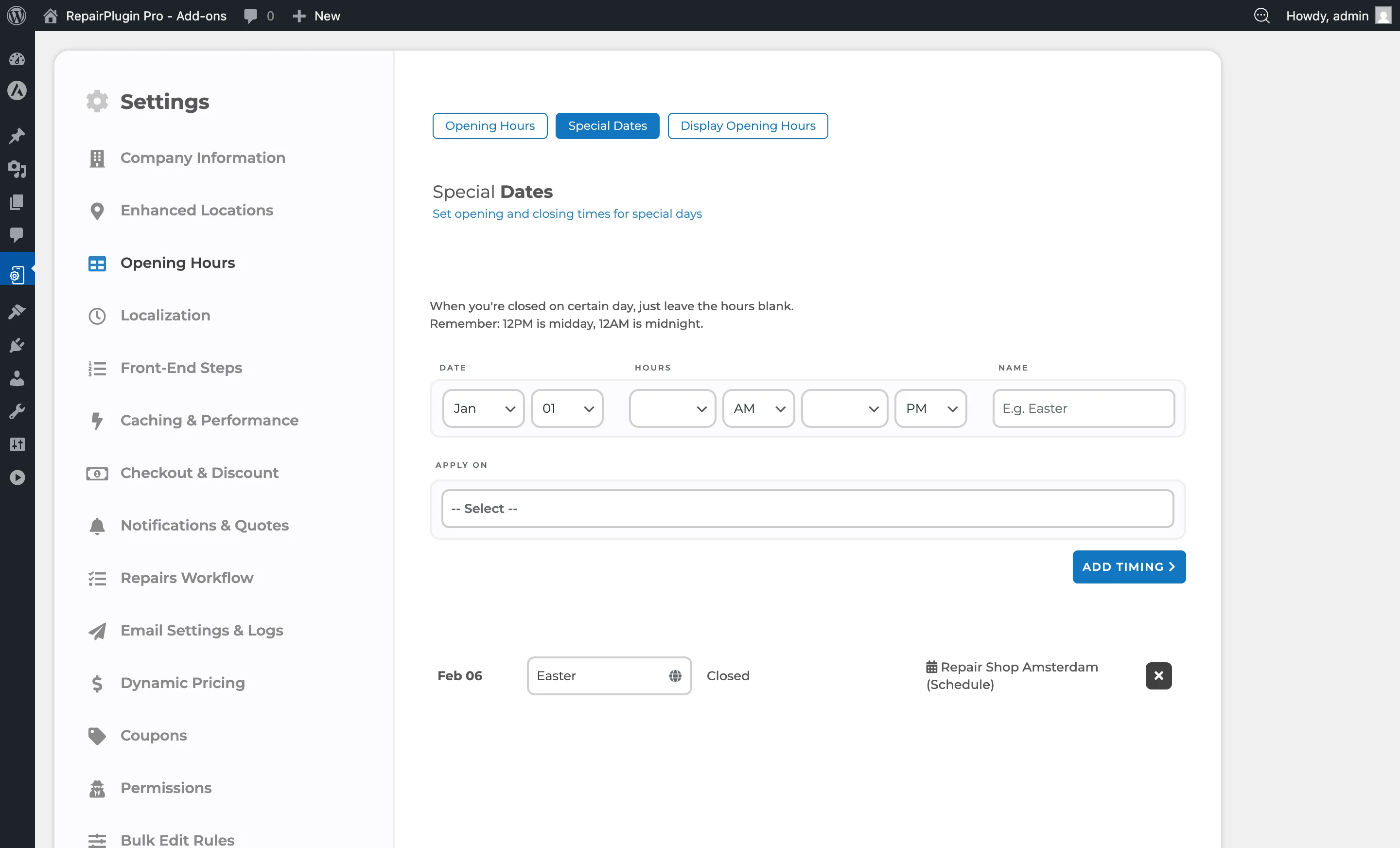
- Click the Special Dates tab in the bar at the top of the page.
You can also get there from the Opening Hours schedule view by clicking the Set timing for special days link below each location's schedule table.
How to set it up
Add a special date
- Go to the Special Dates tab.
- In the form at the top, fill in:
- Month -- choose the start month from the dropdown.
- Day -- choose the start day of the month.
- End Month -- choose the end month (for date ranges). Leave at the same month and day as the start date for a single-day entry.
- End Day -- choose the end day.
- Opening Time -- pick the opening time and AM/PM. Leave blank to mark as fully closed.
- Closing Time -- pick the closing time and AM/PM. Leave blank to mark as fully closed.
- Name -- enter a descriptive name (e.g., "Easter," "Christmas Day," "Summer Holiday").
- Under Apply On, select one or more targets:
- Locations -- pick specific store locations.
- Schedule Groups -- pick schedule groups (when using Enhanced Locations).
- Service Methods -- pick "Pickup service" or "Repair on location" to apply the special date to those service methods.
- Click Add Timing.
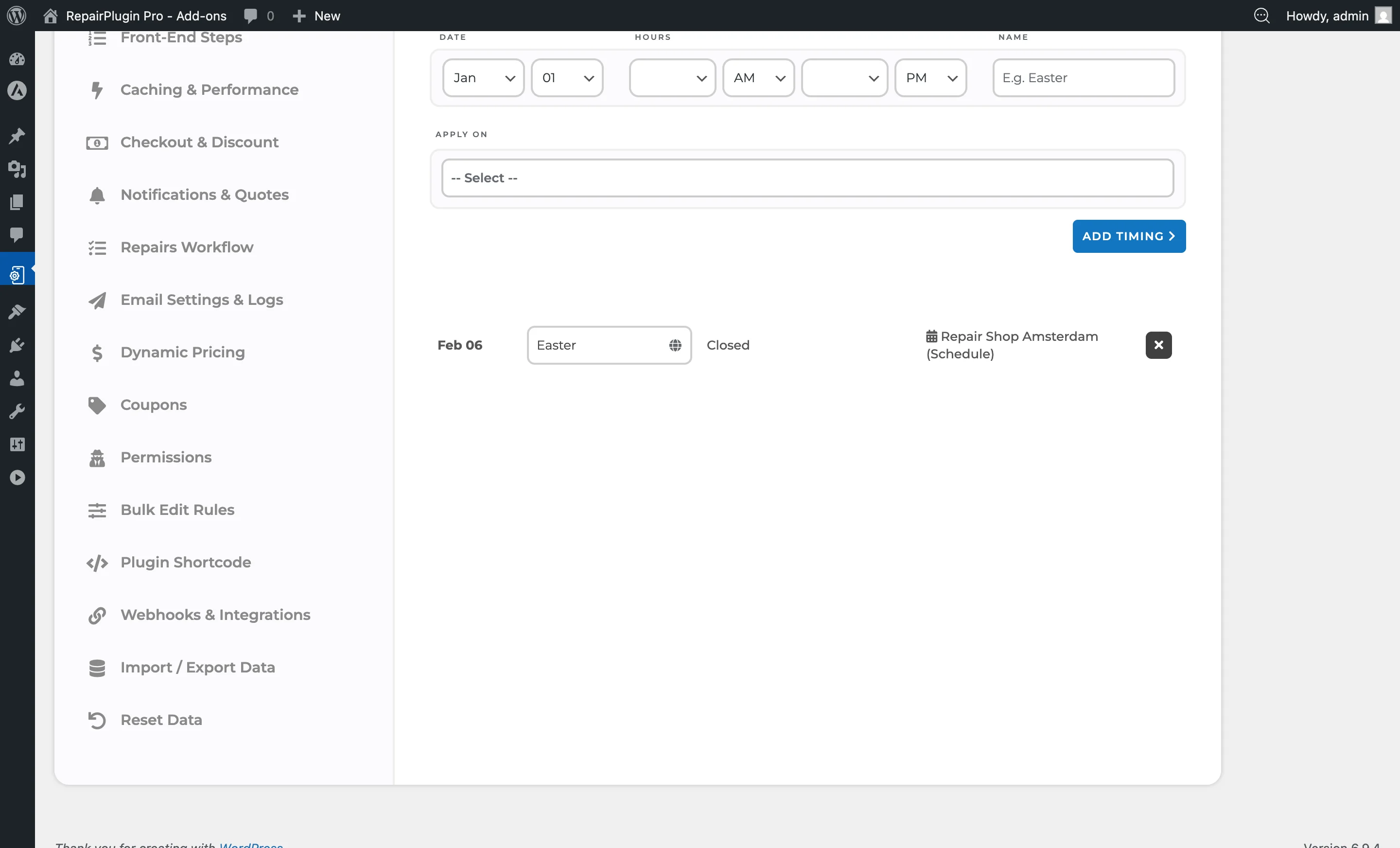
If a special date already exists for the same date and location, you'll see an error message: "Special timing already exists for this date."
Mark a date as fully closed
- Pick the month and day.
- Leave both Opening Time and Closing Time empty.
- Enter a name (e.g., "Christmas Day").
- Select the locations it applies to.
- Click Add Timing.
Translate special date names
Special date names support multiple languages:
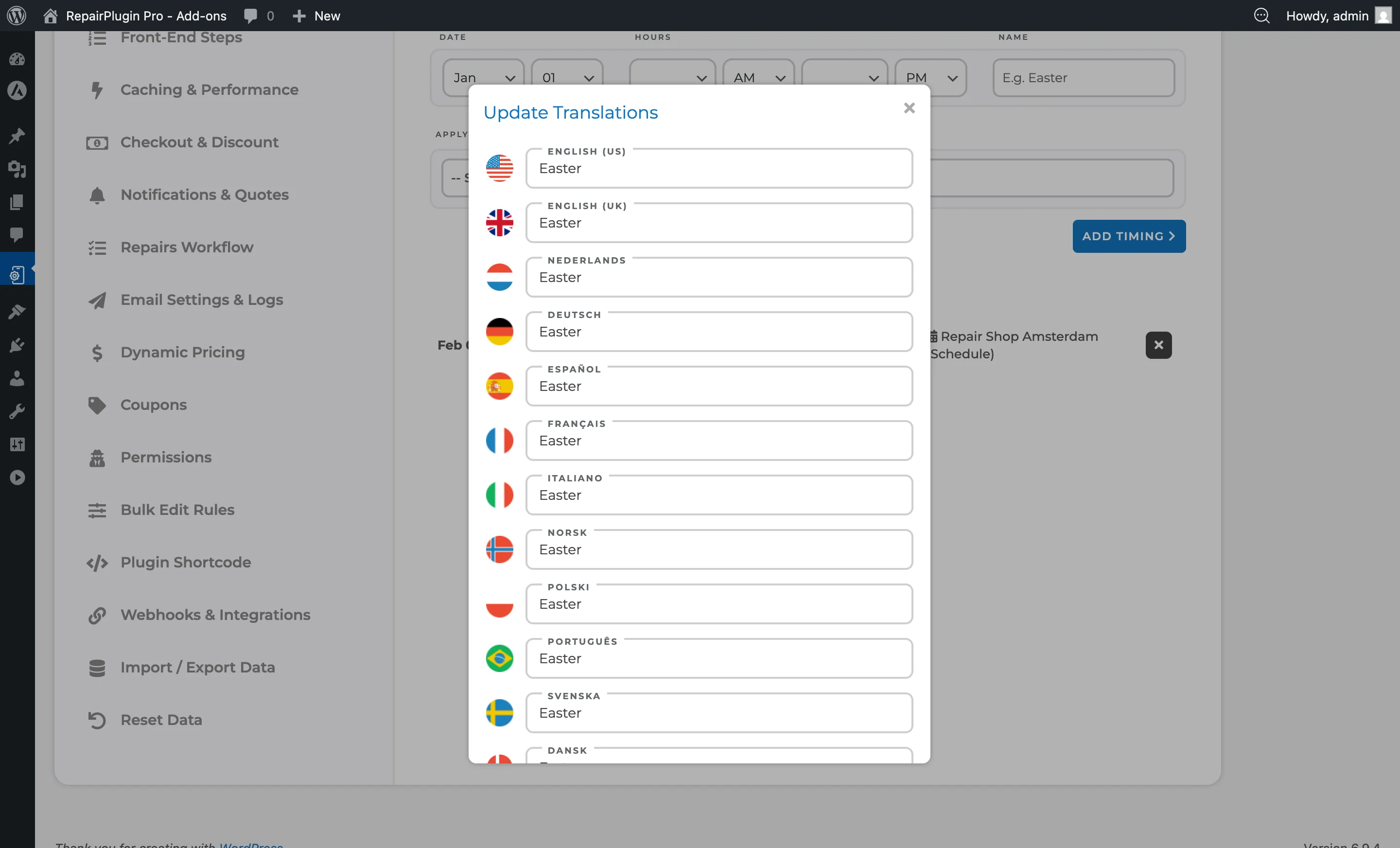
- In the special dates list, click the globe icon next to a date name.
- A translation window appears with input fields for each enabled language.
- Enter the translated name for each language.
- Click Update.
Delete a special date
- In the list of existing special dates, find the entry you want to remove.
- Click the X button on the right side of the row.
- The entry is permanently deleted.
Note: Location heads can only delete special dates that are applied directly to their own locations or custom schedule groups. Shared schedule group entries can't be deleted by location heads.
Time format reminder
12 PM is midday, 12 AM is midnight. The time options in the dropdowns are based on your configured booking slot length (from the Checkout & Discount settings).
Settings reference
| Setting | Description | Default | Customers see |
|---|---|---|---|
| Month | Selects the start month for the special date. Combined with the day field to set the start date. For single-day entries, the end month matches the start month | January | Determines which calendar date has adjusted hours or a closure. |
| Day | Selects the start day of the month. The options adjust automatically based on the selected month (e.g., up to 28/29 for February, up to 30 for April) | 01 | Determines which calendar date has adjusted hours or a closure. |
| End Month | Selects the end month for date ranges. When set to a different month/day than the start date, RepairPlugin creates one entry per day in the range. The range can wrap around year boundaries (e.g., December 28 to January 2) | same as start month | The adjusted hours or closure apply to every day in the range. |
| End Day | Selects the end day for date ranges. Combined with End Month to set the last day of the range | same as start day | The adjusted hours or closure apply to every day in the range. |
| Opening Time / AM-PM | Sets the opening time for the special date. When left empty (along with the closing time), the date is marked as fully closed | empty | The regular opening time is replaced with this time for that date. Customers see adjusted time slots. |
| Closing Time / AM-PM | Sets the closing time for the special date | PM | The regular closing time is replaced with this time for that date. |
| Name | A descriptive label for the special date (e.g., "Easter," "Christmas"). Shown in the admin list and optionally on your website via the Display Opening Hours shortcode | empty | The name may appear when you use the Display Opening Hours feature to show special date messages on your site. |
| Apply On | Determines which locations, schedule groups, and/or service methods are affected by this special date. You can select multiple targets Tip: If you have multiple locations but only one is closed on a specific holiday, make sure you only select that location in the "Apply On" field. | empty (required) | Only customers booking at the selected locations or via the selected service methods see the adjusted schedule. |
Frequently asked questions
Do special dates override the regular weekly schedule?
Yes. When a special date matches a calendar date, it replaces the regular opening and closing times set in Opening Hours for that specific day.
Can I set the same special date for all locations at once?
Yes. In the Apply On field, select all the locations you want the special date to apply to.
Can I add a range of dates at once?
Yes. When adding a special date, set a different end month/day than the start date. RepairPlugin creates one entry per day in the range, all with the same hours and name. This is ideal for multi-day closures like a summer holiday or renovation period.