
Upsales & Accessories
Boost your average order value with upsales and accessories in RepairPlugin — offer screen protectors, cases, and more during checkout.
upsalesaccessoriescross-sellingorder valueproduct recommendations
What can you do with this?
- Cross-sell relevant products — show accessory offers after a customer picks their device and repair, right when they're most likely to add extras.
- Target by device — link each upsale to specific models so customers only see accessories that fit their device.
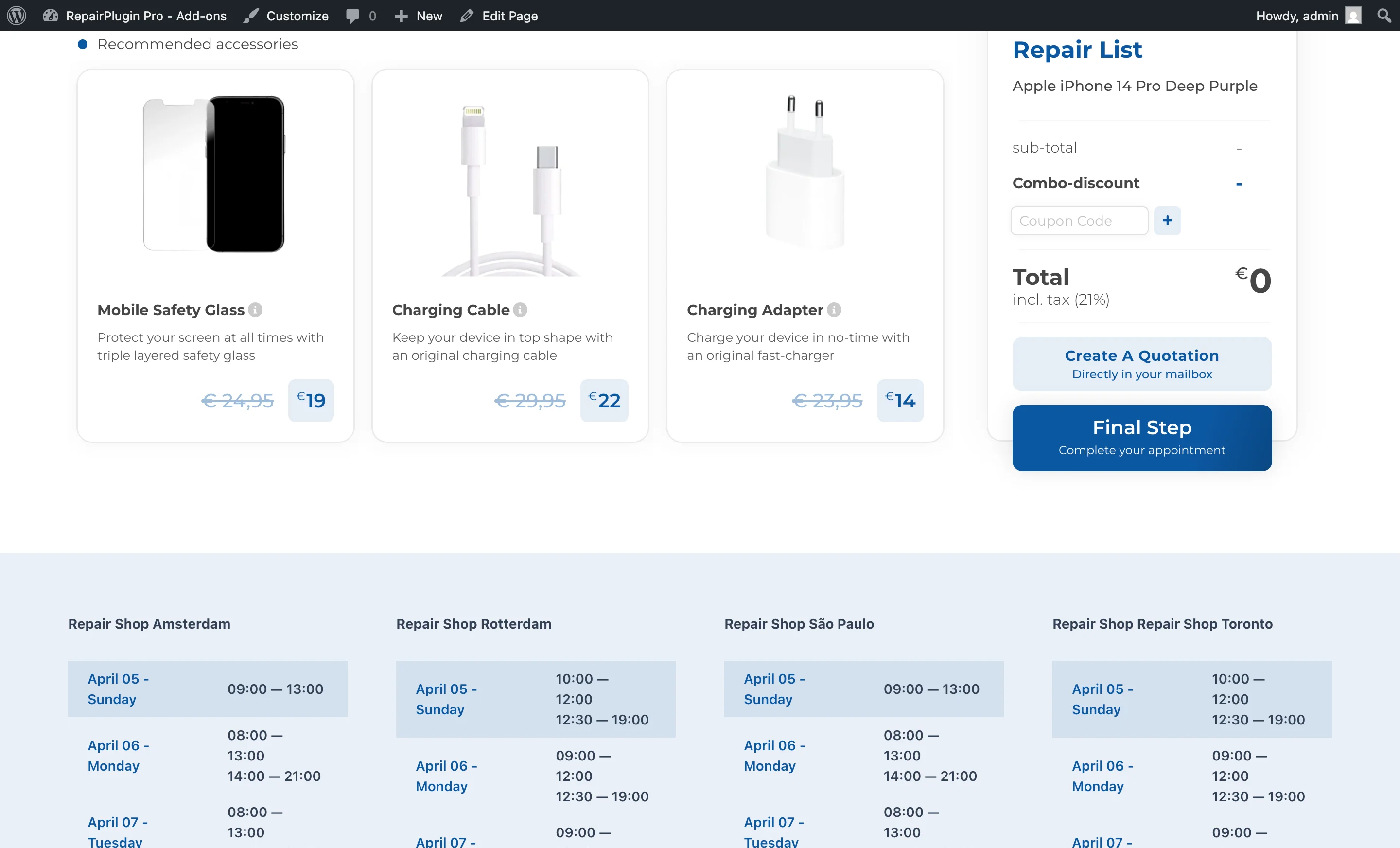
- Highlight discounts — show an old price with a strikethrough next to the new price to make deals stand out.
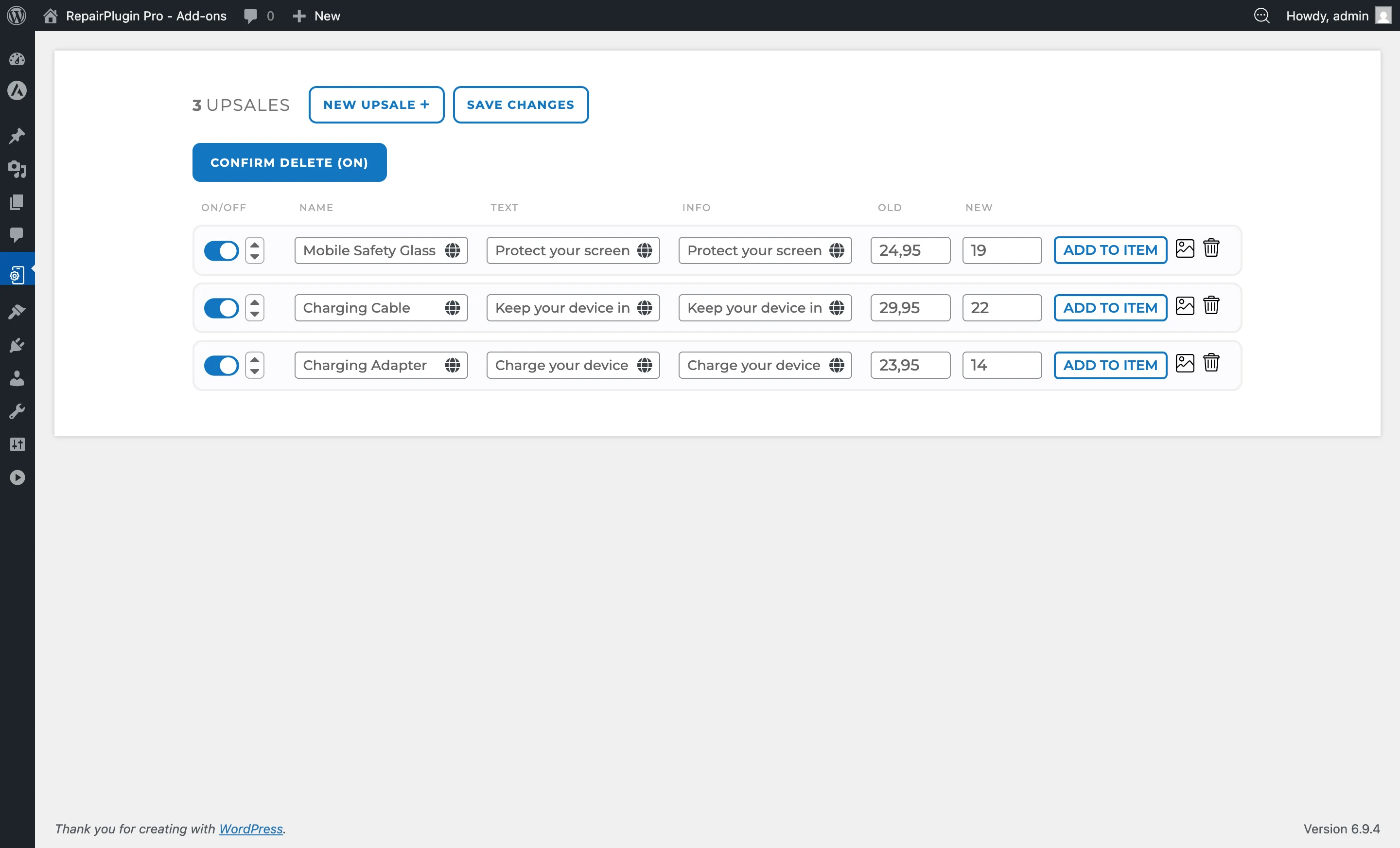
- Keep it organized — drag and drop upsale items to control the order they appear in, and turn items on or off as stock changes.
Where to find it
- In the WordPress admin sidebar, click RepairPlugin.
- Click Upsales in the submenu.
- The Upsales management page opens, showing all existing upsale items in a sortable list with a count of total upsales at the top.
https://www.repairplugin.com/wp-admin/admin.php?page=wp_repair_manage_upsales
How to set it up
Create a new upsale
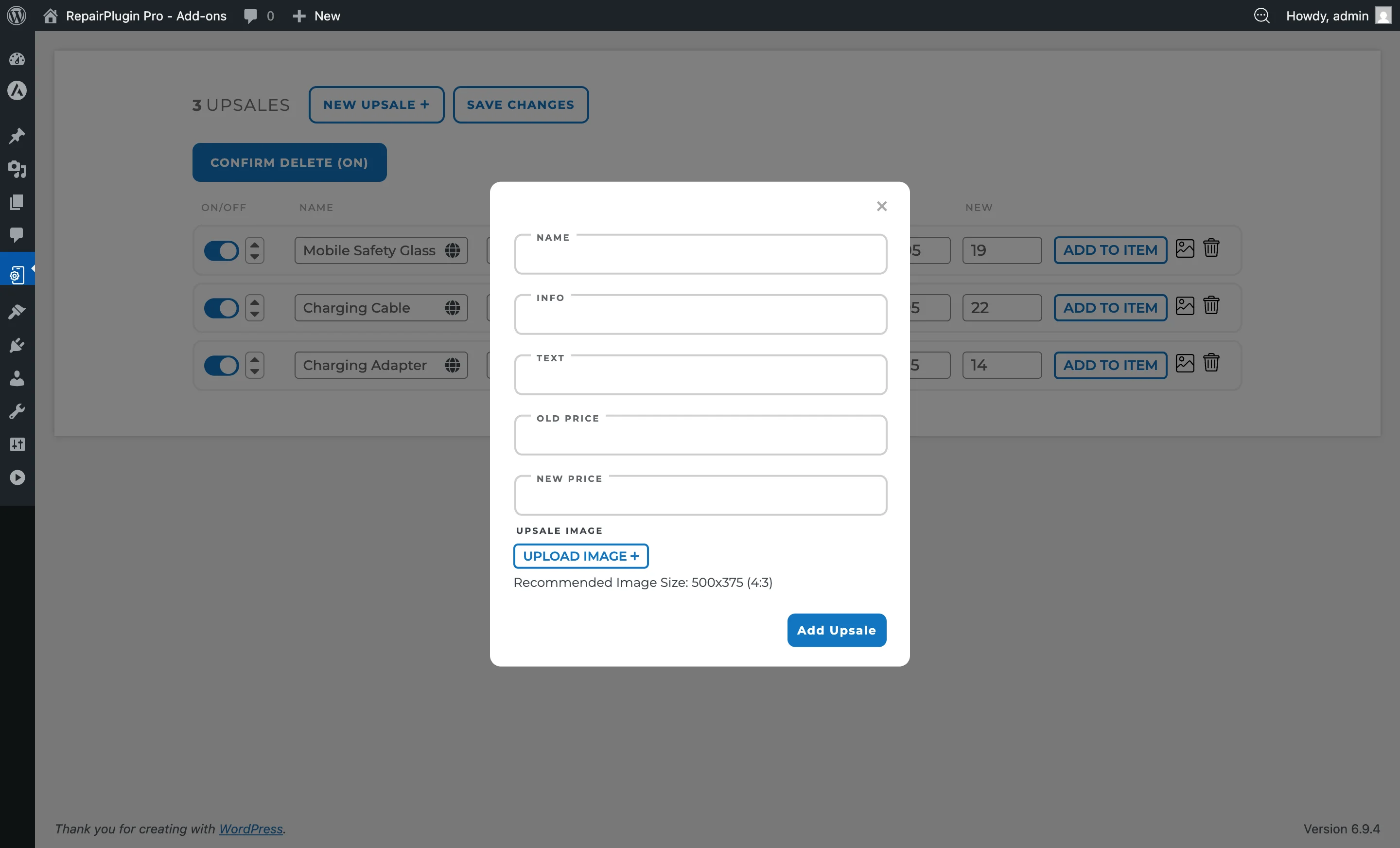
- On the Upsales page, click the New Upsale button at the top.
- A dialog opens with the following fields:
- Name — the product or accessory name (e.g., "Tempered Glass Screen Protector").
- Info — a short info line shown alongside the upsale (e.g., "Compatible with all iPhone 15 models").
- Text — a descriptive text for the upsale item.
- Old Price — the original/retail price (shown with a strikethrough to suggest savings).
- New Price — the discounted price you're offering.
- Upsale Image — upload a product image (recommended size: 500x375 pixels, 4:3 ratio).
- Click Add Upsale to save the new item.
https://www.repairplugin.com/wp-admin/admin.php?page=wp_repair_manage_upsales
Connect an upsale to specific models
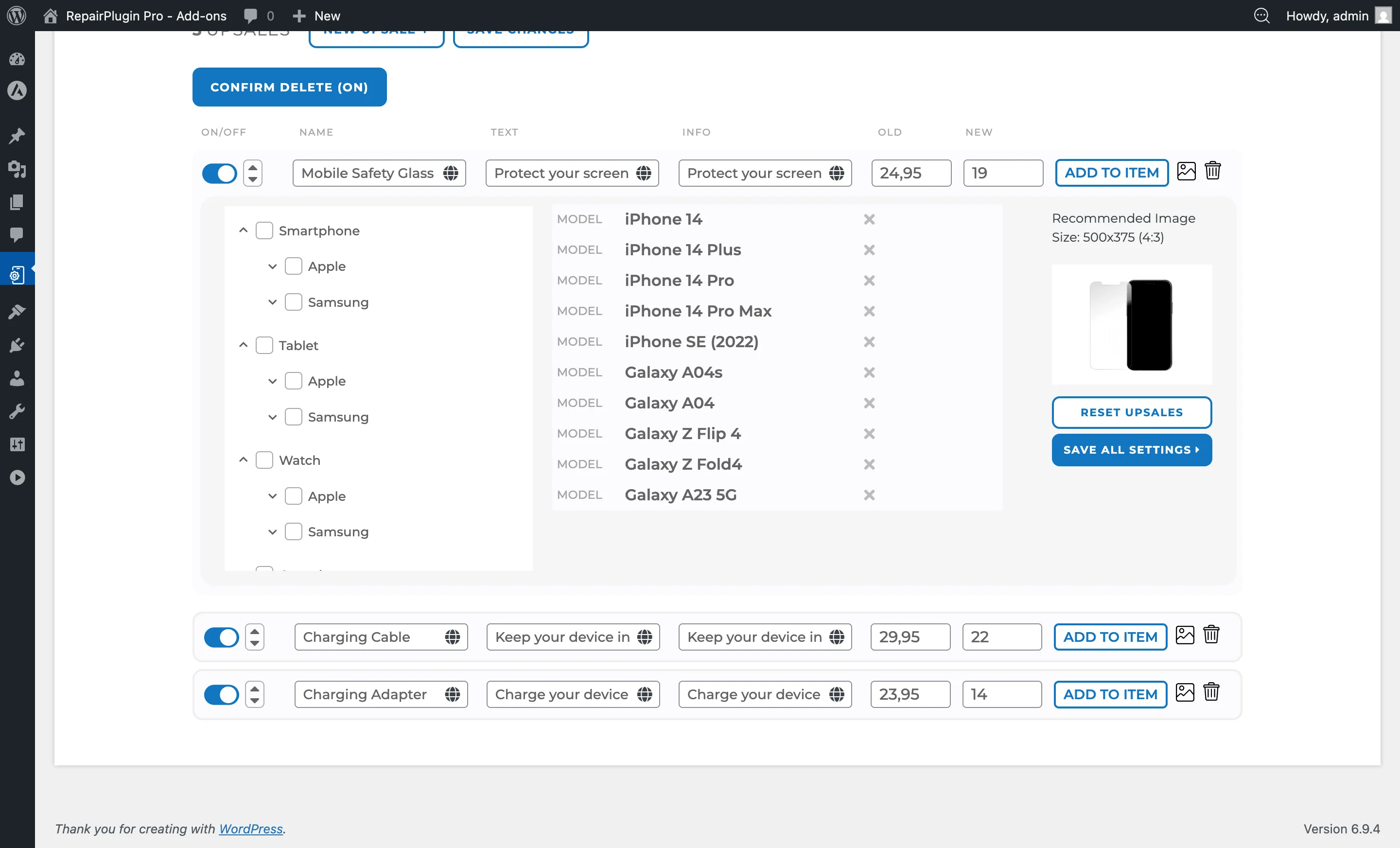
Once you've created an upsale, you need to link it to the models where it should appear:
- Find the upsale in the list.
- Click the Add To Item button on the upsale row.
- The row expands to show a tree of all categories, brands, and models.
- Use the checkboxes to select:
- An entire category (selects all brands and models within it).
- A specific brand (selects all models of that brand).
- Individual models (for precise targeting).
- Click Save to store the model connections.
https://www.repairplugin.com/wp-admin/admin.php?page=wp_repair_manage_upsales
Edit an existing upsale
- Find the upsale in the list.
- Edit any field directly in the row:
- Name, Text, Info — editable text fields. Each field supports translations (click the globe icon to add translations for other languages).
- Old Price / New Price — editable price fields.
- To change the image, click the image upload button (image icon) on the upsale row and select a new file.
- Click Save Changes at the top of the page to save all your edits.
Enable or disable an upsale
- Use the switch on the left side of the upsale row to turn it on or off.
- Click Save Changes. Disabled upsales aren't shown to customers.
Reorder upsales
- Drag and drop upsale rows using the sort handles to change the display order.
- Click Save Changes to save.
- Upsales appear on your website in the order you've set.
Delete an upsale
- Click the trash icon on the upsale row.
- If the "Confirm Delete (ON)" safety feature is active (this is the default), a confirmation dialog appears.
- Confirm the deletion. The upsale is permanently removed along with all its model connections.
Tip: You can turn the Confirm Delete (ON) button at the top of the page off to skip the confirmation dialog. Be careful — upsales are deleted immediately when this safety feature is off.
https://www.repairplugin.com/book-a-repair#upsales
Settings reference
| Setting | Description | Default | Customers see |
|---|---|---|---|
| Upsale Name | Sets the display name for the upsale product or accessory | empty | The main title of the upsale item on the booking form. |
| Upsale Info | Provides a secondary info line for the upsale (e.g., compatibility notes) | empty | Supporting text shown alongside the upsale name. |
| Upsale Text | Provides a longer description for the upsale item | empty | The product description on the booking form. |
| Old Price | Sets the original/retail price of the upsale item. Shown with a strikethrough to indicate a discount Tip: Even a small difference between old and new price makes the deal feel more attractive. Customers are more likely to add an accessory when they see they're getting a bargain. | 0 | A crossed-out original price next to the new price, creating a clear visual discount. |
| New Price | Sets the actual price customers pay when they add this upsale to their booking | 0 | The current selling price. This amount is added to the booking total when they select the upsale. |
| Upsale Active | Controls whether this upsale is visible on your website | on | When turned off, the upsale is hidden even if it's linked to models. |
| Upsale Image | Associates a product photo with the upsale item. Recommended size is 500x375 pixels (4:3 aspect ratio) | placeholder image | The product image on the upsale selection step of the booking form. |
| Upsale Position | Controls the display order of upsale items on your website | order of creation | Upsales appear in the order you've arranged them on the booking form. |
| Model Connections | Links the upsale to specific device models. The upsale only appears for customers who've selected one of the linked models | no models selected | Only upsales relevant to their chosen device. If no models are linked, the upsale doesn't appear at all. |
Frequently asked questions
Do I have to link an upsale to specific models?
Yes. If you don't link an upsale to any models, it won't appear on your website. You can select entire categories or brands to quickly cover many models at once.
Can I show a discount on an upsale?
Yes. Enter the original price in the "Old Price" field and the discounted price in the "New Price" field. Your customers see the old price crossed out next to the new price.