
Surcharges & Status
Configure payment surcharges and discounts per payment method in RepairPlugin, and understand order types and status workflows.
What can you do with this?
- Cover processing costs -- add a small fee to credit card or online payments so you don't absorb the gateway charges.
- Encourage in-store payments -- offer a discount when customers choose "Pay after repair" to boost walk-in traffic.
- Show fees upfront -- a badge appears next to each payment method so customers know the extra cost or savings before they choose.
- Mix fixed and percentage amounts -- charge a flat fee (e.g., $2.50) or a percentage of the order total (e.g., 3%), depending on what works best for your business.
Where to find it
- Open RepairPlugin in the WordPress admin menu.
- Click Settings.
- Select Checkout & Discount in the sidebar.
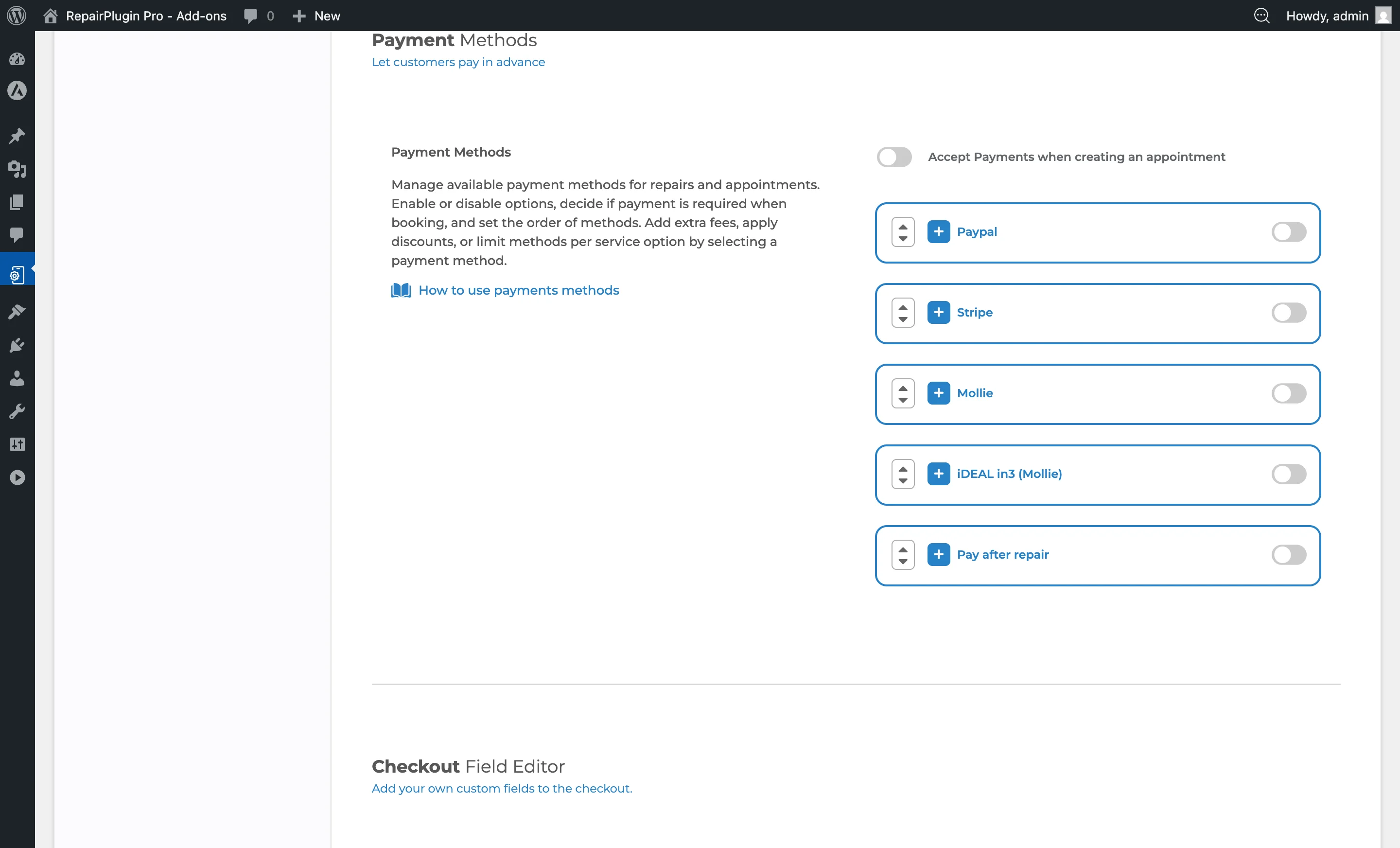
- Scroll down to the Payment Methods section.
- Click the + icon next to a payment method (Stripe, PayPal, Mollie, or Pay after repair) to expand it.
- Scroll to the Additional Cost / Discount area.
Note: iDEAL in3 doesn't show the Additional Cost / Discount section because surcharges aren't allowed for this payment method.
How to set it up
Add a surcharge to a payment method
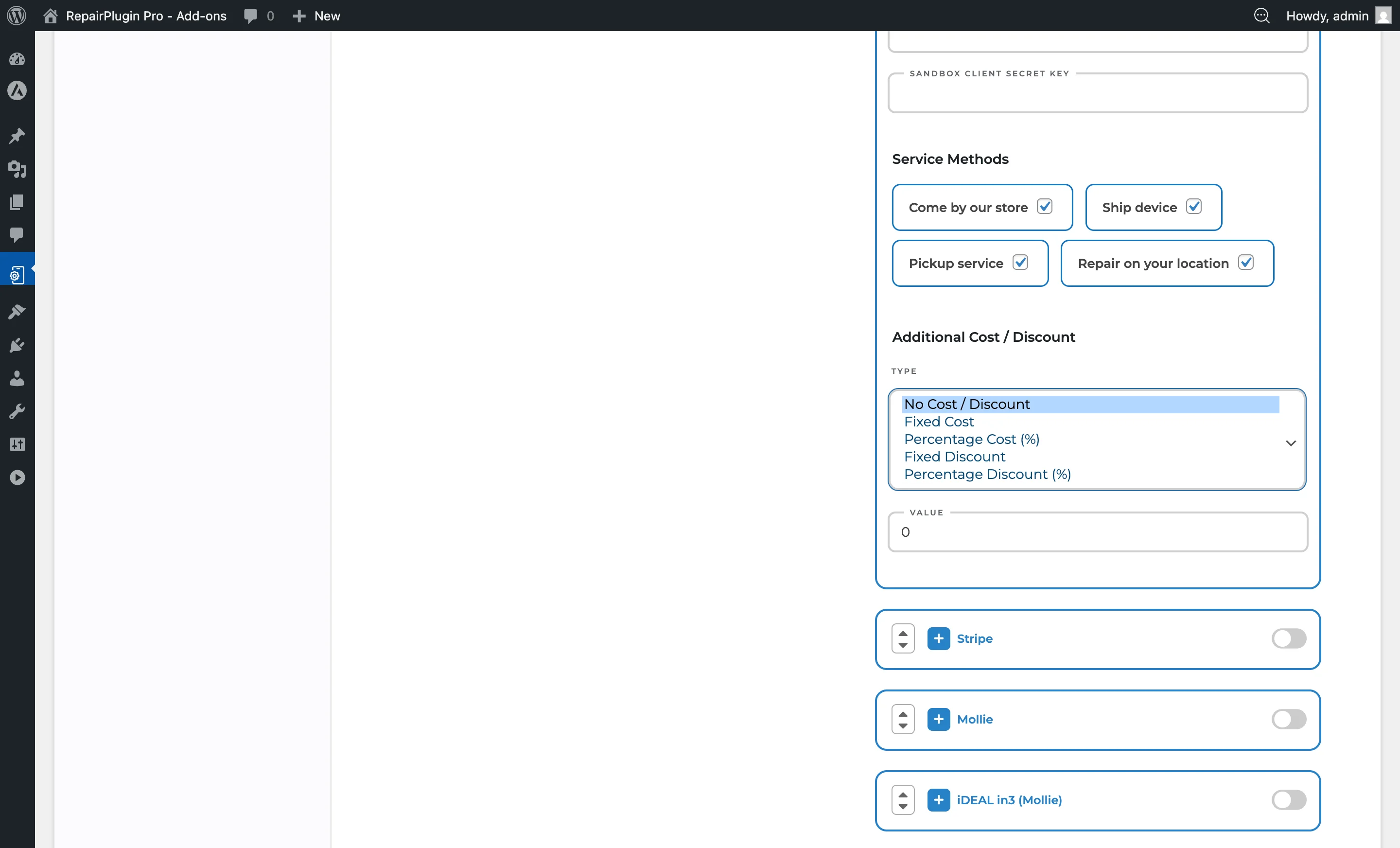
- Expand the payment method you want to adjust (e.g., Stripe).
- Scroll to Additional Cost / Discount.
- Pick a Type from the dropdown:
- Fixed Cost -- adds a flat amount to the order total.
- Percentage Cost (%) -- adds a percentage of the order total.
- Enter the Value (e.g., "2.50" for a $2.50 fee, or "3" for 3%).
- Click Save.
Add a discount to a payment method
- Expand the payment method you want to adjust.
- Scroll to Additional Cost / Discount.
- Pick a Type from the dropdown:
- Fixed Discount -- subtracts a flat amount from the order total.
- Percentage Discount (%) -- subtracts a percentage of the order total.
- Enter the Value.
- Click Save.
Remove a surcharge or discount
- Expand the payment method.
- Set the Type dropdown to No Cost / Discount.
- Click Save. The badge disappears and no adjustment is applied.
Settings reference
| Setting | Description | Default | Customers see |
|---|---|---|---|
| Type | Decides whether and how an extra fee or discount is applied when a customer picks this payment method | No Cost / Discount | A badge appears next to the payment method name showing the surcharge (e.g., "+ $2.50" or "+ 3%") or discount (e.g., "$5.00 OFF" or "2% OFF"). |
| Value | Sets the amount or percentage for the surcharge or discount. A value of 0 or empty means no adjustment is applied Tip: Use a percentage for payment methods with variable processing fees. Use a fixed amount when you want a simple, predictable adjustment. | empty | The specific amount or percentage shown in the badge and applied to their order total at checkout. |
Order types and statuses
Order types
RepairPlugin uses three order types that determine how payments are processed:
- Order -- a standard full payment for the repair.
- Deposit -- a partial payment collected upfront (see Deposit Payments).
- Quote Fee -- a fee for providing a quote to the customer.
Order statuses
Orders move through these statuses:
| Status | Description |
|---|---|
| Pending | The appointment has been created but not yet confirmed. Waiting for the shop to take action. |
| Approved | The shop has approved the appointment and it's scheduled. |
| Price Requested | The appointment includes price-on-request repairs. Waiting for the shop to set a price before the customer can confirm. |
Additional statuses are available through Repairs Workflow (available on Growth and Scale plans), which lets you create custom stages like "In Progress," "Waiting for Parts," "Ready for Pickup," and "Completed."
Payment options by method
| Payment Method | Online Payment | API Keys Needed | Surcharge Allowed | Deposit Support |
|---|---|---|---|---|
| Stripe | Yes | Secret key | Yes | Yes |
| PayPal | Yes | Client ID + Secret | Yes | Yes |
| Mollie | Yes | API key | Yes | Yes |
| iDEAL in3 | Yes | API key | No | Yes |
| Pay after repair | No | None | Yes | No |
Good to know:
- Deposit payments need at least one online payment method (Stripe, PayPal, Mollie, or iDEAL in3). "Pay after repair" alone isn't enough.
- iDEAL in3 surcharges are automatically disabled -- the type is forced to empty and the value to 0, even if you try to set them.
- You can restrict each payment method to specific service methods. For example, you could disable "Pay after repair" for the "Ship Device" method to make sure shipped repairs are always paid online.
Frequently asked questions
Can I add a surcharge to iDEAL in3?
No. Charging extra fees isn't allowed for iDEAL in3. RepairPlugin automatically hides the surcharge fields and forces the values to zero for this method.
Do customers see the surcharge before they choose a payment method?
Yes. A badge with the amount or percentage appears right next to the payment method name, so customers know what to expect before they select it.
How is a payment method surcharge or discount calculated?
Each payment method can have one adjustment: either a fixed amount or a percentage, applied as a surcharge (added) or a discount (subtracted). You can't combine a fixed amount and a percentage on the same method. For percentage-based adjustments, the calculation uses the order total (or the deposit amount, if deposits are enabled).