
Shortcodes
Learn how to embed the RepairPlugin booking system on any WordPress page using shortcodes for the full flow, search bar, and pricing tables.
What can you do with this?
- Add the complete booking flow to any page with
[Repair_All]— customers see categories, brands, models, repairs, service methods, and checkout. - Add a search bar with
[Repair_Search_Box]so visitors can quickly find their device model from any page. - Show a category, brand, or model grid on any page with
[categories],[brands], or[models]for quick navigation. - Display a repair pricing table with
[Repair_Pricing_Table]so customers can browse all repair prices for a specific model — fully rendered in HTML for search engines to index. - Give customers a self-service portal with
[Repair_Portal]— they log in to track repairs, manage appointments, and see their loyalty discounts (Growth & Scale plans, see Customer Portal). - Add an AI chat assistant with
[Repair_Booking_Agent]— visitors ask questions and book a repair from the chat (see AI Booking Agent). - Create landing pages with pre-selected categories, brands, models, or locations for SEO or marketing campaigns.
- Pre-select a language for multilingual websites that don't use Polylang.
- Use any page builder — Elementor, Divi, WP Bakery, or Gutenberg all work.
Where to find it
- In the WordPress admin menu, click RepairPlugin.
- Click Settings in the submenu.
- In the settings sidebar, click Plugin Shortcode.
This page shows the booking and search-box shortcodes with copy-to-clipboard buttons, brand/location filters, and the Base URL setting for the search box. On the Growth and Scale plans, a Customer Portal Shortcode section appears below them with [Repair_Portal] and its own Base URL setting — see Customer Portal.
Pre-selected shortcodes for specific categories, brands, and models are found on their management pages:
- Category shortcode: RepairPlugin > Categories — select a category, click the shortcode icon.
- Brand shortcode: RepairPlugin > Categories — select a brand, click the shortcode icon.
- Model shortcode: RepairPlugin > Models & Repair — select a model, click the shortcode icon.
- Location shortcode: RepairPlugin > Enhanced Locations > Locations — click the shortcode button on a location row (requires location-based pricing to be active).
How to set it up
Place a shortcode on a page
- Copy the shortcode you want (e.g.,
[Repair_All]). - Go to WP Dashboard > Pages and edit the target page.
- Add a Shortcode block (Gutenberg) or an HTML/Code module (page builders).
- Paste the shortcode into the block.
- Set the page layout to full-width for the best result (at least 1200px wide recommended).
- Click Save or Publish.
Pre-select a brand
On the Plugin Shortcode settings page, select a brand from the Brand dropdown next to the Steps Shortcode field. The shortcode updates automatically:
[Repair_All brand="Apple"]
Click Copy to clipboard to copy it. Use the reset icon to clear the brand filter.
Pre-select a location
When location-based pricing is active, a Location dropdown appears next to the Search Box Shortcode field. Selecting a location generates:
[Repair_Search_Box location="3"]
Set the Base URL for the search box
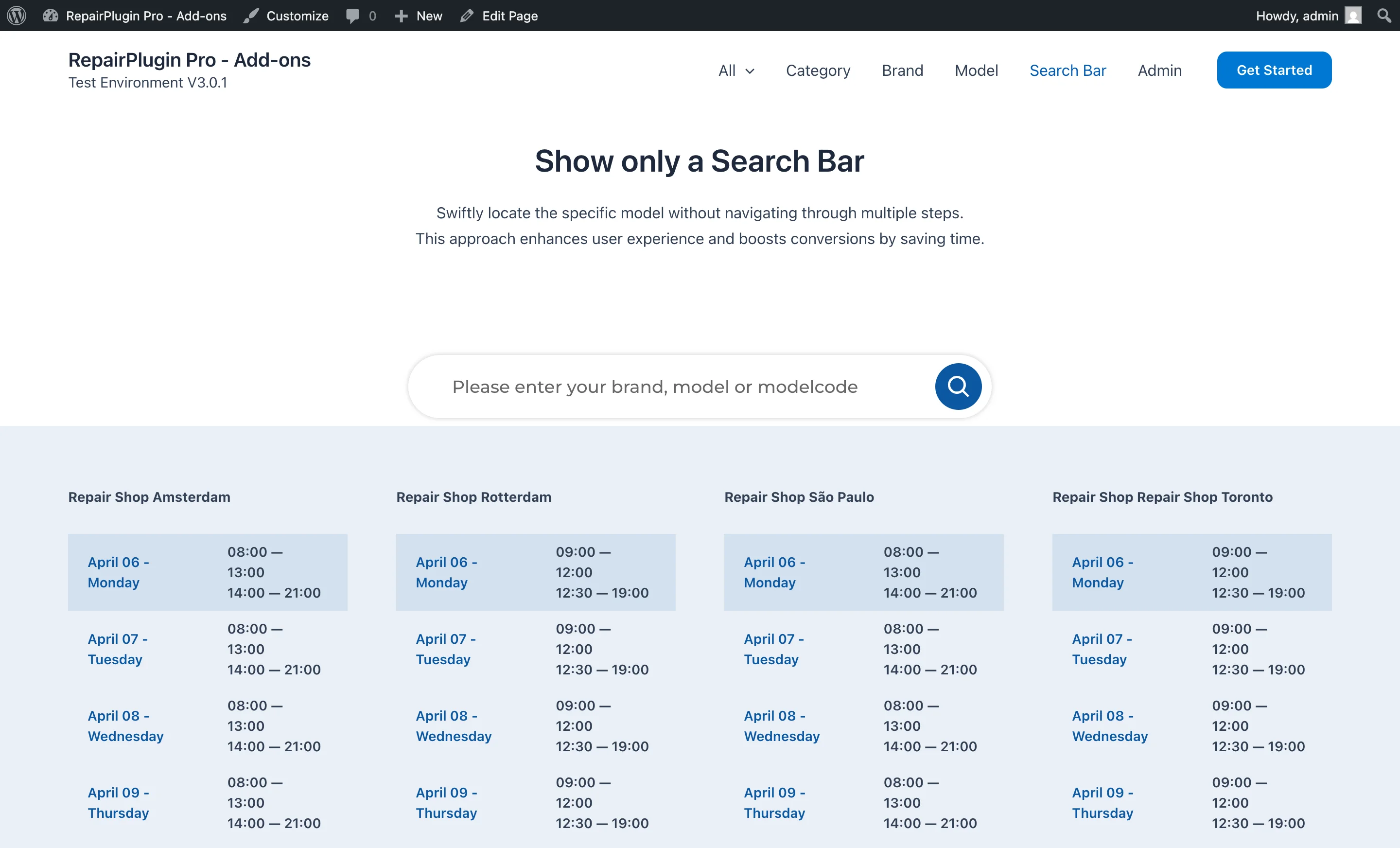
The search box needs to know which page has the [Repair_All] shortcode so it can send customers there after they pick a model.
- Under the Search Box section, find Base URL.
- Choose Find It Automatically (default) or Use My Custom Link.
- If using a custom link, enter the full URL of the page where
[Repair_All]is placed. - Click Update.
This URL is also used for Finalize, Reschedule, and Cancel links in emails.
Pre-select a language
If your site uses a translation plugin other than Polylang (which is detected automatically), add the language attribute:
[Repair_All language="Dutch"]
[Repair_All language="French"]
[Repair_All language="English (United States)"]
The language name must match the LANGUAGE NAME column from Settings > Localization.
Display a pricing table for SEO
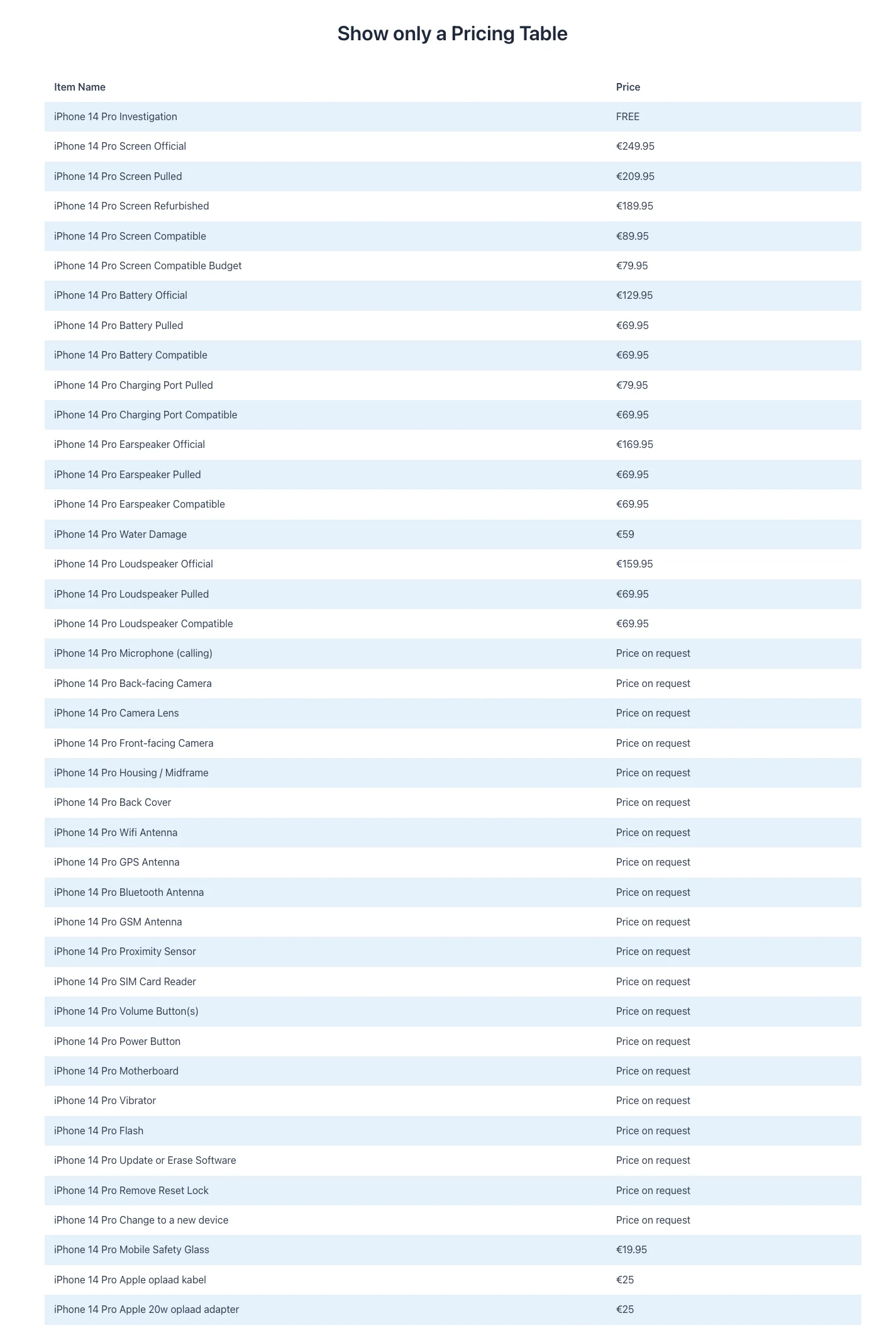
The [Repair_Pricing_Table] shortcode renders a full HTML table with every repair and its price for a specific model. Search engines like Google can read and index this table directly, which helps your repair pages rank for searches like "iPhone 14 Pro screen repair price."
The table is fully dynamic — whenever you update a repair price in RepairPlugin, the pricing table on your page updates automatically. If you use Dynamic Pricing, the table shows the latest calculated prices including your margins and supplier costs, so you never have to manually update pricing pages.
- Find the model code in RepairPlugin > Models & Repair — click the shortcode icon next to the model.
- Copy the
[Repair_Pricing_Table]shortcode (e.g.,[Repair_Pricing_Table code="MDL001"]). - Paste it into a WordPress page using a Shortcode block or HTML module.
- If you use location-based pricing, add the
locationattribute:[Repair_Pricing_Table code="MDL001" location="3"]. - Click Save or Publish.
The table shows every repair name with its price. Repairs set to "Price on request" display that label instead of a number.
SEO tip: Create a dedicated pricing page per popular model (e.g., "iPhone 15 Pro Repair Prices") and place
[Repair_Pricing_Table]on it. This gives search engines a clear, crawlable price list and can help you appear in rich results.
Tip: Combine
[models]and[Repair_Pricing_Table]on the same page so visitors can both see prices and book a repair in one place:[models code="MDL001"] [Repair_Pricing_Table code="MDL001"]
Settings reference
| Setting | Description | Default | Customers see |
|---|---|---|---|
| Steps Shortcode | Shows the main booking shortcode. Copy and paste it into any page to display the complete multi-step booking flow | [Repair_All] | The full booking interface — category selection, brand, model, repair list, service methods, and checkout. |
| Brand filter | When you select a brand, it adds brand="BrandName" to the shortcode. Only categories and models for that brand will appear | -- All -- | They skip brand selection and go straight to choosing their model. |
| Search Box Shortcode | Shows the search bar shortcode. Copy and paste it into any page to display a search bar where customers can type a device name and see matching models | [Repair_Search_Box] | A search bar where they can quickly find their device. Especially useful on homepages or landing pages. |
| Location filter | Adds location="ID" to the shortcode to skip the location selection step. Only visible when location-based pricing is turned on | -- All -- | They go directly to model and repair results for that location. |
| Base URL | Tells the search bar which page to send customers to after they pick a model. This URL is also used for finalize, reschedule, and cancel links in emails | Find It Automatically | After searching for their device, they're taken to the right page with the full booking flow. |
| Custom Link | Lets you manually set the URL of the page with [Repair_All]. Only appears when "Use My Custom Link" is selected | empty | Correct navigation from search results to the booking flow. Use this when automatic detection doesn't find the right page. |
| Customer Portal Shortcode | Shows the [Repair_Portal] shortcode with a copy button, plus its own Base URL for the portal page. Only visible on the Growth and Scale plans. All details are in Customer Portal | [Repair_Portal] | A logged-in portal where they track repairs, manage appointments, and see their discounts. |
| AI Booking Agent shortcode | Loads the AI chat widget on the page. You find and copy this shortcode on the AI Booking Agent settings page, not on this page. All details are in AI Booking Agent | [Repair_Booking_Agent] | The chat widget, when you turned it on and connected an AI provider. |
Catalog shortcodes
These shortcodes display specific parts of your device catalog on any page. Each one requires a code attribute — the unique code assigned to the category, brand, or model within RepairPlugin.
| Setting | Description | Default | Customers see |
|---|---|---|---|
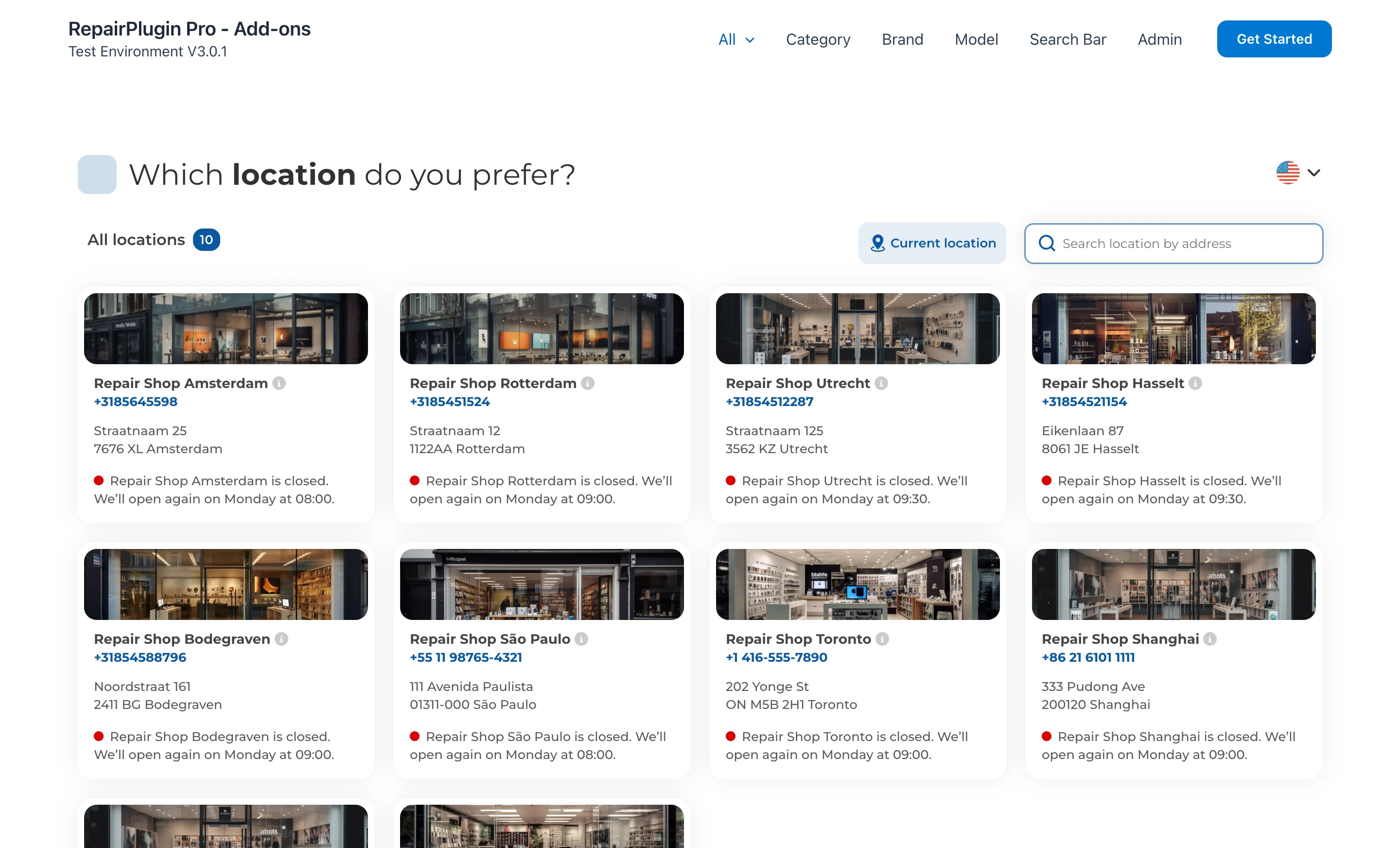
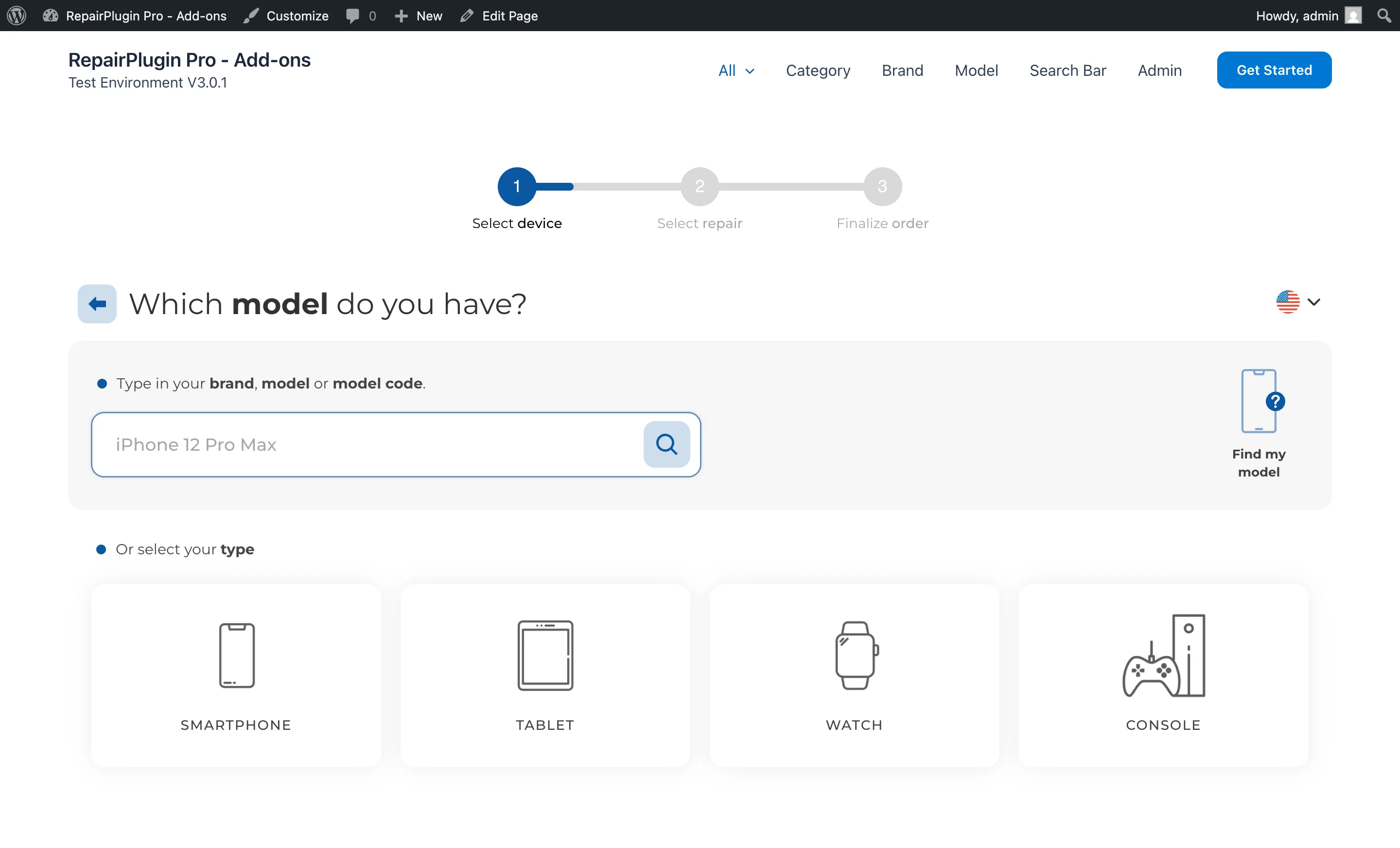
[categories] | Displays the booking flow starting from a specific category. Customers see brands, models, and repairs within that category. Requires the code attribute. Optional: location (location ID or name) to lock to a specific location, language to pre-select a language | — | — |
Example: [categories code="CAT001"] | |||
 | |||
| Setting | Description | Default | Customers see |
| --- | --- | --- | --- |
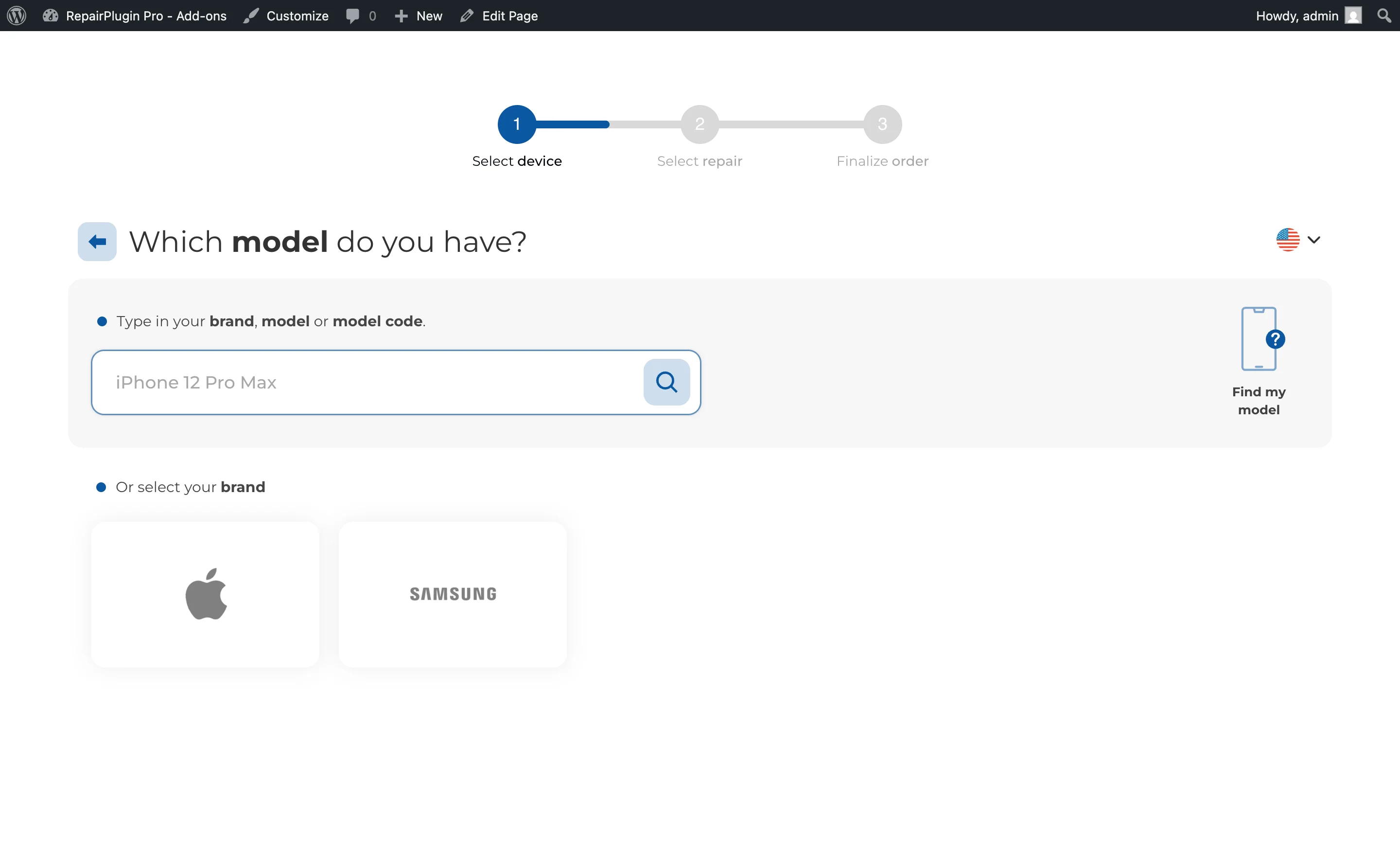
[brands] | Displays the booking flow starting from a specific brand within a category. Customers see models and repairs for that brand. Requires the code attribute. Optional: location, language | — | — |
Example: [brands code="BRD001"] | |||
 | |||
| Setting | Description | Default | Customers see |
| --- | --- | --- | --- |
[models] | Displays the booking flow starting from a specific model. Customers go directly to the repair selection for that model. Requires the code attribute. Optional: location, language | — | — |
Example: [models code="MDL001"] | |||
| Setting | Description | Default | Customers see |
| --- | --- | --- | --- |
[Repair_Pricing_Table] | Displays a fully rendered HTML pricing table with every repair and its price for a specific model. The table is dynamic — prices update automatically when you change them in RepairPlugin or when Dynamic Pricing recalculates them. Because it's plain HTML, search engines can crawl and index the prices directly, making it ideal for SEO landing pages. Requires the code attribute. When location-based pricing is active, you must also provide the location attribute. Optional: language | — | A clean table listing every available repair with its price. Repairs without a set price show "Price on request." |
Example: [Repair_Pricing_Table code="MDL001"] or [Repair_Pricing_Table code="MDL001" location="3"] | |||
| Display Opening Hours shortcodes | |||
| RepairPlugin also provides 8 shortcodes for showing opening hours, open/closed indicators, and conditional content on your website. These are documented separately in Opening Hours Display. |
Pre-selected shortcodes
| Shortcode type | Where to get it | Example |
|---|---|---|
| Category pre-selected | RepairPlugin > Categories | [Repair_All category="5"] |
| Category + Brand pre-selected | RepairPlugin > Categories > Brand | [Repair_All category="5" brand="Apple"] |
| Model pre-selected | RepairPlugin > Models & Repair | [models code=ABC123][Repair_Pricing_Table code=ABC123] |
| Brand only (all categories) | Settings > Plugin Shortcode | [Repair_All brand="Samsung"] |
| Location pre-selected | Enhanced Locations > Locations | [Repair_All location="3"] |
Page builder tips
| Page Builder | Recommended Module | Notes |
|---|---|---|
| Elementor | Shortcode module | Don't use a text box. Make sure the column is at least 1250px wide. |
| Divi | Code module | Don't use a text box. Avoid sections with dividers. |
| WP Bakery | Raw HTML module | Don't use a text box. Make sure the column is at least 1250px wide. |
| Gutenberg | Shortcode block | Set the page to full-width layout. |
Frequently asked questions
Can I put the shortcode on multiple pages?
Yes. You can place [Repair_All] on as many pages as you like — for example, separate landing pages for different brands or categories using pre-selected shortcodes.
What's the minimum page width for the booking flow?
For the best visual result, your page should be at least 1200px wide. Use a full-width page template in your theme or page builder.
What happens if I place two [Repair_All] shortcodes on the same page?
This isn't supported. RepairPlugin uses shared internal state, so the second shortcode would overwrite the first one's configuration. Place only one booking shortcode per page.
Can I use shortcodes in widget areas or custom post types?
Shortcodes work anywhere WordPress processes them, including widgets and custom post types. However, some internal features (like reschedule and finalize links) expect the shortcode to be on a standard WordPress page. If you place the shortcode elsewhere, the booking form works but those internal redirect links may not find it.