
Opening Hours Display
Display opening hours, live open/closed indicators, and SEO structured data on your website using RepairPlugin shortcodes for each location.
What can you do with this?
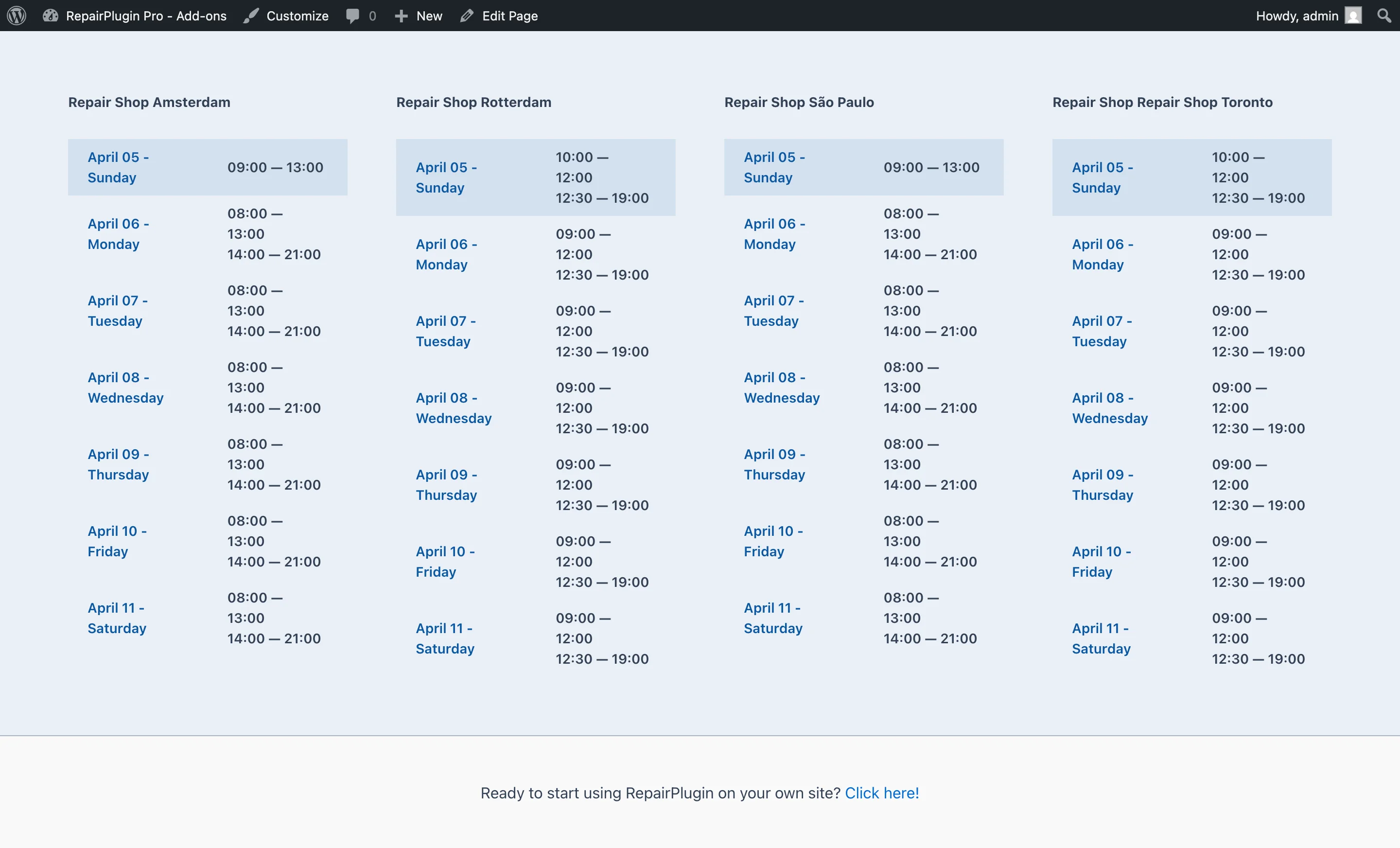
- Display your weekly schedule on any page with a shortcode -- customers see exactly when you're open and closed.
- Show a live open/closed indicator that updates automatically, so visitors know your current status at a glance.
- List upcoming holidays and special dates to prevent customers from showing up when you're closed.
- Show conditional content -- display different messages depending on whether your shop is currently open, closed, opening soon, or closing soon.
- Boost your local SEO by adding structured data (schema.org) that tells Google your business hours, address, and location details.
Example: A customer visits your website at 4:45 PM. They see a live indicator saying "Closing soon -- we close at 5:00 PM" with an orange dot. Below that, a table shows your full weekly hours with today's row highlighted.
Where to find it
- In the WordPress admin menu, click RepairPlugin.
- Click Settings.
- Select Opening Hours in the sidebar.
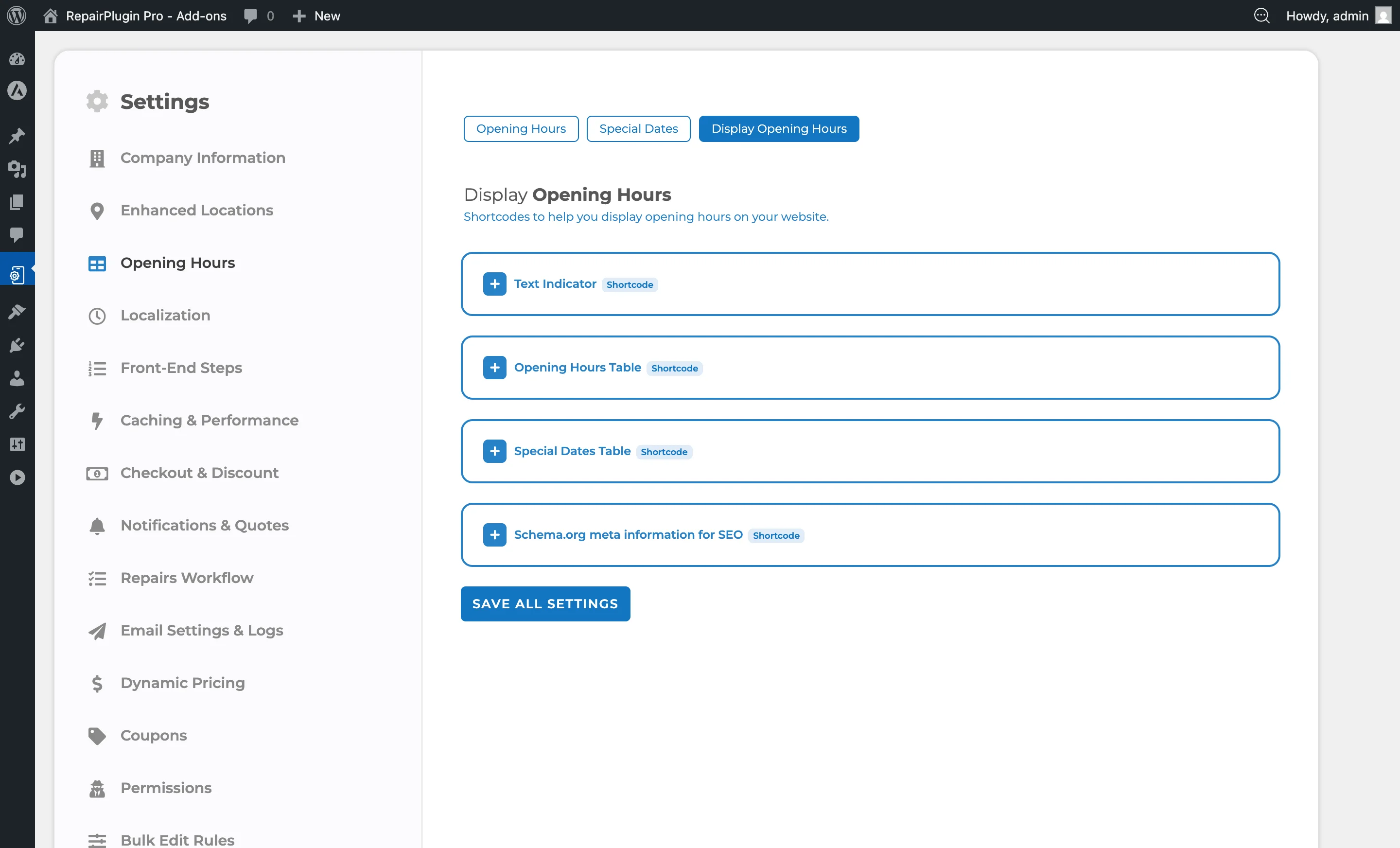
- Click the Display Opening Hours tab at the top of the page.
This page has three sections:
- Shortcodes -- ready-to-copy shortcodes for each location.
- Indicator settings -- configure the open/closed status indicator behavior and colors.
- Table settings -- configure how the opening hours table and special dates table appear on your website.
How to set it up
Add opening hours to a page
- Go to Settings > Opening Hours > Display Opening Hours.
- Find your location in the shortcode list.
- Copy the shortcode you need (e.g.,
[Repair_Opening_Hours location="My Store"]). - Go to WP Dashboard > Pages and edit the target page.
- Add a Shortcode block (Gutenberg) or an HTML/Code module (page builders).
- Paste the shortcode and click Save or Publish.
Add a live open/closed indicator
- Copy the
[Repair_Indicator]shortcode for your location from the Display Opening Hours page. - Paste it on any page, widget area, or template where you want the status to appear.
- The indicator automatically shows the right message and updates every 30 seconds.
Customize indicator messages
The indicator messages are managed through your language settings:
- Go to Settings > Localization.
- Search for the indicator messages (e.g., "Now Open," "Now Closed," "Opening Soon," "Closing Soon").
- Edit the text for each status. You can use dynamic codes like
{from},{to}, and{countdown}to include real-time information.
Add SEO structured data
- Copy the
[Repair_SEO]shortcode for your location. - Add extra attributes for your business details:
[Repair_SEO location="My Store" place_id="ChIJ..." name="My Repair Shop" description="Phone and tablet repairs" street_address="123 Main St" city="Amsterdam" state="NH" zipcode="1012AB" country_code="NL"]
- Paste this shortcode on your homepage or contact page. It outputs invisible structured data that search engines use to show your business hours in search results.
Show conditional content
Use these shortcodes to display different content based on your current status:
[Repair_Ifopen location="My Store"]
  We're open! Walk in or <a href="/book">book online</a>.
[/Repair_Ifopen]

[Repair_Ifclosed location="My Store"]
  We're currently closed. We reopen on {next_open_day} at {next_open_time}.
[/Repair_Ifclosed]
You can also use [rp_ifopeningsoon] and [rp_ifclosingsoon] for "opening soon" and "closing soon" messages.
Settings reference
Shortcodes
RepairPlugin generates shortcodes for each of your locations. The following shortcodes are available:
| Shortcode | What it displays |
|---|---|
[Repair_Opening_Hours location="..."] | A weekly opening hours table |
[Repair_Special_Dates location="..."] | A list of upcoming special dates and holidays |
[Repair_Indicator location="..."] | A live open/closed status message with optional color dot |
[Repair_SEO location="..."] | Invisible schema.org structured data for search engines |
[Repair_Ifopen location="..."]...[/Repair_Ifopen] | Content shown only when the location is open |
[Repair_Ifclosed location="..."]...[/Repair_Ifclosed] | Content shown only when the location is closed |
[rp_ifopeningsoon location="..."]...[/rp_ifopeningsoon] | Content shown only when the location is opening soon |
[rp_ifclosingsoon location="..."]...[/rp_ifclosingsoon] | Content shown only when the location is closing soon |
All shortcodes require a location attribute set to your exact location name (e.g., location="Amsterdam Store"). For service-method-based schedules, you can also use location="Pickup Service" or location="Repair on your location". |
Tip: Copy shortcodes directly from the Display Opening Hours settings page -- they're pre-filled with the correct location name for each of your stores.
Indicator settings
| Setting | Description | Default | Customers see |
|---|---|---|---|
| Approximation Mode | When turned on, the indicator can show "opening soon" and "closing soon" messages instead of just "open" or "closed." This gives customers a heads-up when you're about to open or close | off | More nuanced status messages near opening and closing times. |
| Warning Opening (minutes) | Sets how many minutes before opening the indicator switches to "opening soon." Only works when Approximation Mode is on | 45 minutes | An "opening soon" message appears this many minutes before your shop opens. |
| Warning Closing (minutes) | Sets how many minutes before closing the indicator switches to "closing soon." Only works when Approximation Mode is on Tip: Set this to match your last-appointment cutoff time. If you stop accepting walk-ins 30 minutes before closing, set this to 30. | 45 minutes | A "closing soon" message appears this many minutes before your shop closes. |
| Show Special Date Messages | When turned on, the indicator shows specific messages for special dates (holidays). For example, "It's Easter, we're closed" instead of the generic "We're closed." | off | Holiday-specific messages that explain why you're closed or have adjusted hours. |
| Show Breaktime Messages | When turned on, the indicator shows specific messages during break times. For example, "We're on lunch break until 1:00 PM" instead of "We're open." | off | A breaktime message during your lunch break or other scheduled break periods. |
| Show Prefixed Color Dots | Adds a small colored dot before the indicator message to visually signal the status | on | A green, orange, or red dot next to the status message. |
| Indicator color settings | |||
| Each status has its own color dot. You can set each one to green, orange, or red: | |||
| Status | Default color | ||
| --- | --- | ||
| Now Open | Green | ||
| Now Closed | Red | ||
| Open (before breaktime) | Green | ||
| On breaktime | Orange | ||
| Open on special date | Orange | ||
| Closed on special date | Red | ||
| Opening soon | Orange | ||
| Closing soon | Orange |
Opening hours table settings
These settings control how the [Repair_Opening_Hours] shortcode displays your weekly schedule.
| Setting | Description | Default | Customers see |
|---|---|---|---|
| View | Controls which days are shown in the table. "Normal" shows the full week. "Future" shows today plus the next 6 days. "Today" shows only today's hours | Normal | Either a full week overview, a rolling 7-day view, or just today's schedule. |
| Week Start On | Sets whether the weekly table starts on Monday or Sunday. Only applies when View is set to Normal | Monday | The opening hours table starts on the day you've chosen. |
| Display Mode | "Normal" shows each day on its own row. "Consolidated" groups days with the same hours together (e.g., "Mon -- Fri: 9:00 AM -- 6:00 PM") | Normal | Either individual rows per day or grouped rows for days with identical hours. |
| Output | "Table" displays the hours in a structured table format. "Inline" displays the hours as a single line of text | Table | Either a clean table layout or a compact inline text. |
| Day Part Format | Controls how the day name is displayed. Uses codes like {day} (full day name), {day_short} (abbreviated), {day_of_month}, {month}, etc | {day} | The day label in the format you've chosen (e.g., "Monday" or "Mon" or "14 Feb - Mon"). |
| Hour Separator | Sets the character between opening and closing times | — (em dash) | The separator between hours, e.g., "9:00 AM -- 6:00 PM". |
| Timeslot Separator | Sets the character between multiple timeslots (e.g., morning and afternoon slots when there's a break) | | (pipe) | The separator between timeslots, e.g., "9:00 -- 12:00 | 13:00 -- 18:00". |
| Timeslot Line Break | When turned on and Output is set to Table, multiple timeslots appear on separate lines instead of side by side | on | Timeslots stacked vertically for easier reading. |
| Overwrite Specials | When turned on, special dates replace the regular hours in the weekly table. When off, the table always shows regular hours regardless of special dates | off | Either adjusted hours on special dates within the weekly view, or always the standard schedule. |
Special dates table settings
These settings control how the [Repair_Special_Dates] shortcode displays your holidays and special dates.
| Setting | Description | Default | Customers see |
|---|---|---|---|
| View | Controls which special dates are shown. Options include all dates this year, upcoming dates only, or upcoming dates within a specific range (7 days, 14 days, 30 days, 60 days, 90 days, 180 days, or 365 days) | All dates this year | A filtered list of special dates based on the range you've chosen. |
| Display Mode | "Normal" shows each special date on its own row. "Consolidated" groups dates with the same hours together | Normal | Either individual rows per date or grouped rows for dates with the same adjusted hours. |
| Output | "Table" displays special dates in a structured table. "Inline" displays them as a single line of text | Table | Either a clean table or a compact inline listing of your special dates. |
| Day Part Format | Controls how each special date is labeled. Uses codes like {month}, {day_of_month}, {day}, and {name} | {month} {day_of_month} - {day} ({name}) | The date label in the format you've chosen (e.g., "December 25 - Thursday (Christmas)"). |
Dynamic codes for messages
You can use these codes in your indicator messages and conditional shortcode content. They're automatically replaced with real-time values. When open:
| Code | Description | Example |
|---|---|---|
{day} | Full name of today | Monday |
{day_short} | Short name of today | Mon |
{time} | Current time | 09:34 AM |
{location} | Location name | My Store |
{from} | Today's opening time | 09:00 AM |
{to} | Today's closing time | 07:00 PM |
{from_first_half} | Start of first timeslot | 09:00 AM |
{to_first_half} | End of first timeslot | 01:00 PM |
{from_second_half} | Start of second timeslot | 02:00 PM |
{to_second_half} | End of second timeslot | 07:00 PM |
{countdown} | Countdown to closing | 1 hour, 12 minutes |
{minutes} | Countdown in minutes only | 23 minutes |
| When closed (additional codes): | ||
| Code | Description | Example |
| --- | --- | --- |
{next_open_day} | Next open day (full) | Wednesday |
{next_open_day_short} | Next open day (short) | Wed |
{next_open_time} | Opening time of next open day | 08:30 AM |
{next_open_day_of_month} | Day of month for next open day | 15 |
{next_open_month} | Month of next open day | February |
| On special dates: | ||
| Code | Description | Example |
| --- | --- | --- |
{specialdate_name} | Name of the special date | Easter |
Frequently asked questions
Do the shortcodes update automatically?
Yes. The Indicator, Opening Hours, and Special Dates shortcodes refresh their content automatically every 30 seconds. When a customer stays on the page past closing time, the status updates without a page reload.
Can I use these shortcodes in PHP templates?
Yes. Use WordPress's do_shortcode() function in your theme templates:
<?php echo do_shortcode('[Repair_Indicator location="My Store"]'); ?>
Do I need one shortcode per location?
Yes. Each shortcode requires the location attribute set to a specific location name. If you have three locations, you'll need three separate shortcodes.