
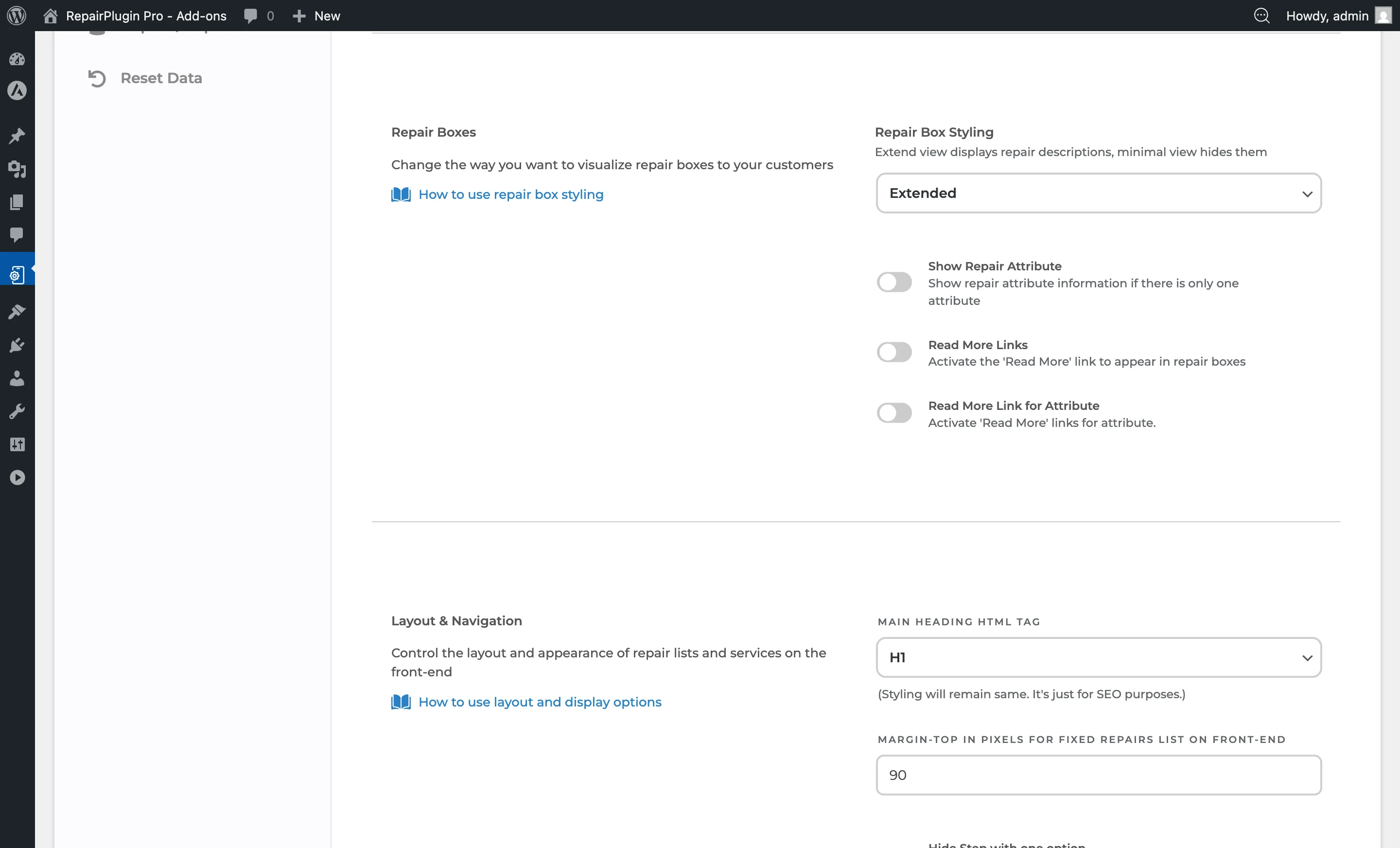
Layout & Navigation
Configure layout and navigation settings in RepairPlugin to skip steps, optimize mobile display, and control heading tags for SEO.
layoutnavigationmobileSEOheading-tagskip-stepfrontend
What can you do with this?
- Skip steps automatically when there's only one option — so customers don't waste time clicking through single choices.
- Require a color selection to make sure you know exactly which device a customer is bringing in.
- Make the booking flow full-width on mobile for a clean, easy-to-read layout on phones and tablets.
- Show or hide price labels on service method boxes (Walk-in, Mail-in, On-site).
- Set the heading tag for SEO so search engines understand your page structure correctly.
Where to find it
- In the WordPress admin menu, click RepairPlugin.
- Click Settings in the submenu.
- In the settings sidebar, click Front-End Steps.
- Scroll down past the Branding and Repair Boxes sections to Layout & Navigation.
https://www.repairplugin.com/wp-admin/admin.php?page=wp_repair_settings§ion=styling
https://www.repairplugin.com/book-a-repair
https://www.repairplugin.com/book-a-repair
https://www.repairplugin.com/book-a-repair
How to set it up
Change the main heading tag
- Find Main Heading HTML Tag.
- Open the dropdown and select H1 or H2.
- Click Save Changes.
Use H1 if the RepairPlugin shortcode is the main content on the page. Use H2 if the page already has its own H1 heading.
Adjust the fixed repairs list margin
- Find Margin-Top in Pixels for Fixed Repairs List on Front-End.
- Enter a value between 0 and 200 (in pixels).
- Click Save Changes.
Increase this value if the sticky repair sidebar overlaps with your site's fixed navigation bar or header.
Turn on step skipping
- Find Hide Step with one option.
- Turn the switch on to automatically skip steps that have only one available option.
- Click Save Changes.
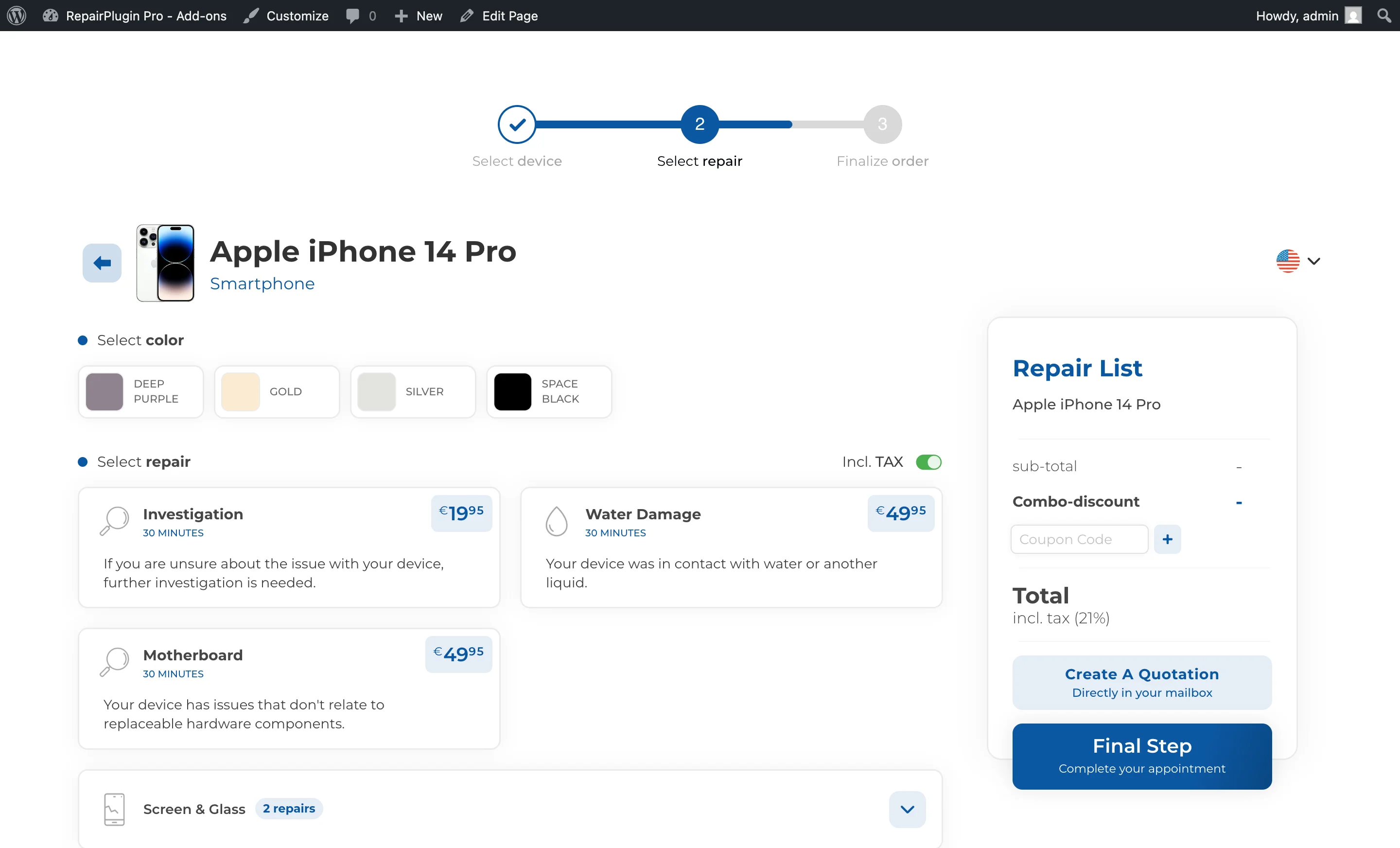
Require color selection
- Find Require Choosing Color.
- Turn the switch on to make customers pick a device color before they can continue.
- Click Save Changes.
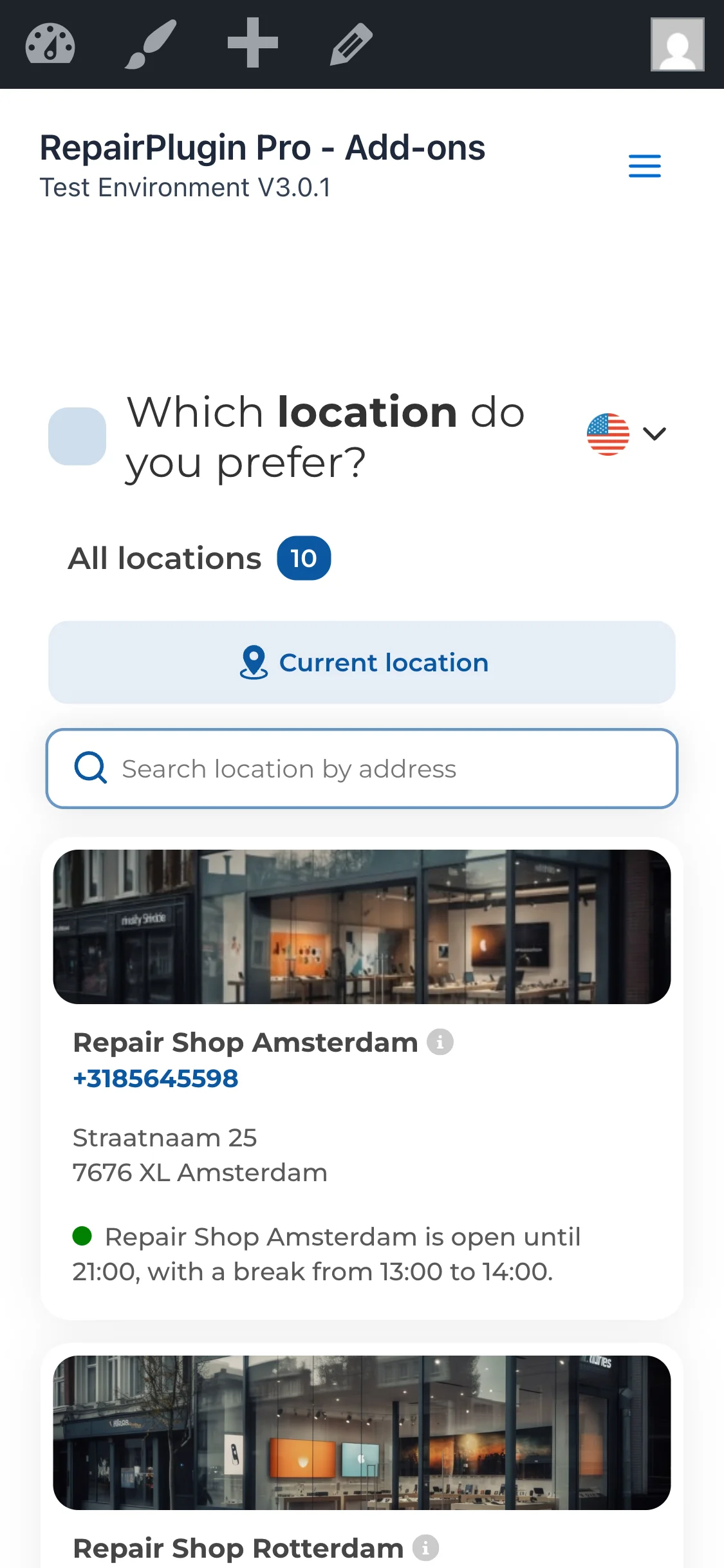
Turn on full-width on mobile
- Find 100% width on Mobile.
- Turn the switch on to make the booking flow expand to full screen width on mobile devices.
- When this is turned off, an extra field appears: Side padding in pixels (0-25).
- Click Save Changes.
https://www.repairplugin.com/book-a-repair
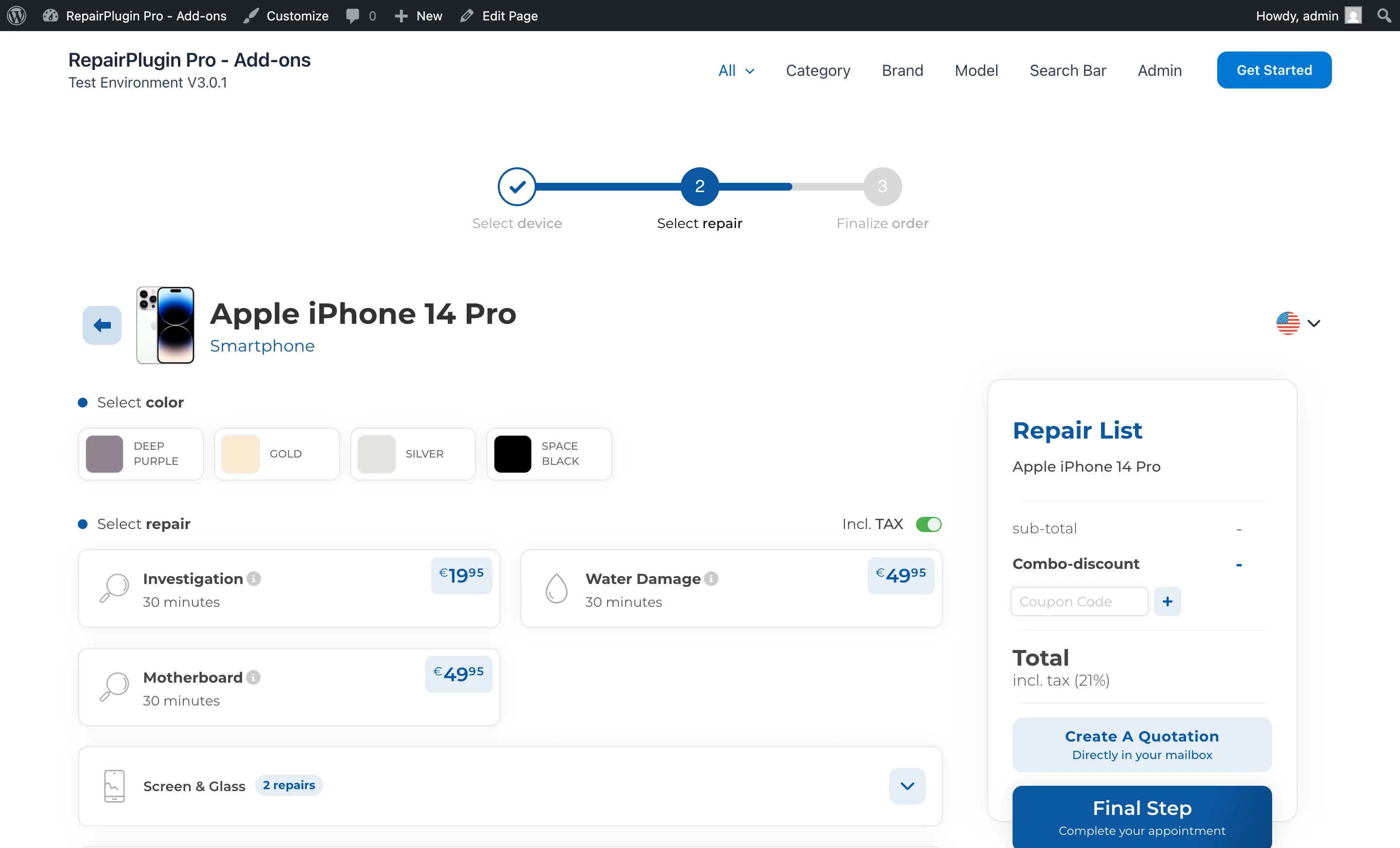
Show price labels on service methods
- Find Show Price Label Service Method.
- Turn the switch on to display the price label inside each service method box.
- Click Save Changes.
Settings reference
| Setting | Description | Default | Customers see |
|---|---|---|---|
| Main Heading HTML Tag | Sets which heading tag RepairPlugin uses for the main heading on the booking page. The visual look stays the same -- this is purely for SEO purposes | H1 | No visible difference. Use H1 for standalone repair pages and H2 when the plugin is embedded within a page that already has its own heading. |
| Margin-Top in Pixels for Fixed Repairs List | Adds space above the sticky repairs list that scrolls alongside the page. This prevents it from hiding behind a fixed navigation bar or site header | 30 | The sticky repair list sits lower on the screen. Set this to match the height of your site's sticky header (e.g., 90 for a typical navigation bar). |
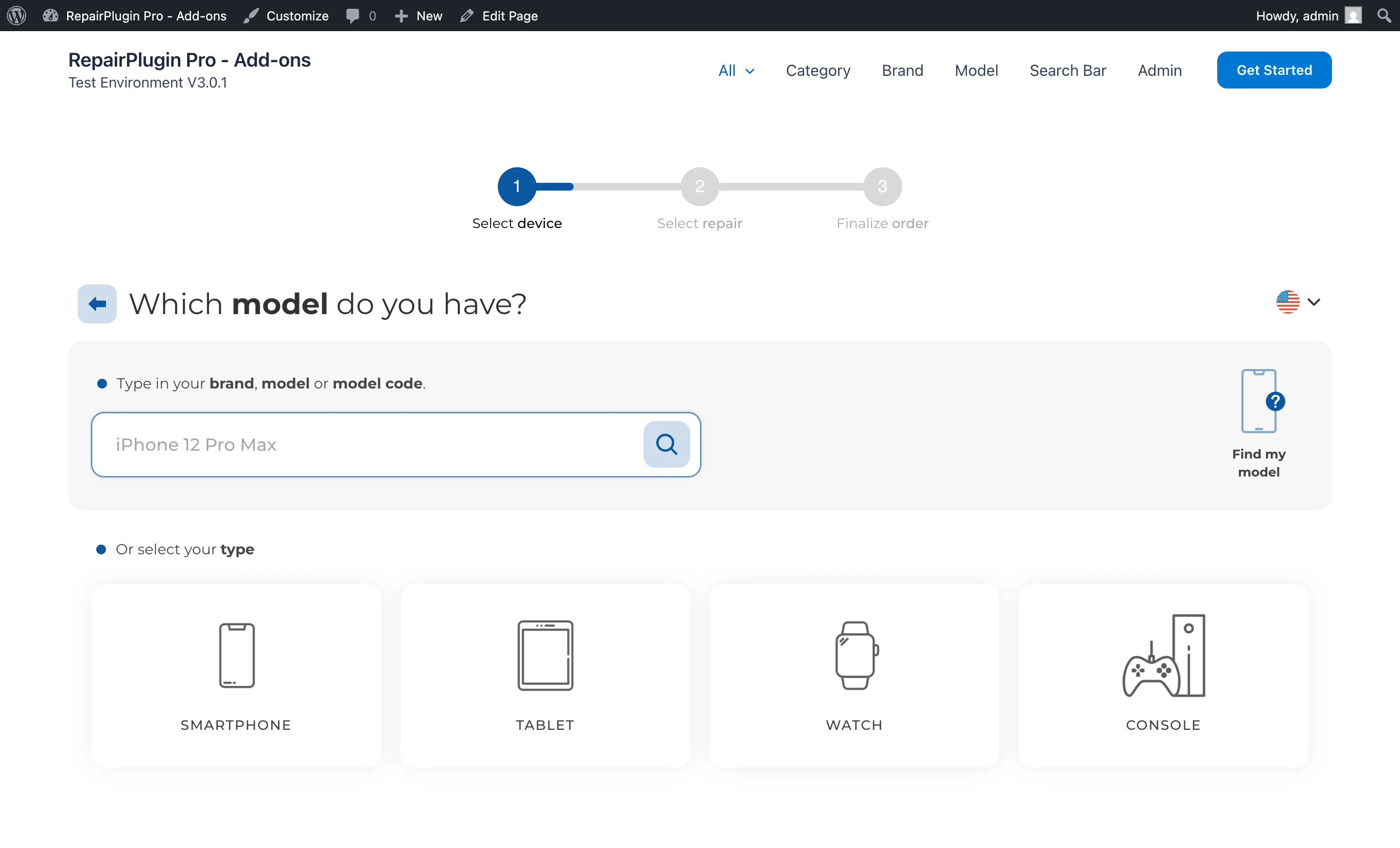
| Hide Step with one option | When a booking step (category, brand, or model selection) has only one active entry, that step is skipped automatically and the next step shows right away | on | Fewer clicks and a faster booking experience. Especially useful for shops that specialize in a single brand or category. |
| Require Choosing Color | Customers must pick a device color before they can move to the next step. If they try to continue without selecting a color, an error message appears | on | A required color selection step. This helps you identify the exact device, but consider turning it off for devices where color doesn't matter. |
| 100% width on Mobile | Makes the RepairPlugin booking flow expand to the full screen width on mobile devices, overriding any theme restrictions | on | A cleaner, more readable layout on phones and tablets. Recommended for most websites. |
| Side padding in pixels (mobile) | Adds horizontal padding on the left and right sides of the booking flow on mobile devices. This setting only appears when "100% width on Mobile" is turned off | 0 | A small gap between the booking flow and the edges of the screen, preventing content from touching the sides. |
| Show Price Label Service Method | Shows the price label inside each service method box (e.g., Walk-in, Mail-in, On-site) | on | Prices are visible during the service method selection step, helping them make informed decisions. When turned off, prices don't appear until a later step. |
Frequently asked questions
What does "Hide Step with one option" do?
When enabled, RepairPlugin automatically skips any selection step that has only one option. For example, if you have just one category with one brand, customers go straight to the model list. The plugin checks each level (category, brand, model) and skips forward until it reaches a step with more than one choice.