
AI Booking Agent
Add an AI chat widget to your website that answers questions about your repairs, prices, and opening hours, and helps visitors book a repair from the chat.
What can you do with this?
- Let visitors book from the chat -- the assistant finds the right model and repair, shows an order summary, and gives the visitor a button to finalize the booking.
- Answer questions with your own data -- the assistant uses your own categories, models, repairs, prices, accessories, locations, and opening hours.
- Set your own tone of voice -- tell the assistant how to talk to your customers, from friendly and casual to short and professional.
- Add what makes your shop special -- give the assistant extra information about your business, like your warranty or how fast you work.
- Choose your own AI -- pick Anthropic, OpenAI, or Google Gemini, and choose the AI model that fits your budget.
Example: A visitor opens the chat on your website at 10 PM and types "My iPhone 15 screen is cracked, what does it cost?" The assistant finds the model, shows the screen repair with your price, and puts together an order summary. The visitor clicks the button and finishes the booking.
Where to find it
- In your WordPress admin, click RepairPlugin.
- Click Settings.
- In the settings sidebar, click AI Booking Agent.
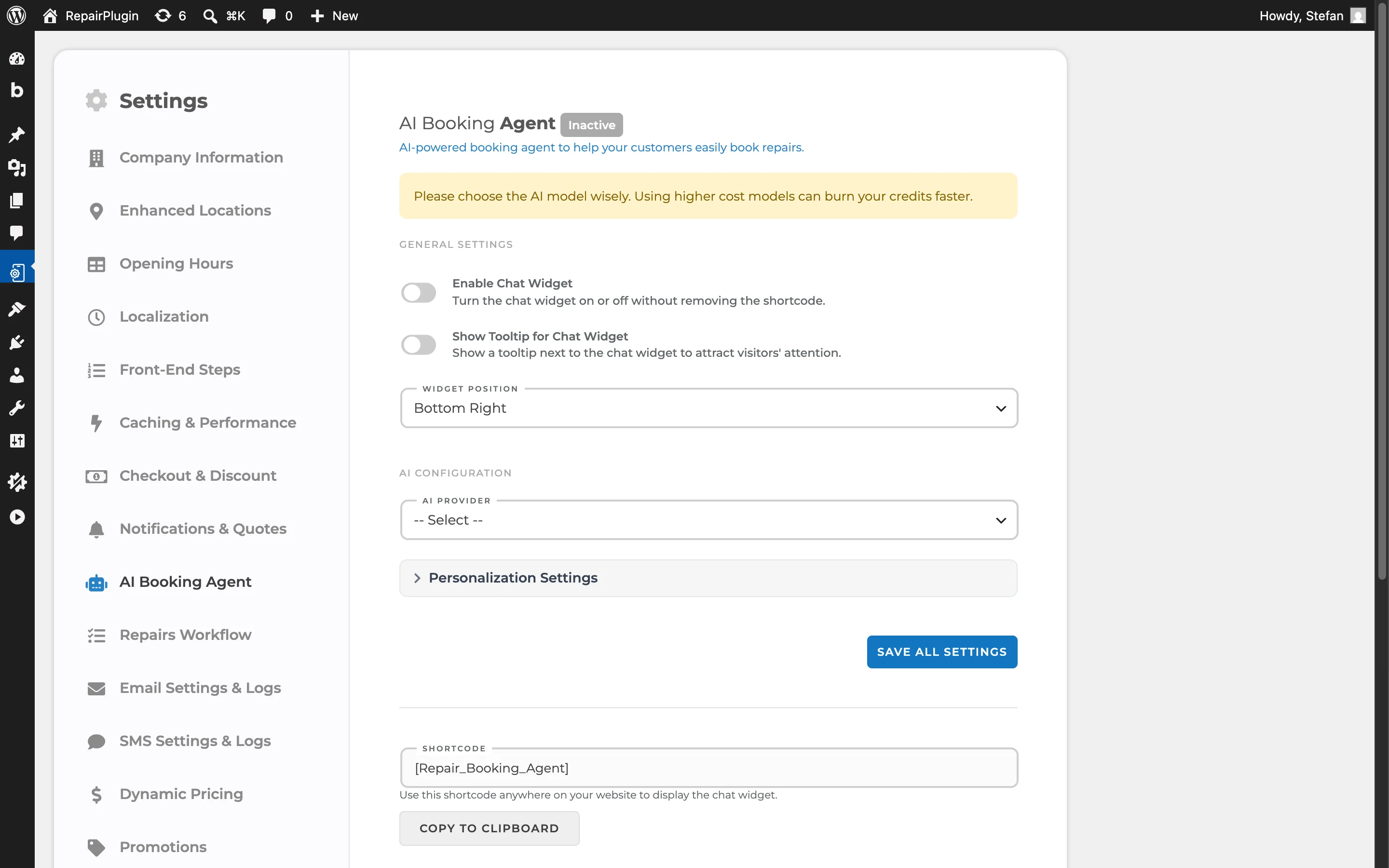
How to set it up
Before you start
Make sure you have:
- An active RepairPlugin license key.
- An account with an AI provider: Anthropic, OpenAI, or Google Gemini.
- An API key from that provider. You pay the provider for what the assistant uses.
Connect your AI provider
- Go to RepairPlugin > Settings > AI Booking Agent.
- Choose your provider under AI Provider.
- Paste your key into the API Key field that appears.
- Choose a model under AI Model.
- Click Save All Settings.
After saving, you'll see Active next to the page title.
Choose your model with care. A more expensive model uses up your credits with the AI provider faster.
Tell the assistant about your business
The assistant already knows your company details, devices, models, repairs, accessories, prices, locations, and opening hours. Use this part for anything extra.
- Click Personalization Settings to open the section.
- Fill in Business Information. Write down what makes your shop special, like your warranty or how fast you finish most repairs.
- Fill in Communication Style. Describe how the assistant should talk to your customers.
- Click Save All Settings.
Not sure what to write? Click Example Value below each field to see an example.
Add the chat widget to your website
- Scroll down to Shortcode.
- Click Copy to clipboard to copy
[Repair_Booking_Agent]. - Paste the shortcode on your website, on the place where you want the chat widget to load.
Turn the chat widget on
- Turn on Enable Chat Widget.
- Turn on Show Tooltip for Chat Widget if you want a small text next to the widget that draws attention.
- Choose Bottom Right or Bottom Left under Widget Position.
- Click Save All Settings.
The chat widget only shows on your website when all of these are true:
- The shortcode is on the page.
- Enable Chat Widget is on.
- You saved an AI provider, an API key, and an AI model.
- Your RepairPlugin license is active.
Turn the chat widget off for a while
- Turn off Enable Chat Widget.
- Click Save All Settings.
The widget disappears from your website. You can leave the shortcode where it is.
Change the texts in the chat
The chat window has its own texts, like the heading "Repair Assistant" and the tooltip "Need help? Let's chat!". You change and translate these under RepairPlugin > Settings > Localization, in the Chat Widget group. See Step Translations.
Settings reference
General Settings
| Setting | Description | Default | Customers see |
|---|---|---|---|
| Enable Chat Widget | Turns the chat widget on or off without removing the shortcode. | off | When it's on, they see the chat widget on the pages where you placed the shortcode. |
| Show Tooltip for Chat Widget | Shows a small text next to the chat widget to draw attention. | off | A tooltip next to the widget, like "Need help? Let's chat!". |
| Widget Position | Sets the corner of the screen for the chat widget: Bottom Right or Bottom Left. | Bottom Right | The widget sits in the corner you choose. |
AI Configuration
| Setting | Description | Default | Customers see |
|---|---|---|---|
| AI Provider | The AI service that powers the assistant: Anthropic, OpenAI, or Google Gemini. | -- Select -- (none) | — |
| API Key | The API key from your AI provider. After you save, RepairPlugin hides part of the key and locks the field. | empty | — |
| AI Model | The model the assistant uses. Tip: A more expensive model uses up your credits faster. | -- Select -- (none) | The answers come from the model you choose. |
Personalization Settings
| Setting | Description | Default | Customers see |
|---|---|---|---|
| Business Information | Extra information about your business that helps the assistant give better answers. Tip: The assistant already knows your devices, repairs, prices, locations, and opening hours. Only add what's unique to your shop. | empty | Answers that include your own details, like your warranty. |
| Communication Style | Describes how the assistant talks to your customers. | empty | Answers in the tone you describe. |
Shortcode
| Setting | Description | Default | Customers see |
|---|---|---|---|
| Shortcode | The shortcode that loads the chat widget: [Repair_Booking_Agent]. You can't change it. | [Repair_Booking_Agent] | The chat widget on every page where you place the shortcode. |
Frequently asked questions
What can the assistant help visitors with?
The assistant can find a visitor's model, show the repairs and prices for that model, suggest accessories, find your locations, share your opening hours, and check a coupon code. It then shows an order summary with a button to review and finish the booking.
Why don't I see the chat widget on my website?
Check four things: the shortcode is on the page, Enable Chat Widget is on, you saved an AI provider with an API key and a model, and your RepairPlugin license is active. The page title in the settings shows Active when the AI settings are complete.
Who pays for the AI?
You use your own API key from Anthropic, OpenAI, or Google Gemini. The costs depend on the model you choose and how much your visitors chat.