
Repair Box Styling
Set up repair box styling in RepairPlugin to choose between extended or minimized views, show attributes, and add Read More links.
repair-boxstylingextended-viewminimized-viewread-morefrontend
What can you do with this?
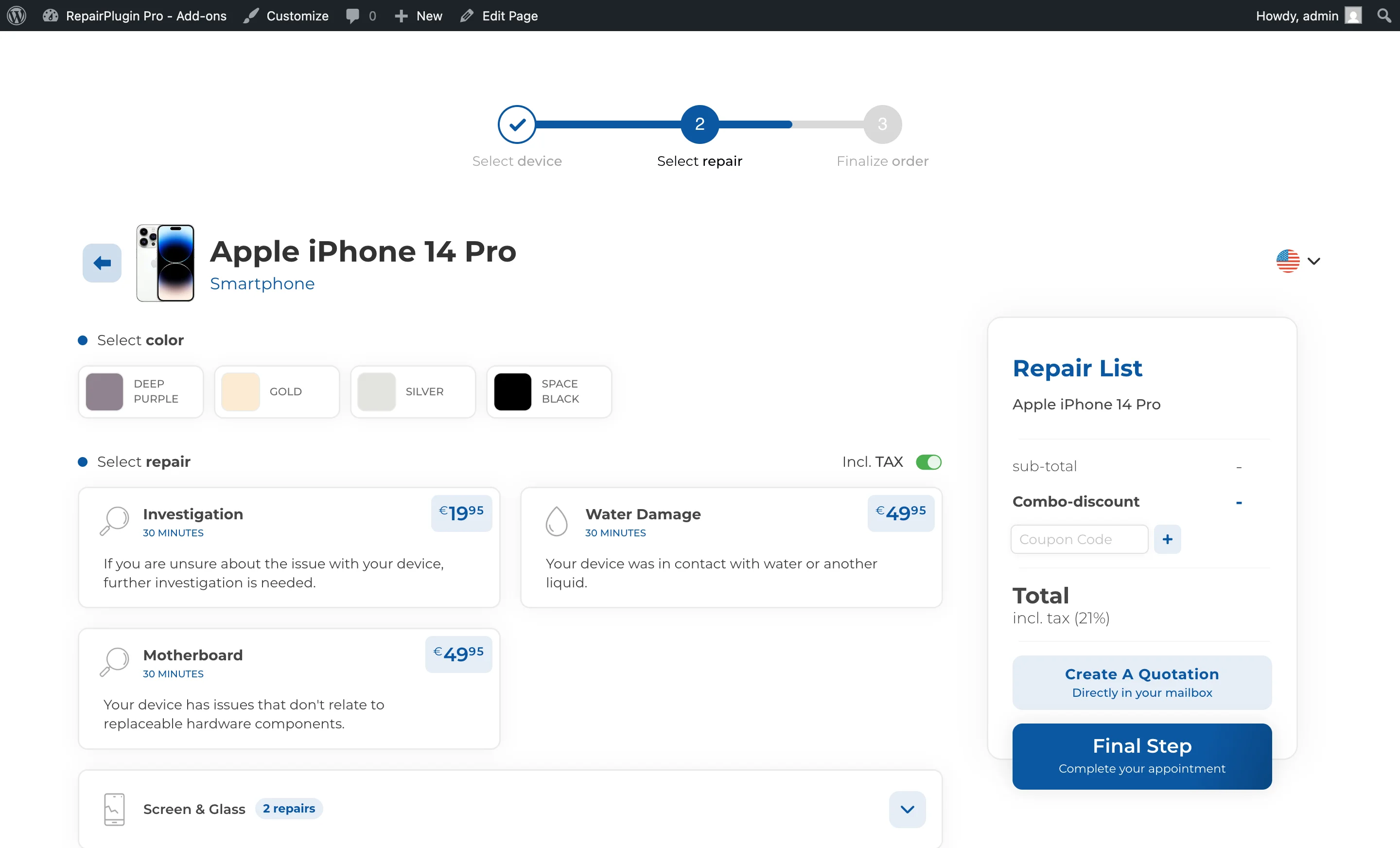
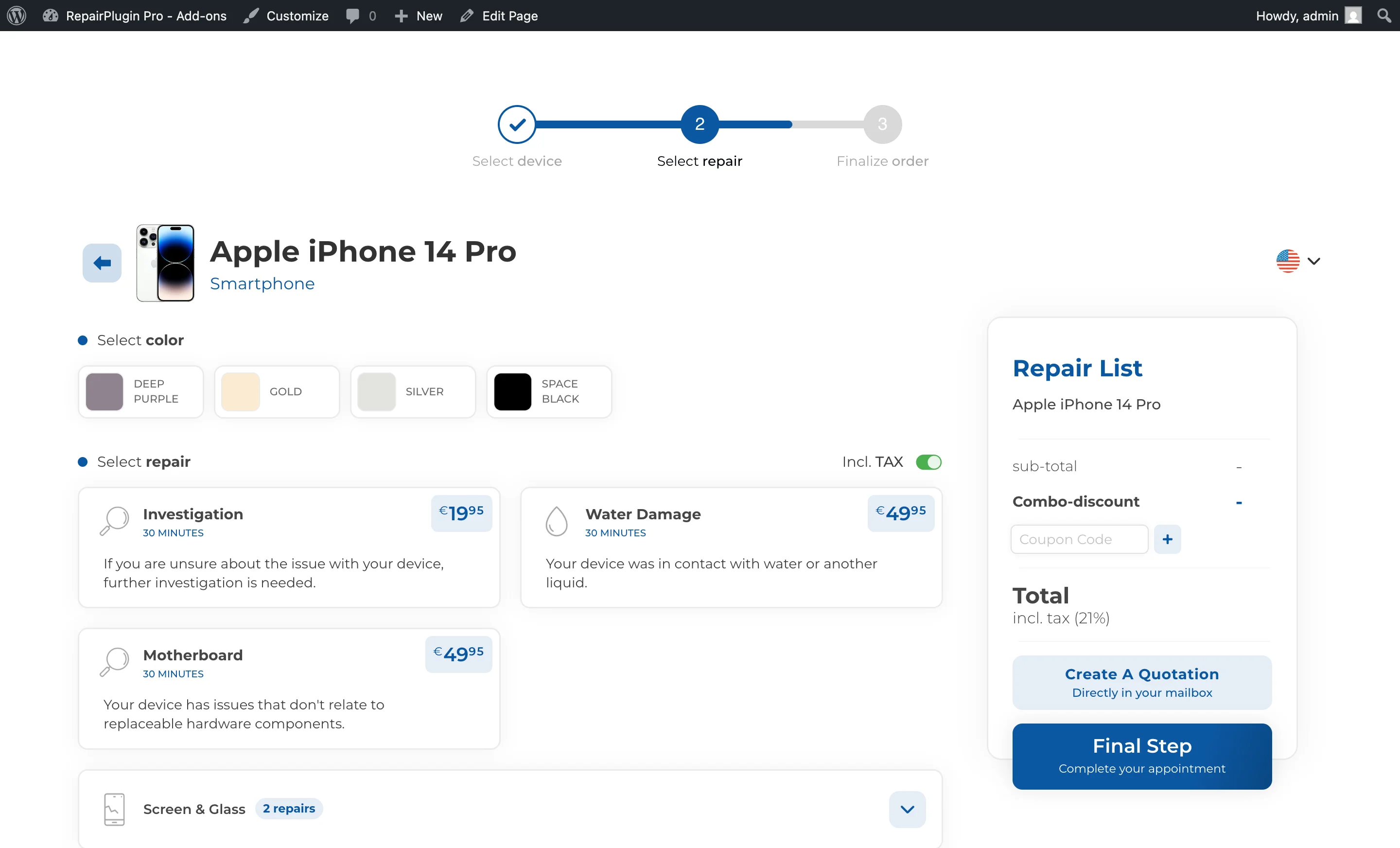
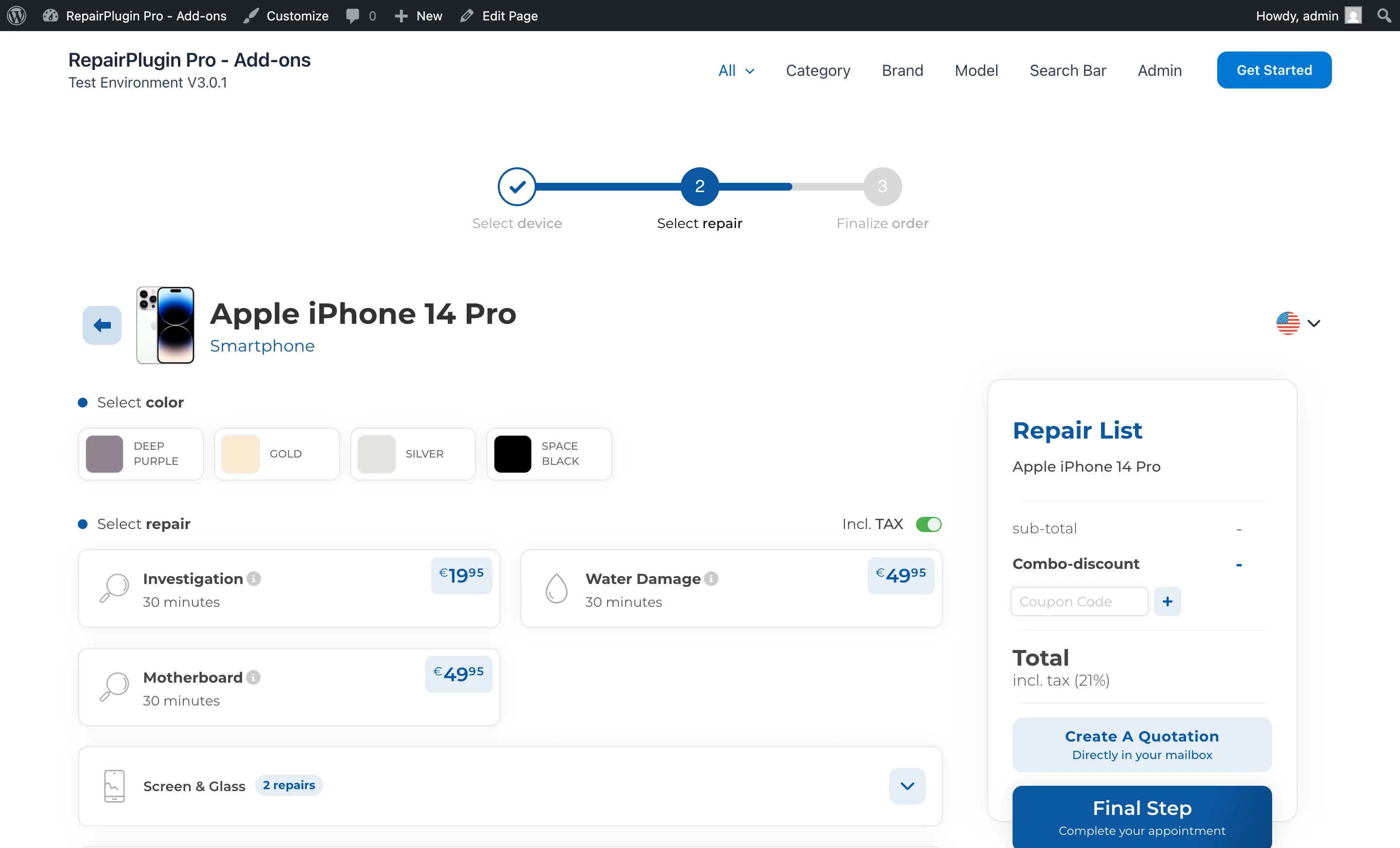
- Pick a detailed or compact layout for your repair list — show full descriptions or keep it clean and minimal.
- Show single-attribute details right inside the repair box so customers don't have to click through an extra step.
- Add "Read More" links to let customers expand long repair descriptions without cluttering the page.
- Customize the "Read More" link color to match your brand.
- Show model codes on the repair page — display model code badges on the repair selection step so customers can verify they've selected the correct device variant.
Where to find it
- In the WordPress admin menu, click RepairPlugin.
- Click Settings in the submenu.
- In the settings sidebar, click Front-End Steps.
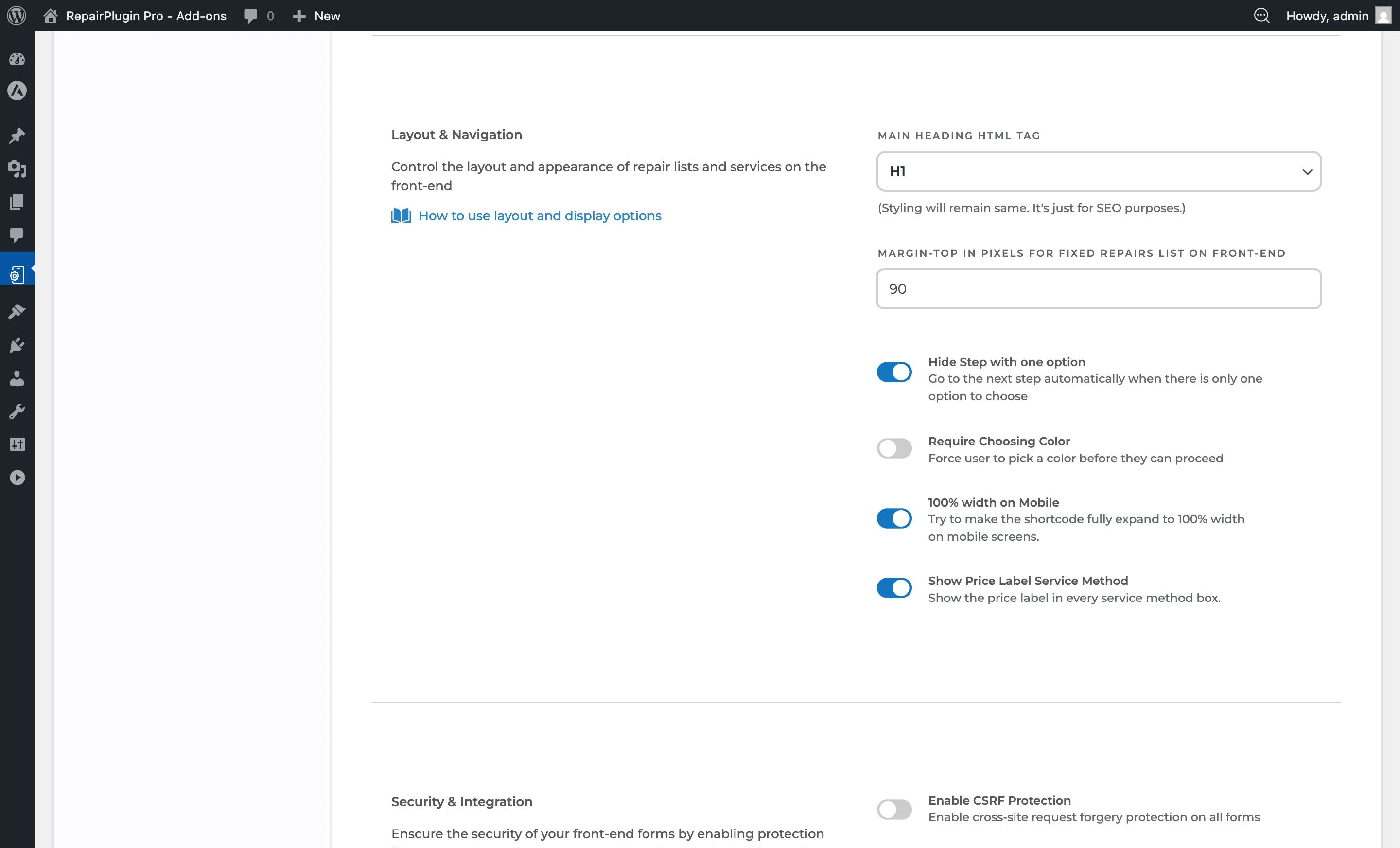
- Scroll down past the Branding section to Repair Boxes.
https://www.repairplugin.com/wp-admin/admin.php?page=wp_repair_settings§ion=styling
https://www.repairplugin.com/book-a-repair#repairs
https://www.repairplugin.com/book-a-repair
https://www.repairplugin.com/book-a-repair
How to set it up
Choose the repair box view
- In the Repair Boxes section, find Repair Box Styling.
- Open the dropdown and select Extended or Minimized.
- Click Save Changes.
Show or hide repair attributes
- Find Show Repair Attribute.
- Turn the switch on to display attribute information when a repair has only one attribute.
- Turn it off to hide single-attribute details (customers won't see the attribute step).
- Click Save Changes.
Turn on Read More links for repairs
- Find Read More Links.
- Turn the switch on to show a "Read More" link inside repair boxes.
- When turned on, two color settings appear below.
- Set the Read more link color (default:
#d41c1c). - Set the Read more link hover color (default:
#a00e0e). - Click Save Changes.
Turn on Read More links for attributes
- Find Read More Link for Attribute.
- Turn the switch on to show "Read More" links for repair attribute descriptions.
- The same color settings (shared with repair Read More links) apply.
- Click Save Changes.
Show or hide model codes
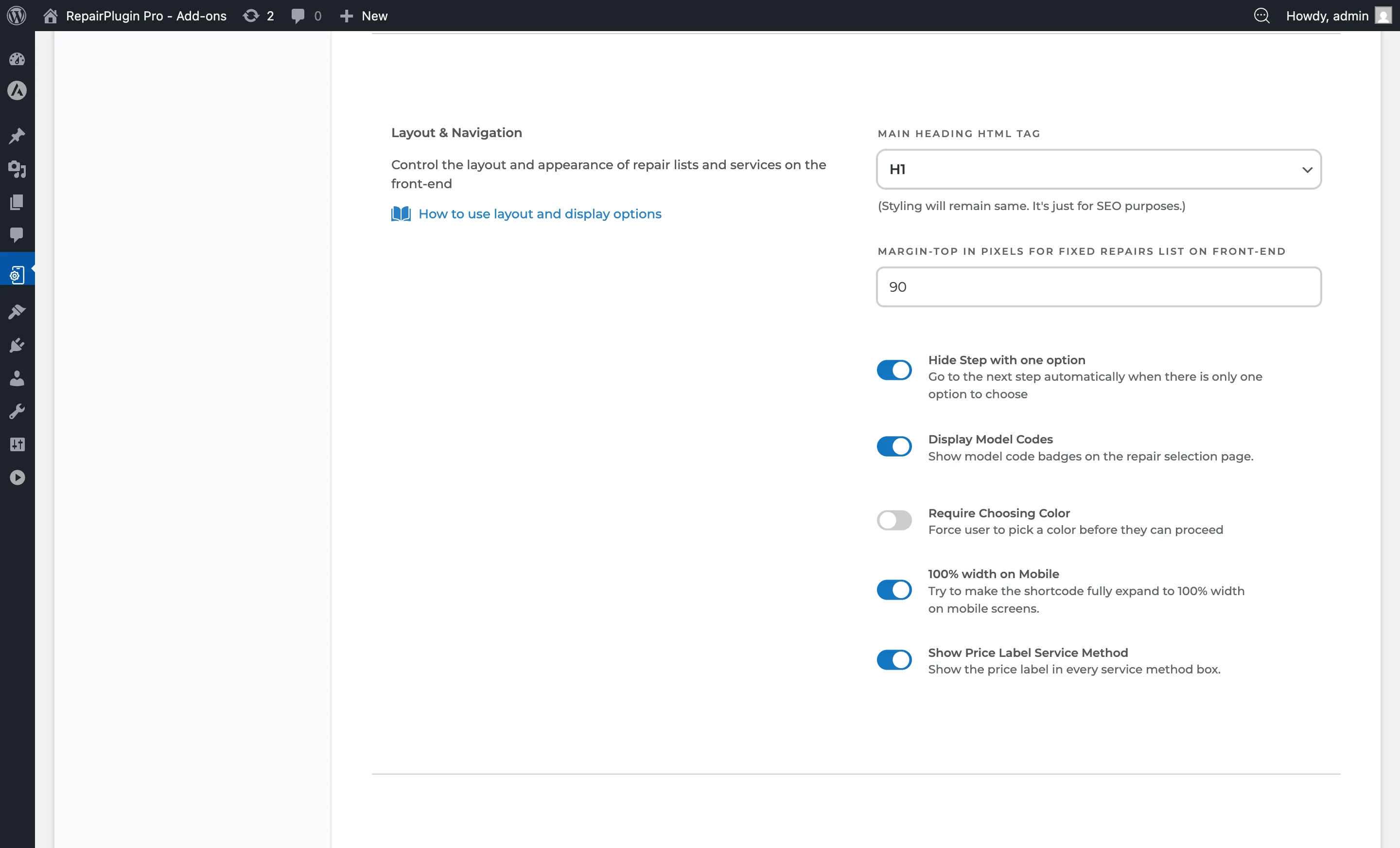
- In the Repair Boxes section, find Display Model Codes.
- Turn the switch on to show model code badges on the repair selection page.
- Turn it off to hide model codes.
- Click Save Changes.
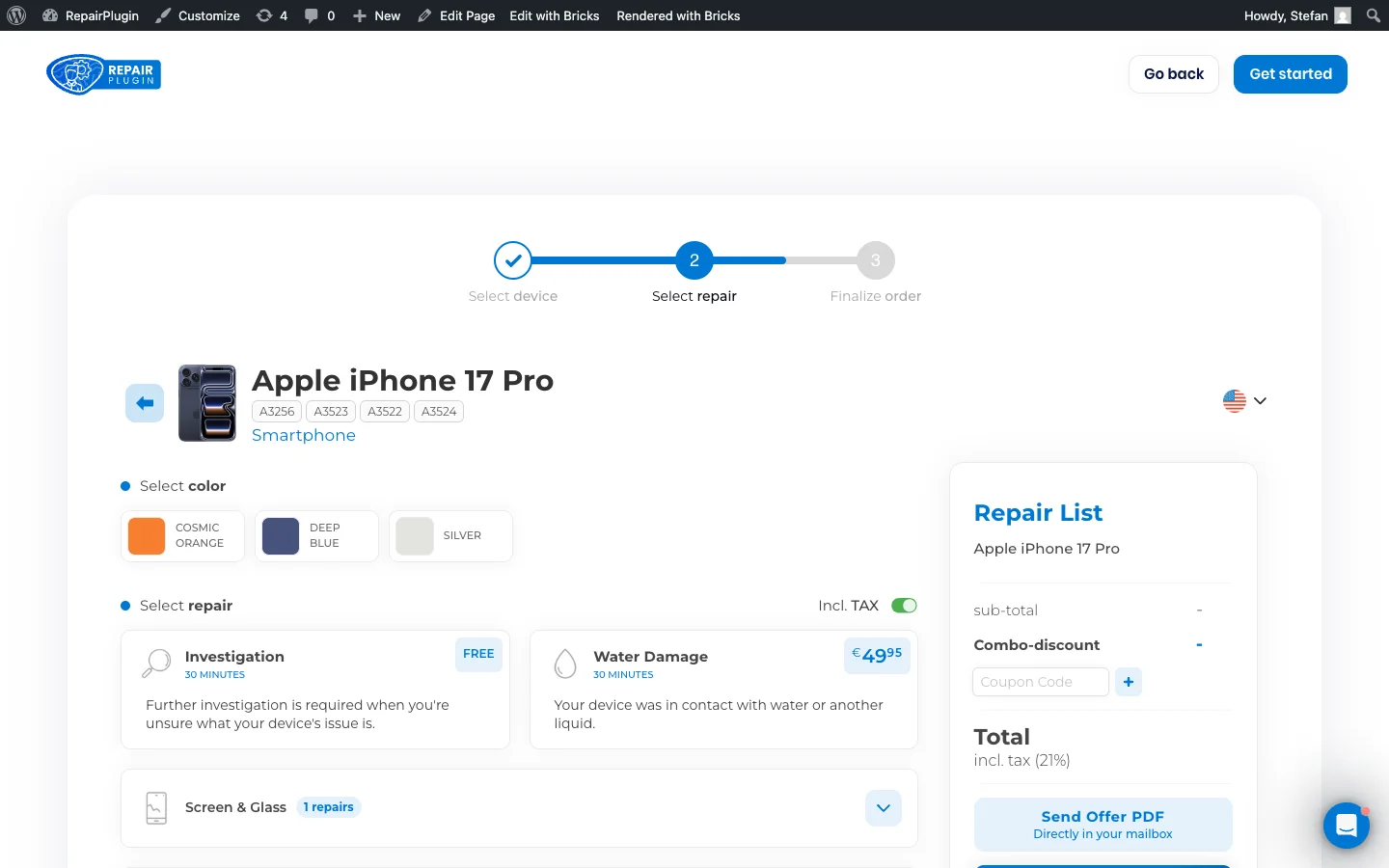
When enabled, model codes appear as small badges next to each model on the repair selection step. This helps customers identify the exact device variant, especially for models with similar names.
https://www.repairplugin.com/wp-admin/admin.php?page=wp_repair_settings§ion=styling
https://www.repairplugin.com/book-a-repair
Settings reference
| Setting | Description | Default | Customers see |
|---|---|---|---|
| Repair Box Styling (View Type) | Controls how much information each repair box shows. Extended displays the full repair description below the repair name and price. Minimized hides descriptions and only shows the repair name, duration, and price Tip: Use Extended view if your repair descriptions help customers understand what's included. Use Minimized view for shorter repair lists or when descriptions aren't needed. | Extended | In Extended view, they get more context about what each repair covers before selecting it. In Minimized view, they see a compact list that's faster to scan. |
| Show Repair Attribute | When a repair has only one attribute, the attribute information shows directly in the repair box. This removes the need for an extra click to see or select the attribute | on | Repair details are clearer at a glance — they don't have to click through an extra step for repairs with a single attribute. When turned off, the attribute step is skipped silently. |
| Read More Links (Repair Box) | Adds a "Read More" link inside each repair box. Customers can click it to expand and read the full repair description without leaving the current view Tip: This is especially useful in Extended view when descriptions are long — it keeps the interface tidy while still giving customers access to all the details. | off | A clickable "Read More" link appears in each repair box. Clicking it reveals the full description. The Read More text and descriptions can be set on each repair's edit page (Default Repairs or Models & Repair). |
| Read More Link for Attribute | Adds "Read More" links for repair attribute descriptions, letting customers expand attribute details on demand | off | A "Read More" link appears on repair attributes with longer descriptions. Clicking it reveals the full text. |
| Read More Link Color | Sets the color of the "Read More" link text in its normal state | #d41c1c (red) | The "Read More" link appears in this color. Pick a color that stands out against the repair box background while staying consistent with your brand. |
| Read More Link Hover Color | Sets the color of the "Read More" link text when a customer hovers over it Tip: The Read More color settings only appear when at least one of the two Read More switches (repairs or attributes) is turned on. | #a00e0e (darker red) | The link changes color on hover, confirming it's clickable. |
| Display Model Codes | When turned on, model code badges appear on the repair selection page next to each model. Model codes help customers verify they've selected the correct device variant Tip: Enable this if your catalog includes models with similar names but different specifications (e.g., iPhone 15 Pro vs iPhone 15 Pro Max) to reduce booking errors. | on | Small badges showing the model code appear next to device names on the repair selection step. |
Frequently asked questions
What does the "Read More" link show?
The Read More link isn't automatic text truncation -- it's a custom link you set per repair. Each repair can have its own URL and link text. When a customer clicks it, the link opens in a new tab. You need to enable Read More links in the settings and then add a URL and link text to individual repairs.