
Adding Custom Fonts
Learn how to add custom Google Fonts or self-hosted fonts to RepairPlugin's booking flow using the rp_get_font_options PHP filter.
What can you do with this?
- Match your brand typography — use the exact same font in the booking flow as on your website.
- Add any Google Font that isn't in the default list of 30.
- Use a self-hosted font (like a proprietary typeface) that isn't available on Google Fonts.
- Reuse a font your theme already loads without loading it twice.
Where to find it
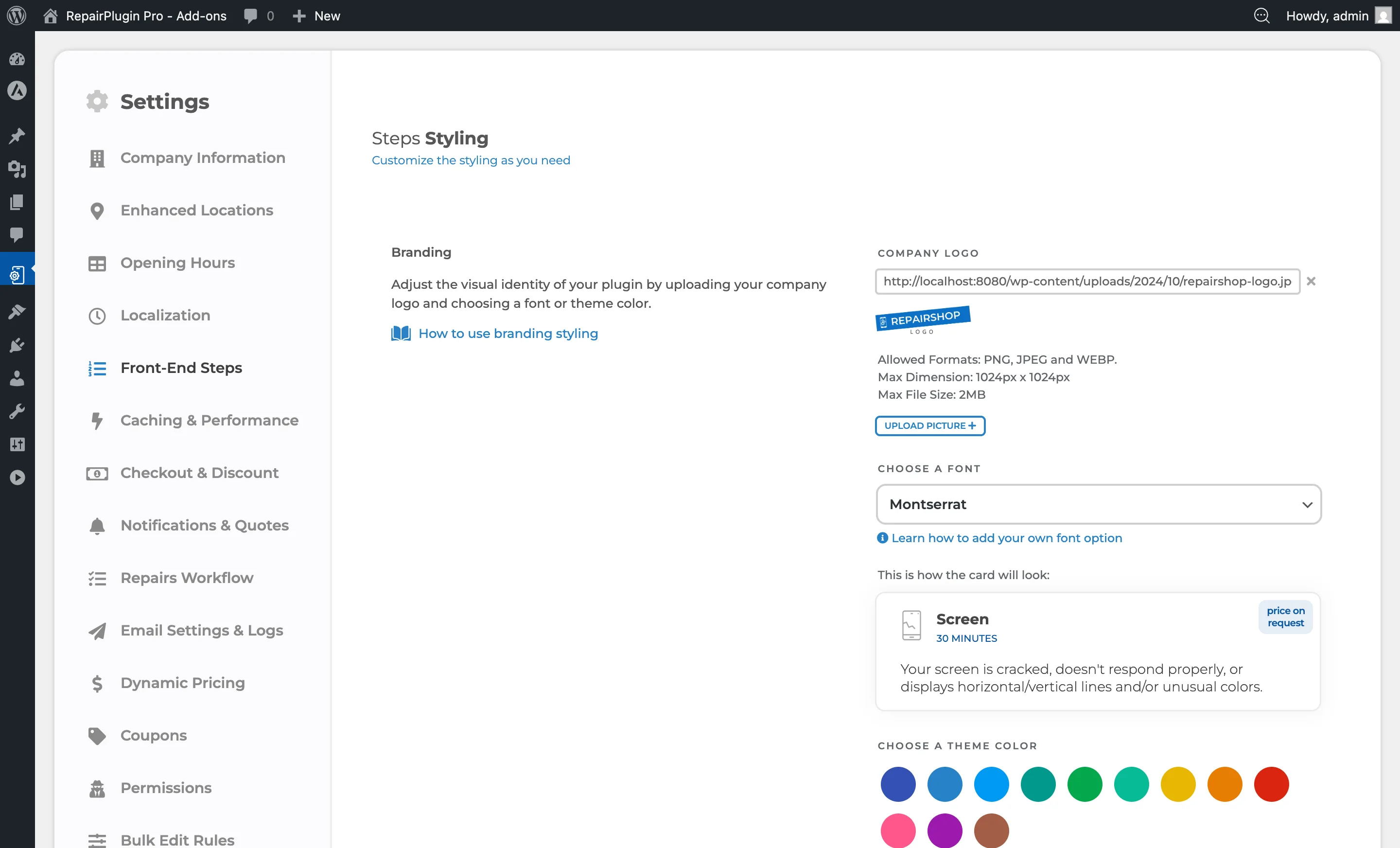
- In the WordPress admin menu, click RepairPlugin.
- Click Settings in the submenu.
- In the settings sidebar, click Front-End Steps.
- In the Branding section, find the Choose a font dropdown.
After adding a custom font via code, it appears in this dropdown alongside the built-in fonts.
How to set it up
This is a developer-level feature. You'll need to add a code snippet to your theme's functions.php file or a custom plugin.
Adding a Google Font
Add this code to your theme's functions.php file (or a site-specific plugin):
add_filter( 'rp_get_font_options', 'my_custom_rp_font', 10, 1 );

function my_custom_rp_font( $fonts ) {

    $fonts['my_custom_font'] = array(
        'name'        => 'My Custom Font',
        'font_link'   => '<link href="https://fonts.googleapis.com/css2?family=My+Custom+Font:wght@300;400;500;600;700&display=swap" rel="stylesheet">',
        'font_family' => '"My Custom Font", sans-serif',
    );

    return $fonts;
}
Each font entry needs three values:
| Key | Type | What it does |
|---|---|---|
name | String | The label shown in the font dropdown. |
font_link | String | An HTML <link> tag that loads the font. Leave empty ('') if your theme already loads the font. |
font_family | String | The CSS font-family value, including a fallback (e.g., '"My Font", sans-serif'). |
The array key (e.g., 'my_custom_font') must be a unique slug — lowercase, no spaces, using underscores.
Adding a self-hosted font
If your font isn't available on Google Fonts, host the font file yourself and reference it:
add_filter( 'rp_get_font_options', 'my_selfhosted_rp_font', 10, 1 );

function my_selfhosted_rp_font( $fonts ) {

    $font_url = get_stylesheet_directory_uri() . '/fonts/MyBrandFont.woff2';

    $fonts['my_brand_font'] = array(
        'name'        => 'My Brand Font',
        'font_link'   => '<style>@font-face { font-family: "My Brand Font"; src: url("' . $font_url . '") format("woff2"); font-weight: 100 900; font-display: swap; }</style>',
        'font_family' => '"My Brand Font", sans-serif',
    );

    return $fonts;
}
Make sure the font file (e.g., .woff2) is placed in the referenced directory within your theme.
Using a font your theme already loads
If your WordPress theme already loads the font, set font_link to an empty string. RepairPlugin will use the font_family value directly:
add_filter( 'rp_get_font_options', 'my_theme_font_for_rp', 10, 1 );

function my_theme_font_for_rp( $fonts ) {

    $fonts['theme_font'] = array(
        'name'        => 'My Theme Font',
        'font_link'   => '',
        'font_family' => '"My Theme Font", sans-serif',
    );

    return $fonts;
}
Selecting your custom font
After adding the code:
- Go to RepairPlugin > Settings > Front-End Steps.
- In the Branding section, open the Choose a font dropdown.
- Your custom font now appears in the list.
- Select it and click Save Changes.
- Check your booking page to verify the font looks right.
Settings reference
| Setting | Description | Default | Customers see |
|---|---|---|---|
| Filter: rp_get_font_options | Lets developers add, remove, or change the list of fonts available in the RepairPlugin font dropdown | 30 built-in Google Fonts (sorted alphabetically) | When you select a custom font, all text in the booking flow — repair names, descriptions, prices, and buttons — appears in that font. |
| Setting | Description | Default | Customers see |
|---|---|---|---|
| name | Sets the label that appears in the font dropdown for this font | — | No direct effect — this is the name you see in the admin dropdown. |
| font_link | Loads the font on every page that uses a RepairPlugin shortcode. Can be a Google Fonts <link> tag, a <style> block with @font-face, or an empty string if the font is already loaded by your theme | — | No direct effect — this runs behind the scenes to make the font available. |
| font_family | Sets which font RepairPlugin actually uses for all text in the booking flow Tip: Always include a fallback font (e.g., sans-serif) so text still looks good if the custom font fails to load. | — | All text in the booking interface appears in this font. |
Built-in fonts
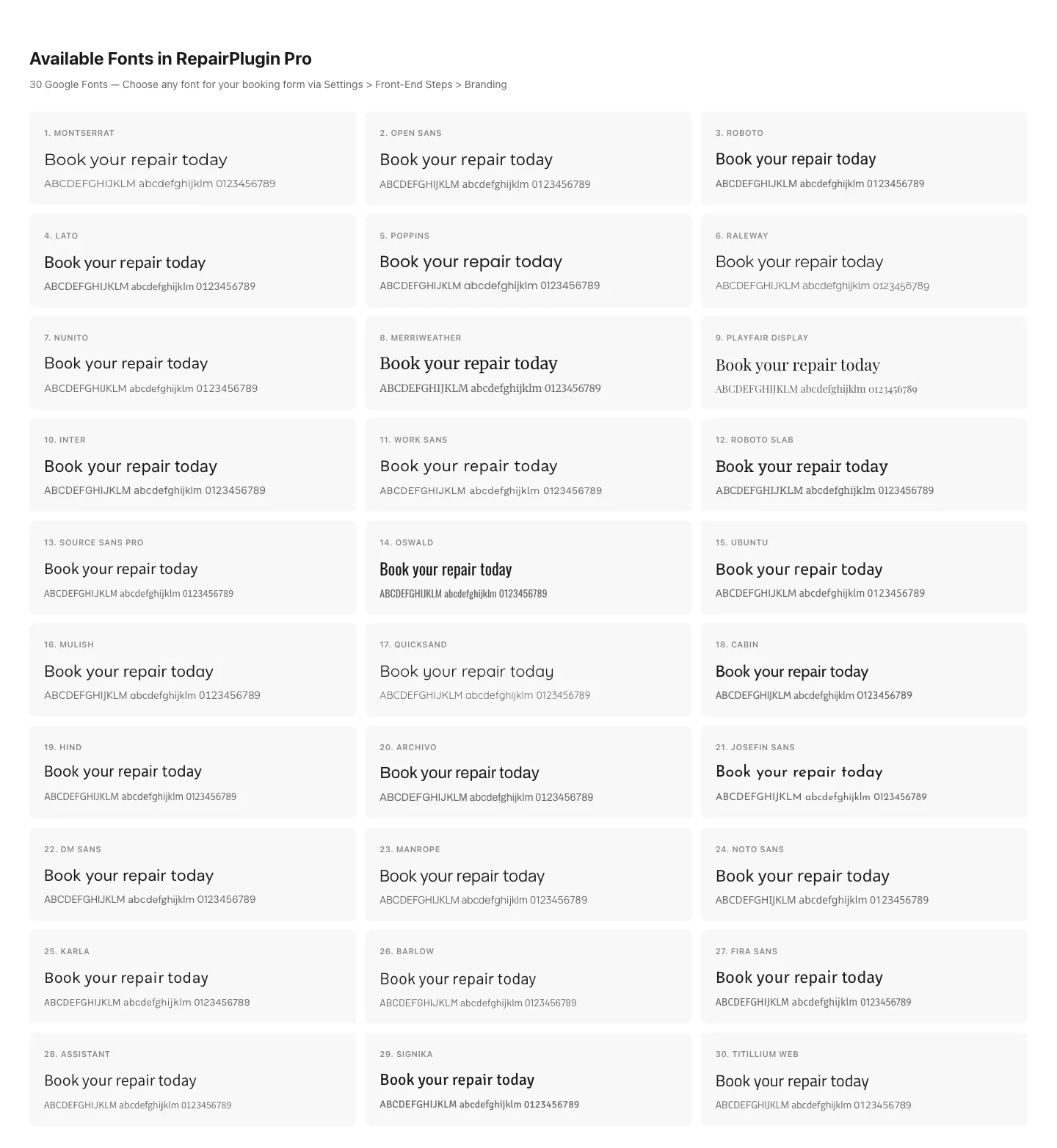
RepairPlugin includes these 30 fonts by default: Archivo, Arial, Assistant, Barlow, Cabin, DM Sans, Fira Sans, Hind, Inter, Josefin Sans, Kanit, Karla, Lato, Manrope, Merriweather, Montserrat, Muli, Noto Sans, Nunito, Open Sans, Oswald, Playfair Display, Poppins, Quicksand, Raleway, Roboto, Roboto Slab, Signika, Source Sans Pro, Titillium Web, Ubuntu, and Work Sans. The default font (when none is selected) is Montserrat.
Frequently asked questions
Do I need coding knowledge for this?
Yes. Adding a custom font requires editing your theme's functions.php file or creating a small custom plugin. If you're not comfortable with PHP code, ask your web developer to add the snippet for you.
Will my custom font disappear after a theme update?
It can, if you added the code to your parent theme's functions.php. Place the code in a child theme's functions.php or a site-specific plugin to keep it safe during updates.
Can I add more than one custom font?
Yes. Just make sure each font uses a unique array key (e.g., 'brand_font_one', 'brand_font_two').