
Pre-Appointment Checklist
Set up a pre-appointment checklist in RepairPlugin so customers arrive prepared for their repair — shown on the Thank You page after booking.
What can you do with this?
- Show a preparation checklist on the Thank You page right after booking, when customers are most engaged
- Add as many checklist items as you need (e.g., "Back up your data," "Remove your phone case")
- Reorder, edit, and delete items at any time
- Translate each checklist item for multilingual customers
- Turn the entire checklist on or off with a single switch
Where to find it
- In the WordPress admin, go to RepairPlugin in the left sidebar.
- Click Settings.
- In the settings sidebar, click Front-End Steps.
- Scroll down to the Pre-Appointment Checklist section.
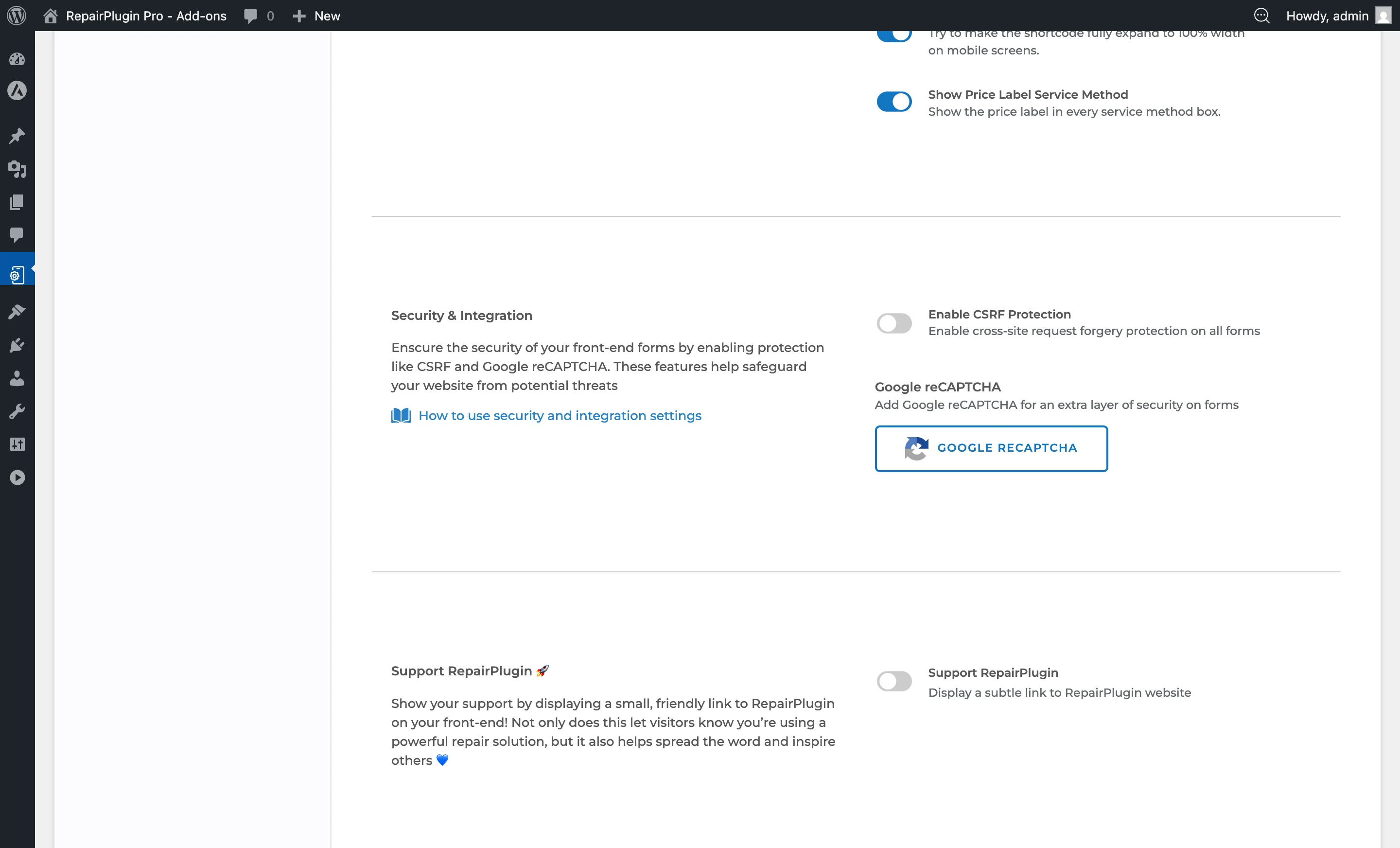
The checklist management area appears below the progress bar and search bar settings on the Front-End Steps page.
How to set it up
Enabling or Disabling the Checklist
At the top of the Pre-Appointment Checklist section:
- Locate the switch labeled Enable This Checklist on Thank You page.
- Switch it on to display the checklist on the Thank You page after booking.
- Switch it off to hide the checklist entirely, even if checklist items exist.
The switch saves immediately -- no need to click a separate save button.
Adding a Checklist Item
- Click the Add Item + button below the checklist items table.
- A new empty row appears at the bottom of the list.
- Type the checklist item text (e.g., "Back up your device data").
- The item is added to the list.
You can add as many items as you need. Each item gets a unique ID and can be translated.
Editing Existing Checklist Items
- Click the Update Items button.
- Change the text of any existing checklist item directly in the input field.
- Changes are saved when you confirm the update.
Reordering Checklist Items
Each checklist item has sort buttons (up/down arrows) on the left:
- Click the up arrow to move an item higher in the list.
- Click the down arrow to move an item lower in the list.
The order on the admin screen matches the order shown to customers on the Thank You page.
Deleting a Checklist Item
- Click the trash icon (garbage bin) next to the item you want to remove.
- Confirm the deletion when prompted.
- The item is permanently removed.
Translating Checklist Items
Each checklist item has a globe icon next to its text field:
- Click the globe icon on the checklist item you want to translate.
- A translation popup opens showing all configured languages.
- Enter the translated text for each language.
- Save the translations.
Translations use the same localization system as the rest of RepairPlugin. Customers see the checklist in their language if translations are configured.
Settings reference
| Setting | Description | Default | Customers see |
|---|---|---|---|
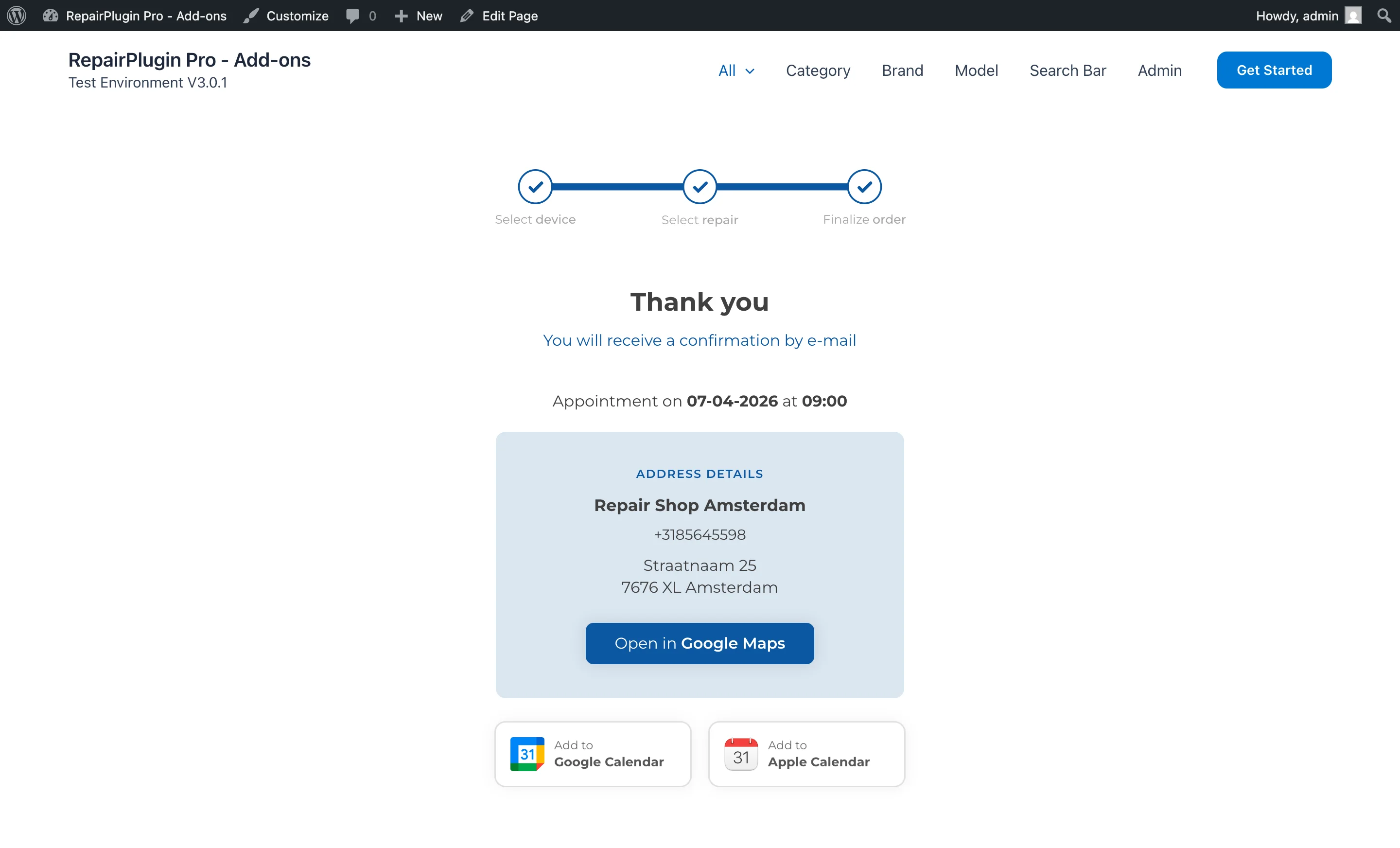
| Enable This Checklist on Thank You page | Controls whether the checklist section appears on the Thank You page after a customer completes a booking | off | When enabled, a checklist of preparation items appears at the bottom of the Thank You page right after submitting their appointment. When disabled, no checklist appears, regardless of how many items are configured. |
 | |||
| Setting | Description | Default | Customers see |
| --- | --- | --- | --- |
| Checklist Items | Each item defines one line in the checklist. Items appear in the order you arrange them in the admin panel Tip: Keep items short and actionable -- 4 to 7 items is the sweet spot. Typical items for a device repair shop include things like "Back up your device data," "Remove your SIM card and memory card," "Disable Find My iPhone / Find My Device," and "Bring your charger or power cable." | empty (no items) | Each item appears as a checklist entry on the Thank You page so they can prepare for their appointment. |
Frequently asked questions
Does the checklist show on custom Thank You pages?
No. The checklist only appears on the default RepairPlugin Thank You page. If you redirect customers to a custom WordPress page (configured under Settings > Checkout & Discount > Thank You Page), the checklist won't be shown.
Can I add different checklists for different repair types?
No. There's one checklist for all bookings. You can't show different items based on the device or repair type. Keep your items general enough to apply to most repairs.