
Customer Portal
Learn how to manage your RepairPlugin subscription, download plugin updates, and find your license key in the customer portal at my.repairplugin.com.
What can you do with this?
- Download the latest plugin version -- grab the newest release or roll back to a previous version.
- View and copy your license key -- find the key you need to activate the plugin on your site.
- Manage your subscription -- upgrade, downgrade, or change your billing interval.
- Update billing and payment details -- keep your payment method and address current for renewals.
- Watch the onboarding walkthrough -- get up to speed with an interactive video guide.
Where to find it
URL: https://my.repairplugin.com
- Go to my.repairplugin.com in your browser.
- Sign in with your email and password, or use Sign in with Google.
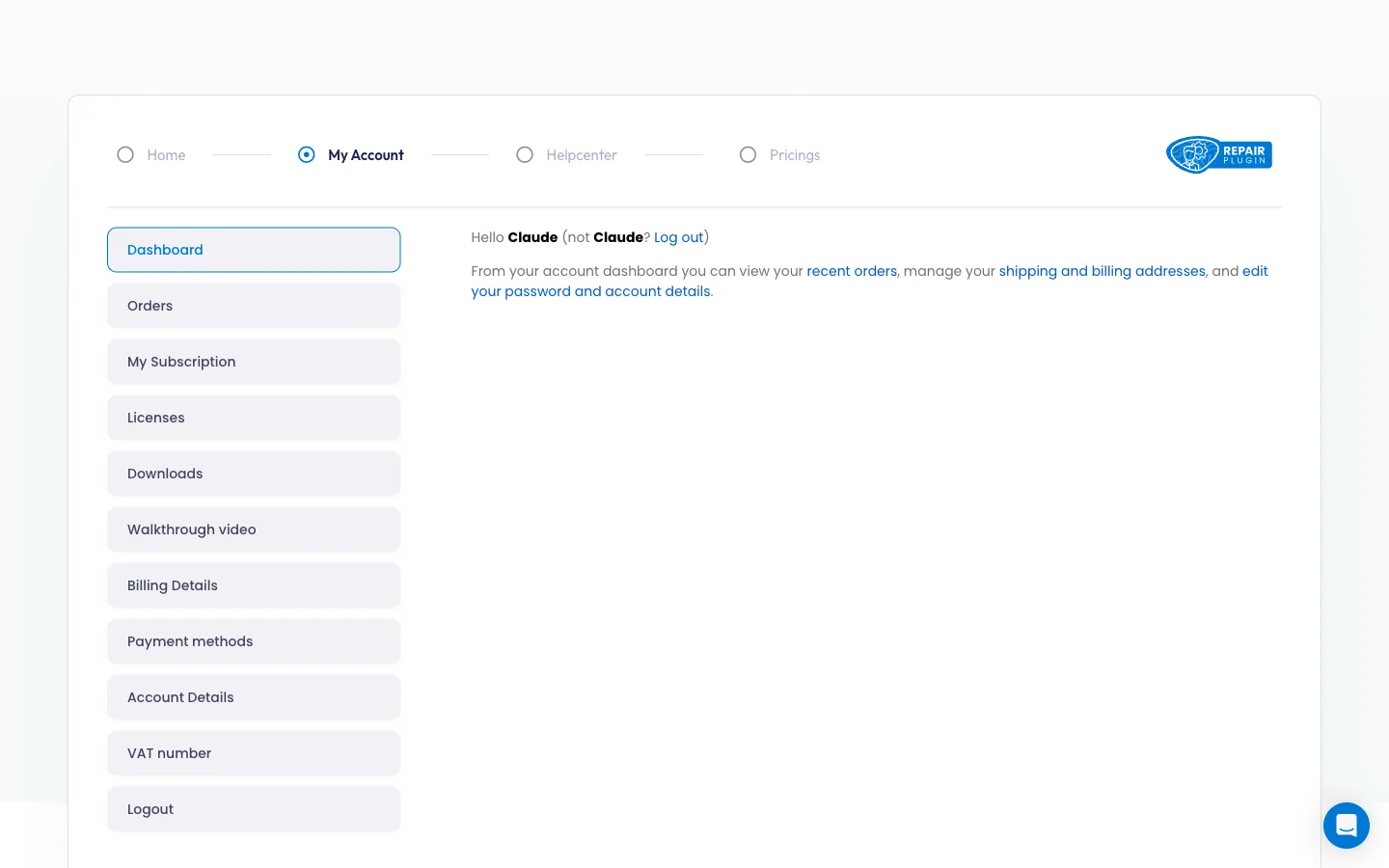
- After login, you land on the Dashboard page.
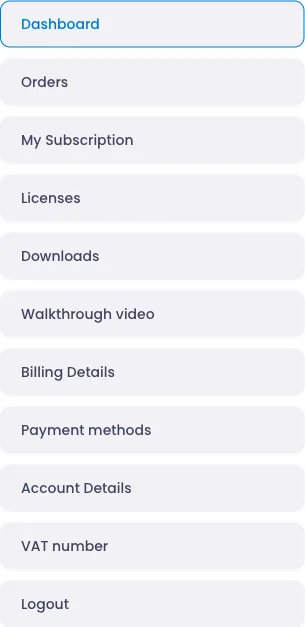
- Use the sidebar navigation on the left to access all portal sections.
Top navigation bar
The portal header has four links:
| Link | Where it goes |
|---|---|
| Home | repairplugin.com (main website) |
| My Account | my.repairplugin.com/my-account/ |
| Helpcenter | help.repairplugin.com |
| Pricings | repairplugin.com/pricing |
Sidebar navigation
The sidebar contains 10 sections:
| Menu item | What it's for |
|---|---|
| Dashboard | Welcome page with quick links |
| Orders | Order history and invoices |
| My Subscription | Active subscription details and plan management |
| Licenses | License key overview and status |
| Downloads | Plugin download links (current and previous versions) |
| Walkthrough video | Embedded interactive guide |
| Billing Details | Billing address management |
| Payment methods | Saved payment methods |
| Account Details | Name, email, and password settings |
| VAT number | EU VAT number for tax exemption |
How to set it up
Dashboard
The Dashboard is your landing page after login. It shows a personalized greeting and quick links to your recent orders, billing address, and account settings.
View your orders
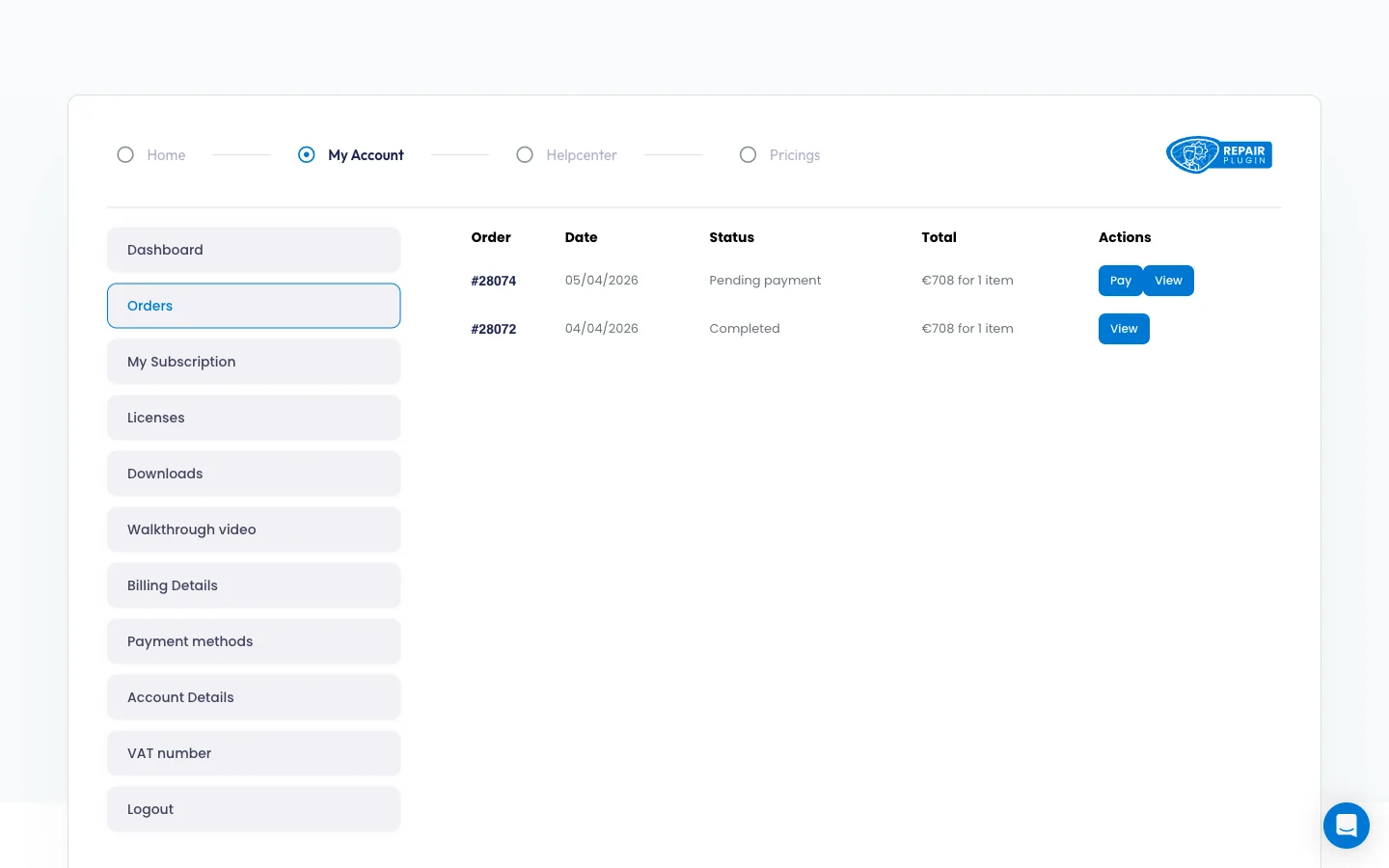
- Click Orders in the sidebar.
- You'll see a table with your order history: order number, date, status, total, and a View link.
- Click View on any order to open the full order details -- product, subtotal, discount, VAT, payment method, total, and related subscriptions.
- Scroll to the bottom of the order details and click Download invoice to save a PDF copy of the invoice.

Manage your subscription
- Click My Subscription in the sidebar.
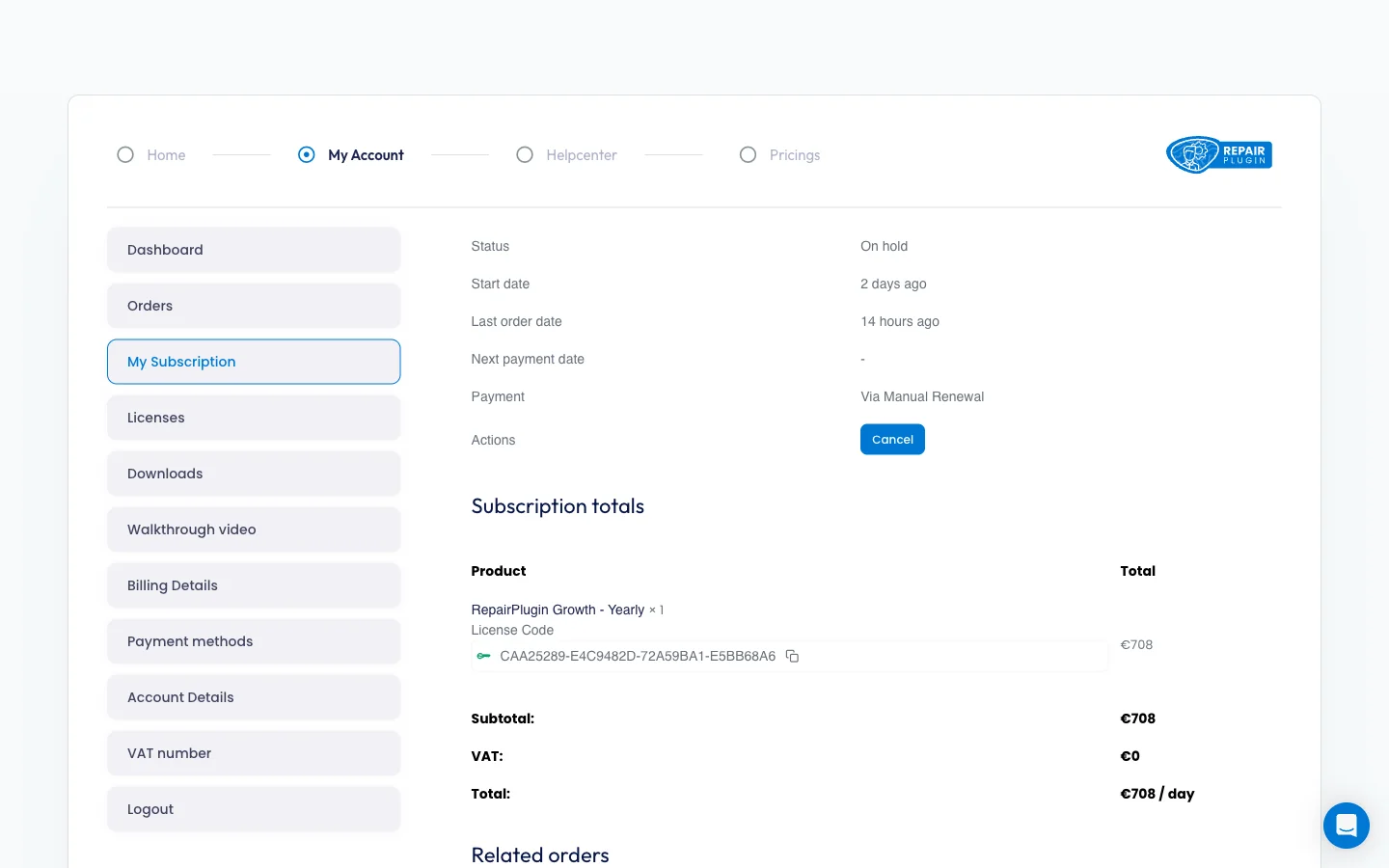
- You'll see your subscription status, start date, last order date, next payment date, and payment method.
- To change your plan, select a new Plan (Essential, Growth, or Scale) or Interval (Half-Yearly or Yearly). The change takes effect at your next billing cycle.
- To cancel, click Cancel in the Actions column.
The page also shows your subscription totals (product, license code, subtotal, VAT, and total) and a list of all related orders.
Find your license key
- Click Licenses in the sidebar.
- You'll see a table with your license key, status (Active or Inactive), expiration date, and the number of sites it's activated on.
This is the same key you enter in the WordPress admin at RepairPlugin > License to activate the plugin on your domain.
Download the plugin
- Click Downloads in the sidebar.
- Click the download link for the latest version or the downgrade version (a previous stable release for rollback).
- The
.zipfile downloads immediately. Install it via WordPress Admin > Plugins > Add New > Upload Plugin.
Watch the walkthrough video
- Click Walkthrough video in the sidebar.
- The interactive guide has two chapters: an Intro Video and a Walkthrough of the plugin features.
- Use the back/next buttons to navigate. Sound, closed captions, fullscreen, and replay are all available.
Update billing details
- Click Billing Details in the sidebar.
- Fill in or update your name, company, address, phone, and email.
- Optionally check the box to update your billing address for all future subscription renewals.
- Click Save.
Manage payment methods
- Click Payment methods in the sidebar.
- View your saved payment methods or click Add payment method to add a new card for future renewals.
Update account details
- Click Account Details in the sidebar.
- Update your first name, last name, display name, or email address.
- To change your password, fill in your current password and your new password (twice to confirm).
- Click Save.
Add a VAT number
- Click VAT number in the sidebar.
- Enter your EU VAT number. When a valid VAT number is provided, your renewal invoices may be exempt from VAT (for EU business-to-business transactions).
Settings reference
| Setting | Description | Default | Customers see |
|---|---|---|---|
| Login Methods | Lets you sign in to the portal. You can also check "Remember Me" to stay logged in, or use the "Lost password" link to reset your password | Email + Password | Nothing -- this portal is for shop owners and administrators, not for your repair shop customers. |
| Subscription Plans | Lets you switch between plans. Available billing intervals are Half-Yearly and Yearly. Pricing is shown in EUR, and VAT is calculated based on your country and VAT number | depends on your purchase | Nothing -- your plan choice doesn't affect what repair shop customers see. |
| License Key | Identifies your subscription. You enter this key in the WordPress admin at RepairPlugin > License to activate the plugin on your domain. Each license can be activated on one domain at a time | Generated at purchase | If the subscription expires or is cancelled, the license becomes inactive and visitors see an error message on your site. See License & Updates for troubleshooting. |
| Support Chat | Opens a direct support conversation via Intercom. This is the primary way to contact RepairPlugin support | always available | Nothing -- the chat is only available on the portal, not on your repair shop site. |
Frequently asked questions
Is this portal for my repair shop customers?
No. The Customer Portal is for shop owners and administrators who bought a RepairPlugin license. Your repair shop customers never see or use it.
Can I activate my license on more than one domain?
Each license can be activated on one domain at a time. If you move to a new domain, deactivate the old one first via RepairPlugin > License.
How do I get a copy of my invoice?
Sign in at my.repairplugin.com, click Orders in the sidebar, click View on the order you need, then click Download invoice at the bottom of the order details. The invoice downloads as a PDF.