
Permissions & Roles
Configure RepairPlugin permissions and roles to control which team members can access plugin settings, manage locations, or edit repair data.
What can you do with this?
- Limit admin access — decide which team members can see and change plugin settings.
- Protect sensitive actions — license management, data resets, and import/export stay reserved for top-level admins only.
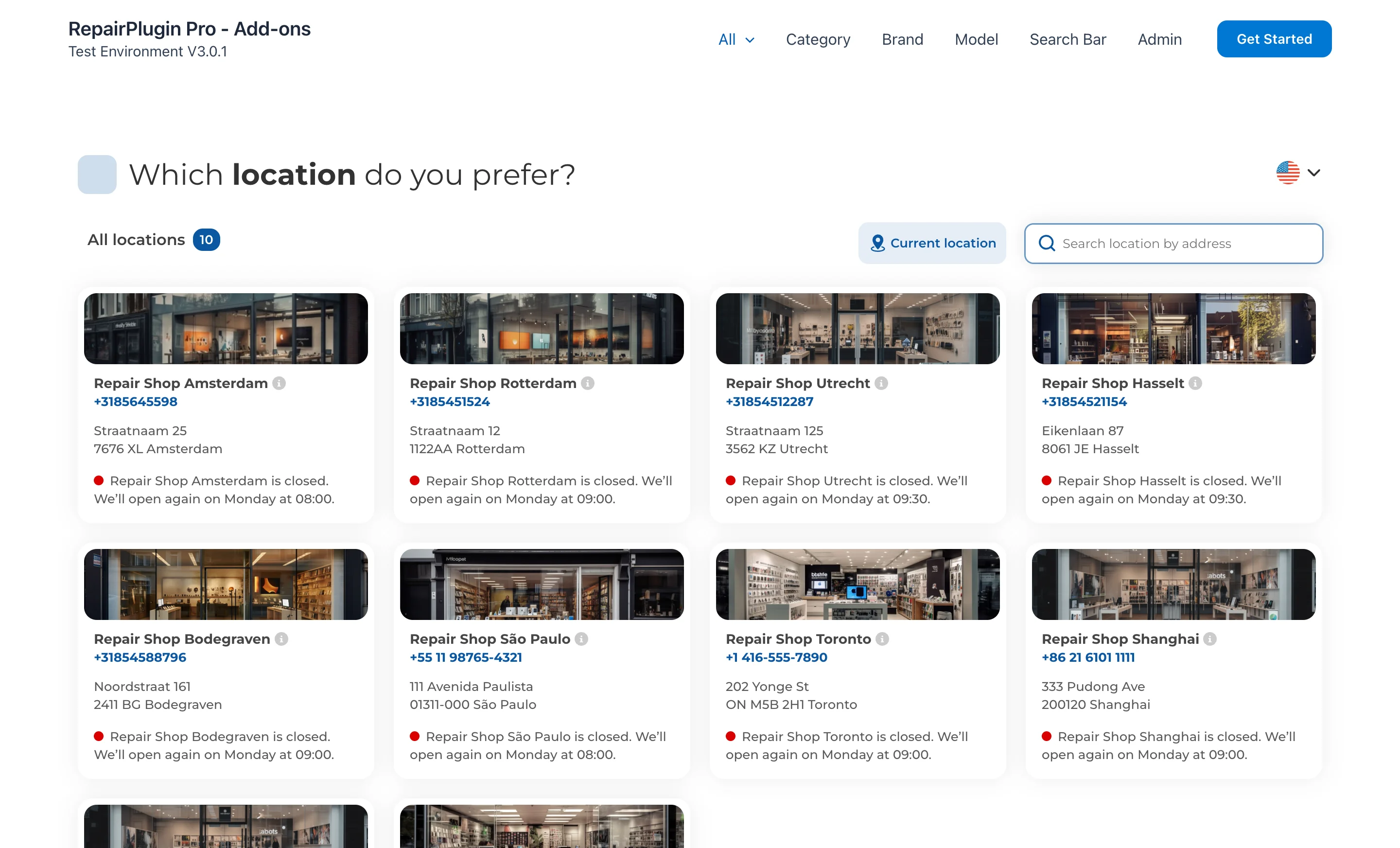
- Assign location managers — give staff access to only their own location's schedules and data (requires Enhanced Locations, available on the Scale plan).
- Use a dedicated plugin role — assign the built-in "RepairPlugin" WordPress role to users who should only access the plugin dashboard.
Where to find it
- In your WordPress admin, go to RepairPlugin in the left sidebar.
- Click Settings.
- In the settings sidebar, click Permissions.
Note: The Permissions menu item is only visible to WordPress administrators.
How to set it up
Understand the three access levels
RepairPlugin has three access levels:
- Top Level — WordPress administrators automatically get full access, including permissions management, import/export, data reset, and license management. You can't remove Top Level users from the list.
- Full — Users you add through this page. They can access and configure all plugin settings except the actions reserved for Top Level users.
- Location — Users assigned as location managers via Enhanced Locations. They can only manage schedules and data for their assigned location(s). This level only appears when pricing based on location is enabled.
View current users
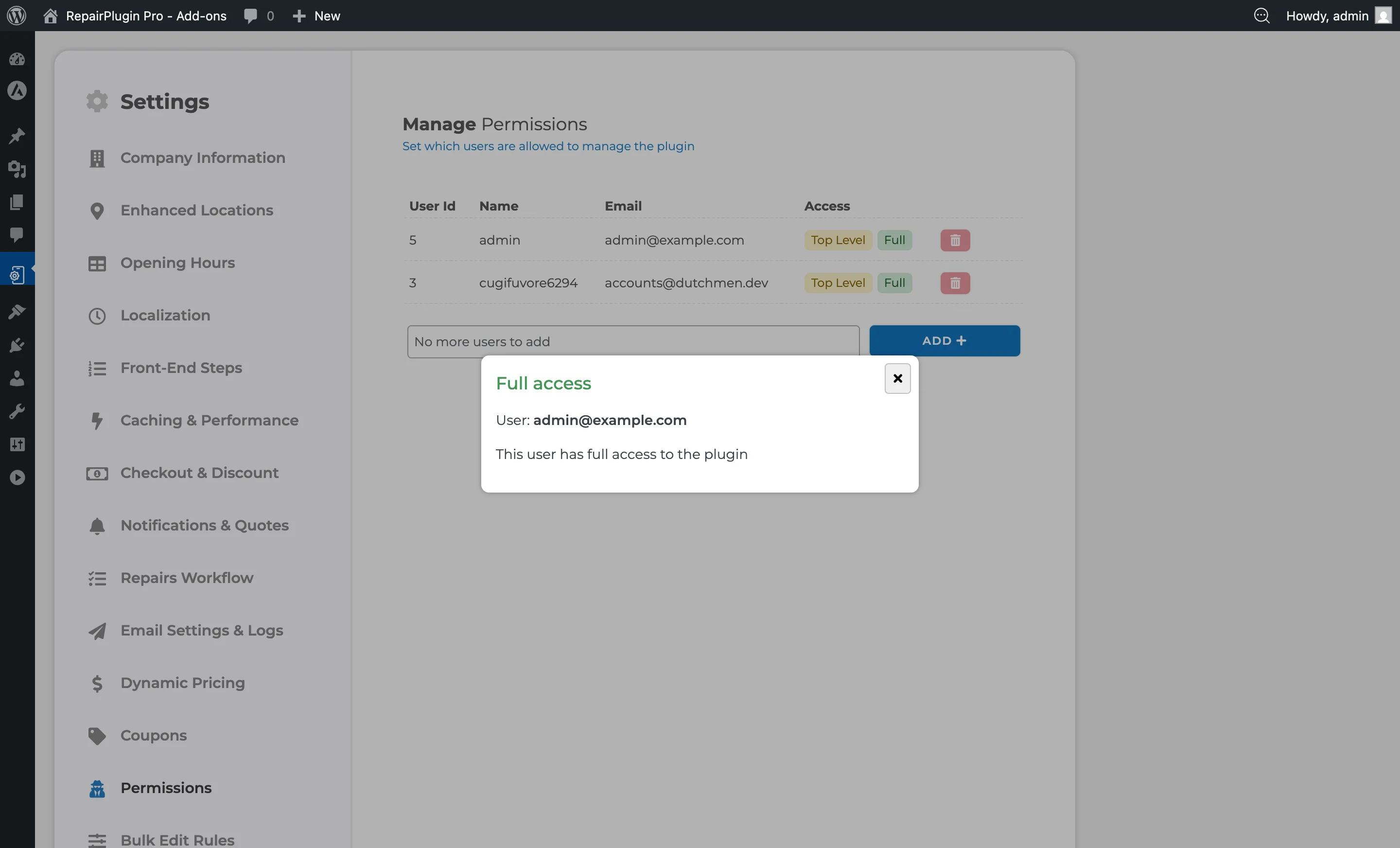
The permissions page shows a table of all users who currently have access to RepairPlugin:
| Column | What it shows |
|---|---|
| User Id | The WordPress user ID |
| Name | The user's display name |
| The user's email address | |
| Access | Badge showing the access level: Top Level (gold), Full (green), or Location (blue) |
| Actions | Delete button to remove access |
Click on an access badge to see more details. The Location badge also shows which location(s) the user manages, with links to each location.
Add a user
- At the bottom of the permissions table, use the Select User dropdown (supports search and multi-select).
- Select one or more users to grant access.
- Click Add.
- The selected user(s) appear in the table with a Full access badge.
Note: If a user was previously a Location manager, adding them as a Full access user automatically removes their location assignments.
Remove a user
- Find the user in the permissions table.
- Click the red trash icon in the actions column.
- A confirmation popup appears showing the user's email.
- Click Remove to confirm.
- The user loses all RepairPlugin access and any location manager assignments.
Note: Top Level users can't be removed. The delete button is grayed out for these users.
The "RepairPlugin" WordPress role
RepairPlugin registers a custom WordPress role called "RepairPlugin" during installation. This role has minimal WordPress permissions and is meant for users who should only access the plugin dashboard — nothing else in WordPress.
Users with only a "subscriber" or "customer" role can't be added to the permissions list.
The "RepairPlugin Customer" role (Customer Portal)
When the Customer Portal addon is available (Growth and Scale plans), RepairPlugin also registers a role called RepairPlugin Customer (repairplugin_customer). Every new WordPress registration gets this role automatically, next to your site's default role.
This role is for your customers, not your team:
- It only allows opening the Customer Portal on your website.
- Users whose only role is RepairPlugin Customer are automatically redirected away from your WordPress admin.
- These users can't be added to the RepairPlugin permissions list.
Settings reference
| Setting | Description | Default | Customers see |
|---|---|---|---|
| Permissions table | Displays all users who currently have any level of access to RepairPlugin | shows all WordPress administrators (Top Level) | No visible change — this is an admin-only feature. |
| Add User dropdown | Lists all WordPress users who don't already have RepairPlugin access. Users with only a subscriber or customer role are excluded | empty (no users selected) | No visible change. |
| Access Level: Top Level | Gives unrestricted access including license management, permissions, import/export, and data reset. Can't be granted or removed through the plugin — it follows the WordPress administrator role | granted to all WordPress administrators | No visible change. |
| Access Level: Full | Gives access to all plugin settings and features except those reserved for Top Level users (permissions, import/export, reset data, license) | not granted | No visible change. |
| Access Level: Location | Limits access to only the assigned location(s). Location managers can manage schedules for their locations but can't access global settings | not granted | No visible change. |
Frequently asked questions
What's the difference between Full Access and Top Level?
Top Level users are WordPress administrators with the activate_plugins capability. They can access everything, including license management, permissions, import/export, and data reset. Full Access users can manage all plugin features (appointments, models, settings) but can't access those admin-only areas. Location Managers can only see data for their assigned locations.
Can I create custom permission levels?
No. RepairPlugin has three fixed levels: Top Level, Full Access, and Location Manager. You can't create intermediate levels or restrict access to specific menu items within a level.