
License & Updates
Activate, deactivate, and manage your RepairPlugin license key. Troubleshoot common license issues and keep your plugin up to date.
What can you do with this?
- Activate your plugin — enter your license key and email to unlock all features after installation.
- Check your license status — see at a glance whether your license is valid, when it expires, and what plan you're on.
- Deactivate before migrating — free up your license slot so you can move to a new domain.
- Recheck after renewing — refresh your license status instantly after a subscription renewal.
Where to find it
Path: RepairPlugin (main menu item, top-level page)
- In your WordPress admin sidebar, click RepairPlugin.
- The main landing page is the License & System Status page.
- The license section appears at the top of the page.
Note: If no valid license is activated, this page shows the license activation form instead of the full plugin menu. Settings and sub-pages only become available after successful activation.
How to set it up
Activate your license
- Go to RepairPlugin in the admin sidebar.
- The page shows the title "Repairplugin [plan type]" with an "Inactive" badge.
- Enter your License Code in the format
xxxxxxxx-xxxxxxxx-xxxxxxxx-xxxxxxxx. - Enter the Email address you used when you purchased the plugin.
- Click Activate.
- If successful, the page reloads showing the full plugin interface with your license info and all menu items.
View your license information
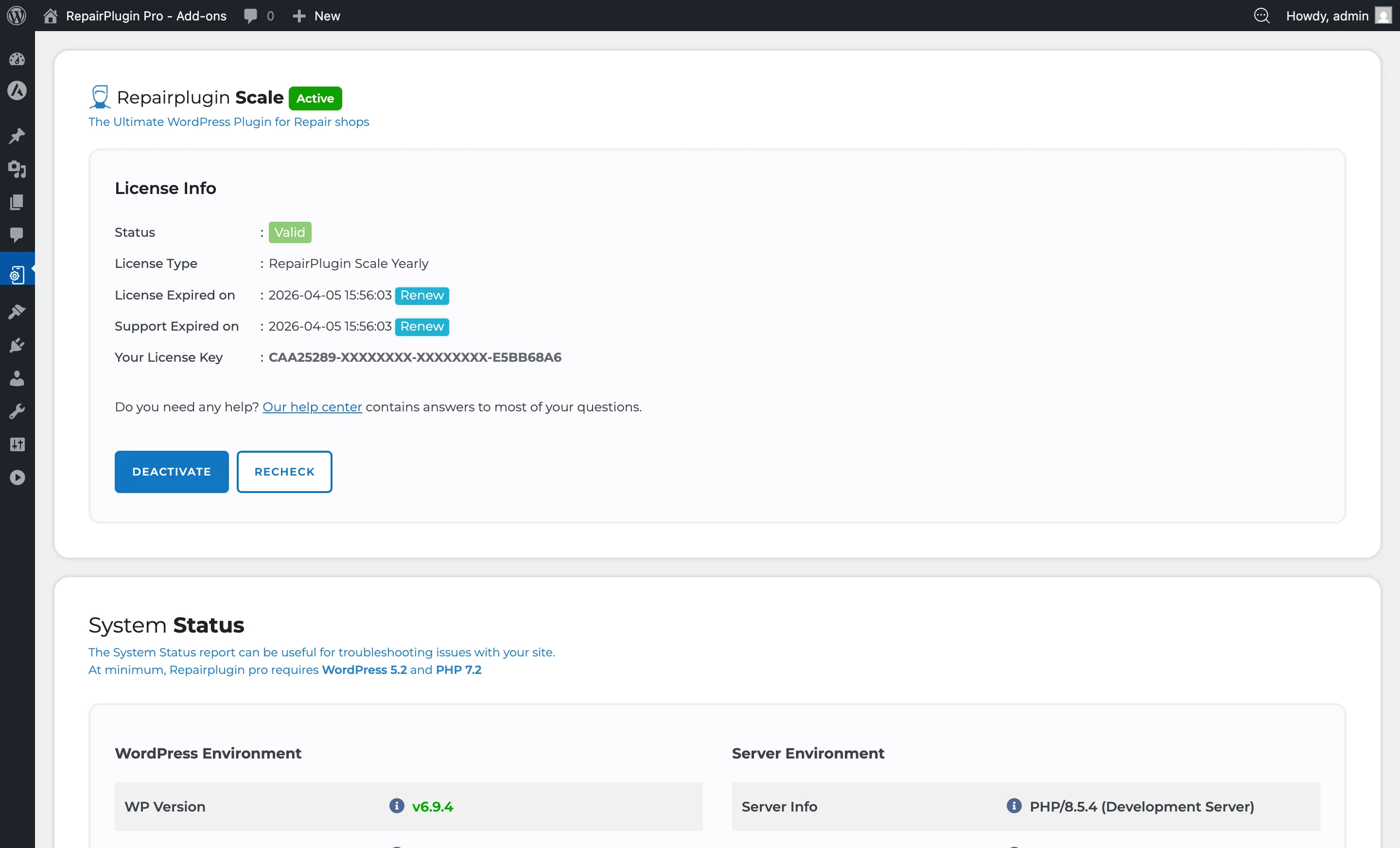
Once activated, the License Info box shows:
| Field | What it shows |
|---|---|
| Status | "Valid" (green) or "Invalid" (red) |
| License Type | Your subscription plan (e.g., Growth, Scale) |
| License Expired on | Expiration date — a "Renew" link appears if expired |
| Support Expired on | Expiration date for premium support — a "Renew" link appears if expired |
| Your License Key | Your key, partially masked for security |
Deactivate your license
- Go to RepairPlugin in the admin sidebar.
- In the License Info section, click Deactivate.
- The license key is removed from the current site and the license slot is freed for use on another domain.
- The page reloads and shows the activation form.
Important: Deactivate your license before moving your site to a new domain. Each license can only be active on one domain at a time.
Recheck your license
- Go to RepairPlugin in the admin sidebar.
- In the License Info section, click Recheck (next to Deactivate).
- The plugin contacts the RepairPlugin license server to re-validate your license.
- The page reloads with the updated status.
License plans
RepairPlugin detects your license type and displays it in the header. The plan name (e.g., "Scale" or "Growth") is shown next to "Repairplugin" in the page title. This determines which features are available to you.
Settings reference
| Setting | Description | Default | Customers see |
|---|---|---|---|
| License Code | Accepts the license key you received with your RepairPlugin purchase. Used to validate and activate the plugin | empty | Without a valid license, the booking form is replaced with an "unavailable" message showing your phone number. |
| Accepts the email address tied to your RepairPlugin purchase. Required for license activation | empty | No visible change. | |
| Activate | Sends your license key and email to the RepairPlugin license server for validation. On success, it stores the license and unlocks all plugin features | — | The booking form becomes operational. |
| Deactivate | Removes the license key from the current site and frees the license slot so you can use it on another domain | — | The booking form stops working and displays an "unavailable" message. |
| Recheck | Re-validates the current license against the RepairPlugin server without deactivating. Useful after renewing your subscription | — | No visible change, unless the recheck reveals the license is now valid or invalid. |
Frequently asked questions
My license suddenly stopped working. What happened?
If your license becomes invalid, the booking form shows: "Our appointment system is temporarily unavailable. Please contact us on: [phone number]." Common causes are: your subscription payment didn't go through, the subscription was canceled, or you moved to a new domain without deactivating first. Check your payment method and subscription status.
Activation fails — what should I do?
A firewall or security plugin (e.g., Wordfence, Sucuri) may be blocking the connection to the RepairPlugin license server. Temporarily disable the firewall, retry activation, then re-enable it. If you use a security plugin, check if it's blocking outgoing requests and add an exception if needed.
My automatic payment failed. How do I fix it?
Some banks require you to authorize recurring payments — contact your bank to approve the transaction. Also make sure your account has enough funds. If the issue persists, email support@repairplugin.com. The support team can reopen your order so you can retry the payment.
I renewed my subscription but the plugin still isn't working.
After renewing or reactivating your subscription, the plugin sometimes needs a manual push to pick up the change. Follow these steps:
- Go to RepairPlugin in the admin sidebar and click Recheck to re-validate your license.
- If the status doesn't update, click Deactivate, then re-enter your license key and email and click Activate.
- Still not working? Log in to the My RepairPlugin Account at my.repairplugin.com > Licenses and verify that the license key on your site matches the key shown in the portal.
- Clear all caches (browser, plugin, and server-level) -- see Caching & Performance.
If none of these steps help, contact support via the chat in the Customer Portal.
My license shows "Valid" but the booking form isn't working.
Check the System Status page for server or database issues. Make sure your WordPress timezone uses a region format (like Europe/Amsterdam, not UTC+1), your PHP version is 7.2 or higher, and WordPress is 5.2 or higher. Also clear all caches (browser, plugin, and server-level). See Caching & Performance for details.
What happens to the booking form if my license isn't active?
Without an active license, the admin panel only shows the license activation page -- none of the other menus (appointments, settings, models, etc.) are available. On the front end, the booking form is replaced with a message: "Our appointment system is temporarily unavailable. Please contact us on: [your phone number]." No booking emails are sent either.