
Location Settings
Set up your company details and store locations in RepairPlugin, including name, address, contact info, and terms and conditions.
What can you do with this?
- Define your business identity -- enter your company name, email, phone, and registration numbers for use in emails and documents.
- Manage multiple locations -- add separate store locations, each with its own address, contact details, and schedule.
- Help customers find you -- add a Google Maps link so customers can easily get directions.
- Set location-specific contacts -- give each location its own email and phone number so notifications go to the right place.
- Get SMS copies per location -- set a phone number per location that gets a copy of the text messages you send to customers.
- Link your terms and conditions -- add a URL to your terms page so it shows during checkout.
Where to find it
- Open RepairPlugin in the WordPress admin menu.
- Click Settings.
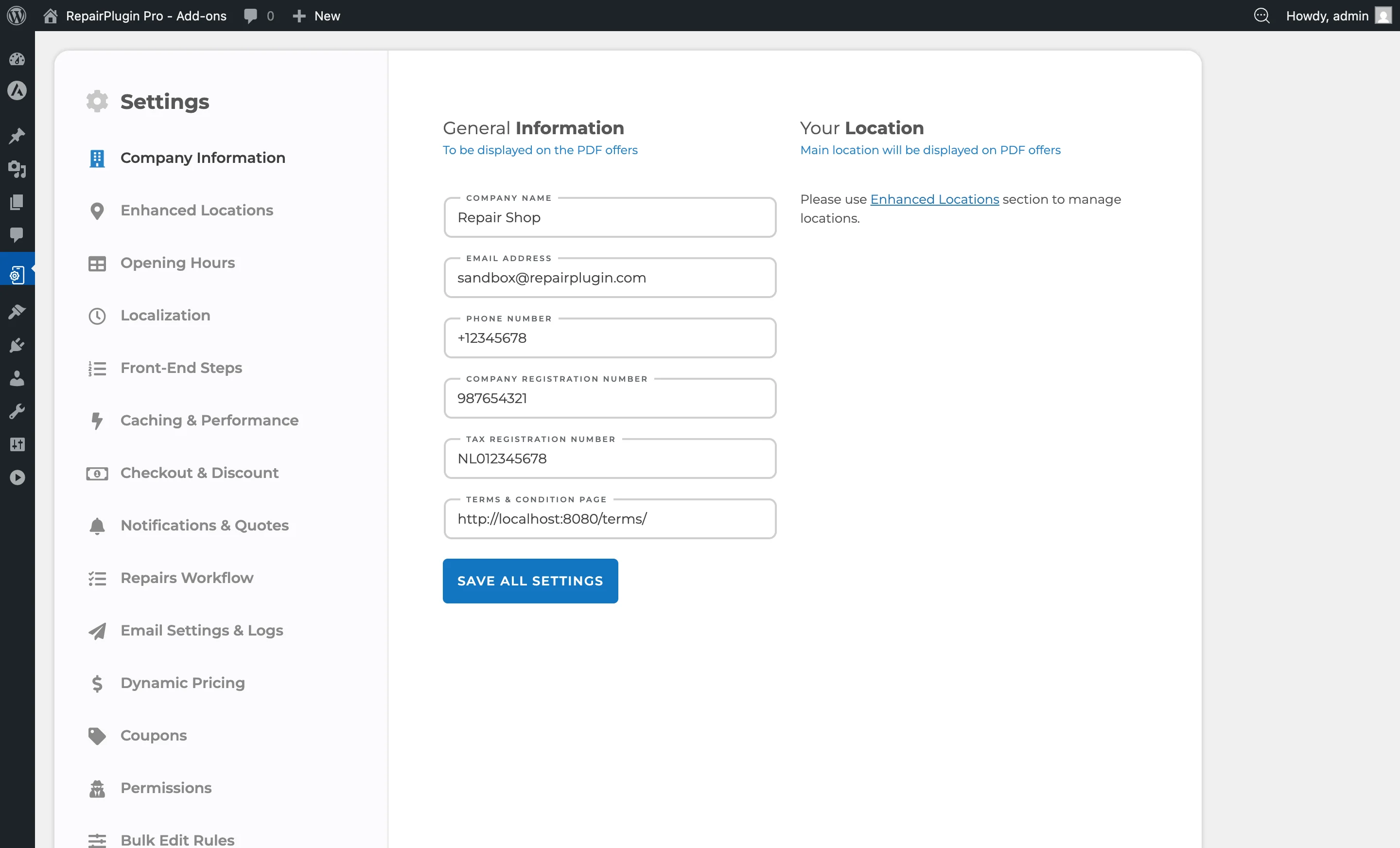
- The sidebar defaults to Company Information (the first item).
- Your company details and location settings are displayed on this page.
How to set it up
Edit company information
- Go to RepairPlugin > Settings > Company Information.
- Fill in or update these fields:
- Company Name -- your business name, used in emails and documents.
- Company Email -- the main email address for notifications.
- Company Phone -- your business phone number.
- Company Registration No. -- your business registration number (optional, used on invoices and quotes).
- Tax Registration No. -- your VAT or tax ID (optional, used on invoices and quotes).
- Click Save Changes.
Edit location details
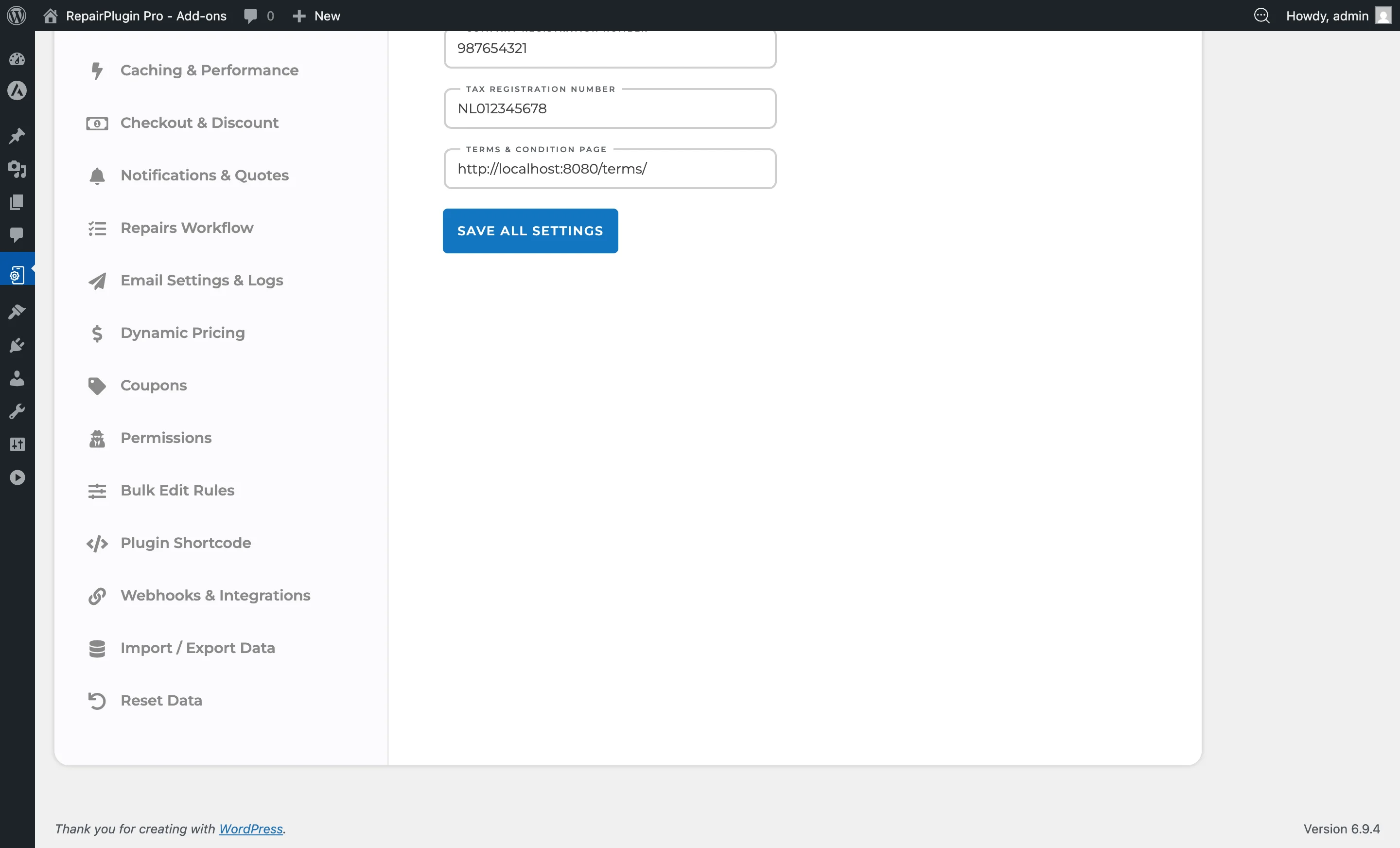
Each location appears as an expandable panel. Click the location name to expand it:
- Location Name -- the name customers see for this location.
- Location Address -- the physical address.
- Location City/District -- city or district.
- Google Maps Link -- a link to the location on Google Maps (up to 1,000 characters).
- Location Email -- an email address for this specific location (overrides the company email for this location).
- Location Telephone -- a phone number for this specific location.
- BCC Email -- an extra email that gets a copy of all notifications for this location.
- Make your changes and click Save Changes.
Set a phone number for SMS copies
When SMS notifications are on, each location gets a Phone field. RepairPlugin sends a copy of your SMS notifications to this number. You only see the field when SMS is turned on and connected to Twilio. See SMS & WhatsApp via Twilio.
- Go to RepairPlugin > Settings > Company Information.
- Click the location name to expand it.
- Enter the number in Phone. Use the international format, like
+31 6 12345678. - Click Save Changes.
Does the field show your company phone number, with a note that it's synchronized? Then this location has no number of its own, and the copies go to your company phone number.
Is a company or location phone number not in international format? Then you see an error at the top of this page. Fix the number, because RepairPlugin can't send SMS copies to a location with an invalid phone number.
Add a new location
Without Enhanced Locations:
- Use the "Add Location" option on this page.
- Fill in the location name, address, and contact details.
- Set the new location's schedule via Opening Hours.
With Enhanced Locations active (available on the Scale plan), new locations are managed under RepairPlugin > Settings > Enhanced Locations.
Reorder locations
When you have multiple locations:
- Use the up/down arrows next to each location name to change the display order.
- The main location always stays first.
- Click Save Changes to save the order.
Set your terms and conditions page
- In the Company Information section, find the Terms and Conditions Page field.
- Enter the full URL of your terms and conditions page.
- This link appears to customers during checkout.
Settings reference
| Setting | Description | Default | Customers see |
|---|---|---|---|
| Company Name | Sets the business name used across emails, quotes, and PDF documents | empty (set during installation wizard) | Your company name may appear in booking confirmations and email notifications. |
| Company Email | Sets the main email address from which notifications are sent and to which booking notifications are delivered | empty (set during installation wizard) | This appears as the sender address in booking confirmation emails. |
| Company Phone | Stores your company phone number for use in emails and documents | empty | Your phone number may appear in notification emails and booking confirmations. |
| Company Registration No. | Stores your business registration number for invoices and quote PDFs | empty | The registration number appears on customer-facing quote and invoice documents. |
| Tax Registration No. | Stores your VAT or tax registration number for invoices and quote PDFs | empty | The tax number appears on customer-facing quote and invoice documents. |
| Location Name | Sets the display name for a location in the booking flow | set during installation | This name appears in the location selector and in booking confirmation details. |
| Google Maps Link | Stores a Google Maps URL for the location so customers can get directions | empty | A clickable link may appear in booking confirmations or the location selector. |
| Phone (per location) | Sets the phone number that gets a copy of the SMS notifications for this location. Enter it in international format, like +31 6 12345678. Only visible when SMS notifications are on and connected to Twilio. | your company phone number | Nothing -- this is for internal use only. |
| Terms and Conditions Page | Links to your terms and conditions page. Must be a valid URL Tip: Create a dedicated page on your website with your terms and conditions, then paste the full URL here. | empty | A link to your terms and conditions appears during the checkout step. |
Frequently asked questions
Can I use RepairPlugin with just one location?
Yes. Every installation starts with a main location. You don't need to add extra locations unless you have more than one store.
Can each location have its own time zone?
Yes, with Enhanced Locations (available on the Scale plan). You pick the time zone per location, and opening hours, time slots, and calendar invites follow that local time. See Enhanced Locations. Without Enhanced Locations, all locations use the time zone of your WordPress site.
What's the difference between the company email and the location email?
The company email is your default contact address. If you set a location email, that location's notifications will use the location email instead of the company one.