
Delivery Methods
Set up delivery methods in RepairPlugin — offer in-store visits, mail-in, pickup service, and on-site repair with custom fees and auto-approval.
What can you do with this?
- Offer up to four ways for customers to deliver their device: in-store, by mail, pickup, or on-site repair
- Enable or disable each method independently and set the order they appear at checkout
- Add a flat fee per method (e.g., a pickup surcharge or shipping handling charge)
- Auto-approve bookings per method so confirmed orders don't wait in a queue
- Choose how many days in advance customers can book, separately for in-store, pickup, and on-site repair
- Verify customer distance and charge per km/mile for pickup and on-site repair (requires Enhanced Locations, available on the Scale plan)
Where to find it
- In the WordPress admin, go to RepairPlugin in the left sidebar.
- Click Settings.
- In the settings sidebar, click Checkout & Discount.
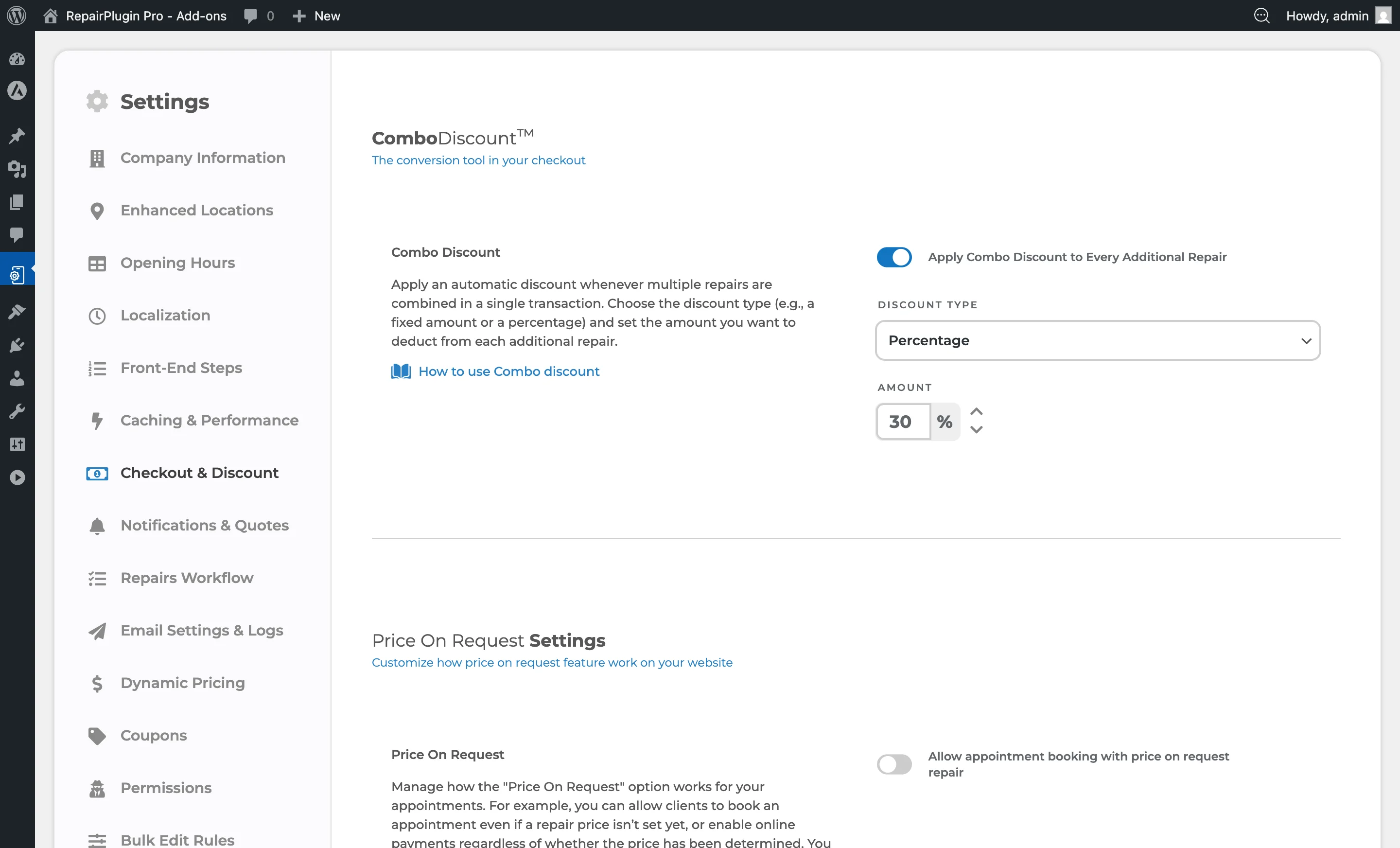
- The Service Methods section is the first major section on the page.
Each service method appears as a collapsible row that can be expanded to reveal its specific settings.
How to set it up
Enabling or Disabling a Service Method
Each service method has a switch on its row:
- Locate the method (e.g., "Come By Our Store").
- Switch it on to make it available to customers at checkout.
- Switch it off to hide it from checkout.
- Click Save at the bottom of the page.
At least one service method should be enabled for the booking flow to work.
Reordering Service Methods
The order of service methods determines the order they appear to customers at checkout:
- Use the sort arrows (up/down carets) on the left side of each method's row.
- Move methods up or down to your preferred order.
- Save the page.
Alternatively, you can drag and drop methods into place.
Configuring Individual Service Methods
Expand a service method by clicking on its row. Each method has its own set of options described below.
Setting How Far in Advance Customers Can Book
Come By Our Store, Pickup Service, and Repair on Your Location each have their own booking window:
- Expand the service method.
- Locate Booking Availability (Days in Advance).
- Enter a number of days from 1 to 365.
- Save the page.
Your customers see this many days in the date picker, starting with today. The default is 14 days. Ship Device doesn't have this setting, because customers don't pick a date for it.
Come By Our Store
This method lets customers schedule an in-store appointment based on your opening hours and booking slot configuration.
Settings:
- Localization Labels -- Customize the text shown to customers for this method (e.g., button label, confirmation text). Supports translations via the globe icon.
- Booking Availability (Days in Advance) -- How many days in advance customers can book. Enter a number from 1 to 365. The default is 14 days. See Planning & Timeslots.
- Length of Booking Slot -- The duration of each appointment slot. Options: 10 / 20 / 30 / 45 / 60 minutes. Customers select a time from slots generated based on your opening hours and this interval.
- Max amount of booking per slot -- Limits how many bookings can be made for the same timeslot. Options: 1 / 2 / 3 / 4 / 5 / Unlimited. Prevents overcrowding.
- Block users from making appointment the first -- Minimum lead time before a customer can book. Options range from 0.5 hour to 48 hours. Prevents last-minute bookings.
- Additional Cost -- An optional flat fee added to the order total when this method is selected.
- Automatically Approve Bookings -- Switch to auto-approve bookings using this method.
- Priority Cost / Discount -- Add priority repair options with configurable text, type (Cost or Discount), and value. Multiple priority options can be added and reordered.
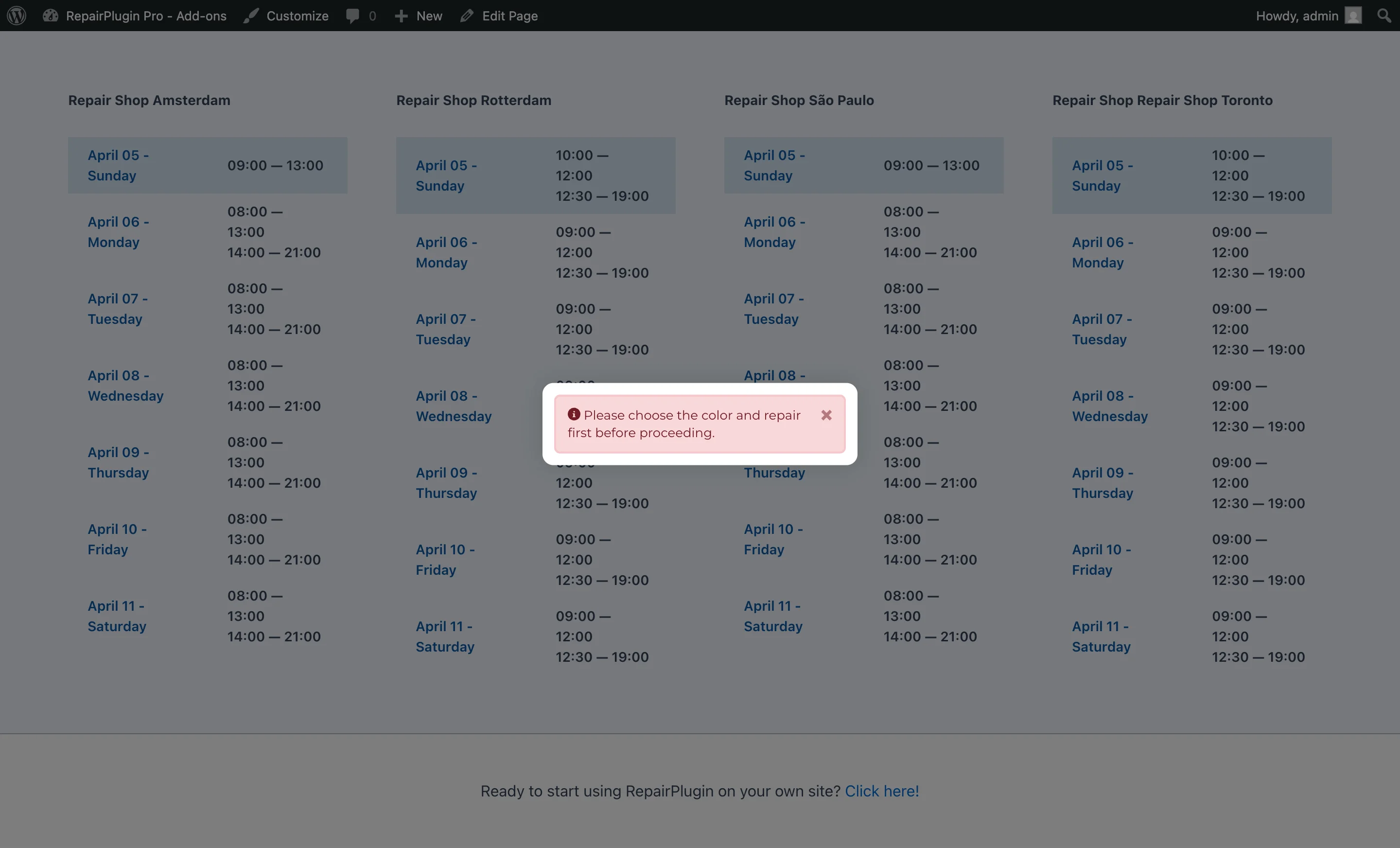
The customer selects a location (if multiple exist), a date from a calendar (based on opening hours), and a time from the available booking slots.
Ship Device
This method lets customers mail their device to your store. No date/time selection is required from the customer.
Settings:
- Localization Labels -- Includes the "Ship Device Terms" text shown to customers explaining where and how to ship. Supports translations.
- Select A Location for Ship Device Method -- Choose which store location handles shipped devices. This determines the address shown to the customer.
- Additional Cost -- An optional flat fee (e.g., shipping handling charge).
- Automatically Approve Bookings -- Switch to auto-approve bookings using this method.
The customer sees the shipping address and terms during checkout. No scheduling is required -- the appointment date is automatically set to the booking creation date.
Pickup Service
This method lets customers request that you pick up their device at a scheduled timeslot.
Settings:
- Localization Labels -- Customize visible text. Supports translations.
- Select A Location for Pickup Service Method -- Choose which store location manages pickup orders. If Enhanced Locations is active with "Automatically assign nearest location" enabled, this setting may be overridden.
- Timeslots -- Add time windows during which pickup is available (e.g., 09:00 AM -- 12:00 PM). See Planning & Timeslots.
- Days -- Select which days of the week the pickup service is available (Monday through Sunday).
- Booking Availability (Days in Advance) -- How many days in advance customers can book a pickup. Enter a number from 1 to 365. The default is 14 days.
- Max amount of booking per slot -- Limits bookings per timeslot. Options: 1 / 2 / 3 / 4 / 5 / Unlimited.
- Block users from making appointment the first -- Minimum lead time. Options range from 0.5 hour to 48 hours.
- Additional Cost -- An optional flat fee.
- Automatically Approve Bookings -- Switch to auto-approve.
- Verify Customer Location Is Within Maximum Radius Distance -- Switch (requires Enhanced Locations with Google Maps API key). When enabled, the system checks that the customer's address is within a specified distance from the store.
- Maximum Radius Distance -- The maximum distance (in km or miles) the customer can be from the store.
- Extra charges based on distance -- Switch. When enabled, charges are calculated based on the distance between the store and the customer.
- Distance Included in Base Cost -- The free distance covered by the base service cost.
- Cost per km/mile after included distance -- The per-unit charge for distance beyond the free distance.
The customer selects a date, a timeslot from the available options, and enters their address.
Repair on Your Location
This method is for sending a technician to the customer's location. It works identically to Pickup Service in terms of configuration.
Settings:
- Localization Labels -- Supports translations.
- Select A Location for Repair on Location Method -- Choose the handling store location.
- Timeslots -- Add available time windows. See Planning & Timeslots.
- Days -- Select available days of the week.
- Booking Availability (Days in Advance) -- How many days in advance customers can book an on-site repair. Enter a number from 1 to 365. The default is 14 days.
- Max amount of booking per slot -- Options: 1 / 2 / 3 / 4 / 5 / Unlimited. Strongly recommended to limit this since technicians travel on-site.
- Block users from making appointment the first -- Minimum lead time. Options range from 0.5 hour to 48 hours.
- Additional Cost -- An optional flat fee.
- Automatically Approve Bookings -- Switch to auto-approve.
- Verify Customer Location Is Within Maximum Radius Distance -- Switch (requires Enhanced Locations with Google Maps API).
- Maximum Radius Distance -- Maximum allowed distance.
- Extra charges based on distance -- Switch for distance-based pricing.
- Distance Included in Base Cost -- Free distance amount.
- Cost per km/mile after included distance -- Per-unit rate.
The customer selects a date, a timeslot, and enters their address.
Settings reference
Settings Shared Across All Service Methods
| Setting | Description | Default | Customers see |
|---|---|---|---|
| Enable/Disable Switch | Shows or hides the service method on the frontend checkout | Come By Our Store is enabled; others may vary | Only enabled methods appear as options during Step 3 of the booking flow. |
| Additional Cost | Adds a flat fee to the total order price when the customer selects this method Tip: Use this to cover pickup fuel costs or shipping handling fees without building them into your repair prices. | empty (no additional cost) | The additional cost appears in the order summary at checkout. |
| Automatically Approve Bookings | When enabled, new bookings skip the Pending status and are immediately set to Approved | off | They receive an approval confirmation instead of a "pending review" message. |
Come By Our Store Specific
| Setting | Description | Default | Customers see |
|---|---|---|---|
| Length of Booking Slot | Sets the time interval for appointment slots generated from your opening hours. Options: 10 / 20 / 30 / 45 / 60 Minutes | 30 Minutes | Available times in increments of this duration on the calendar. |
| Setting | Description | Default | Customers see |
|---|---|---|---|
| Max amount of booking per slot | Limits concurrent bookings for the same time slot. Options: 1 / 2 / 3 / 4 / 5 / Unlimited | Unlimited | When the limit is reached, that timeslot is no longer available for selection. |
| Block users from making appointment the first | Sets the minimum lead time. Timeslots within this window from the current time are blocked. Options: 0.5 hour through 48 hours Tip: Set this to at least 2 hours if you need time to prepare the workstation before walk-in appointments. | 1 hour (60 minutes) | They can't book appointments that are too close to the current time. |
| Booking Availability (Days in Advance) | Sets how many days in advance customers can book an in-store appointment. Enter a number from 1 to 365 | 14 | The date picker shows this many days, starting with today. Later dates don't appear. |
Pickup Service and Repair on Your Location Specific
| Setting | Description | Default | Customers see |
|---|---|---|---|
| Max amount of booking per slot | Limits concurrent bookings for the same timeslot. Options: 1 / 2 / 3 / 4 / 5 / Unlimited Tip: For "Repair on Your Location," set this to 1 or 2 since a technician can only be at one place at a time. | Unlimited | When the limit is reached, the timeslot is removed from the available options. |
| Block users from making appointment the first | Sets the minimum lead time before a timeslot can be booked. Options: 0.5 hour through 48 hours | 1 hour (60 minutes) | Timeslots within the lead time window aren't shown. |
| Booking Availability (Days in Advance) | Sets how many days in advance customers can book this service. Pickup Service and Repair on Your Location each have their own value. Enter a number from 1 to 365 | 14 | The date picker shows this many days, starting with today. Later dates don't appear. |
| Verify Customer Location Is Within Maximum Radius Distance | Checks whether the customer's address is within the configured maximum distance. Requires Enhanced Locations with a Google Maps API key | off | If they're outside the maximum radius, they can't select this service method or receive an error. |
| Maximum Radius Distance | Sets the maximum distance (in km or miles, depending on Enhanced Locations settings) from the store location | empty | Customers beyond this distance can't use this service method. |
| Extra charges based on distance | Enables distance-based surcharges. Requires Enhanced Locations with Google Maps API key | off | An additional fee based on distance is added to the order total. |
| Distance Included in Base Cost | The distance covered by the flat additional cost (no extra charge within this range) | empty | No distance surcharge is applied within this range. |
| Cost per km/mile after included distance | The per-unit rate charged for each km or mile beyond the free distance | empty | The surcharge is calculated and added to the total shown at checkout. |
Frequently asked questions
Do I need to enable all four service methods?
No. You can enable any combination that fits your business. Many shops only use "Come By Our Store" and "Ship Device." Just make sure at least one method is enabled, or customers won't be able to complete a booking.
Can I charge different amounts for different delivery methods?
Yes. Each method has its own Additional Cost field. You can also add distance-based charges for Pickup Service and Repair on Your Location if you have Enhanced Locations (available on the Scale plan).
What happens to existing appointments if I disable a service method?
Nothing changes for existing appointments. Disabling a service method only hides it from the front-end booking form so new customers can't select it. All current appointments with that method stay in the system and can still be managed from the admin panel.
How does distance-based charging work?
When enabled for Pickup Service or Repair on Location, the plugin calculates the distance between the customer's address and your store using Google Maps. You set a free distance (included in the base cost) and a price per kilometer or mile. The charge is: (total distance minus free distance) times price per unit. A Google Maps API key is required.