
Google Maps
Configure Google Maps address autocomplete in RepairPlugin to speed up checkout and help customers find the nearest repair shop.
What can you do with this?
- Speed up address entry — customers pick their address from a dropdown instead of typing every field manually.
- Reduce typos and incomplete addresses — auto-filled fields mean cleaner customer data.
- Find the nearest location — with Enhanced Locations, customers can search by address and see which shop is closest (uses a separate API key).
- Verify distances for service methods — Enhanced Locations can check whether a customer's address falls within the service area for pickup or on-location repair.
Where to find it
For address autocomplete
- In the WordPress admin sidebar, click RepairPlugin.
- Click Settings.
- Click Front-End Steps in the sidebar.
- Scroll to the Autocomplete Address section.
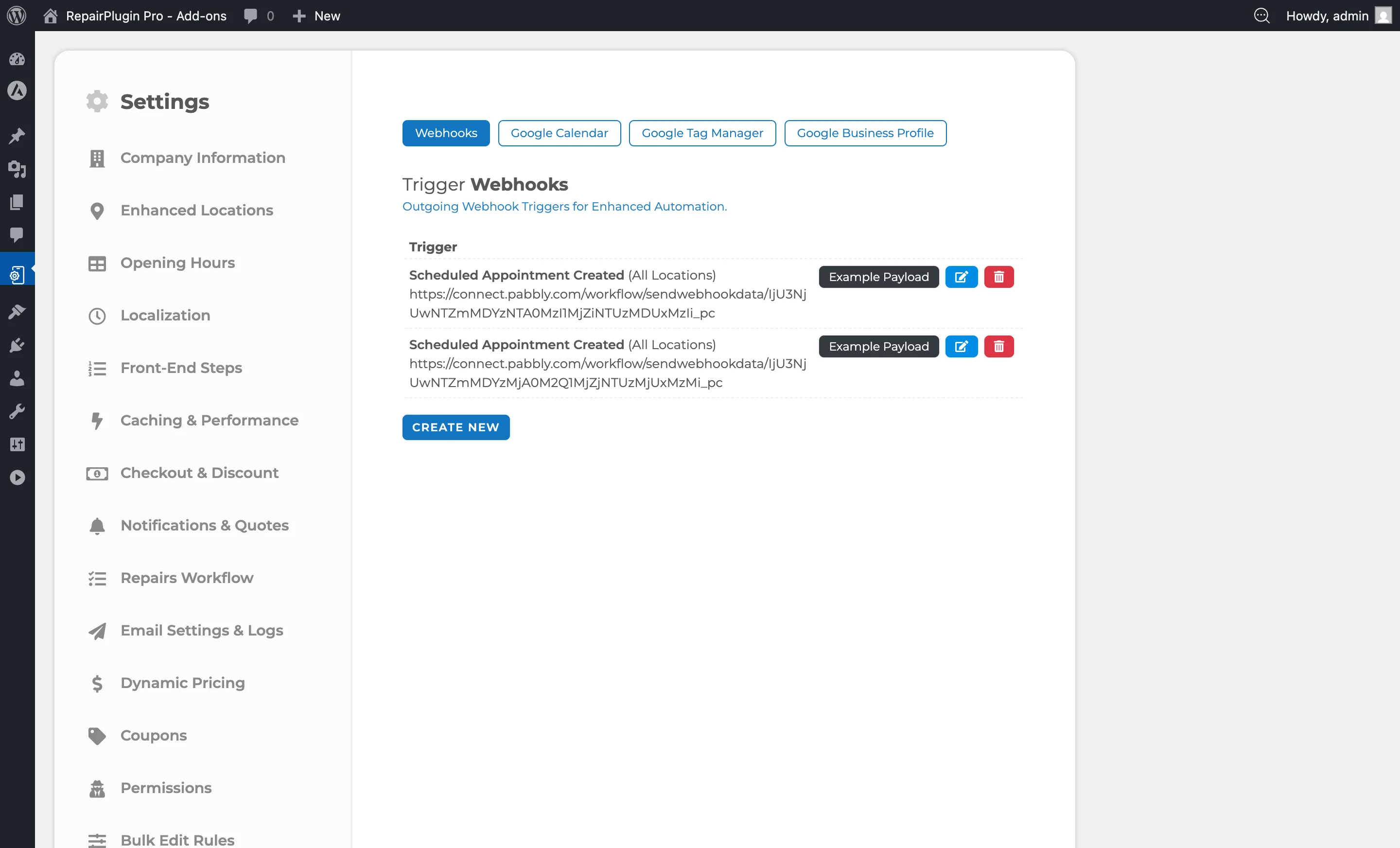
For location-based maps features
- In the WordPress admin sidebar, click RepairPlugin.
- Click Settings.
- Go to the Enhanced Locations settings tab.
- Find the Google Maps API Key field within the location search/distance settings.
How to set it up
Get a Google Maps API key
- Go to the Google Cloud Console.
- Create or select a project.
- Enable these APIs:
- Places API (for autocomplete suggestions)
- Geocoding API (for address resolution)
- Go to Credentials and create an API Key.
- Optionally restrict the key to your domain and the required APIs.
Turn on address autocomplete
- Go to RepairPlugin > Settings > Front-End Steps.
- Turn the Autocomplete Address switch to on.
- Enter your Google Maps API Key in the field that appears.
- Click Save Settings.
- Visit your booking form and test it — start typing an address and check that suggestions appear.
Turn off address autocomplete
- Turn the Autocomplete Address switch to off.
- Click Save Settings.
- The API key field disappears and the key value is removed.
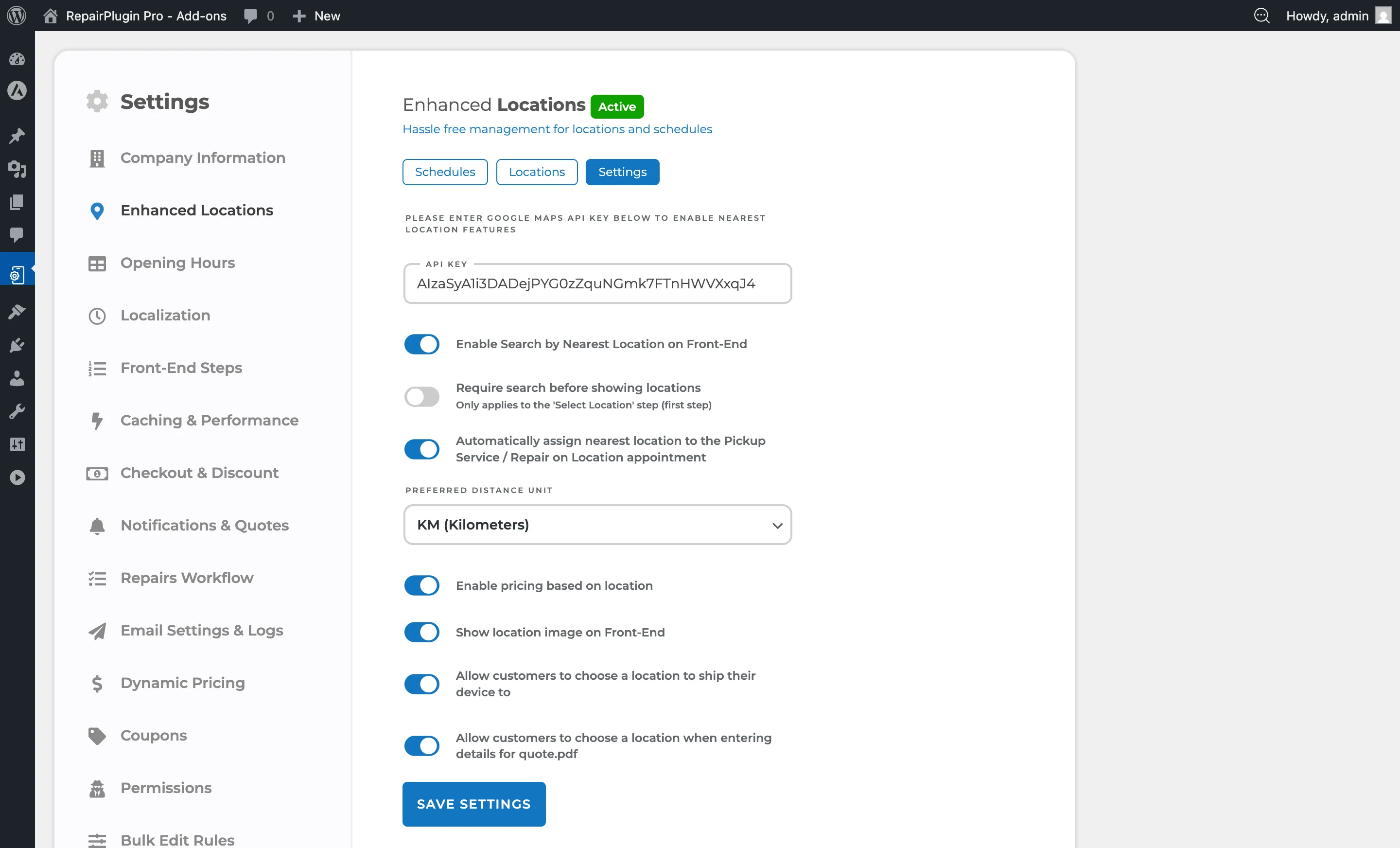
Set up location-based maps features
These features require Enhanced Locations (available on the Scale plan):
- Get a Google Maps API key (you can use the same key or a different one). Make sure the Geocoding API is enabled.
- Go to the Enhanced Locations settings.
- Enter the Google Maps API key in the designated field.
- Turn on the features you want (search by nearest location, distance verification, and so on).
- Click Save Settings.
Settings reference
Address autocomplete settings
| Setting | Description | Default | Customers see |
|---|---|---|---|
| Autocomplete Address | Turns on address autocomplete in the booking form using Google Places API | off. When a customer starts typing their address, a dropdown of matching suggestions appears. Selecting one auto-fills the address fields | A dropdown of address suggestions appears as they type. Picking a suggestion fills in the street, house number, city, and zip code automatically. |
| Google Maps API Key (Autocomplete) | Stores the API key used for address autocomplete | empty. Only shown when Autocomplete Address is turned on. If you clear this field, autocomplete is automatically disabled | Nothing directly — this key powers the autocomplete feature described above. |
Location-based maps settings (Enhanced Locations)
| Setting | Description | Default | Customers see |
|---|---|---|---|
| Google Maps API Key (Enhanced Locations) | Stores the API key used by Enhanced Locations for finding nearest locations and calculating distances | empty. This is a separate key from the autocomplete key | Location search features appear on the booking form — customers can find their nearest shop or have distance-based checks applied to service methods like pickup and on-location repair. |
Frequently asked questions
Does this cost money?
Google Maps Platform charges per API call. RepairPlugin reduces costs by saving responses so the same address lookup isn't repeated. Autocomplete results are limited to 5 suggestions per search.
Do I need two separate API keys?
Not necessarily. You can use the same API key for both autocomplete and Enhanced Locations, as long as both the Places API and Geocoding API are enabled on that key. Using separate keys is also fine and can help you track costs separately.
Why isn't autocomplete showing suggestions?
Make sure your API key is valid, the Places API is enabled in your Google Cloud project, and the key isn't restricted in a way that blocks your website's domain.