
Planning & Timeslots
Configure planning and timeslots in RepairPlugin to control when customers can book — set slot lengths, booking limits, and minimum lead times.
What can you do with this?
- Generate appointment slots automatically from your opening hours for in-store bookings
- Define custom timeslot windows (e.g., "09:00 AM -- 12:00 PM") for pickup and on-site repair services
- Set which days of the week each service is available
- Limit the number of bookings per timeslot to prevent overbooking
- Enforce a minimum lead time so customers can't book at the last minute
- Choose how many days in advance customers can book, separately for each service method
Where to find it
- In the WordPress admin, go to RepairPlugin in the left sidebar.
- Click Settings.
- In the settings sidebar, click Checkout & Discount.
- In the Service Methods section, expand the specific service method you want to configure.
Planning settings are embedded within each service method's expanded settings panel. There's no separate "Planning" page.
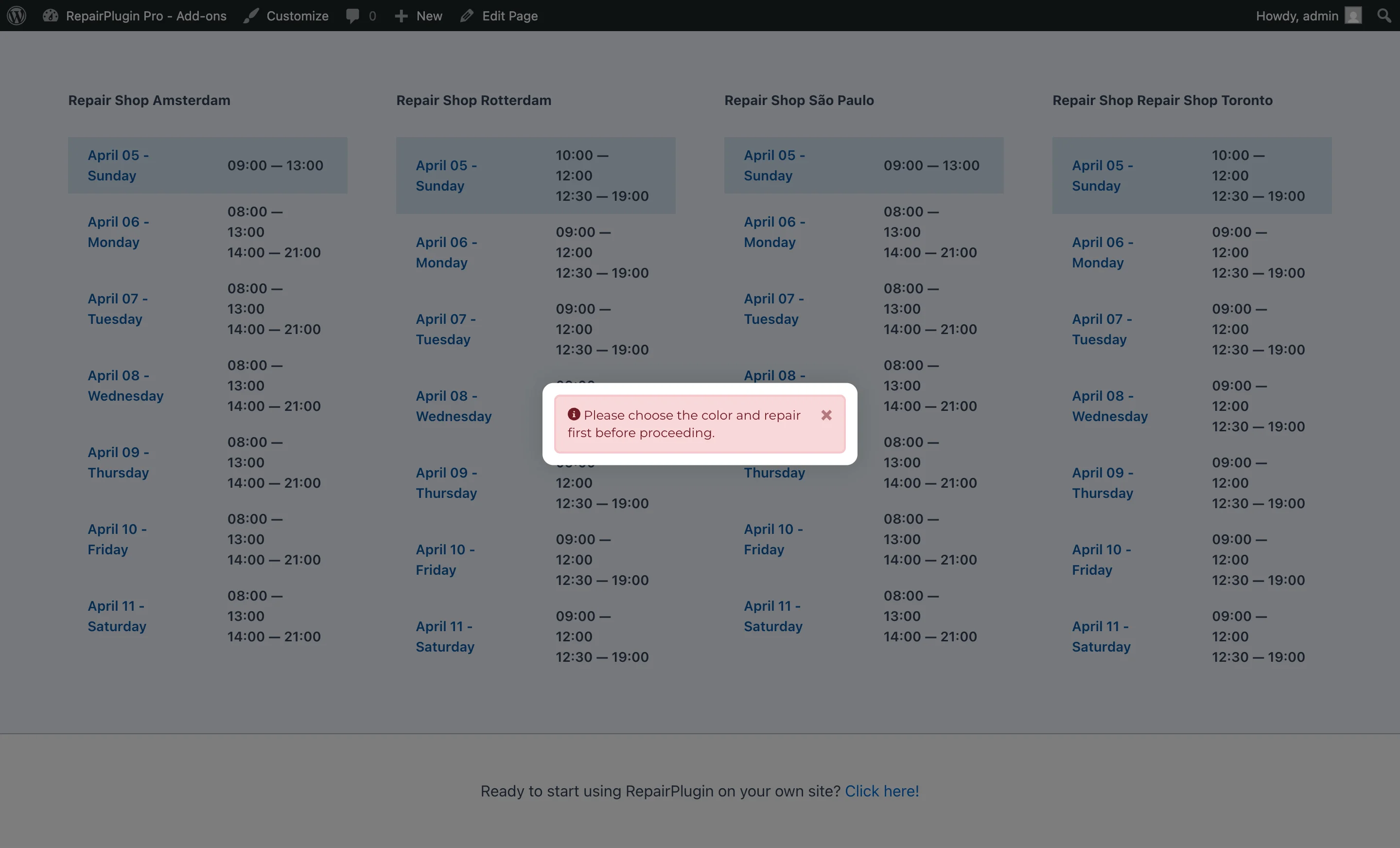
For Come By Our Store opening hours:
- Go to RepairPlugin > Settings.
- Click Opening Hours in the sidebar (or Company Information for location-specific hours).
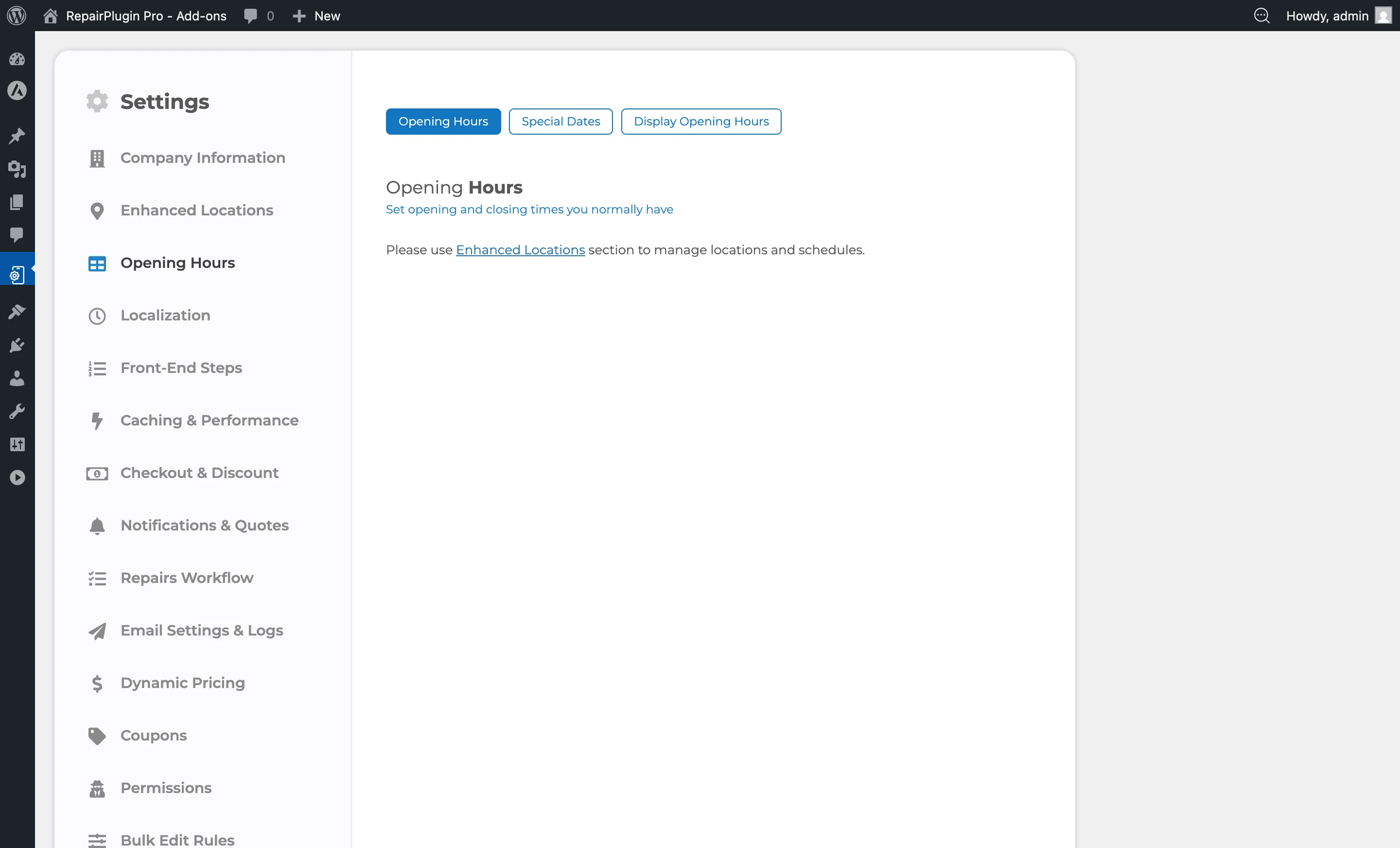
How to set it up
Come By Our Store: Booking Slots
The "Come By Our Store" method generates available times by dividing your opening hours into equal booking slots.
Setting the Booking Slot Length
- Expand the Come By Our Store service method.
- Locate Length of Booking Slot.
- Select the slot duration from the dropdown: 10, 20, 30, 45, or 60 Minutes.
- Save the page.
Example: If your store is open from 09:00 to 17:00 and the slot length is 30 minutes, customers see 16 available timeslots: 09:00, 09:30, 10:00, ..., 16:30.
The opening hours are configured per location under Settings > Opening Hours (or Company Information for multi-location setups). See Opening Hours for details.
Setting Maximum Bookings Per Slot
- Locate Max amount of booking per slot.
- Select from: 1, 2, 3, 4, 5, or Unlimited.
- Save the page.
When the maximum number of bookings for a specific timeslot is reached, that slot is no longer available for new customers. Setting this to "Unlimited" means there's no cap.
A typical value is 1--3 depending on how many customers your store can handle at the same time.
Setting Minimum Lead Time
- Locate Block users from making appointment the first.
- Select the minimum lead time from the dropdown.
- Available values range from 0.5 hour (30 minutes) to 48 hours.
- Save the page.
Any timeslot that falls within this lead time from the current moment is hidden from the customer. For example, if set to 2 hours and the current time is 10:00 AM, slots before 12:00 PM on the current day aren't available.
Default: 1 hour (60 minutes).
Setting How Far in Advance Customers Can Book
- Locate Booking Availability (Days in Advance).
- Enter a number of days from 1 to 365.
- Save the page.
Your customers see this many days in the date picker, starting with today. For example, if you enter 30, customers can pick today or any of the 29 days after it.
The count includes every calendar day, also the days you're closed.
Default: 14 days.
Pickup Service & Repair on Your Location: Timeslots
These two methods use manually defined timeslots instead of auto-generated booking slots from opening hours.
Adding a Timeslot
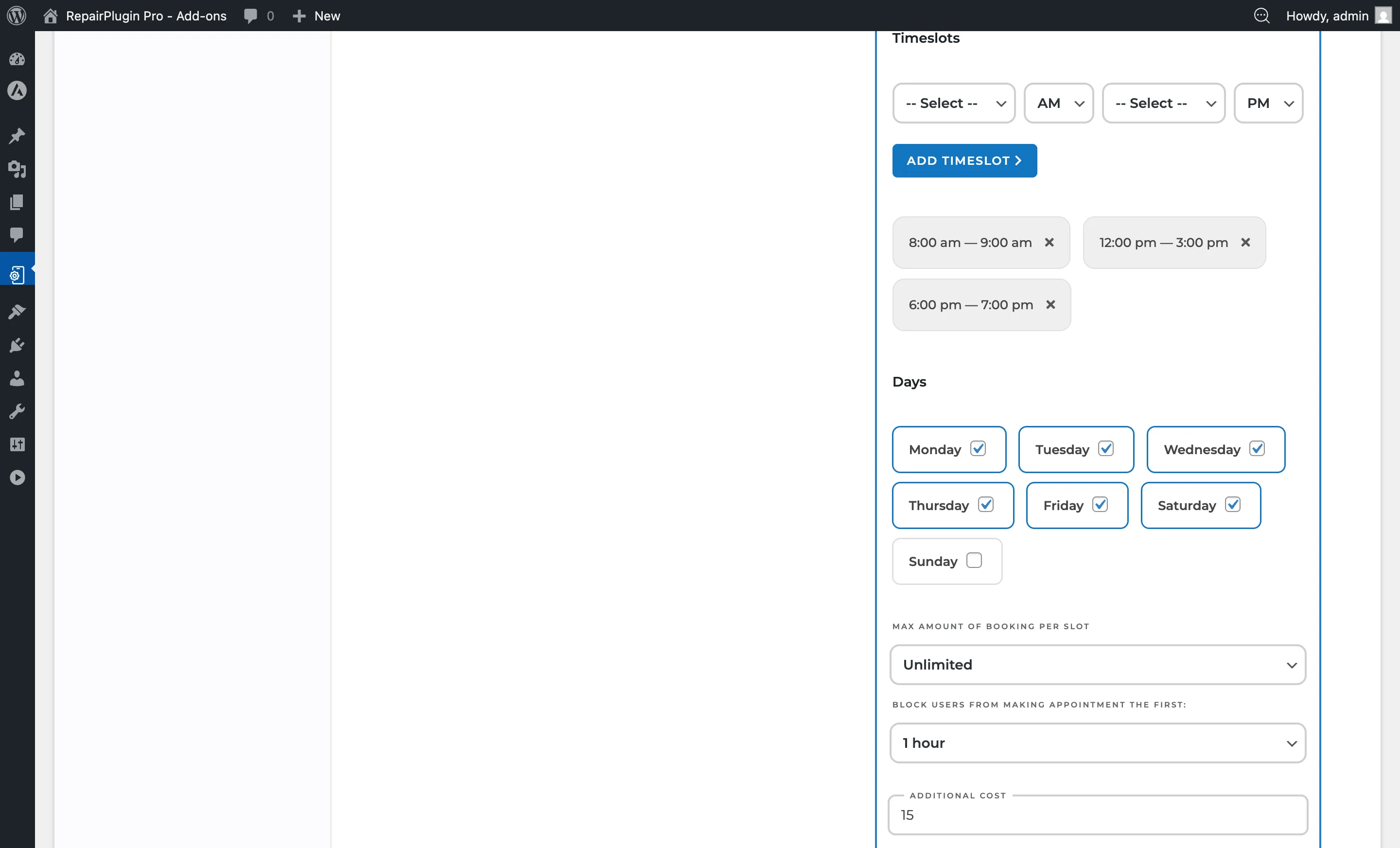
- Expand the Pickup Service or Repair on Your Location service method.
- Locate the Timeslots section.
- Select a Start Time from the first dropdown (times from 12:00 AM to 11:30 AM in 30-minute increments).
- Select AM or PM for the start time.
- Select an End Time from the second dropdown.
- Select AM or PM for the end time.
- Click the Add Timeslot button.
The new timeslot appears as a tag below the form (e.g., "9:00 am -- 12:00 pm").
Example timeslots for a pickup service:
- 09:00 AM -- 12:00 PM (morning pickup window)
- 01:00 PM -- 05:00 PM (afternoon pickup window)
You can add as many timeslots as you need. They're displayed in chronological order.
Deleting a Timeslot
- Locate the timeslot tag you want to remove.
- Click the X button on the right side of the tag.
- The timeslot is immediately deleted.
Selecting Available Days
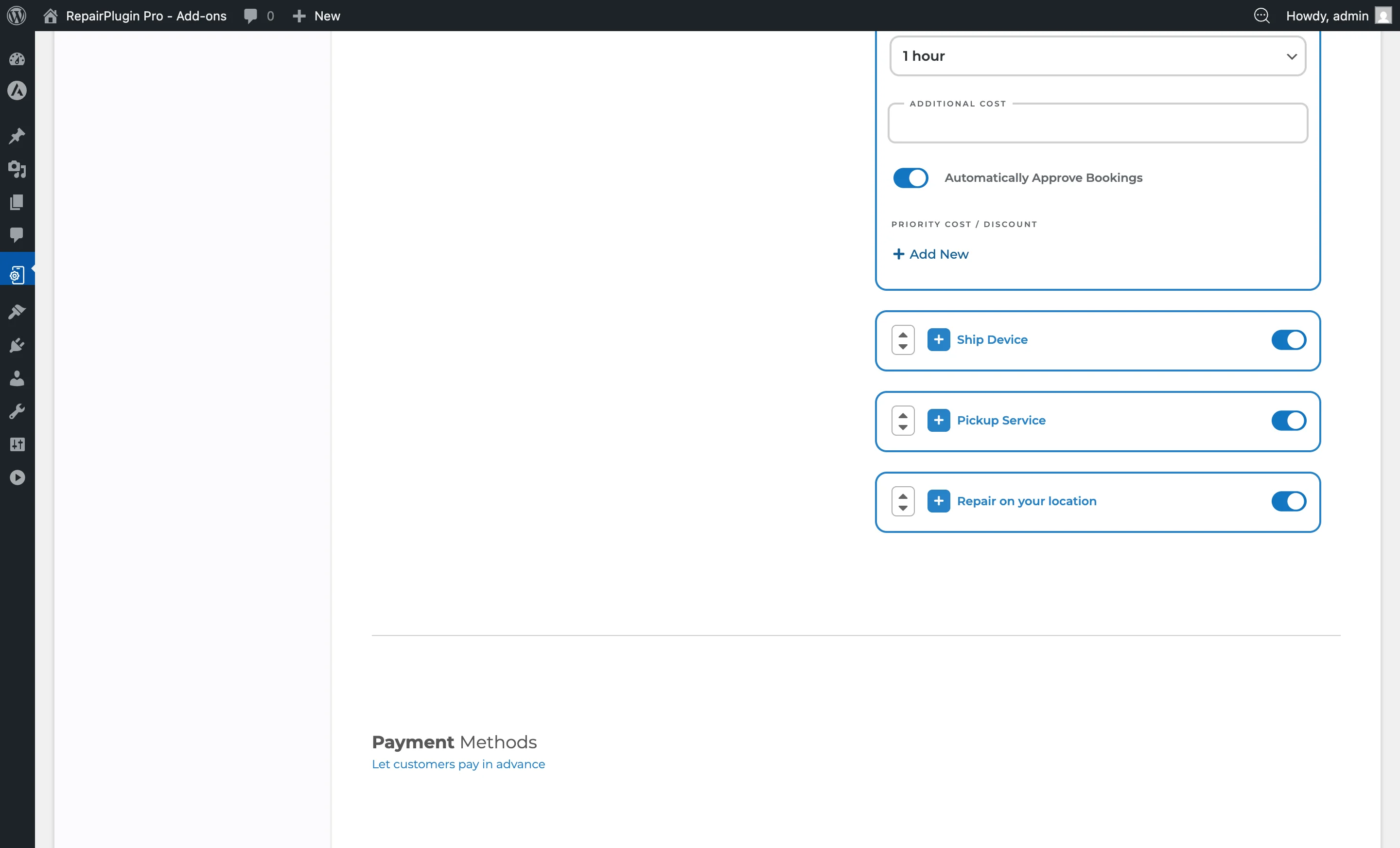
Below the timeslots, the Days section shows all seven days of the week:
- Click on a day (e.g., Monday) to switch it on or off.
- Selected days appear highlighted (with a blue border).
- Unselected days remain unhighlighted.
Only selected days show the configured timeslots to customers. For example, if you select Monday through Friday, weekend dates won't offer any timeslots.
The available days are saved per service method -- Pickup Service and Repair on Your Location can have different day selections.
Setting Maximum Bookings Per Slot
- Locate Max amount of booking per slot within the expanded service method.
- Select from: 1, 2, 3, 4, 5, or Unlimited.
- Save the page.
For "Repair on Your Location," set this to 1 or 2 since a technician can only be at one location at a time. For Pickup Service, a slightly higher limit may work if multiple drivers are available.
Default: Unlimited.
Setting Minimum Lead Time
- Locate Block users from making appointment the first.
- Select the lead time from the dropdown: 0.5 hour to 48 hours.
- Save the page.
Timeslots on the current day that fall within this window are hidden from the customer.
Default: 1 hour (60 minutes).
Setting How Far in Advance Customers Can Book
- Locate Booking Availability (Days in Advance) within the expanded service method. You'll find it below the Days section.
- Enter a number of days from 1 to 365.
- Save the page.
Your customers see this many days in the date picker, starting with today. Pickup Service and Repair on Your Location each have their own value, so you can open one further ahead than the other.
Default: 14 days.
Ship Device: No Scheduling
The Ship Device method doesn't have any scheduling configuration. When a customer selects "Ship Device," they see the shipping address and terms. No date or time selection is presented.
The appointment's date is automatically set to the date the booking was created.
Settings reference
Come By Our Store
| Setting | Description | Default | Customers see |
|---|---|---|---|
| Length of Booking Slot | Divides the store's opening hours into equal time intervals for appointment scheduling. Options: 10 / 20 / 30 / 45 / 60 Minutes | 30 Minutes | A time picker with slots at this interval. Shorter slots mean more options but potentially more appointments per day; longer slots mean fewer options but more time per customer. |
| Setting | Description | Default | Customers see |
|---|---|---|---|
| Max amount of booking per slot | Caps the number of bookings allowed for any single timeslot at one location. Options: 1 / 2 / 3 / 4 / 5 / Unlimited Tip: Set this to 1--3 to prevent overcrowding. "Unlimited" works only if your shop can handle a large number of walk-ins at the same time. | Unlimited | When the cap is reached, the timeslot disappears from the available options and they must choose a different time. |
| Block users from making appointment the first | Hides timeslots that are within the specified duration from the current time. Options: 0.5 hour / 1 hour / 1.5 hours / 2 hours / 3 hours / ... / 24 hours / 48 hours | 1 hour (60 minutes) | They can't book same-day appointments with very short notice. For example, a 2-hour setting at 10:00 AM hides all slots before 12:00 PM. |
| Booking Availability (Days in Advance) | Sets how many days in advance customers can book an in-store appointment. Enter a number from 1 to 365 | 14 | The date picker shows this many days, starting with today. Later dates don't appear. |
Pickup Service & Repair on Your Location
| Setting | Description | Default | Customers see |
|---|---|---|---|
| Timeslots | Defines the time windows during which the service is available. Each timeslot is a range (e.g., 09:00 AM to 12:00 PM) Tip: Create 2--3 broad windows (morning, afternoon, evening) rather than many narrow ones. This gives you flexibility while still letting customers pick a convenient time. | empty (no timeslots) | These timeslots as selectable options on their chosen date. If no timeslots are configured, the service method won't have any available times. |
| Days | Determines which days of the week the timeslots are offered | no days selected | They can only select dates that fall on the enabled days. Dates on disabled days are grayed out or hidden in the date picker. |
| Setting | Description | Default | Customers see |
|---|---|---|---|
| Max amount of booking per slot | Limits concurrent bookings for the same timeslot on the same day. Options: 1 / 2 / 3 / 4 / 5 / Unlimited | Unlimited | Fully booked timeslots are no longer available for selection. |
| Block users from making appointment the first | Hides timeslots within the specified lead time from now. Options: 0.5 hour / 1 hour / 1.5 hours / 2 hours / 3 hours / ... / 24 hours / 48 hours | 1 hour (60 minutes) | Last-minute timeslots aren't shown, preventing bookings you may not be able to fulfill. |
| Booking Availability (Days in Advance) | Sets how many days in advance customers can book this service. Pickup Service and Repair on Your Location each have their own value. Enter a number from 1 to 365 | 14 | The date picker shows this many days, starting with today. Later dates don't appear. |
How Scheduling Appears on the Frontend
For Come By Our Store, the customer sees:
- A location selector (if multiple locations exist).
- A calendar showing available dates (based on opening hours and special dates).
- A time picker showing available slots (based on booking slot length, opening hours, lead time, and slot capacity). For Pickup Service and Repair on Your Location, the customer sees:
- A calendar showing available dates (based on selected days).
- A list of available timeslots for the chosen date (based on configured timeslots, lead time, and slot capacity).
Frequently asked questions
Why don't I see any available timeslots for Pickup Service or Repair on Your Location?
You need to configure two things: add at least one timeslot (a start and end time) and select at least one day of the week. If either is missing, customers won't see any available times.
Can I set different booking slot lengths for different store locations?
No. The booking slot length is a global setting for the "Come By Our Store" method. However, each location can have its own opening hours, which means the number of available slots will differ per location.