
Address Autocomplete
Set up address fields and Google Maps autocomplete in RepairPlugin to speed up checkout and verify customer locations for pickup and on-site repairs.
addressautocompletegoogle-mapscheckoutfields
What can you do with this?
- Collect addresses at checkout -- add house number, street, city, postal code, and country fields to your booking form.
- Speed up address entry -- turn on Google Maps autocomplete so customers see address suggestions as they type.
- Reduce errors -- autocomplete fills in the street, city, postal code, and country automatically, cutting down on typos.
- Limit service areas -- verify whether a customer's address falls within your maximum service radius for pickup and on-location repairs.
Where to find it
For address fields:
- Open RepairPlugin in the WordPress admin menu.
- Click Settings.
- Select Checkout & Discount in the sidebar.
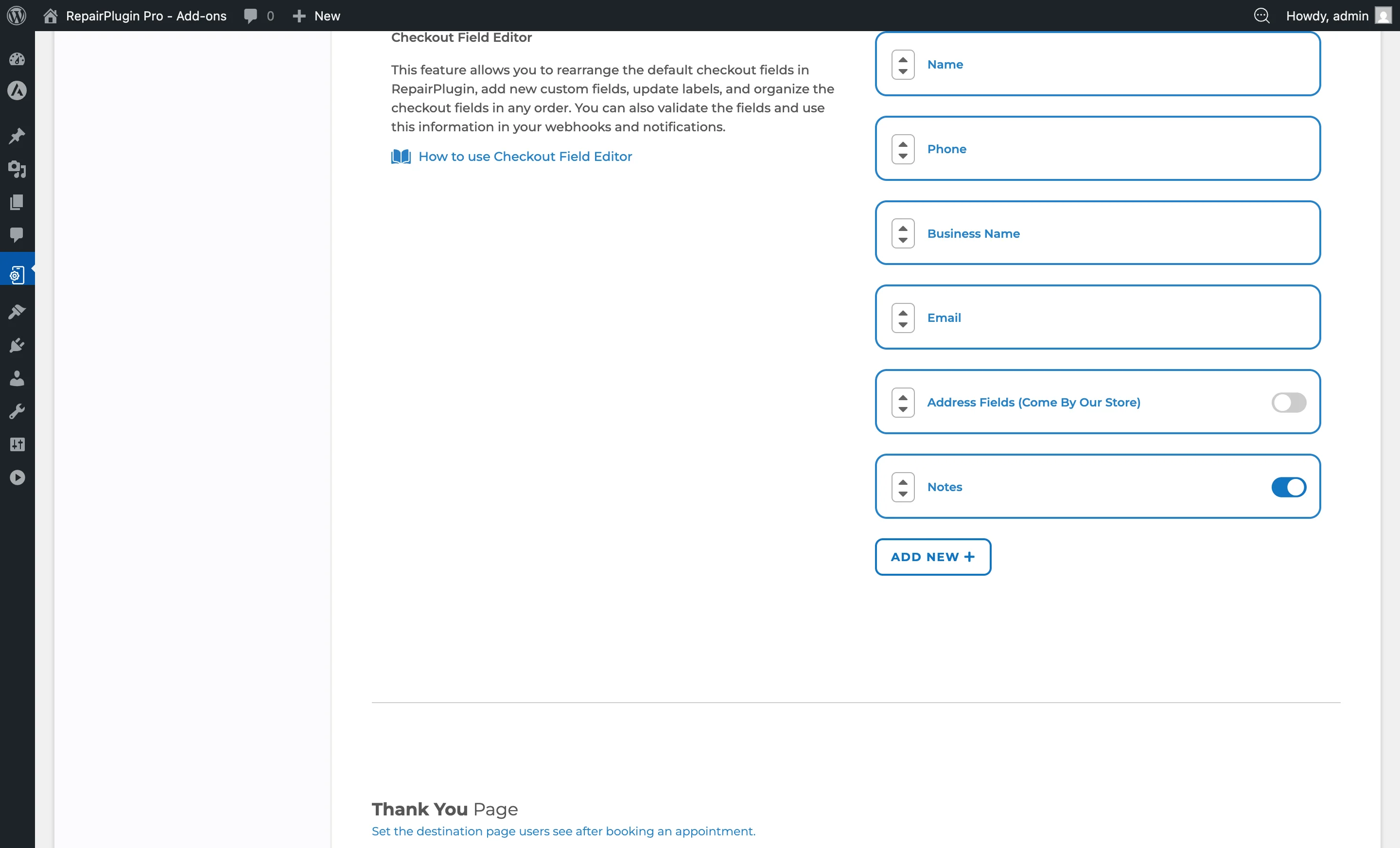
- Scroll to the Checkout Field Editor section.
- Find the Address Fields (Come By Our Store) entry in the field list.
For Google Maps autocomplete and distance verification:
- Go to RepairPlugin > Settings > Checkout & Discount.
- Look within the service method settings for the Verify Customer Location Distance option.
https://www.repairplugin.com/wp-admin/admin.php?page=wp_repair_settings§ion=planning_discount
How to set it up
Turn address fields on or off
- Go to the Checkout Field Editor section.
- Find Address Fields (Come By Our Store) in the field list.
- Turn the switch on the right side to ON or OFF.
- When enabled, these fields appear on the checkout form:
- House No.
- Street name
- City
- Postal code
- Country
- Click Save Changes.
Change the position of address fields
- In the Checkout Field Editor, find the address fields block.
- Use the up/down arrow controls to move the entire block to your preferred position among the other checkout fields.
- The fields appear on the booking form in the order you set here.
Turn on Google Maps autocomplete
You'll need a Google Maps API key to use autocomplete.
- Go to Google Cloud Console and sign in.
- Create or select a project (e.g., "RepairPlugin Maps").
- Turn on billing for the project (required by Google, but free monthly credits are included).
- Go to APIs & Services > Library and enable:
- Maps JavaScript API
- Places API
- Go to APIs & Services > Credentials and click Create Credentials > API Key.
- Copy the generated key.
- Restrict the key:
- Under Application restrictions, select HTTP referrers (websites) and add your domain.
- Under API restrictions, select Restrict key and choose Maps JavaScript API and Places API.
- Paste the API key into RepairPlugin's settings.
- Turn the Autocomplete Address switch to ON.
- Save your changes.
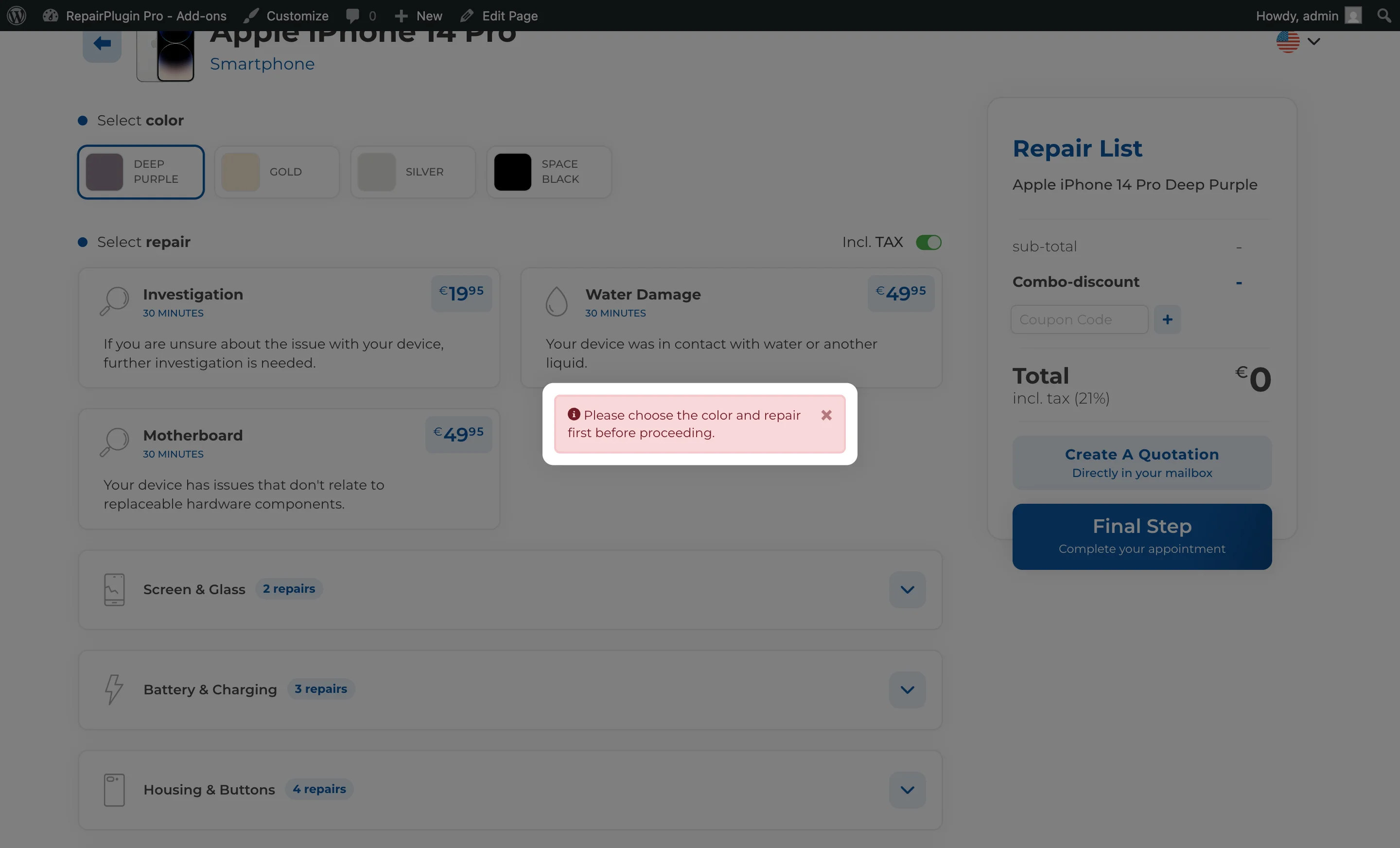
https://www.repairplugin.com/book-a-repair#checkout
Set up customer location distance verification
When a Google Maps API key is set up, you can limit service availability by distance for Pickup Service and Repair on Location:
- Go to RepairPlugin > Settings > Checkout & Discount.
- Open the service method settings (e.g., Pickup Service).
- Turn on Verify Customer Location Distance.
- Enter a Maximum Radius in kilometers or miles.
- Customers outside this radius will see a message that the service isn't available at their location.
Settings reference
| Setting | Description | Default | Customers see |
|---|---|---|---|
| Address Fields (Come By Our Store) | Shows or hides the address input fields (house no., street, city, postal code, country) on the checkout form for the "Come By Our Store" service method | off | When on, they fill in their address during checkout. When off, only name, phone, and email are required. |
| Autocomplete Address | Turns on Google Maps address autocomplete for the address fields. A valid Google Maps API key must be set up first Tip: Autocomplete won't work without a valid Google Maps API key, even if this switch is on. | off | Address suggestions appear as they type, and the street, city, postal code, and country fields fill in automatically when they pick a suggestion. |
| Google Maps API Key | Stores the Google Maps API key used for autocomplete and distance verification | empty | Nothing directly -- but without a key, autocomplete and distance checks won't work. |
| Verify Customer Location Distance | Checks whether the customer's address is within the maximum radius from your store location. Available for Pickup Service and Repair on Location methods | off | If they're outside the set radius, a message appears telling them the service isn't available at their location. |
| Maximum Radius of Customer Location | Sets the maximum distance (in km) from your store within which the service method is available | empty | Customers beyond this distance can't select the service method. |
Frequently asked questions
Do I need a Google Maps API key for the address fields to work?
No. The address fields work on their own -- customers just type their address manually. The API key is only needed for autocomplete suggestions and distance verification.
Does address autocomplete cost money?
Google includes free monthly credits for Maps API usage, which is usually enough for small to medium repair shops. Check your Google Cloud Console for current pricing details.