
Configuring Company Info
Configure your company name, logo, locations, and opening hours in RepairPlugin so customers see accurate business details everywhere.
What can you do with this?
- Show your business details everywhere -- Your company name, logo, and contact info automatically appear on quotes, emails, and the booking interface
- Set opening hours per location -- Control which time slots customers can book by defining when each shop is open
- Manage multiple locations -- Add as many store locations as you need, each with its own schedule, email, and address
- Help customers find you -- Add a Google Maps link so customers can navigate to your shop with one click
Where to find it
To get there:
- Log in to your WordPress admin dashboard
- Click RepairPlugin in the left sidebar
- Click Settings in the submenu
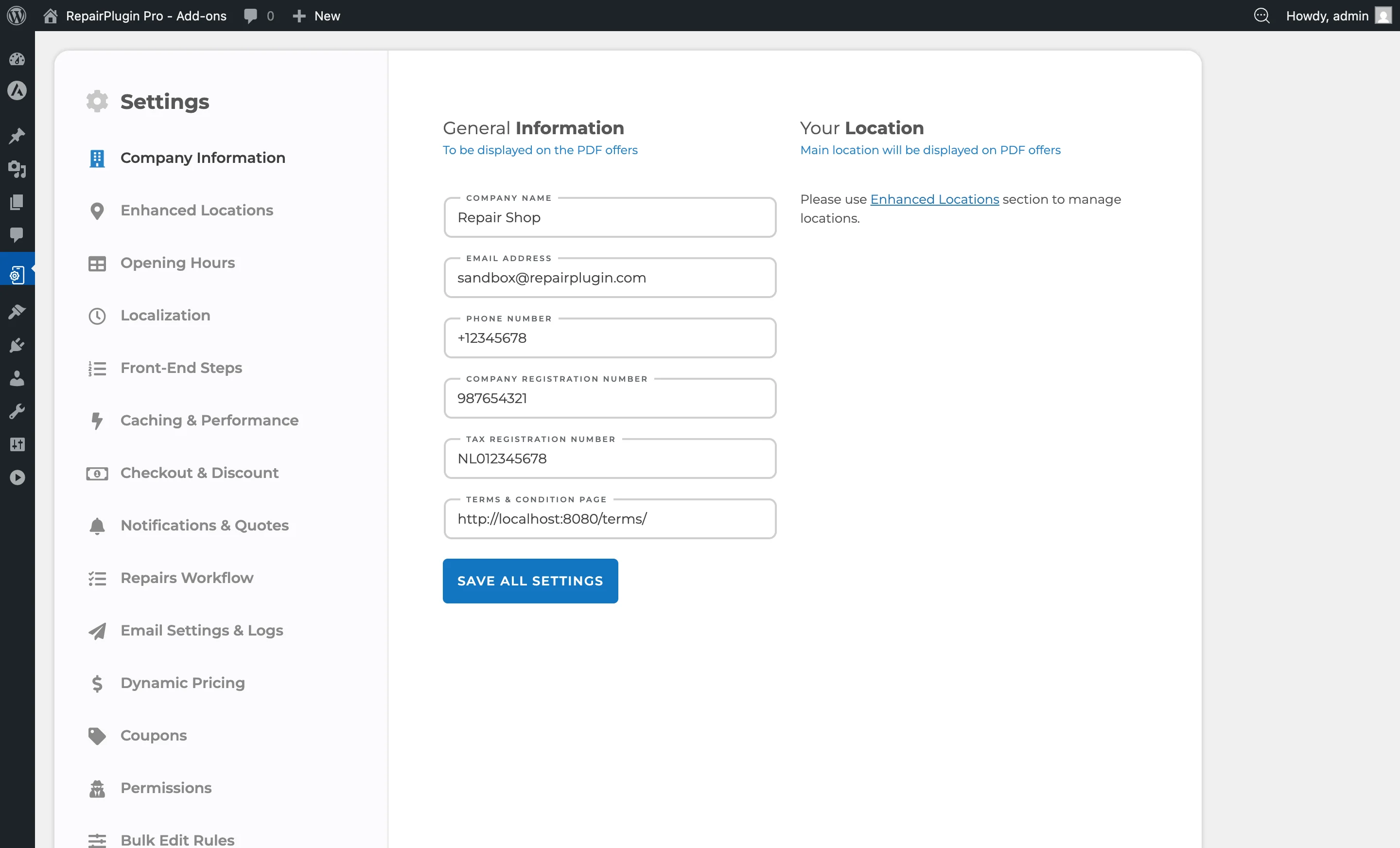
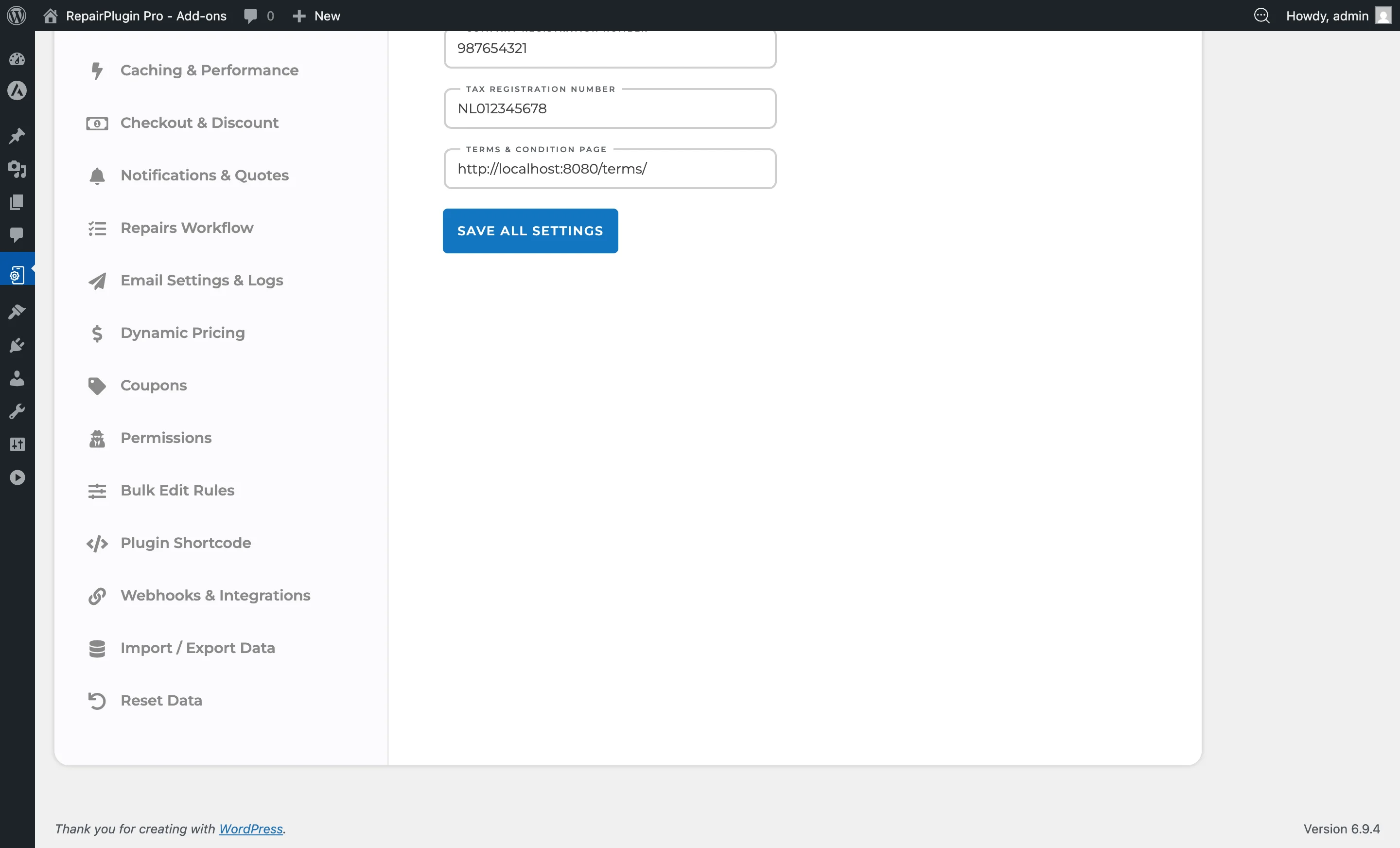
- The Company Information section loads by default (it's the first item in the Settings sidebar)
How to set it up
Setting up your main location
- Navigate to RepairPlugin > Settings > Company Information
- Click on the Main Location section to expand it
- Fill in the following fields:
Company details:
- Enter your Company Name as it should appear to customers
- Enter your Company Email for general contact purposes
- Enter your Company Phone Number
- Upload your Company Logo (shown on quotes and emails)
- Optionally enter your Company Registration Number and Tax Registration Number (used on quotes/invoices)
Location details:
- Enter the Location Name (e.g., "Main Store" or your street name)
- Enter the full Location Address including street, city, and postal code
Google Maps link:
- Go to maps.google.com
- Search for your business location
- Click the Share button
- Copy the share link
- Paste this link into the Google Maps Link field in RepairPlugin
Email notifications:
- Enter the email address that should receive appointment notifications for this specific location
- This can be different from the general company email
Phone for SMS copies:
- This field only shows when SMS notifications are on and connected to Twilio (see SMS & WhatsApp via Twilio)
- Enter the number in Phone that should get a copy of the SMS notifications for this location
- Use the international format, like
+31 6 12345678 - Leave it on your company phone number if you don't need a separate number
Opening hours:
- Set your opening time and closing time for each day of the week
- Set break times (from/to) if your shop closes during the day
- Check the Closed checkbox for any day you aren't open
- These hours determine which time slots are available for customer bookings
- Click Update Main Location to save your changes
Adding additional locations
If you operate multiple repair shops:
- Navigate to RepairPlugin > Settings > Company Information
- Click Add New Location
- Fill in the location details, address, Google Maps link, notification email, and opening hours for the new location
- Click Save to create the location
- Repeat for each additional location
Each location has its own schedule, email address, and can be managed independently.
Editing an existing location
- Navigate to RepairPlugin > Settings > Company Information
- Click on the location you want to edit
- Modify the fields as needed
- Click Update to save your changes
Configuring special dates
For holidays, vacation days, or special opening hours:
- Navigate to RepairPlugin > Settings > Special Dates (in the Settings sidebar)
- Add dates with modified hours or mark them as closed
- These override the regular weekly schedule for those specific dates
Settings reference
| Setting | Description | Default | Customers see |
|---|---|---|---|
| Company Name | Sets the business name used across the plugin | empty | Your company name on PDF quotes, email notifications, and optionally on the booking interface. |
| Company Email | Sets the primary contact email for the business | empty | Used as the sender address for customer notifications (if SMTP isn't configured separately). |
| Company Phone | Stores your business phone number | empty | Your phone number on quotes and in email communications. |
| Company Logo | Sets the business logo used in branding | none | Your logo on PDF quotes and possibly in email headers. |
| Company Registration Number | Stores your legal business registration number (e.g., KvK number) | empty | This number on PDF quotes and invoices. |
| Tax Registration Number | Stores your VAT or tax ID number | empty | This number on PDF quotes and invoices. |
| Theme Color | Sets the primary accent color used throughout the plugin Tip: Pick a color that matches your brand. It's applied to buttons and highlights across the entire front-end. | plugin default color | Buttons, highlights, and UI accents on the booking flow use this color. |
| Location Name | Identifies the store location | empty | The location name in the location selector when you have multiple locations configured. |
| Location Address | Stores the physical address of the location | empty | The address when selecting a location and in confirmation emails. |
| Google Maps Link | Links to the location on Google Maps Tip: Use the Google Maps "Share" feature to get the correct link. Don't copy the URL from the browser address bar -- the share link is shorter and more reliable. | empty | A clickable map link in emails and confirmations. |
| Location Email | Sets the email address that receives appointment notifications for this specific location | empty | Nothing directly. This determines which inbox gets booking notifications for this location. |
| Phone (per location) | Sets the phone number that gets a copy of the SMS notifications for this location. Enter it in international format, like +31 6 12345678. Only visible when SMS notifications are on and connected to Twilio. | your company phone number | Nothing directly. This determines which phone gets the SMS copies for this location. |
| Opening Hours (per day) | Defines when the location is available for appointments Tip: Don't forget to set break times if your shop closes during lunch. Customers won't be able to book during break hours. | all days open, no break times set | Only time slots within these hours appear in the front-end calendar. |
Frequently asked questions
What's the difference between the company email and a location email?
The company email is your default email address for all notifications. If a location has its own email set, that location's email is used instead of the company email for bookings at that location. If a location's email is left empty, the company email is used as a fallback.
Why do I see an error about invalid phone numbers?
SMS notifications are on, and your company phone number or a location phone number isn't in international format. Enter the number like +31 6 12345678. Until you fix it, RepairPlugin can't send SMS copies to the location with the invalid number.