
Analytics Email Report
Set up weekly analytics email reports in RepairPlugin to receive automated summaries of appointments, quotes, and repairs in your inbox.
analyticsemail-reportweekly-reportcron-jobreporting
What can you do with this?
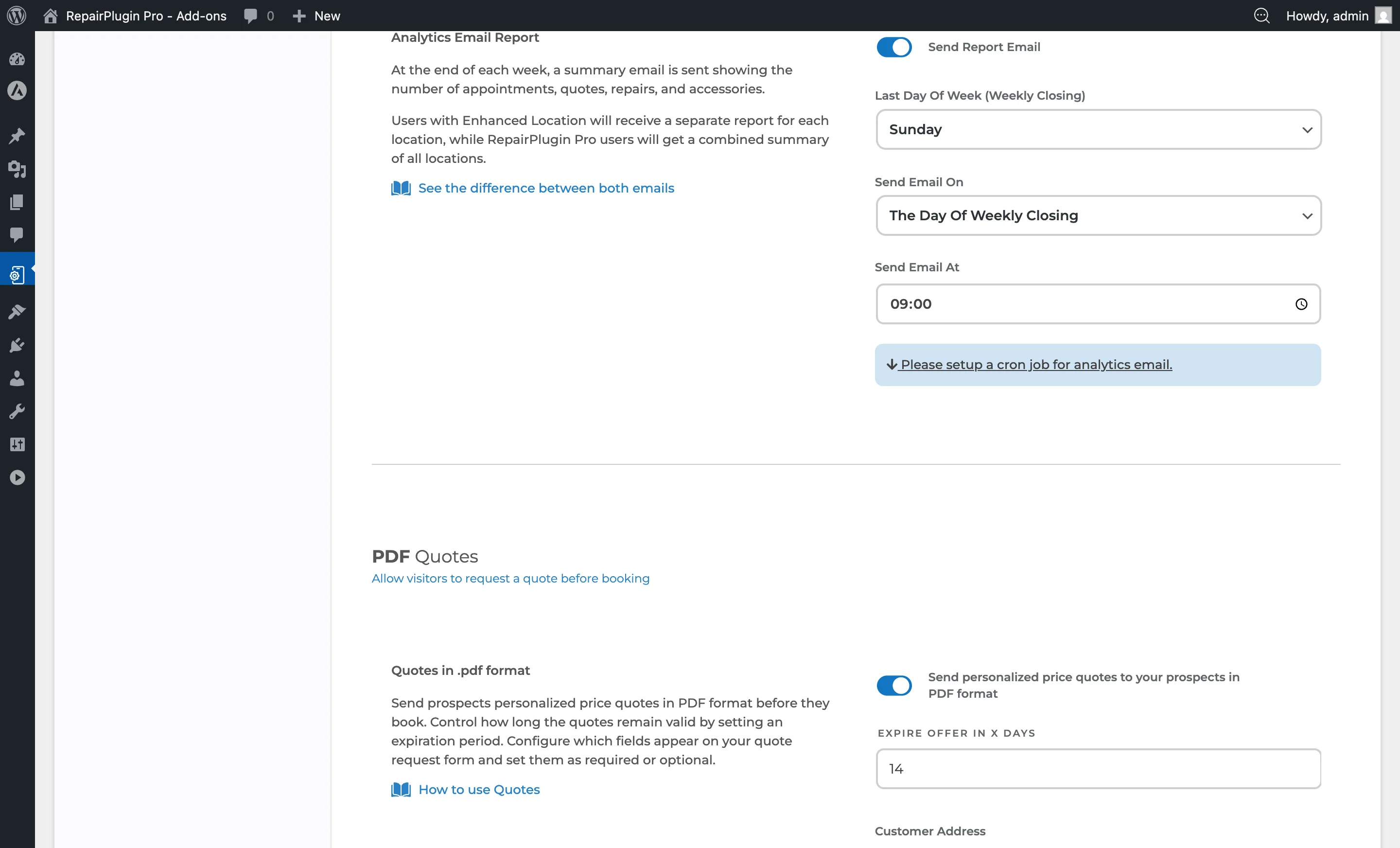
- Receive weekly reports automatically -- get a summary of the last 7 days delivered to your email on a schedule you choose.
- Track key metrics at a glance -- each report shows the number of appointments, quotes, repairs, and accessories for the reporting period.
- Get per-location reports -- when Enhanced Locations is active (available on the Scale plan), each location receives its own separate report.
- Pick your reporting schedule -- choose which day ends your business week and when the email goes out.
Where to find it
- In your WordPress admin sidebar, click RepairPlugin.
- Click Settings.
- In the settings sidebar, click Notifications & Quotes.
- Scroll down to the Analytics Email Report section.
https://www.repairplugin.com/wp-admin/admin.php?page=wp_repair_settings§ion=notification_offer
How to set it up
Turn on the report
https://www.repairplugin.com/wp-admin/admin.php?page=wp_repair_settings§ion=notification_offer
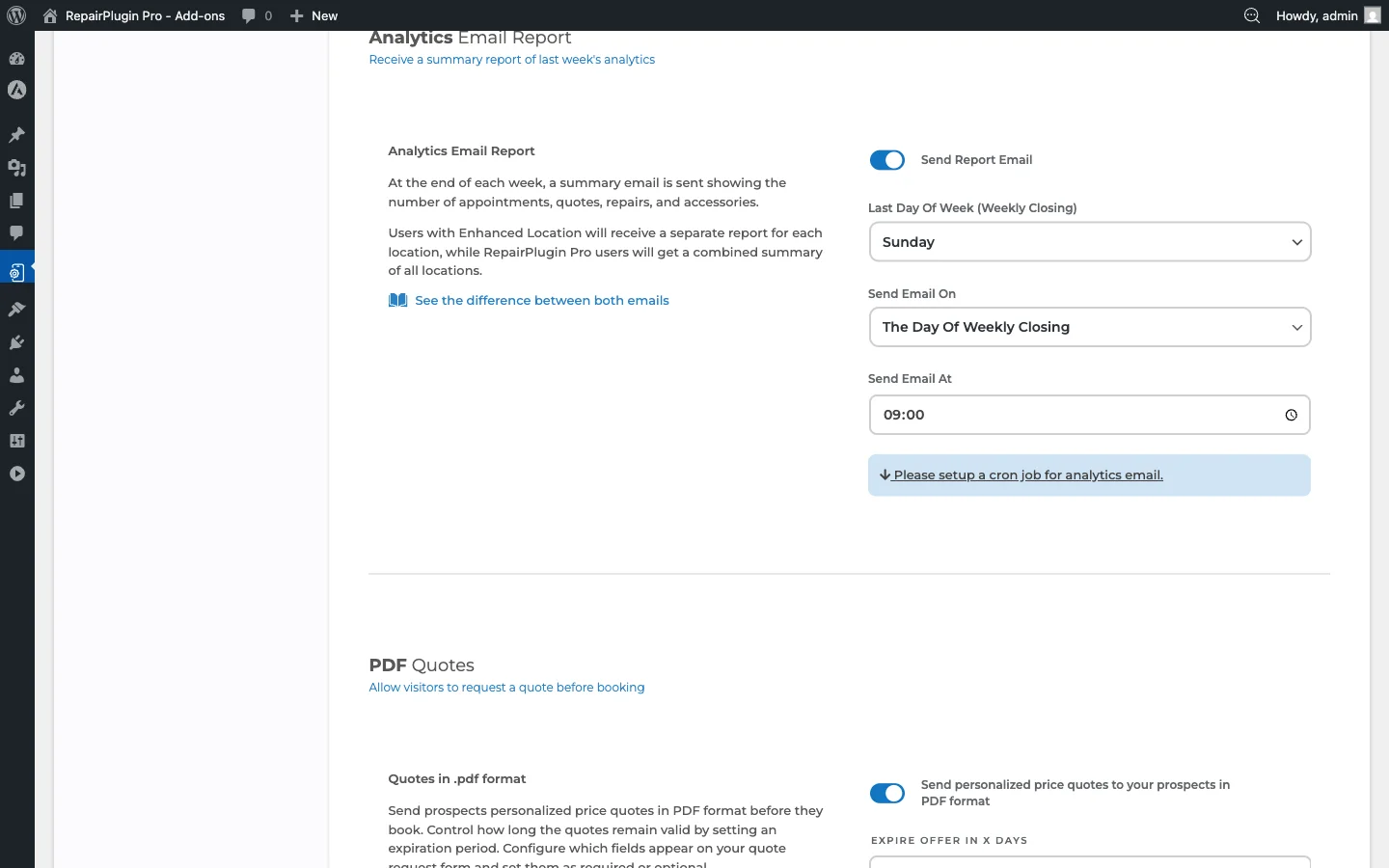
- Navigate to RepairPlugin > Settings > Notifications & Quotes.
- Scroll to the Analytics Email Report section.
- Switch Send Report Email to ON.
- Configure the schedule settings described below.
- Click Save Settings.
Set up the required cron job
The report won't send without a working cron job. To set it up:
- Open your hosting control panel (cPanel, Plesk, or similar).
- Navigate to the Cron Jobs section.
- Create a new cron job with this command:
php /home/yourpath/public_html/wp-content/plugins/Repairplugin-pro/cron.php rp > /dev/null 2>&1 - Replace
phpwith the PHP binary path recommended by your hosting provider. - Replace
/home/yourpath/public_html/with the actual path to your WordPress installation. - Set the cron schedule to run every 5 minutes:
*/5 * * * * - Save the cron job.
Verify the cron job
- Check the Last Run indicator in the Analytics Email Report section.
- If it shows N/A, the cron job hasn't run yet.
- Once the cron job runs successfully, the timestamp updates automatically.
Turn off the report
- Navigate to RepairPlugin > Settings > Notifications & Quotes.
- Switch Send Report Email to OFF.
- Click Save Settings.
Settings reference
| Setting | Description | Default | Customers see |
|---|---|---|---|
| Send Report Email | Turns the weekly analytics email report on or off. When turned on, RepairPlugin queues a report email based on the schedule settings below. The report is generated by the cron job | off | Nothing -- this is an admin-only email. |
| Last Day of Week (Weekly Closing) | Sets which day marks the end of your reporting week. The report covers the 7-day period ending on this day. For example, if set to Sunday, the report covers the previous Monday through Sunday | Sunday | Nothing -- this is an admin-only setting. |
| Send Email On | Controls whether the email is sent on the closing day itself or the following day | The Day of Weekly Closing | Nothing -- this is an admin-only setting. |
| Send Email At | Sets the hour and minute when the report email should be sent. The time is based on your server's timezone. Note: 12 PM is midday, 12 AM is midnight | 23:59 (when sending on closing day) or 00:00 (when sending the next day) | Nothing -- this is an admin-only setting. |
| Cron Job Status (Last Run) | Shows the last time the cron job ran. If it shows N/A, the cron job hasn't run yet and reports won't be sent | N/A | Nothing -- this is an admin-only indicator. |
Report content
Each weekly email includes these metrics:
| Metric | What it counts |
|---|---|
| Appointments | Total scheduled appointments in the reporting period |
| Quotes | Total PDF quotes created |
| Repairs | Total repair items processed |
| Accessories | Total accessory/upsale items sold |
Location-based behavior
| Enhanced Locations | Report behavior |
|---|---|
| Active | Separate report per location |
| Not active | Single combined report for all activity |
Timing safeguard
After saving the report settings, RepairPlugin waits 60 seconds before allowing report generation. This prevents accidental duplicate reports while you're still adjusting settings.
Frequently asked questions
Who receives the report email?
The report is sent to the company email address from your Company Information settings. If Enhanced Locations is active, each location's email address receives its own report.
Does this use the same cron job as reminder and aftersales emails?
Yes. A single cron job handles the analytics email report, reminder emails, and aftersales emails. You only need to set it up once.