
Google Tag Manager
Set up Google Tag Manager in RepairPlugin to track every booking step, measure conversions, and find drop-off points in your repair funnel.
What can you do with this?
- Track every step of the booking process -- see how many visitors select a brand, choose a repair, or complete a booking.
- Measure conversions -- fire Google Ads or Facebook Pixel conversion events when a booking is completed.
- Understand drop-off points -- compare event counts across steps to find where customers leave the booking form.
- Use any tracking platform -- Google Analytics, Google Ads, Facebook Pixel, or anything else that works with Google Tag Manager.
- Avoid duplicate scripts -- if your site already loads Google Tag Manager through another plugin or your theme, tell RepairPlugin to skip loading it again.
Example: You want to track how many website visitors actually complete a booking. Turn on the GTM integration, create a Google Ads conversion tag for the
booking_finalizedevent, and you'll see your conversion rate directly in Google Ads.
Where to find it
- In the WordPress admin sidebar, click RepairPlugin.
- Click Settings.
- Click Webhooks & Integrations in the sidebar.
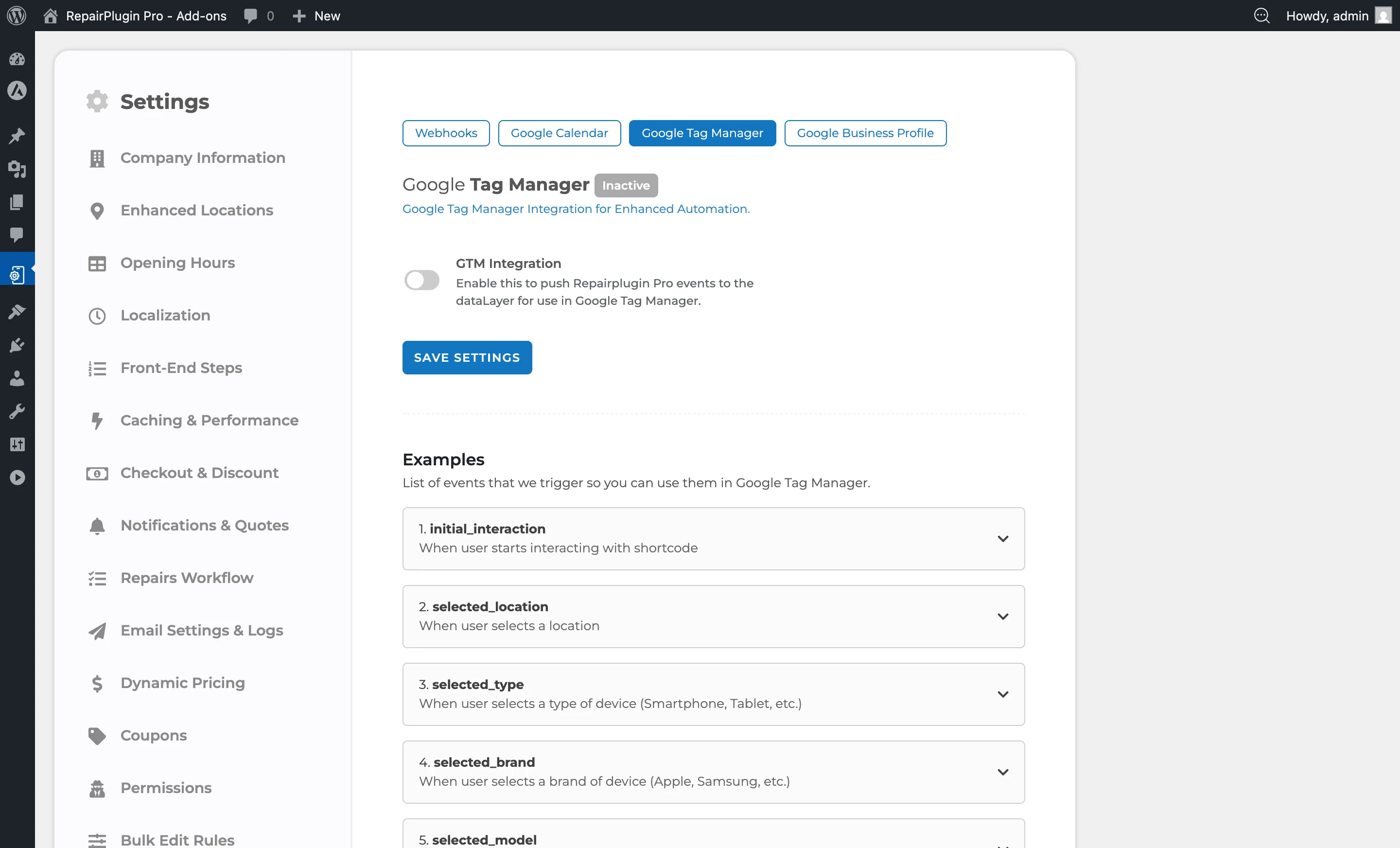
- Click the Google Tag Manager tab at the top of the page.
How to set it up
Turn on the Google Tag Manager integration
- Go to RepairPlugin > Settings > Webhooks & Integrations > Google Tag Manager.
- Turn the GTM Integration switch to on.
- If your site does not already have Google Tag Manager loaded:
- Leave GTM Script Already Loaded set to off.
- Enter your GTM ID (format:
GTM-XXXXXX) in the GTM ID field.
- If your site already has Google Tag Manager loaded (through your theme or another plugin):
- Turn GTM Script Already Loaded to on.
- The GTM ID field disappears because RepairPlugin doesn't need to load the script.
- Click Save Settings.
The status badge at the top shows Active (green) when enabled or Inactive (gray) when disabled.
Turn off the integration
- Turn the GTM Integration switch to off.
- Click Save Settings.
- RepairPlugin stops sending events and no longer loads the Google Tag Manager script (if it was handling the script).
Use the events in Google Tag Manager
After turning on the integration:
- Open your Google Tag Manager workspace.
- Create a new Trigger of type Custom Event.
- Enter one of the RepairPlugin event names (for example,
booking_finalized). - Create or set up a Tag (like a Google Analytics event or Google Ads conversion) and attach the trigger.
- Publish your Google Tag Manager container.
Available events
RepairPlugin pushes these events to the dataLayer during the booking process:
| Event name | When it fires |
|---|---|
initial_interaction | Customer first interacts with the booking form (click or focus) |
selected_location | Customer selects a location (only fires when location-based pricing is on) |
selected_type | Customer selects a device type (Smartphone, Tablet, etc.) |
selected_brand | Customer selects a brand (Apple, Samsung, etc.) |
selected_model | Customer selects a model (iPhone 16, Galaxy S21, etc.) |
selected_repairs | Customer selects repairs and moves to the checkout step |
pdf_quote_created | Customer creates a PDF quote |
booking_finalized | Customer completes a booking (any delivery method except PDF quote) |
Good to know: booking_finalized fires for all delivery methods -- "Come by store," "Ship device," "Repair on location," etc. The only exception is PDF quotes, which fire pdf_quote_created instead. The event payload automatically adjusts based on the delivery method (for example, shipped device bookings don't include appointment_date and appointment_time).
What data does each event contain?
Early-step events contain only the selections made so far. Later events include full booking details.
Step events (early funnel):
| Event | Fields |
|---|---|
initial_interaction | event |
selected_location | event, location |
selected_type | event, type |
selected_brand | event, type, brand |
selected_model | event, type, brand, model |
Repair selection event:
The selected_repairs event fires when the customer moves from repair selection to the checkout step. It contains:
| Field | Example | Description |
|---|---|---|
event | "selected_repairs" | Event name |
type | "Smartphone" | Device category |
brand | "Apple" | Device brand |
model | "iPhone 16" | Device model |
color | "Teal" | Selected device color |
items | (see below) | Array of selected repairs, upsales, and coupons |
sub_total | 344.95 | Subtotal before discounts |
combo_discount | 2.50 | Combo discount amount |
coupon_code | "20OFFNOW" | Applied coupon code (empty if none) |
coupon_type | "fixed" | "fixed" or "percent" |
coupon_amount | 20 | Coupon discount value |
excluding_tax_price | 266.49 | Price before tax |
tax_price | 55.96 | Tax amount |
total_price | 322.45 | Final total |
The items array contains one entry per repair, upsale, or coupon:
[
  { "item_name": "Screen - Official", "price": 300 },
  { "item_name": "Water Damage 10% OFF", "price": 25 },
  { "item_name": "Mobile Safety Glass", "price": 19.95 },
  { "item_name": "Coupon 20OFFNOW", "price": -20 }
]
Booking and quote events:
The booking_finalized, scheduled_appointment_created, ship_device_appointment_created, and pdf_quote_created events include everything from selected_repairs plus these additional fields:
| Field | Example | Description |
|---|---|---|
booking_id | 16 | Internal booking ID |
service_method | "Come by our store" | Delivery method chosen by customer |
payment_method | "iDEAL" | Payment gateway used (empty if total is 0) |
payment_status | "Completed" | Payment status |
appointment_date | "22-05-2025" | Scheduled date (DD-MM-YYYY) |
appointment_time | "10:00" | Scheduled time |
appointment_number | "250519056" | Appointment reference number |
appointment_status | "Approved" | Current appointment status |
customer_name | "John Doe" | Customer's full name |
customer_email | "johndoe@gmail.com" | Customer's email |
customer_phone | "1234567890" | Customer's phone number |
customer_type | "private" | "private" or "business" |
customer_business_name | "" | Business name (empty for private customers) |
customer_house_no | "45A" | House number |
customer_street_address | "456 Elm Street" | Street address |
customer_city | "New York" | City |
customer_zipcode | "10001" | Zip/postal code |
customer_country | "United States" | Country |
customer_imei | "356789123456789" | IMEI or device identifier |
customer_notes | "Screen is cracked" | Customer notes |
location_name | "Shop 1" | Selected repair shop |
location_telephone | "1234567890" | Shop phone number |
location_address | "123 Main St" | Shop address |
location_zipcode_city | "New York, NY 10001" | Shop zip code and city |
Fields that differ per event:
The booking_finalized event automatically adjusts its payload based on the delivery method. The pdf_quote_created event excludes appointment and payment fields entirely.
| Field | booking_finalized (store/on-location) | booking_finalized (ship device) | pdf_quote_created |
|---|---|---|---|
service_method | Yes | Yes | No |
payment_method | Yes | Yes | No |
payment_status | Yes | Yes | No |
appointment_date | Yes | No | No |
appointment_time | Yes | No | No |
appointment_number | Yes | Yes | No |
appointment_status | Yes | Yes | No |
customer_type | Yes | Yes | No |
customer_business_name | Yes | Yes | No |
customer_notes | Yes | Yes | No |
View example data
The settings page includes an Examples section below the settings form. Click any event heading to expand or collapse its sample data, showing exactly what information is sent with each event.
Settings reference
| Setting | Description | Default | Customers see |
|---|---|---|---|
| GTM Integration | Turns the Google Tag Manager event sending on or off | off. When on, RepairPlugin sends structured events at each step of the booking form. When off, no events are sent | Nothing visible. The events are sent in the background and picked up by your tracking tools. |
| GTM Script Already Loaded | Tells RepairPlugin whether the Google Tag Manager script is already on the page (loaded by your theme or another plugin). Tip: Not sure if Google Tag Manager is already loaded? Open your website, right-click, choose "View Page Source," and search for gtm.js. If you find it, the script is already loaded. | off. When on, RepairPlugin doesn't load the script again. When off, RepairPlugin loads it using the GTM ID you provide | Nothing visible. This prevents the script from loading twice, which could cause double-counted events. |
| GTM ID | Your Google Tag Manager container ID (format: GTM-XXXXXX) | empty. Only shown when GTM Script Already Loaded is off. RepairPlugin uses this to load the Google Tag Manager script on pages where the booking form is active | Nothing visible. This enables your Google Tag Manager tags to work on the booking page. |
Frequently asked questions
Why aren't my events showing up in Google Tag Manager?
Check these things in order:
- Is the integration turned on? Go to Settings > Webhooks & Integrations > Google Tag Manager and verify the toggle is on.
- Did you interact with the form? RepairPlugin only sends events after a customer actually clicks or taps something in the booking form. Simply loading the page doesn't trigger events. This is by design -- it prevents bots and automated page loads from creating false data.
- Is your GTM container published? Unpublished changes in Google Tag Manager don't work on your live site.
- Is GTM loaded twice? If another plugin or your theme already loads GTM, turn on GTM Script Already Loaded. Loading GTM twice can cause events to be sent to the wrong container or counted twice.
- Use GTM Preview mode. In your Google Tag Manager workspace, click Preview and navigate to your booking page. The GTM debug panel shows every
dataLayer.push()as it happens -- this is the fastest way to confirm events are firing.
Can I use these events with Google Analytics 4 (GA4)?
Yes, but RepairPlugin sends custom events, not the standard GA4 ecommerce events (purchase, add_to_cart, etc.). To track bookings as GA4 conversions:
- Create a Google Analytics: GA4 Event tag in GTM.
- Use a Custom Event trigger with the event name
booking_finalized. - Map the RepairPlugin fields to GA4 parameters (for example, map
total_priceto the GA4valueparameter).
If you want full GA4 ecommerce reporting (with item-level data in the GA4 ecommerce reports), you'll need to use a Custom HTML tag in GTM to transform the RepairPlugin event data into GA4's ecommerce format and push it as a second dataLayer event.
What data is included in each event?
Early-step events (like selected_brand or selected_model) include only the selections made so far -- device type, brand, and model. Later events (like selected_repairs and booking_finalized) include the full list of selected repairs with prices, financial totals, coupon info, customer details, and service method. See the data tables above for the exact fields per event.
Does the back button cause duplicate events?
No. RepairPlugin tracks which step the customer is on and doesn't re-fire events when the customer navigates back and forward through the booking form.
Do I need to know Google Tag Manager to use this?
You'll need a basic understanding of Google Tag Manager to set up triggers and tags. RepairPlugin handles sending the events -- but setting up what happens with those events (like tracking conversions in Google Ads or sending data to GA4) is done in the Google Tag Manager workspace.