
Testing RepairPlugin
Try RepairPlugin for free with the sandbox demo — explore the full admin panel and booking flow before purchasing a license.
What can you do with this?
- Try before you buy -- Explore every feature of RepairPlugin in a temporary WordPress installation at no cost
- Test the full booking flow -- Walk through the customer experience from device selection to appointment confirmation
- Explore the admin panel -- Browse settings, appointments, analytics, and all management features
- Evaluate the fit for your business -- See how RepairPlugin handles your type of repairs before committing
Where to find it
Path: repairplugin.com/sandbox
To access the sandbox:
- Visit repairplugin.com/sandbox
- Provide your email address and phone number
- The system generates a WordPress dashboard that you can access instantly
- You'll receive login credentials for the temporary WordPress installation
Once logged in, navigate to the RepairPlugin menu in the WordPress admin sidebar to access all RepairPlugin features.
How to set it up
Exploring the sandbox
Once you have access to the sandbox, follow these steps to get the most out of your trial:
Step 1: Review the admin dashboard
- Navigate to RepairPlugin in the WordPress admin sidebar
- Browse the Analytics, Appointments, and Settings sections to understand the admin experience
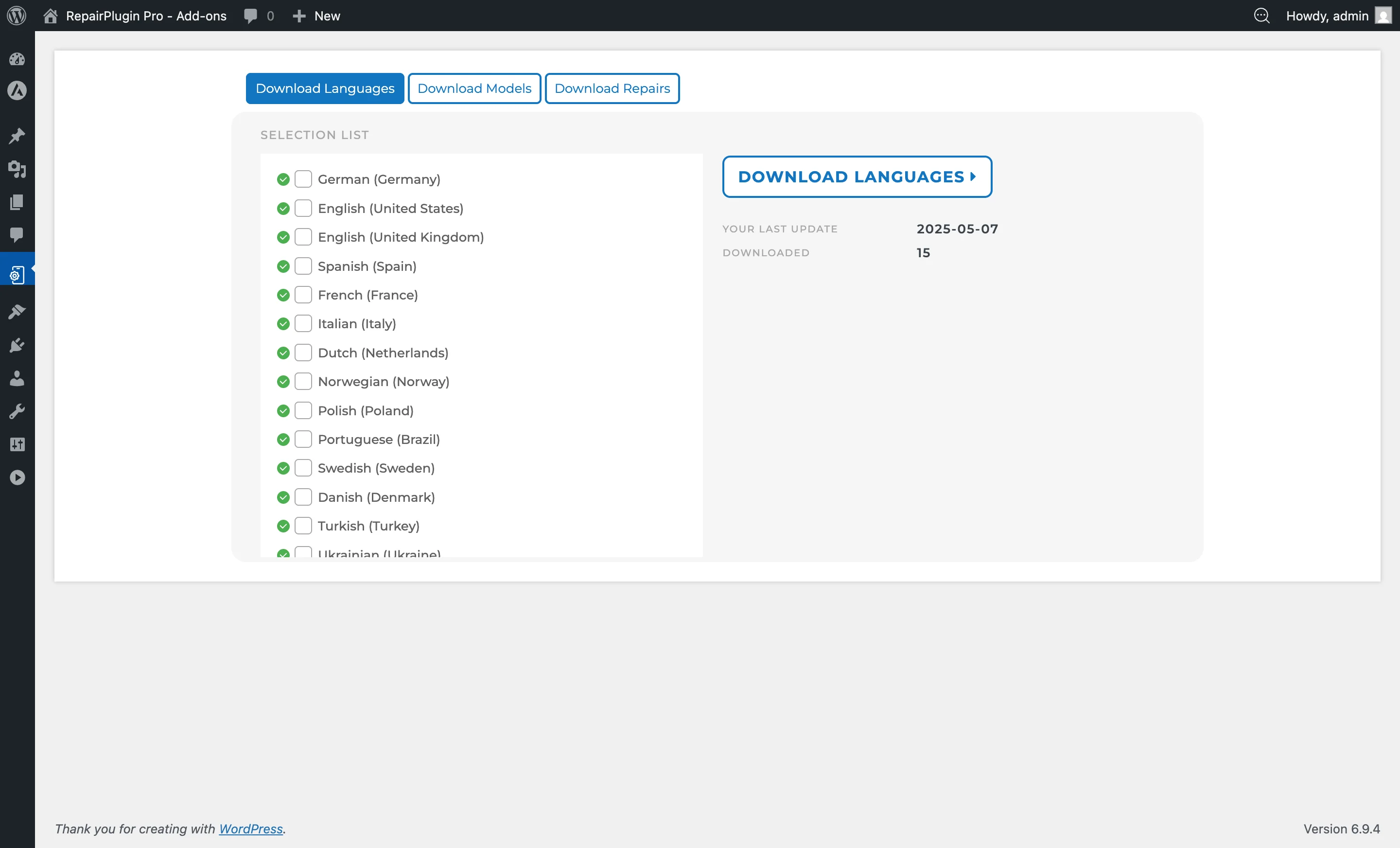
Step 2: Download models
- Go to RepairPlugin > Download
- Select device categories you want to test with
- Click Download libraries to import models (up to 5 per brand)
Step 3: Configure basic settings
- Go to RepairPlugin > Settings > Company Information
- Enter sample company details, opening hours, and location info
- This helps you see how the front-end shows your business information
Step 4: Test the front-end booking flow
- Visit the front-end page where the
[Repair_All]shortcode is placed - Walk through the full customer experience: select a device, choose a repair, pick a date/time, and complete a booking
Step 5: Review the appointment
- Return to RepairPlugin > Appointments to see the booking you just created
- Explore the repair workflow and status management features
After the sandbox expires
If RepairPlugin meets your needs, you can purchase a license and install the plugin on your own WordPress site. The sandbox data can't be transferred -- you'll start fresh with your own installation.
Sandbox limitations
The sandbox environment is a limited version of RepairPlugin:
- Time limit: The environment is available for up to 6 hours after creation
- Model limit: You can download up to 5 models per brand (the full version has no limit)
- Data persistence: All data is deleted when the sandbox expires
- No real transactions: Payment integrations aren't active in the sandbox
Despite these limitations, the sandbox provides a fully working back-end and front-end experience, so you can explore the booking flow, settings, and admin features.
What's included in the sandbox
- Full admin panel -- All settings sections are accessible (Company Information, Front-End Steps, Checkout & Discount, Notifications & Quotes, etc.). You can change settings and immediately see the effect on the front-end.
- Download library -- Access to the RepairPlugin model database, limited to 5 models per brand
- Booking flow -- Complete front-end repair booking experience with device selection, repair selection, date/time picker, customer form, and confirmation
- Back-end management -- Appointment management, status tracking, customer database, and quote generation
- Email notifications -- Email templates are visible in settings but may not send in the sandbox environment depending on server configuration
Frequently asked questions
Do I need a license to use the sandbox?
No. The sandbox is completely free. You only need to provide your email address and phone number to generate one.
Can I transfer my sandbox data to a real installation?
No. The sandbox is a temporary environment. All data is deleted when it expires. You'll start fresh after purchasing and installing RepairPlugin on your own site.
What happens after 6 hours?
The sandbox environment and all its data are automatically deleted. You can generate a new sandbox if you need more time to evaluate the plugin.