
Series Filters
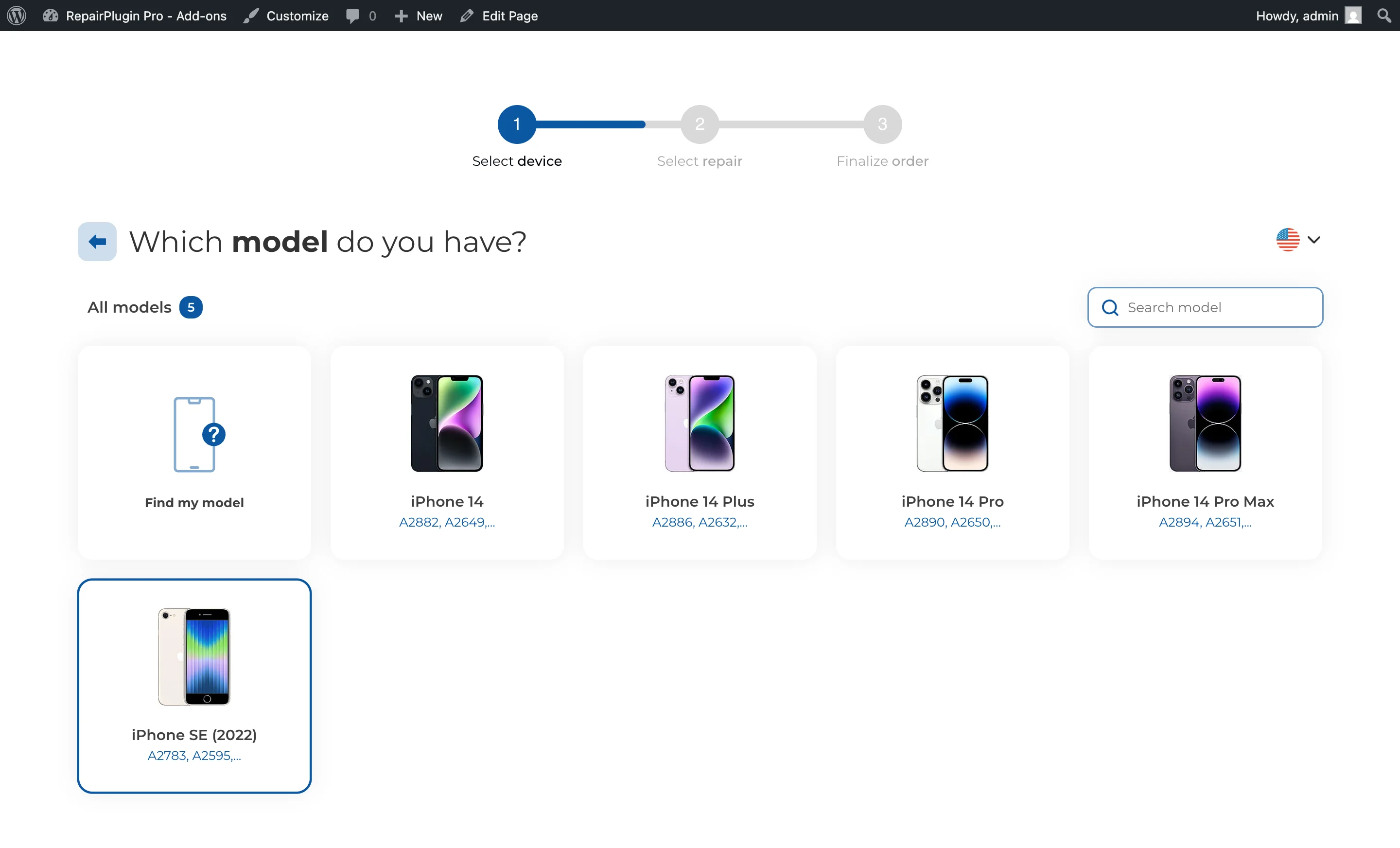
Set up series filter buttons in RepairPlugin so customers can find their device model faster — ideal for brands with many models.
series filtersmodel filteringfrontend navigationsearch filters
What can you do with this?
- Speed up device selection — give customers one-click filter buttons instead of making them scroll through a long list of models.
- Group models by series — create filters like "iPhone 15", "iPhone 14", or "Galaxy A" so customers can instantly narrow down their options.
- Customize per brand — set up different filters for each brand (e.g., series-based filters for Apple, model-line filters for Samsung).
- Control the order — drag and drop filters to arrange them in the order that works best for your customers.
Where to find it
- In the WordPress admin sidebar, click RepairPlugin.
- Click Categories in the submenu.
- Find the brand for which you want to configure filters.
- Click the Filter button on the brand row.
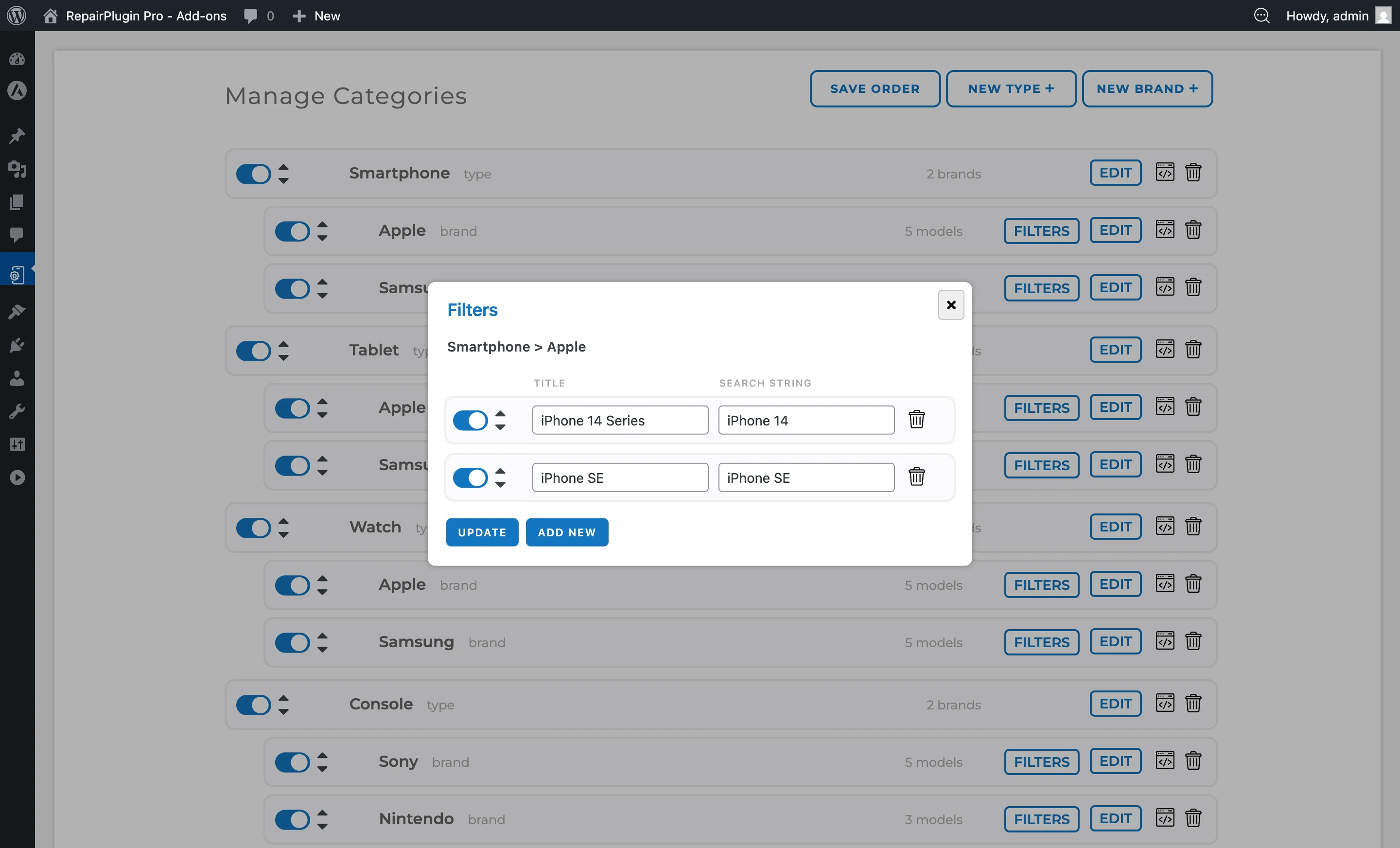
- A popup opens showing the series filters editor for that brand.
https://www.repairplugin.com/book-a-repair#models
https://www.repairplugin.com/wp-admin/admin.php?page=wp_repair_manage_categories
How to set it up
Add a new series filter
- Go to the Categories page and click the Filter button on the desired brand.
- In the filter editor popup, click Add Filter to create a new filter row.
- Fill in the two required fields:
- Name — the label shown on the filter button (e.g., "iPhone 15 Series").
- Search String — the text used to match model names (e.g., "iPhone 15"). This works exactly like typing into the model search bar.
- Click Save to store the filter.
Example: To show all iPhone X models, enter "iPhone X Series" as the name and "iPhone X" as the search string. This matches all models containing "iPhone X" in their name (e.g., iPhone X, iPhone XR, iPhone XS, iPhone XS Max).
Edit an existing filter
- Open the filter popup for the brand.
- Change the Name or Search String fields directly.
- Click Save to apply your changes.
Enable or disable a filter
- Open the filter popup for the brand.
- Use the switch on the filter row to turn it on or off.
- Click Save. Disabled filters stay saved but don't appear on your website.
Reorder filters
- Open the filter popup for the brand.
- Drag and drop filter rows to change their display order.
- Click Save. Filters appear on your website in the order you've set.
Delete a filter
- Open the filter popup for the brand.
- Click the trash button on the filter row.
- The filter is removed. Click Save to confirm.
Settings reference
| Setting | Description | Default | Customers see |
|---|---|---|---|
| Filter Name (Title) | Sets the label shown on the filter button for this series | empty | A clickable button above the model list. Clicking it filters the models to show only matching devices. |
| Search String | Defines the text pattern used to match model names. When a customer clicks the filter, only models whose names contain this string are shown Tip: Keep search strings broad enough to catch all models in a series. "iPhone 15" catches all four iPhone 15 variants, while "iPhone 15 Pro" would only match two. | empty | The filtered model list — only matching models appear. Partial matches are supported, so "iPhone 15" matches "iPhone 15 Pro" and "iPhone 15 Pro Max" too. |
| Filter Active | Controls whether this filter button appears on your website | on | When turned off, the filter button is hidden but the filter stays saved in the admin. |
| Filter Position | Controls the display order of filter buttons on your website | order of creation | Filter buttons appear in the order you've arranged them, from left to right on the model selection page. |
| Brand Association | Links the filter to a specific brand. Filters only appear on the model page when customers are browsing that brand | set automatically | Each brand has its own independent set of series filters. |
Frequently asked questions
Do series filters match partial text?
Yes. The filter uses a partial, case-insensitive search. For example, a search string "Pro" matches "iPhone 15 Pro", "iPhone 15 Pro Max", and "MacBook Pro 14". The filter checks if the model name contains the search string anywhere.