
Analytics Dashboard
Discover how to use the RepairPlugin analytics dashboard to track bookings, monitor conversion funnels, and find where customers drop off.
What can you do with this?
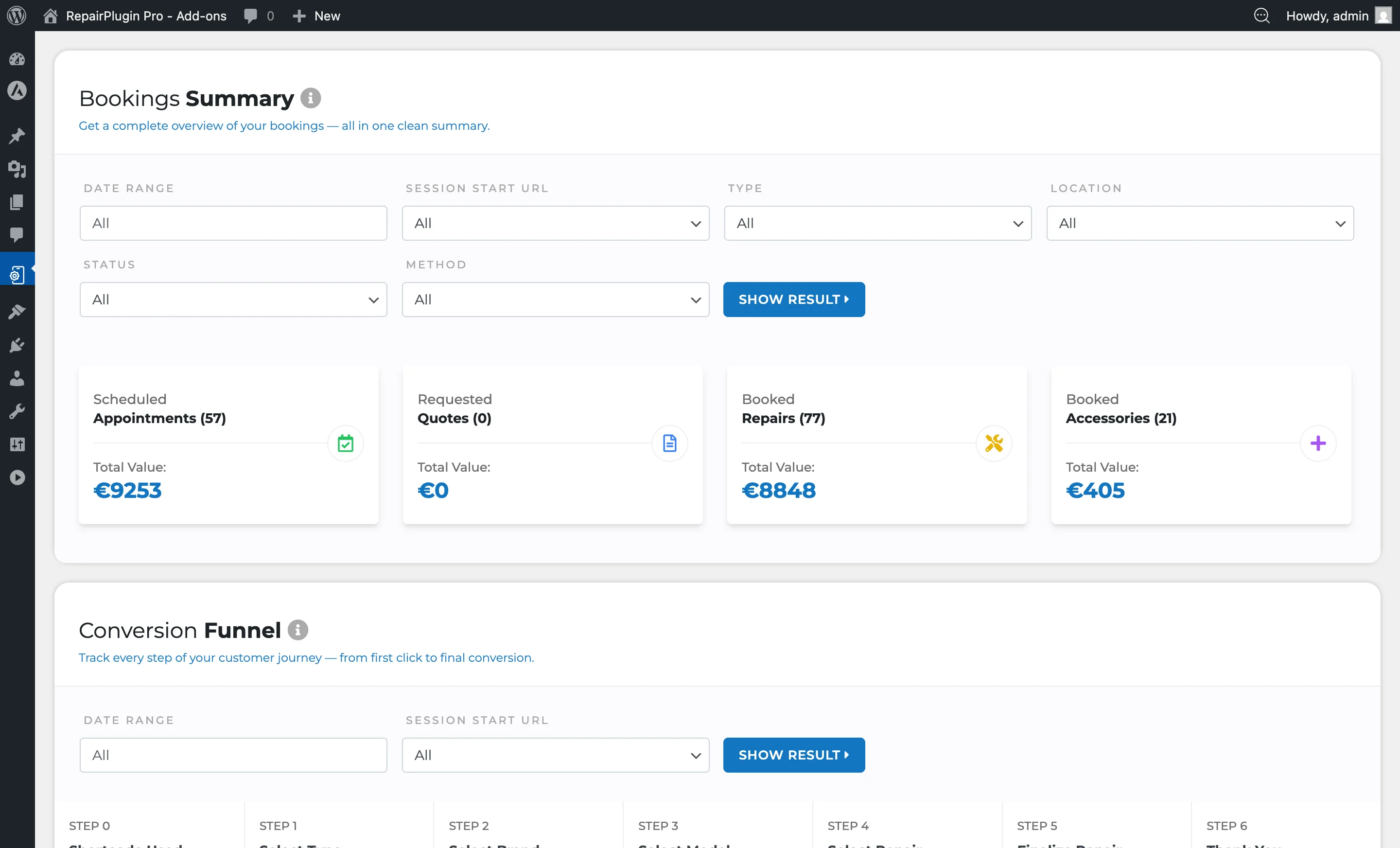
- Track booking numbers -- see how many appointments, quotes, and repairs were created over any date range.
- Find where customers drop off -- the conversion funnel shows exactly which step visitors leave the booking process, so you know what to improve.
- Monitor traffic per step -- the step visits section shows how many times each booking step was visited.
- Filter by location, status, or delivery method -- drill down into specific locations, booking statuses, or service methods to compare performance.
- Filter by traffic source -- see which pages on your site generate the most bookings by filtering on session start URL.
Where to find it
- In your WordPress admin sidebar, click RepairPlugin.
- Click Analytics in the submenu.
- The Analytics Dashboard loads with three reporting sections: Bookings Summary, Conversion Funnel, and Step Visits.
How to set it up
The Analytics Dashboard works out of the box -- there's nothing to turn on. Data collection starts automatically when customers interact with your booking form.
Filter the Bookings Summary
- Go to the Bookings Summary section at the top of the dashboard.
- Set any combination of filters:
- Date Range -- select a start and end date.
- Session Start URL -- pick the page where the booking session started, or leave on "All". An "Untracked" option captures bookings without a tracked session.
- Type -- filter by customer type: All, Personal, or Business.
- Location -- filter by a specific location (only visible when Enhanced Locations is active).
- Status -- filter by booking status: All, Pending, Quoted, Approved, Price on Request, Completed, or Canceled.
- Method -- filter by service method: All, Come By Our Store, Ship Device, Pickup Service, Repair on Location, or PDF Quote.
- Click Show Result to apply the filters.
- Click Reset Filters to return to the unfiltered view.
Filter the Conversion Funnel
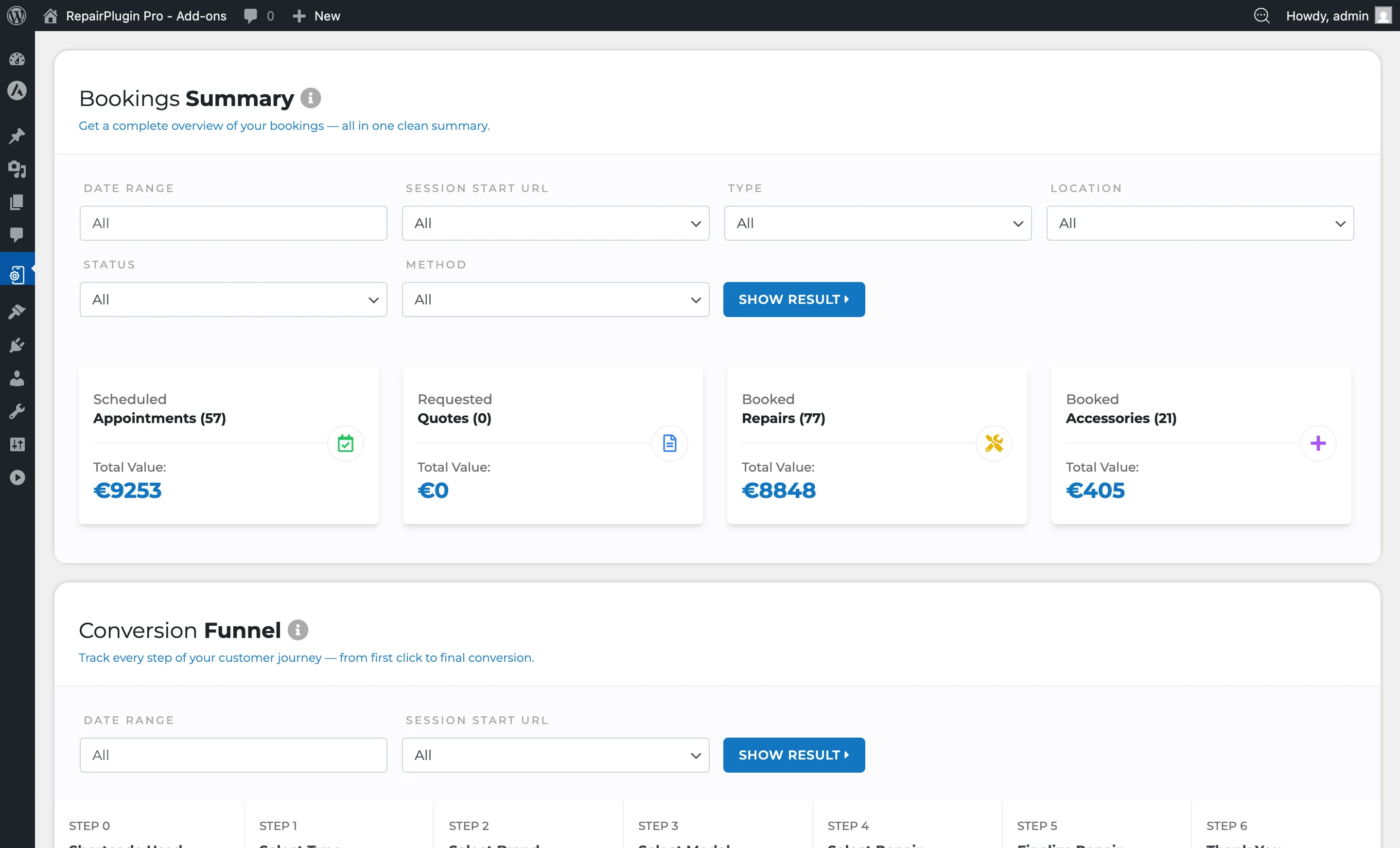
- Scroll down to the Conversion Funnel section.
- Set the Date Range and/or Session Start URL filter.
- Click Show Result to view the funnel.
- Click Reset Filters to clear selections.
Filter Step Visits
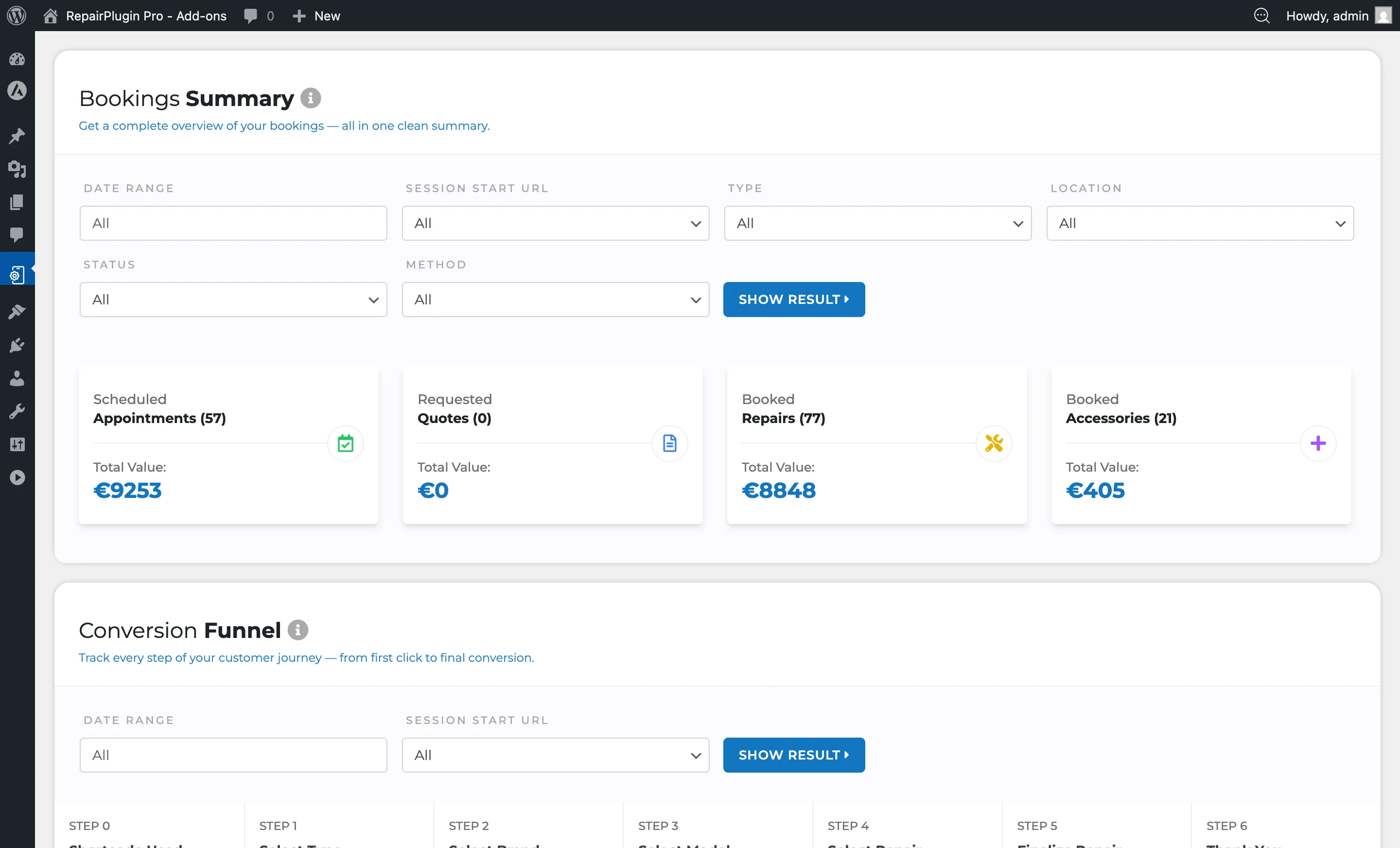
- Scroll to the Step Visits section.
- Set the Date Range and/or Request URL filter.
- Click Show Result to display per-step visit charts.
- Click Reset Filters to clear selections.
Settings reference
Bookings Summary section
| Setting | Description | Default | Customers see |
|---|---|---|---|
| Date Range | Limits the summary to bookings within the selected date window. Scheduled appointments are counted on the date they're scheduled for, not the date they were created | all (no date filter) | Nothing -- this is an admin-only view. |
| Session Start URL | Filters bookings to those that started from a specific page URL. Includes an "Untracked" option for bookings without session tracking data | all | Nothing -- this is an admin-only view. |
| Type (Customer Type) | Filters bookings by customer type -- Personal or Business | all | Nothing -- this is an admin-only view. |
| Location | Filters bookings by location. Only visible when Enhanced Locations is active. Limited to locations the current admin user has access to | all | Nothing -- this is an admin-only view. |
| Status | Filters bookings by their current status (Pending, Quoted, Approved, Price on Request, Completed, Canceled) | all | Nothing -- this is an admin-only view. |
| Method | Filters by service delivery method | all | Nothing -- this is an admin-only view. |
Conversion Funnel section
The conversion funnel tracks unique sessions through the booking form and shows drop-off rates at each step.
| Setting | Description | Default | Customers see |
|---|---|---|---|
| Date Range | Limits the funnel to sessions within the selected period | all | Nothing -- this is an admin-only view. |
| Session Start URL | Filters the funnel to sessions that started on a specific page Tip: The funnel counts only unique sessions -- each action is counted once per session even if the customer repeats it. An appointment created on a given date counts as converted on that date, even if the appointment itself is scheduled for later. | all | Nothing -- this is an admin-only view. |
Step Visits section
Step visits logs every visit to each booking step (not limited to unique sessions).
| Setting | Description | Default | Customers see |
|---|---|---|---|
| Date Range | Limits step visit data to the selected period | all | Nothing -- this is an admin-only view. |
| Request URL | Filters visits by the page URL Tip: Visits triggered by the built-in back button within the booking form aren't counted, so the numbers reflect genuine forward navigation through the steps. | all | Nothing -- this is an admin-only view. |
Frequently asked questions
Do I need to install anything extra for analytics to work?
No. The Analytics Dashboard works out of the box. RepairPlugin automatically collects data when customers interact with your booking form. No third-party analytics tools or extra plugins are needed.
Can I compare performance between locations?
Yes, but only if Enhanced Locations is active (available on the Scale plan). When it is, a Location dropdown appears in the Bookings Summary filters, letting you filter results by each location.
How does the conversion funnel count steps?
The funnel tracks seven steps: page load, select type, select brand, select model, select repair, finalize repair, and order completion. Each visitor session is tracked from start to finish. If a customer goes back to a previous step using the back button, that revisit isn't counted again. Sessions from rescheduling or finalizing existing appointments are excluded.