
Branding (Logo & Color)
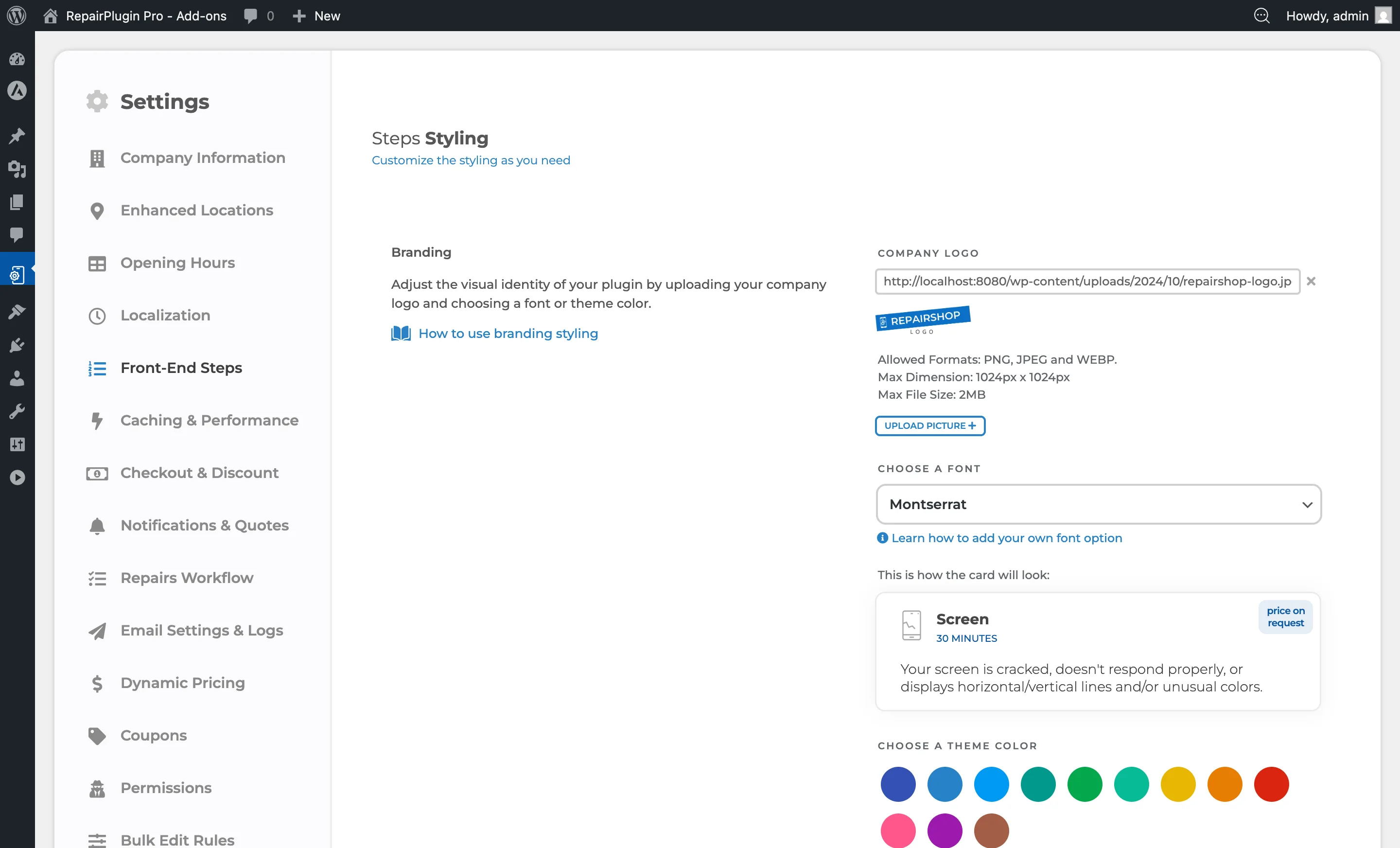
Configure your company logo, theme color, and font in RepairPlugin's branding settings to make the booking flow match your website design.
What can you do with this?
- Show your company logo in the booking flow so customers immediately recognize your brand.
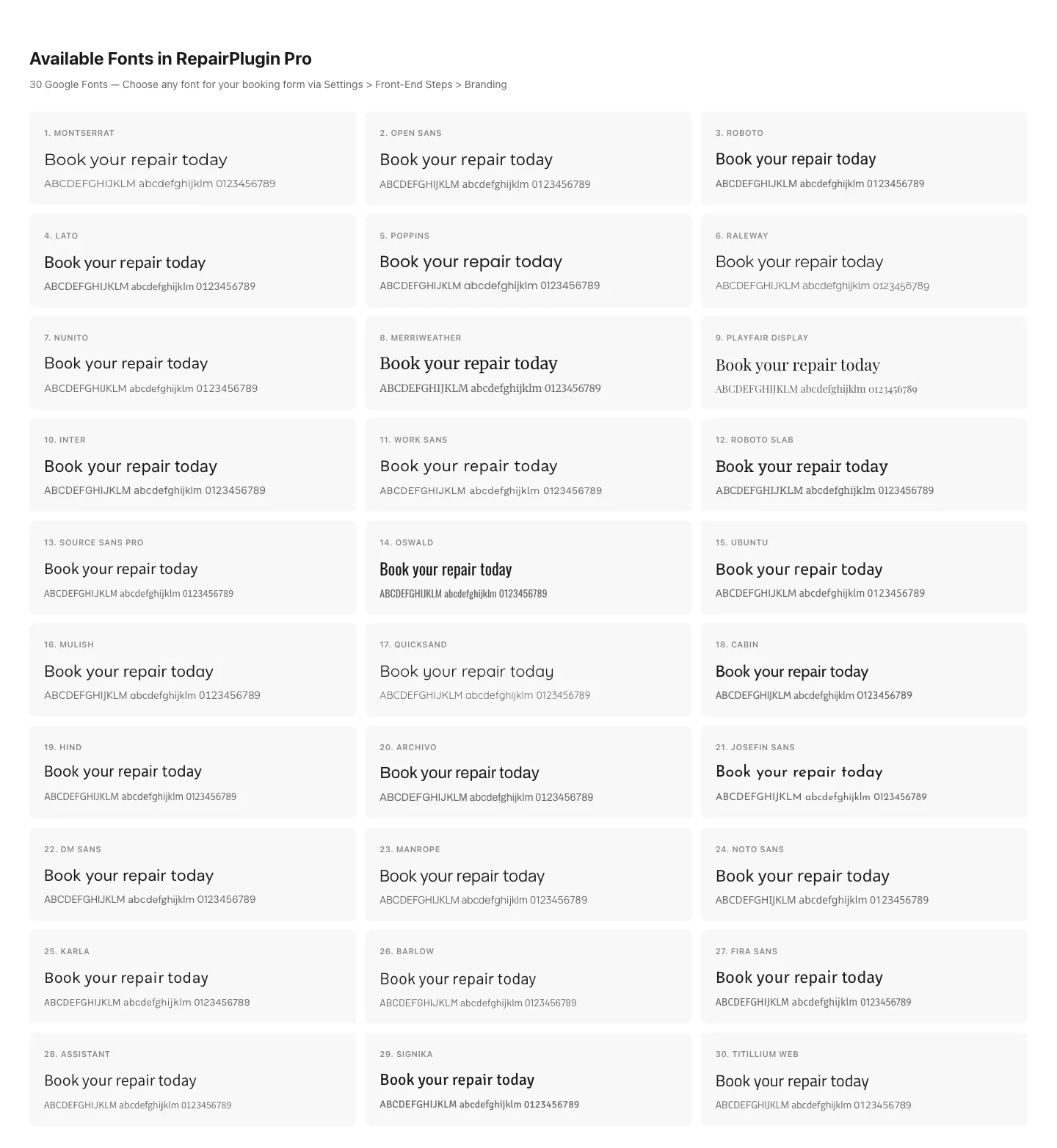
- Pick a font that matches the rest of your website from 30 built-in Google Fonts.
- Choose a theme color for buttons, highlights, and accents to stay on-brand.
- Preview your changes in a live preview card before saving.
Where to find it
- In the WordPress admin menu, click RepairPlugin.
- Click Settings in the submenu.
- In the settings sidebar, click Front-End Steps.
- The Branding section is at the top of the page.
How to set it up
Upload your company logo
- In the Branding section, find Company Logo.
- Click Upload Picture.
- Select an image file from your computer (PNG, JPEG, or WEBP).
- The logo preview updates right away.
- Click Save Changes at the bottom of the page.
To remove the logo, click the X button next to the file name, then save.
Choose a font
- In the Branding section, find Choose a font.
- Open the dropdown and pick your preferred font.
- The preview card below updates automatically to show how a repair card looks with the selected font.
- Click Save Changes.
RepairPlugin ships with 30 built-in Google Fonts. To add a font that isn't in the list, see Adding Custom Fonts.
Choose a theme color
- In the Branding section, find Choose a theme color.
- Click one of the 12 preset color swatches, or type a custom HEX color code in the text field (e.g.,
#0c58a3). - You can also click the color picker to use your browser's built-in color chooser.
- The preview card updates instantly with the new color.
- Click Save Changes.
Settings reference
| Setting | Description | Default | Customers see |
|---|---|---|---|
| Company Logo | Uploads and stores your business logo. Allowed formats are PNG, JPEG, and WEBP. Maximum size is 1024 x 1024 pixels and 2 MB (may be lower depending on your server settings) | empty (no logo) | Your logo appears in the booking flow, reinforcing your brand. For best results, use a square logo with a transparent background. |
| Choose a font | Sets the font used across the entire booking interface -- headings, repair names, prices, and buttons Tip: If your website uses a font that's not in the list, you can add it with a small code snippet. See Adding Custom Fonts. | Montserrat | All text in the booking flow appears in the selected font, helping it match the rest of your website. |
| Preset colors | Provides 12 quick-pick brand colors. Clicking a swatch sets it as your theme color. Available presets: #3551b4, #2781c7, #0099f3, #00998b, #05a84c, #08ba96, #e7b604, #e77d04, #da2510, #ff578c, #9d19ae, #a35d48 | none pre-selected | The selected color appears on buttons, highlights, price labels, duration text, and other accent elements throughout the booking flow. |
| Custom HEX color | Lets you enter any HEX color code for precise brand matching Tip: Copy the exact HEX code from your brand style guide to make sure the colors match perfectly. | current theme color (stored as HEX) | Same as preset colors — the color is applied as the primary accent color across the entire booking interface. |
Live preview
Below the branding options, a preview card shows a sample repair box with your current logo, font, and theme color applied. Use this to check your branding choices before saving.
Available built-in fonts
RepairPlugin includes 30 fonts:
| Font | Type |
|---|---|
| Archivo | Sans-serif |
| Arial | Sans-serif |
| Assistant | Sans-serif |
| Barlow | Sans-serif |
| Cabin | Sans-serif |
| DM Sans | Sans-serif |
| Fira Sans | Sans-serif |
| Hind | Sans-serif |
| Inter | Sans-serif |
| Josefin Sans | Sans-serif |
| Kanit | Sans-serif |
| Karla | Sans-serif |
| Lato | Sans-serif |
| Manrope | Sans-serif |
| Merriweather | Serif |
| Montserrat (default) | Sans-serif |
| Muli | Sans-serif |
| Noto Sans | Sans-serif |
| Nunito | Sans-serif |
| Open Sans | Sans-serif |
| Oswald | Sans-serif |
| Playfair Display | Serif |
| Poppins | Sans-serif |
| Quicksand | Sans-serif |
| Raleway | Sans-serif |
| Roboto | Sans-serif |
| Roboto Slab | Serif |
| Signika | Sans-serif |
| Source Sans Pro | Sans-serif |
| Titillium Web | Sans-serif |
| Ubuntu | Sans-serif |
| Work Sans | Sans-serif |
Frequently asked questions
What image formats and sizes are accepted for the company logo?
The logo accepts PNG, JPEG, and WebP formats. Maximum file size is 2 MB and maximum dimensions are 1024 x 1024 pixels.
Can I set different colors for different elements (buttons, links, accents)?
RepairPlugin uses one global theme color that's applied to buttons, highlights, and accents across the entire booking flow. In addition, you can set separate colors for the Read More link and its hover state. There's no option to color individual elements differently beyond these three settings.